• Skip to primary navigation
  • Skip to main content
  • Skip to primary sidebar
  • Skip to footer

AppleToolBox

Tools and Fixes for Mac, iPad, iPhone & iWatch

Search posts

  • About
  • Contact

CONNECT WITH US

CATEGORIES

  • iPhone
  • iPad
  • iPod
  • Apple Watch
  • Mac/MacBook
  • AirPods
  • Apple TV
  • News
  • Apple Services
  • HomePod
  • Reviews

SITE

  • Home
  • About Us
  • Contact
  • Advertise

Search posts

You are here: Home / Mac / How to Quickly Check Your Mac’s Internet Connectivity Quality

How to Quickly Check Your Mac’s Internet Connectivity Quality

By Andrew Myrick 0 comments Last updated January 6, 2022

macOS Monterey may be one of the biggest software releases for the Mac in years. Not only did we get features like Shortcuts on the Mac, but Apple is also doing a swell job at fine-tuning the software to cater to the new M1, M1 Pro, and M1 Max chips.

Related Reading

  • How to Tell if Your Mac Is Thermal Throttling
  • How to Reset Your Mac With macOS Monterey
  • Fix: Bird Process Causes High CPU Usage on Mac
  • How to Fix “Panic Medic Boot” Errors on Mac
  • How to Fully Wipe Mac Hard Drive When Selling It

While a lot of fuss has been made about the fact that Universal Control still has yet to arrive, Apple continues adding things that don’t make headlines. One such example is the addition of a new network integrity tool that can be used right from the Terminal app.

Check Your Mac’s Internet Connectivity Quality

When run, this will perform a series of tests, putting your network upload and download speeds to the task. Here’s how you can perform the network test right from your Mac:

  1. Make sure you are connected to the Wi-Fi network that you want to test.
  2. Open the Terminal app on your Mac.
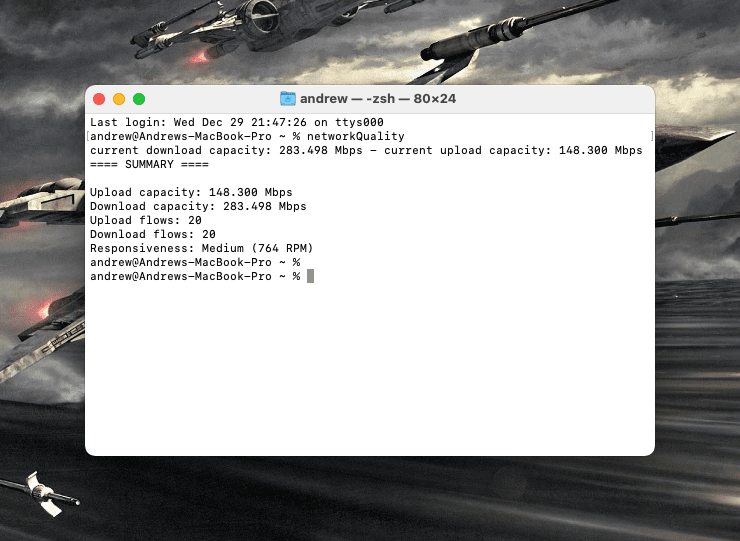
  3. Enter networkQuality in the Terminal window.
  4. Press Enter.
  5. Wait until you see Summary appear.

Check Your Mac’s Internet Connectivity Quality

After the Network Quality test has been completed, you’ll see something that looks similar to this:

==== SUMMARY ====
Upload capacity: 181.308 Mbps
Download capacity: 264.230 Mbps
Upload flows: 20
Download flows: 20
Responsiveness: High (1149 RPM)

Upload and Download speeds are what most people are used to paying attention to. However, Apple has provided an explanation as to what “Responsiveness” means in terms of these results:

  • Low: If any device on the same network is, for example, downloading a movie or backing up photos to iCloud, the connection in some apps or services might be unreliable, like during FaceTime video calls or gaming.
  • Medium: When multiple devices or apps are sharing the network, you might see momentary pauses or freezes, like during FaceTime audio or video calls.
  • High: Regardless of the number of devices and apps sharing the network, apps and services should maintain good connection.

Essentially, if you have a “High” Responsiveness, then you shouldn’t run into any issues while connected. This could change the speeds based on the number of devices that are using the network but should not impact your usage.

You might be asking yourself why you would want to use this Network Quality test. This is especially true if you are accustomed to using something like fast.com or SpeedTest. But the difference here is that Apple’s network testing tool provides more of a real-world experience, compared to what you should be getting in terms of network speeds.

It’s not a full-blown replacement for those who know how to use the ping command in Terminal. But this simply networkQuality command does make it quick and easy to check the internet speeds from your Mac.

Related Posts:

  • AirPods Pro 2 - 1
    AirPods Max vs AirPods Pro 2: Making The Right Purchase
  • iPhone 15 event - iPhone 15 Pro and iPhone 15 Pro Max A17 Pro Video Recording Promo
    iPhone 14 vs. iPhone 15: Should You Upgrade?
  • Screen Shot 2021-07-12 at 4.52.12 AM
    AirPods Max Review: How They Look Six Months Later
  • 2023 Mac Studio lifestyle - 1
    macOS Could Not Be Installed, How-To Fix
  • macos-bird-process-high-cpu-fix
    Fix: Bird Process Causes High CPU Usage on Mac
  • MacBook Pro 2021 iPad Mini iPhone 13 Pro AirPods 3 Beats Fit Pro iPad Pro Best Apple Products - 5
    How to Downgrade From macOS Ventura to macOS Monterey
  • pexels-designecologist-1779487
    The Best iPhone And Mac Shortcuts For Beginners
  • macbook-thermal-throttling
    How to Tell if Your Mac Is Thermal Throttling
  • pexels-mediamodifier-8066715
    Is Apple Working On Apple Wireless Chips?
Andrew Myrick
Andrew Myrick

Andrew Myrick is a freelance writer based on the East Coast of the US. He enjoys everything to do with technology, including tablets, smartphones, and everything in between. Perhaps his favorite past-time is having a never-ending supply of different keyboards and gaming handhelds that end up collecting more dust than the consoles that are being emulated.

Reader Interactions

Write a Comment Cancel reply

Primary Sidebar

Recent Posts

  • What Are iPhone Antennas and Do You Need One?
  • iPhone Alarm Not Going Off in iOS 26? Here’s What to Do
  • How to Fix a Slow Charging iPhone
  • Face ID Not Working on iOS 26? Here’s What to Do
  • How to Clean iPhone Camera Lenses Safely and Effectively
  • How to Restore Deleted Contacts via iCloud

Connect with us

Footer

ABOUT

  • About Us
  • Contact us
  • Advertise
  • Privacy
  • Terms of Use

GUIDES

  • iOS & iPadOS
  • Apple ID
  • iCloud
  • App Store
  • iTunes
  • FaceTime
  • iMessage
  • Siri
  • Books and iBooks
  • Game Center
  • AirPlay

CONNECT

  • Facebook
  • Twitter
  • FeedBurner
  • YouTube

© Copyright 2010-2024 Guiding Tech Media · All Rights Reserved

This site and its content are in no way affiliated or endorsed by Apple, Inc. · Reproduction without explicit permission is prohibited