• Skip to primary navigation
  • Skip to main content
  • Skip to primary sidebar
  • Skip to footer

AppleToolBox

Tools and Fixes for Mac, iPad, iPhone & iWatch

Search posts

  • About
  • Contact

CONNECT WITH US

CATEGORIES

  • iPhone
  • iPad
  • iPod
  • Apple Watch
  • Mac/MacBook
  • AirPods
  • Apple TV
  • News
  • Apple Services
  • HomePod
  • Reviews

SITE

  • Home
  • About Us
  • Contact
  • Advertise

Search posts

You are here: Home / iPhone / Face ID Not Working on iOS 26? Here’s What to Do

Face ID Not Working on iOS 26? Here’s What to Do

By Louis Roundtree 0 comments Last updated April 17, 2026

Things to Know
  • Face ID is a form of biometric identification on iPhones that allows you to unlock your phone, log into accounts, or even make payments by scanning your face.
  • On iOS 26 Face ID not working can be fixed by resetting your Face ID in Settings.
  • You can also check that the sensor/camera on the front of your iPhone is clean and unobscured.

Face ID on iPhones offers a quick way to unlock your phone with a glance. You can also set it as your primary way to log into accounts, from Facebook to your bank, and use it to confirm Apple Pay payments. So, Face ID not working can be a major inconvenience. Unfortunately, many iOS 26 users have experienced Face ID problems, with issues including:

  • Error messages such as “Face ID unavailable”
  • Phones refusing to unlock without the passcode
  • Face ID settings greyed out

Thankfully, most of these issues are easy to fix. Here’s how.

How to Fix Face ID Not Working After the iOS 26 Update

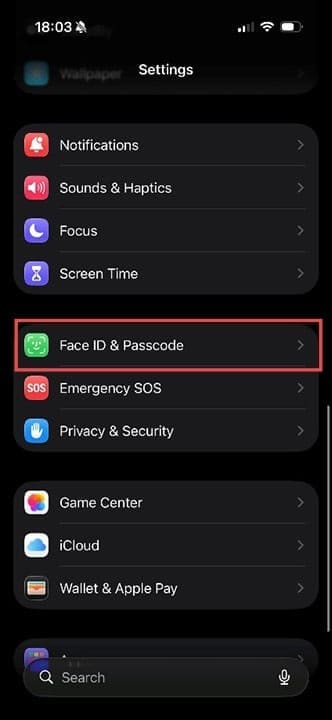
Step 1. Head to “Settings” > “Face ID & Passcode.” This is where you can adjust all your settings related to logging into your phone.

Face ID Not Working on iOS 26 Here’s What to Do 1

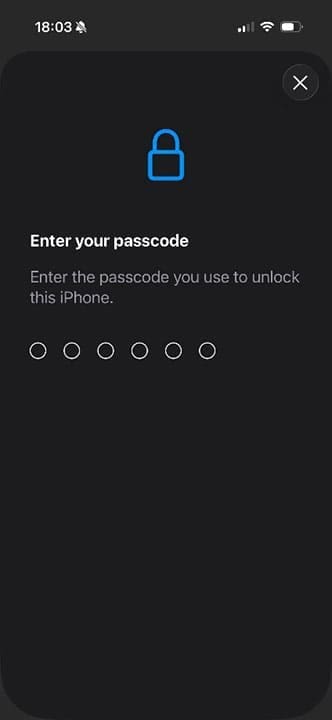
Step 2. You will need to enter your passcode to change any settings in this section, so make sure you know it before you start this process.

Face ID Not Working on iOS 26 Here’s What to Do 2

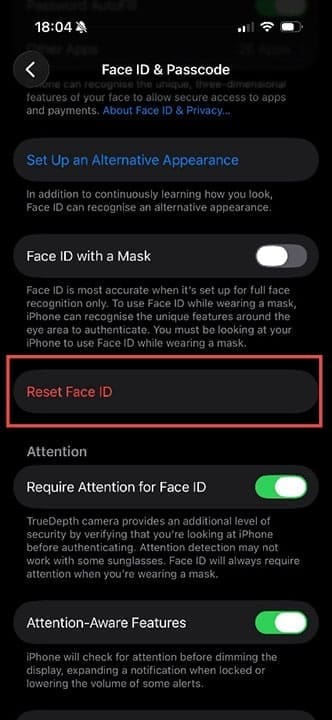
Step 3. From here, tap on “Reset Face ID.” Note: If “Reset Face ID” is greyed out or won’t work, scroll further down and turn off “Stolen Device Protection.”

Face ID Not Working on iOS 26 Here’s What to Do 3

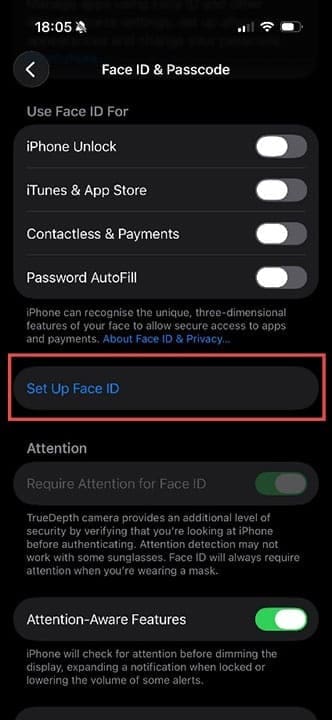
Step 4. Now tap on “Set Up Face ID.”

Face ID Not Working on iOS 26 Here’s What to Do 4

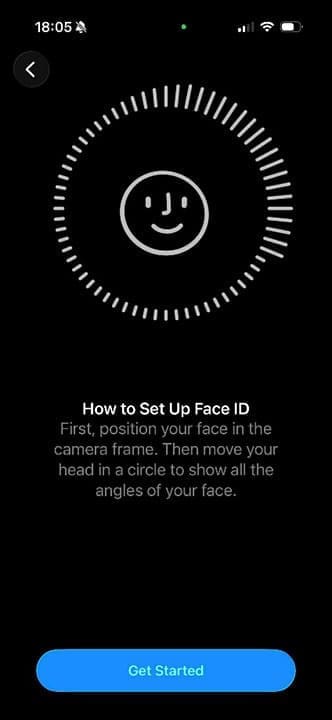
Step 5. Follow the onscreen instructions carefully, moving your head in a circular motion as directed. Pro tip: Make sure the room you’re in is well-lit, and avoid holding the phone too close to your face. Once this process is complete, you should find that you can use Face ID again as normal.

Face ID Not Working on iOS 26 Here’s What to Do 5

What to Try if Face ID Is Still Not Working

First, check that the latest software patch has been installed correctly. To check this, head to Settings > General> Software update. If there’s a new update ready to install, follow the onscreen instructions, as this update will most likely include the fixes that will resolve your Face ID issues.

Other things you can try:

  • Restart your iPhone by fully powering off the device, waiting a few seconds, then powering it back on.
  • Add an alternate appearance: Settings > Face ID & Passcode > Set Up an Alternative Appearance.
  • Reset all the settings on your phone to default: Settings > General > Transfer or Reset iPhone > Reset All Settings. You won’t lose any data, but all settings will be as they were when you first set up your device.
  • Carefully clean the front-facing camera and sensor, which is what enables Face ID to work. Use a lint-free cloth and a tiny amount of lens-cleaning solution. Never use harsh chemicals.
  • Take the case off the phone, as it may be obscuring the sensor. If this fixes the problem, you may need to consider investing in a different type of iPhone case.

Related Posts:

  • an iphone on a book
    How To Reset the Screen Time Passcode on iOS,…
  • Photo of a person paying via Apple Pay
    Which Stores Don't Accept Apple Pay? (+ How to Find Out)
  • illustration of a cube with the apple pay logo
    How to Use Apple Pay Abroad
  • 2023 Mac Studio lifestyle - 1
    macOS Could Not Be Installed, How-To Fix
  • How to Use Facebook Messenger Rooms on Your iPhone or iPad
    How To Add Facebook Events to Your iPhone's or…
  • Photo of an iPhone being taken out of its box
    How To Use Dual SIM and eSIM on Your iPhone
  • iPhone 15 Pro Max - 4
    Best iPhone Lock Screen Widgets for iOS 17
  • photo of a person using a mobile-only bank
    The Best Mobile-Only Banks for iOS Users
  • Update Apple ID settings on your iPhone, iPad, or Mac after changing your password
    Getting a Message to Update Apple ID Settings on…
Louis Roundtree
Louis Roundtree

As an avid gamer, I’ve run into my fair share of error codes and weird faults that have forced me to find fixes to problems I never anticipated. That gave me a passion for sharing those fixes with others so we can all game without feeling like our hardware is rebelling against us.

Reader Interactions

Write a Comment Cancel reply

Primary Sidebar

Recent Posts

  • How to Disable Predictive Text in iOS 26
  • How to Stop Sharing Analytics in iOS 26
  • How to Manage Your iPhone Call Log
  • Are Apple’s Safety Precautions Enough for AirTags?
  • How to Hide Username and Photo on the Mac Lock Screen
  • Microsoft Resume vs. Apple Handoff – Which Wins for Cross-Device Work?

Connect with us

Footer

ABOUT

  • About Us
  • Contact us
  • Advertise
  • Privacy
  • Terms of Use

GUIDES

  • iOS & iPadOS
  • Apple ID
  • iCloud
  • App Store
  • iTunes
  • FaceTime
  • iMessage
  • Siri
  • Books and iBooks
  • Game Center
  • AirPlay

CONNECT

  • Facebook
  • Twitter
  • FeedBurner
  • YouTube

© Copyright 2010-2024 Guiding Tech Media · All Rights Reserved

This site and its content are in no way affiliated or endorsed by Apple, Inc. · Reproduction without explicit permission is prohibited

Last Updated on April 19, 2026 by Louis Roundtree