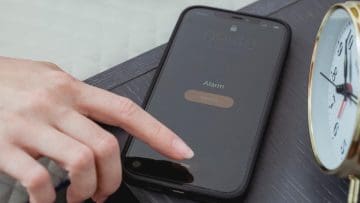
We get it, waking up in the morning is hard. What makes it even harder, though, is shutting off the alarm. Not all of us have the fine motor skills to slide to stop our iPhone alarm after being rudely awakened. If you’re longing to return to the tap-to-stop days of previous iOS versions, the good news is there’s a way to do so.
In this article, we’ll be showing you how to remove slide to stop alarm on iOS.
With the introduction of iOS 26, Apple users suddenly found themselves faced with a slider instead of a button to disable things. The snooze button persists, though. This has irritated some who preferred the previous version, and others who aren’t too good at swiping their phone first thing in the morning.
Apple never fully explained its reasoning, but it seems that a slider is harder to deactivate than a button, requiring dedicated effort, reducing the chance of the user falling asleep again and missing something important. It doesn’t stop it from being a rude awakening.
Whatever the case, though, there is thankfully a workaround (introduced in iOS 26.1) to revert from slide to stop back to tap to stop for your alarm.
How to Remove Slide to Stop Alarm on iOS
If you’re ready to revert alarm touch controls on iOS 26, then we’re here to be your guide. It’s simple and quick. Here’s what to do:
Step 1. Unlock your iPhone and tap the Settings icon on your Home Screen.
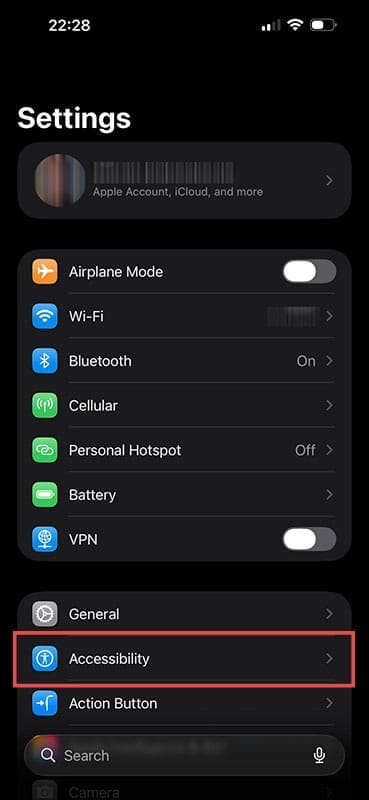
Step 2. Scroll down to “Accessibility” and give it a tap.
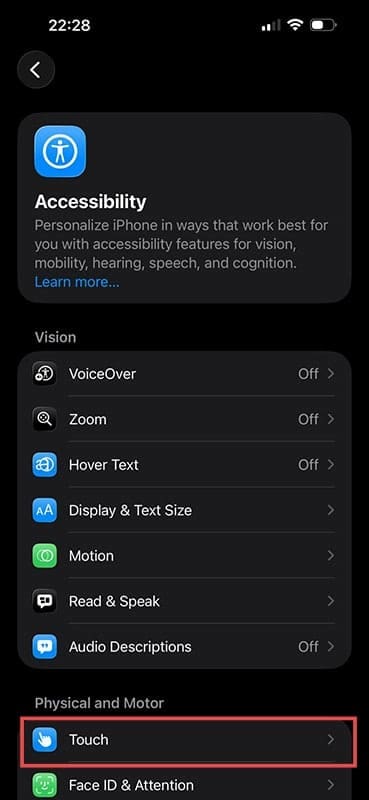
Step 3. In the next menu, hit “Touch.”
Step 4. Navigate all the way down to “Prefer Single-Touch Actions.” Drag the slider next to this to “On.”
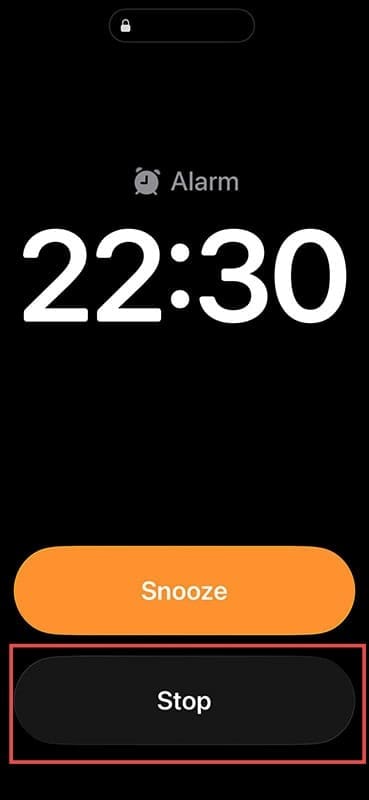
Step 5. Exit Settings and head to “Clock.” Go to “Alarms” and set a new one to ring in a minute. When the alarm rings, there should now be a big “Stop” button right where the slider used to be.
Leave It to Siri
We’ve got a bonus tip to share with you while we’re at it. If you prefer the hands-off approach, you can also ask Siri to stop your alarm. It’s as simple as “Hey Siri, stop my alarm.” To ensure you don’t have to lift a finger to press any button on the phone, you can program Siri to respond to your voice alone:
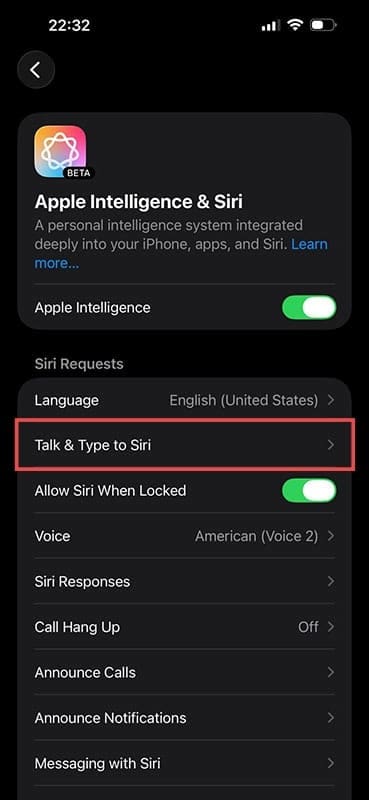
Step 1. Go to Settings and scroll down to “Apple Intelligence & Siri”
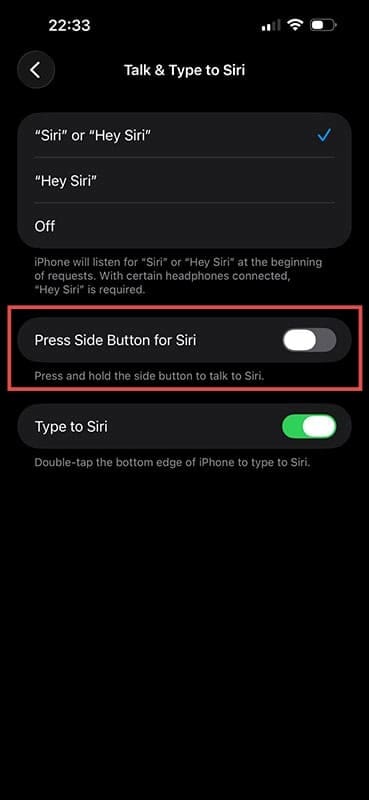
Step 2. Tap “Talk & Type to Siri” in the next menu.
Step 3. Choose your request method and switch off “Press Side Button for Siri”
Step 4. Siri will now be listening for your requests, including stopping the alarm, at any time of day or night.
As an avid gamer, I’ve run into my fair share of error codes and weird faults that have forced me to find fixes to problems I never anticipated. That gave me a passion for sharing those fixes with others so we can all game without feeling like our hardware is rebelling against us.












Write a Comment