Do you want to go to a website anonymously in complete privacy, or bypass an IP restriction to visit blocked websites? You can set up your iOS device to use a proxy server. A proxy server acts as a security barrier between your network and the Internet by forwarding requests between a web browser and the requested website. It is a very simple process to configure iOS devices (iPad / iPhone or iPod Touch) to use a proxy server to connect to the Internet. This article describes how to use a proxy server:
NOTE: You need information about your proxy server. Your system administrator may provide this information. Alternatively, you can search the internet for free proxy servers (see note # 2 below).
Let’s first find your current IP address.
From very basic point of view, you have two different IP address: internal and external (or public IP).
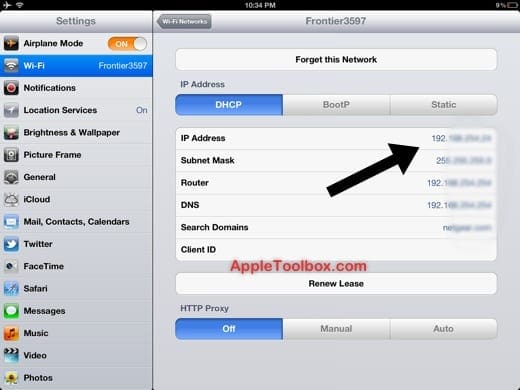
How to find the internal IP address of an iPhone, iPad or iPod Touch
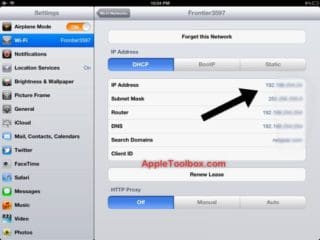
Simply tap, Settings > Wi-Fi and find the network name you are currently connected to, and tap on the blue arrow button to see your IP address.
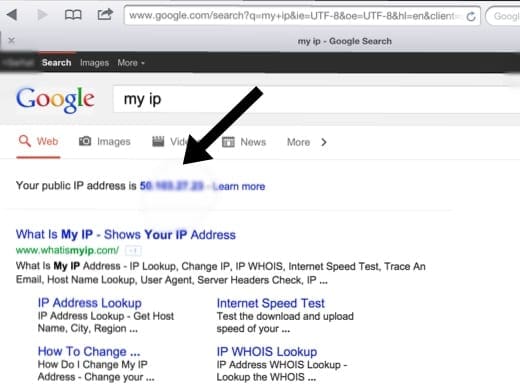
How to find the external IP address of your connection
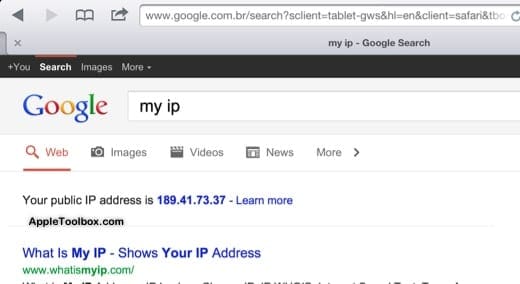
Your internal IP address will be different than your external IP address. The easiest way to find your external IP address is using an IP address finder website. Google also provides this service. Simply visit google.com via your web browser. Type “my ip” and hit search. On the top of the search results, Google will say “your public IP address is (your public IP).” Your IP address will be a series of numbers separated by periods.
Hide your IP
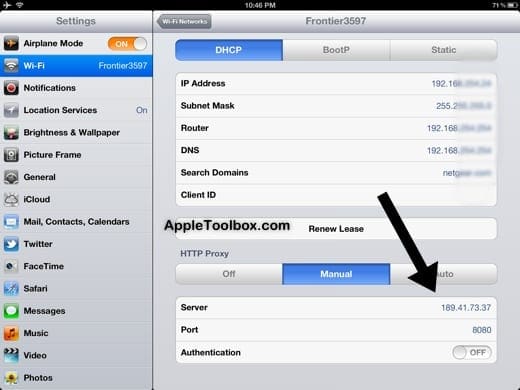
We want to hide our public IP address by using a proxy server. As stated above, you need to have information about your proxy server (server IP info and port info). For this article we are using following server info that we found online via Google search:
IP address: 189.41.73.37 and port: 8080. This proxy server is located in Brazil.
Now that we have our proxy server info, simply tap Settings > Wi-Fi and tap on the blue arrow next to the network name. Then tap Manual and enter your IP and port info. That is it.
Now you will look like a visitor from Brazil. For instance, let’s say you are located in Chicago and you are using this proxy server. Further, assume that YouTube is banned in Brazil. You will not be able to access YouTube. To learn your new public IP, visit Google again, type “my ip” and Google will now say
“Your public IP address is 189.41.73.37.”
Notes:
1- Slow proxy servers will slow your internet speed down.
2-There are a number of security risks associated with use public, unknown, open proxy servers.
Obsessed with tech since the early arrival of A/UX on Apple, Sudz (SK) is responsible for the original editorial direction of AppleToolBox. He is based out of Los Angeles, CA.
Sudz specializes in covering all things macOS, having reviewed dozens of OS X and macOS developments over the years.
In a former life, Sudz worked helping Fortune 100 companies with their technology and business transformation aspirations.








Server does not connect
so it only allows proxy via wifi, not cellular data. hmmmm
when i do this it is not work !!
my proxi is correct and in firefox in win 7 it works fine but in iphone (ios 6.1.2) is not work, why?
Cost free iTunes downloads in perpetuity in exchange for Apple ripoff of my funds.
Cost free iTunes downloads in perpetuity in exchange for Apple ripoff.