There are so many apps to choose from on the App Store, there’s truly something here for everyone. Communication apps are extremely popular, as we’re seeing a rise in messaging apps like WhatsApp, Telegram, and Facebook Messenger. Tango also falls under this category, but as is the case with many other apps, it might not really be your cup of tea. If that’s the case for you, you’re in luck as we’re going to take a look at how you can sign out of Tango on iPhone.
The easiest and simplest way to sign out of Tango on iPhone is to simply delete the app. This will remove any potential incoming notifications, and you can always go back and re-install the app later and then sign back in. If you have an active subscription with Tango, you will continue to be charged even if you uninstall the app from your iPhone.
Unsubscribe From Tango
Speaking of subscriptions, if you have an active Tango subscription, but plan on deleting your account entirely, you’ll first want to cancel any active subscriptions. This removes any potential charges from being made to your card even after you have signed out or deleted your Tango account. Here’s how you can unsubscribe before you sign out of Tango on iPhone:
Open the App Store on your iPhone.
Tap your Apple ID profile image in the top right corner.
Tap Subscriptions.
Locate and select Tango from the list of active subscriptions.
At the bottom, tap Cancel Tango.
Confirm that you want to cancel the subscription.
Now that your active Tango subscription has been canceled, you can proceed with deleting the account. We recommend doing this just to ensure that you won’t have a subscription hanging around that you have no desire in continuing to use.
Sign Out Of Tango on iPhone
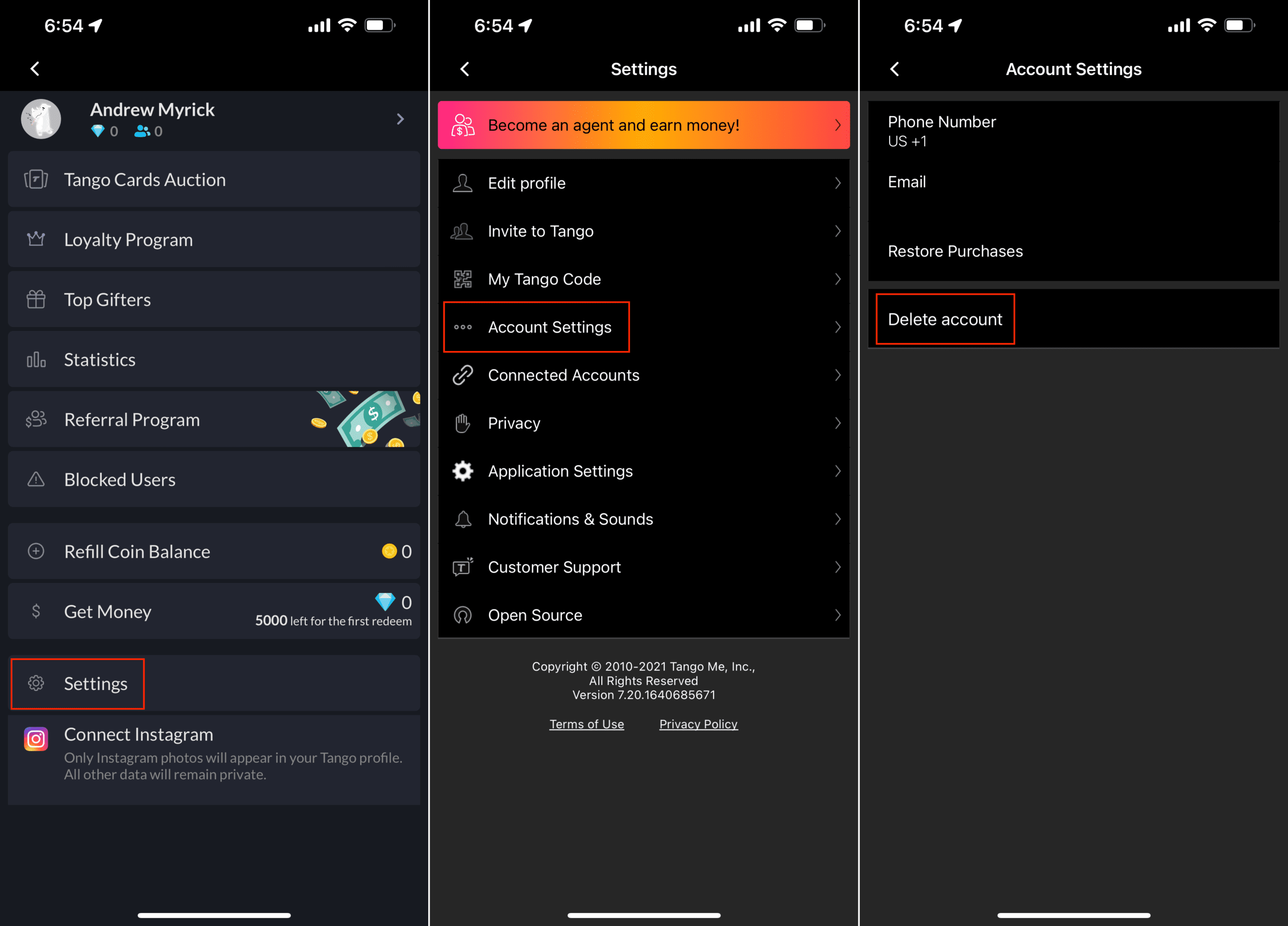
With the subscription canceled, you can now sign out of Tango on iPhone. However, there is a slight catch, as you can’t actually just sign out of the account. For one reason or another, Tango doesn’t offer the ability to sign out of the account. Instead, you’ll need to delete the account entirely. Here’s how you can sign out of Tango on iPhone:
Open the Tango app on your iPhone.
Tap your profile image in the top right corner.
Near the bottom, tap Settings.
Tap Account Settings.
Tap Delete account.
Choose a reason why you’re deleting your account.
Tap the Delete Account button to confirm.
After you have confirmed that you want to delete your account, you will have successfully completed the process to sign out of Tango on iPhone. We really don’t understand why Tango doesn’t allow the ability to sign out of the account, and instead forces you to delete it entirely.
Andrew Myrick is a freelance writer based on the East Coast of the US. He enjoys everything to do with technology, including tablets, smartphones, and everything in between. Perhaps his favorite past-time is having a never-ending supply of different keyboards and gaming handhelds that end up collecting more dust than the consoles that are being emulated.












Write a Comment