Typically, when you need to transfer files between different PCs, your first thought might be to use cloud storage or a USB. But if you have a lot of files to pass between a MacBook and a PC that are in the same room, you can use a cable instead. Here’s how to transfer data from PC to Mac via cable.
Using a cable to transfer data from PC to Mac without internet still technically emulates a local area network (LAN), just with the Thunderbolt acting as the old Ethernet cable. This means you’ll need to set up your PC to act as the server, where the Mac will connect as the client and “see” a folder to copy files.
Part 1: Changing Windows Settings
The first thing you have to do is change how your PC acts with a Thunderbolt cable attached to it.
Step 1. For convenience, put all files that you want to share in a single folder, then go to its parent (the folder that contains that folder).
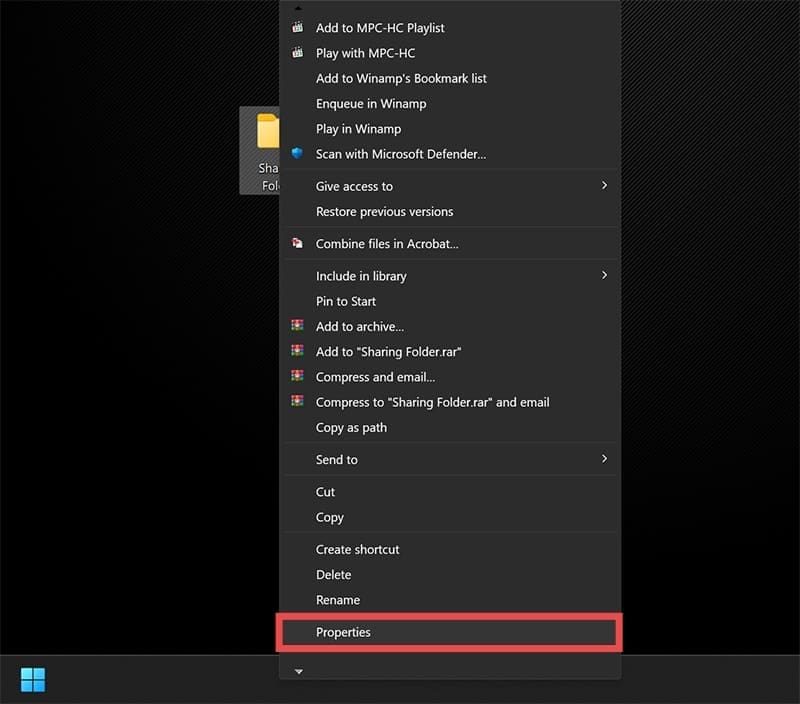
Step 2. Right-click on the folder you want to share and select “Properties.”
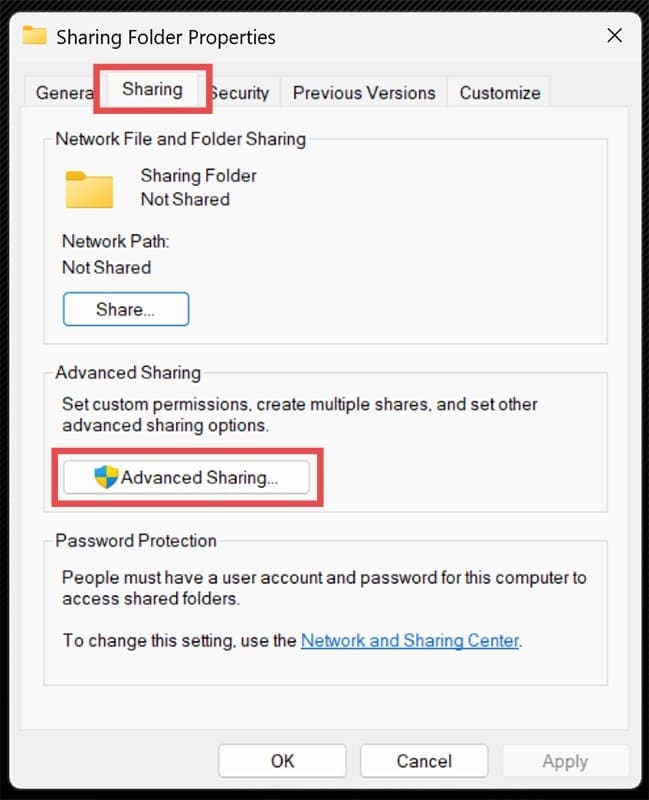
Step 3. Go to the “Sharing” tab at the top and select “Advanced Sharing.”
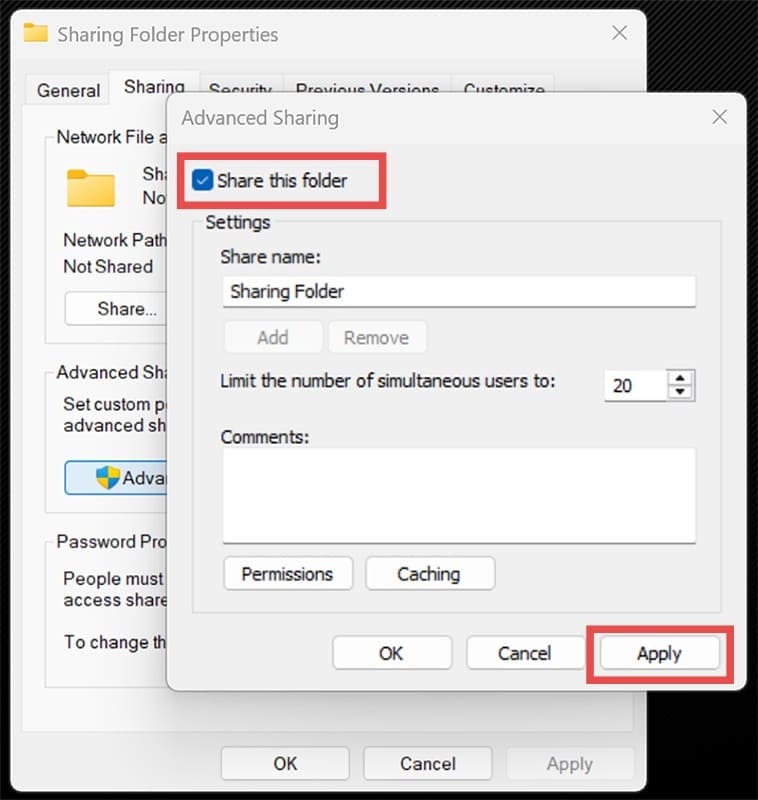
Step 4. In the new dialog, check the “Share this folder” box and select “Apply.”
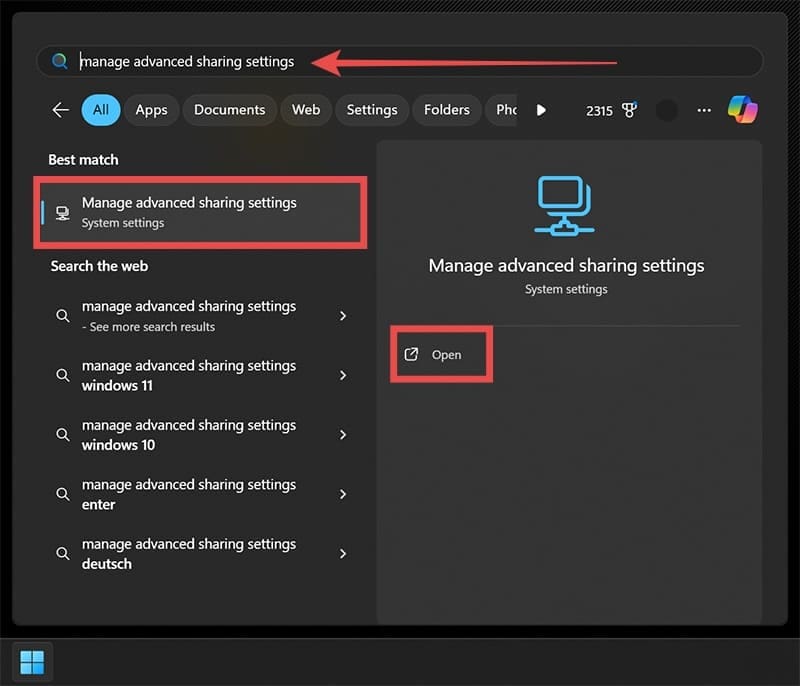
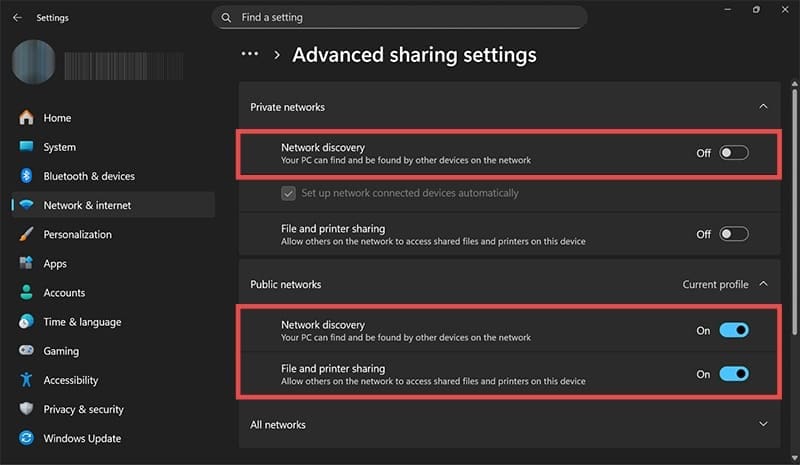
Step 5. Go to the search bar and enter “Manage advanced sharing settings,” then select the result. Alternatively, go to Settings, choose “Network and internet” on the left, click on “Advanced network settings,” then select “Advanced sharing settings.”
Step 6. Expand the listing for “Current profile” (to be safe, opt for a Private network) and enable both “Network discovery” and “File and printer sharing.”
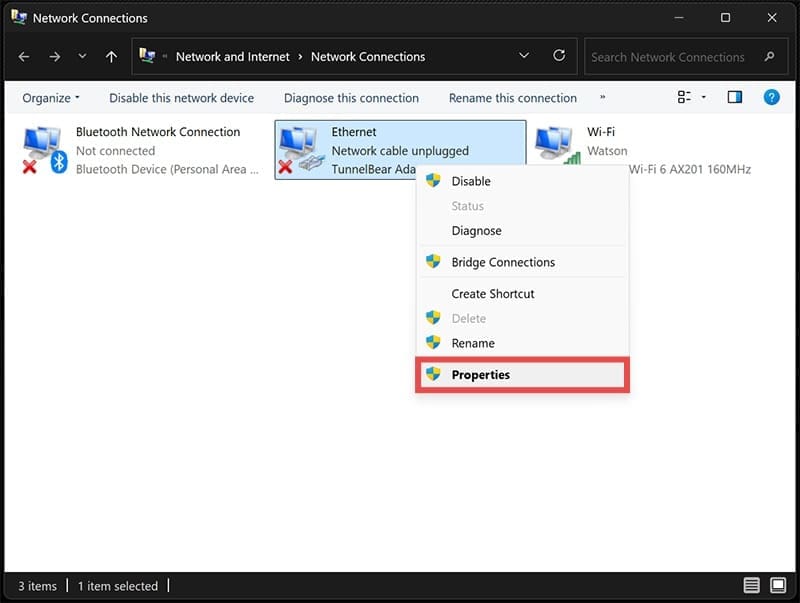
Step 7. Search for “View network connections” (with the Thunderbolt plugged in).
Step 8. The Thunderbolt connection may be labeled as “Ethernet” or “Unidentified network connection” if your PC detects the cable (i.e., has a Thunderbolt port) but not what it’s connected to. Right-click on it and select “Properties.”
Step 9. From the list, toggle on “Internet Protocol Version 4 (TCP/IPv4)” then click on “Properties” below the list.
Step 10. Enter the following values:
IP address: 192.168.10.2
Subnet mask: 255.255.255.0
Preferred DNS server: 8.8.8.8
Part 2: Connecting and Changing Mac Settings
You’ll need to partially replicate these changes on your MacBook.
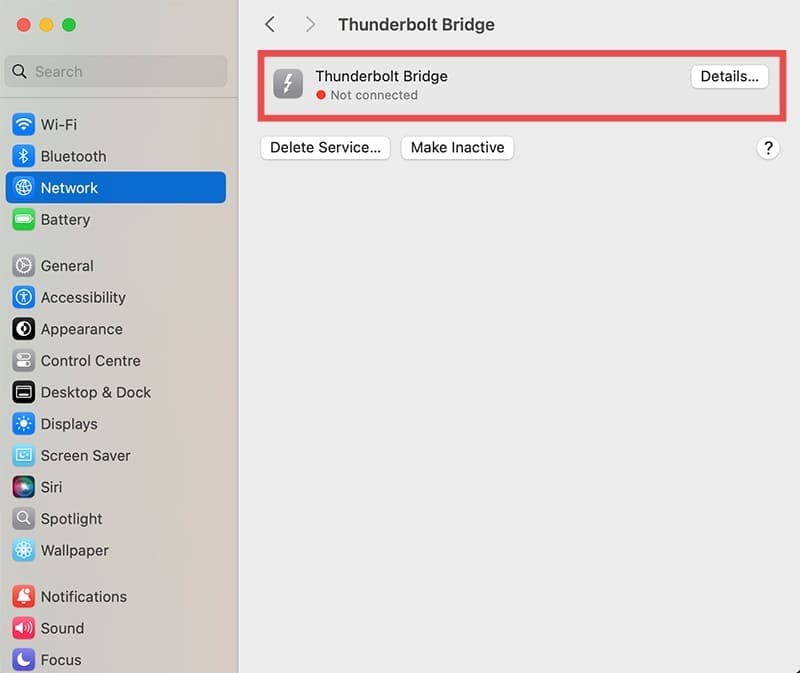
Step 1. Go to System Settings and click on “Network.”
Step 2. Find “Thunderbolt Bridge” that reads as “Not connected” and open it.
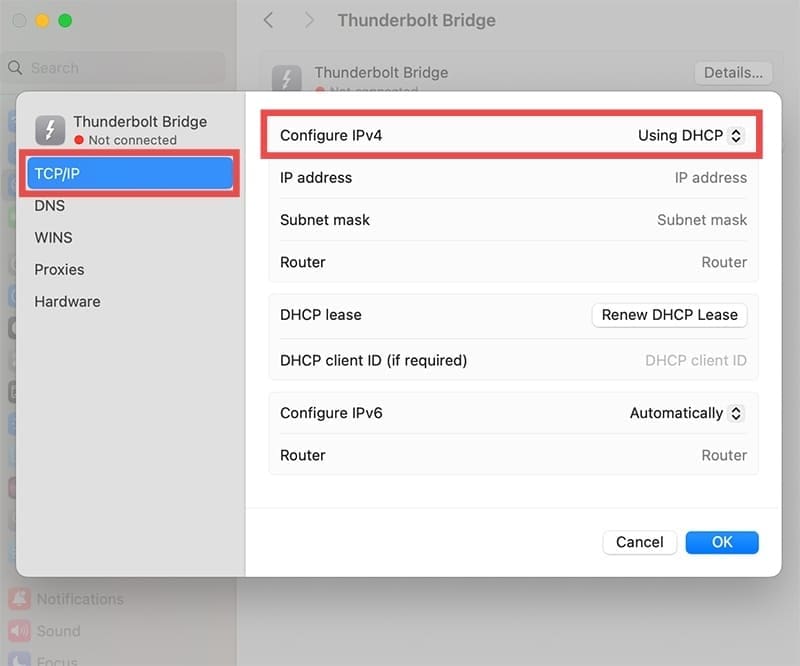
Step 3. Go to “Details” and select “TCP/IP” from the tabs.
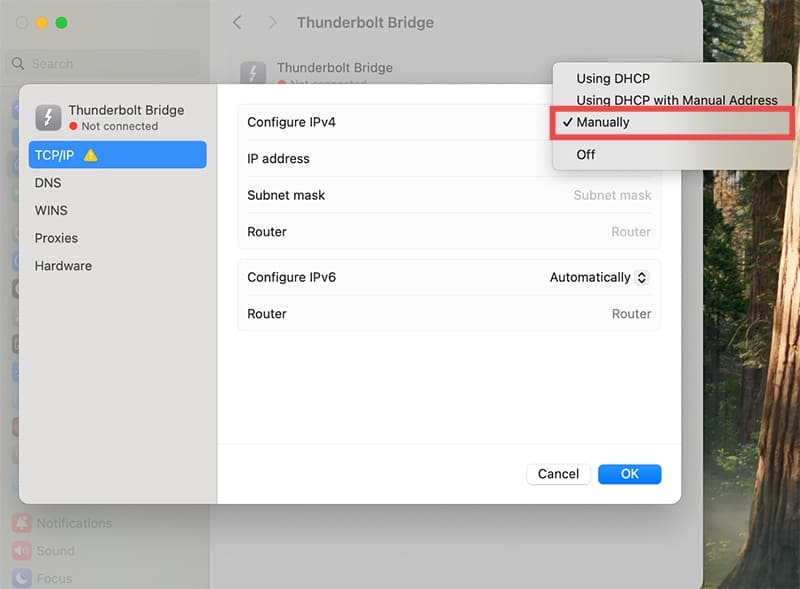
Step 4. Go to “Configure IPv4” and change the option from “Using DHCP” to “Manually.”
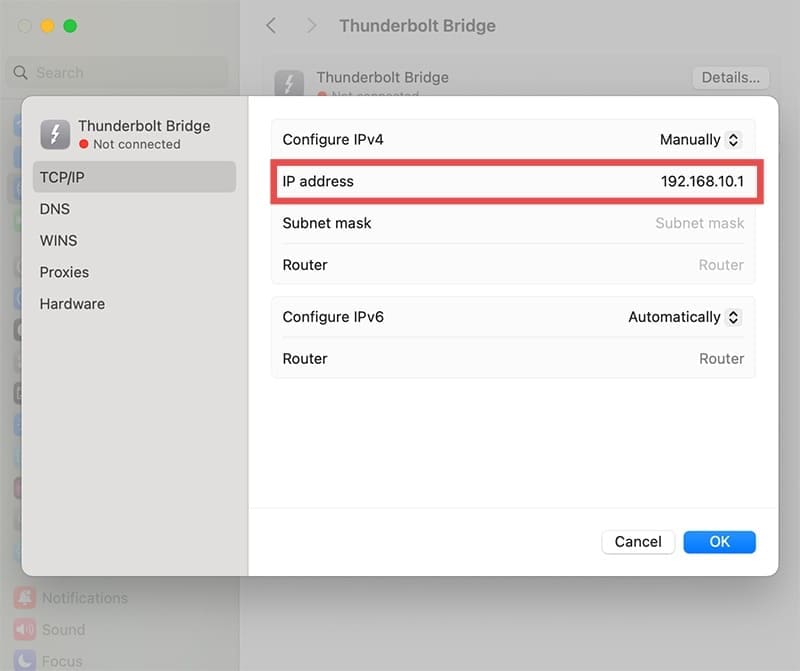
Step 5. Enter the following IP address in the IP field: 192.168.10.1.
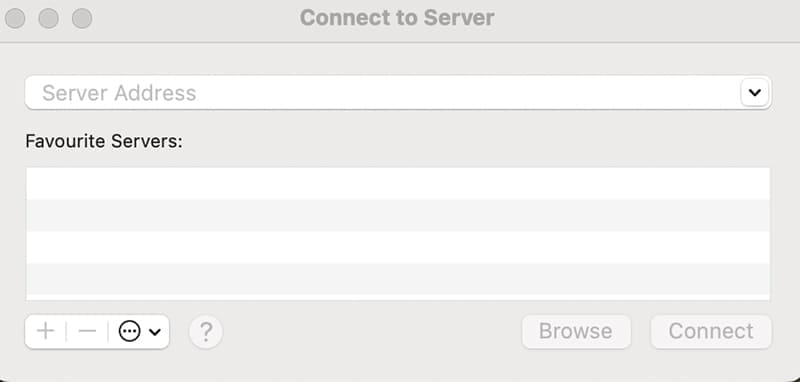
Step 6. Open Finder, hit “Command + K,” and select “Connect to Server.”
Step 7. Enter “smb://192.168.10.2” and hit “Connect.”
Step 8. You may be prompted to log in with your Windows device’s credentials. In this case, the username will be in the form of “domain + \ + username,” which you can find by going to the same Properties tab of the folder (Part 1 Step 2) and going to the “Security” tab. The user listed first after “SYSTEM” will be the username you need to enter. The password is your account password (if any).
Step 9. The folder should appear as a mountable folder in your Finder. Copy the files from it to your intended location.
Part 3: Undoing Settings Changes
When done, make sure to undo all the sharing and TCP/IP changes you’ve made to ensure the folder doesn’t get unintentionally shared later. However, you can keep the Windows folder shareable and just disable sharing via public profiles if you want to repeat the process in the near future.
As an avid gamer, I’ve run into my fair share of error codes and weird faults that have forced me to find fixes to problems I never anticipated. That gave me a passion for sharing those fixes with others so we can all game without feeling like our hardware is rebelling against us.
















Write a Comment