AirPlay can be a handy feature, in that it lets you share videos, music, photos and other media from your Apple devices to your speakers, smart TVs or your Apple TV. But when you don’t want to share media across devices, you’ll need to shut off AirPlay. Below are ways to shut off AirPlay on the iPhone, iPad and macOS.
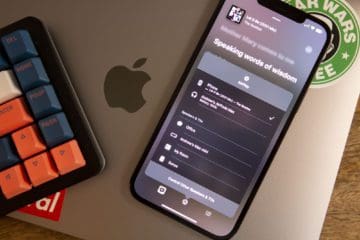
If you’re streaming something from an app on your iPhone or iPad, you can usually find the AirPlay logo and tap it. Then simply hit Turn Off AirPlay.
Screen mirroring is a little more complex. You can access this by going into your Control Center by swiping from the top-right of the screen on newer devices or swiping from the bottom of the screen on older devices. You would then tap Screen Mirroring and then hit Stop Mirroring. Sometimes Screen Mirroring in your Control Center looks like two boxes:
Turn off Airplay on macOS
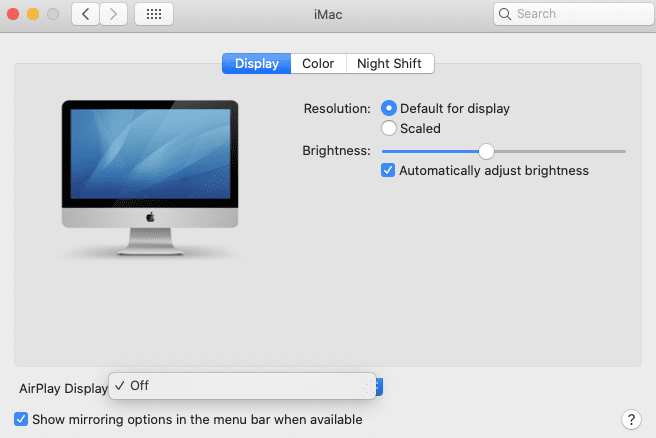
For this, you’ll need to go into the Control Center on newer macs. This icon is on the top right of the screen and looks like two toggle bars. You might also be able to access AirPlay on the menu at the top of the screen itself if there is an Apple TV or other device nearby. You can also access AirPlay through System Preferences > Displays on older Macs.
In the Control Center, you’ll see an icon that’s labeled Screen Mirroring. Click on that icon.
Select Display Preferences… Under Built-in Retina Display on the bottom left, click on AirPlay Display and select Off. If you went in through System Preferences > Displays, you’ll just see AirPlay Display at the bottom, where you can hit off.
How to Turn Off AirPlay on macOS Ventura (or newer)
If you are using a Mac running macOS Ventura or newer, then you’ll notice that the System Preferences app has been replaced by the System Settings app. With this, the steps to turn off AirPlay has been slightly tweaked, and here’s how you can do so:
Open the System Settings app on your Mac.
Click General in the sidebar.
On the right side of the app, click AirDrop & Handoff.
Click the toggle next to AirPlay receiver to the Off position.
If prompted, enter the Admin password for your Mac.
Click the Modify Settings button to confirm.
Once you have confirmed the changes, you’ll no longer be able to use your Mac as an AirPlay receiver for your other iOS or iPadOS devices.
How to Disable AirPlay
Sometimes users have stated they accidentally hit the AirPlay icon in an app. Then the TV downstairs starts playing what they are watching, which could range from annoying to embarrassing.
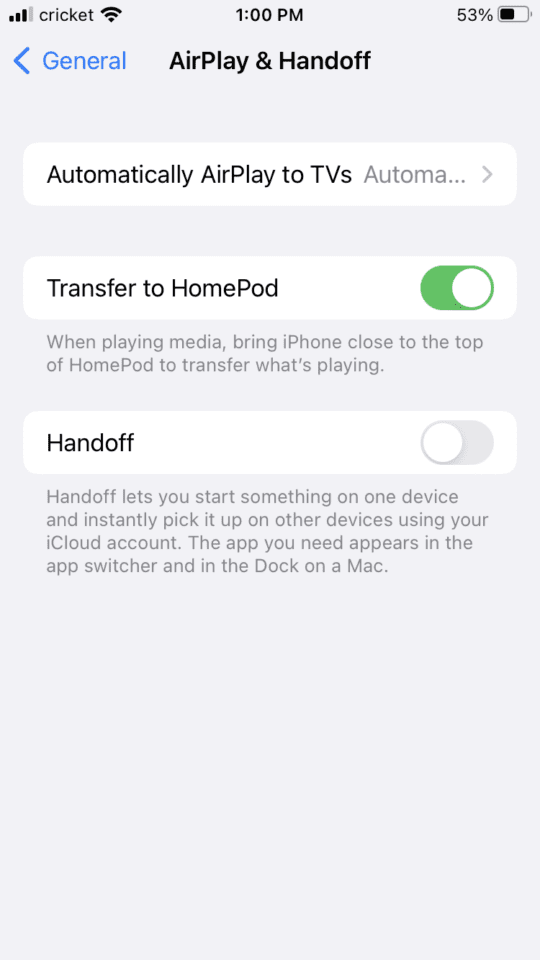
To make sure you aren’t accidentally playing video elsewhere, you could go into Setting on your iPhone or iPad, tap General, select AirPlay & Handoff. You can play with the settings in there. For instance, tap Automatically AirPlay to TVs:
You can then hit options like Never or Ask:
On the AirPlay & Handoff screen, you can also turn off the Transfer to HomePod toggle, or turn off the Handoff toggle.
Can you people please stop writing articles like. Everyone knows how to turn off Airplay. What we want is how to disable it completely. Apple refuses to allow this option. I want my earbuds, headphones, and Bluetooth devices to NOT automatically start playing music or even open the Music App. I don’t know why Apple thinks this is a good idea.












How to permanently shut down airplay I feel that my privacy is compromised with iPhones…. Id like to learn how to permanently shut it off
Can you people please stop writing articles like. Everyone knows how to turn off Airplay. What we want is how to disable it completely. Apple refuses to allow this option. I want my earbuds, headphones, and Bluetooth devices to NOT automatically start playing music or even open the Music App. I don’t know why Apple thinks this is a good idea.