There are quite a few changes arriving with iOS 17 when it is released to the masses later this year. But one of the features that is flying under the radar is Apple’s new “Check In” functionality that is built into the Messages app.
Until Check In with iOS 17, the only way that you could easily check on friends, family members, and loved ones was with the Find My app. However, that required you (or them) to share their location with you before you could actually be provided with the necessary information. That’s no longer the case thanks to the new Check In feature found in the Messages app on iOS 17.
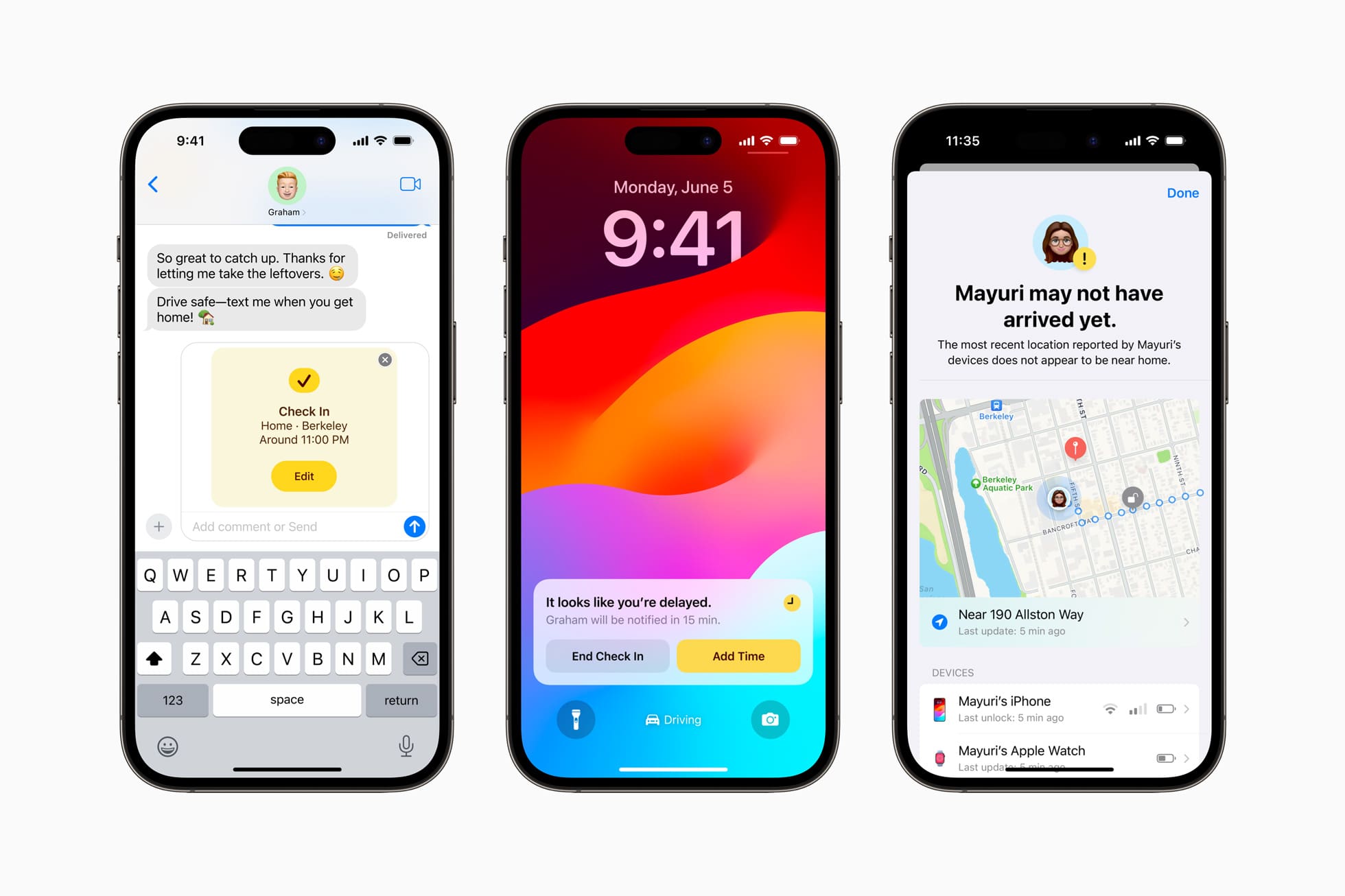
This makes it easy for you to share your location with a friend or family member. You can send a message to the contact letting them know you’re expected arrival time, and they will be notified when you reach your destination.
Check In will also show your device’s location, battery level, and cellular status in the event that you don’t reach your destination on time and the other person just wants to be able to check on you.
How to Use Check In on iOS 17
Provided that you are using an iPhone running iOS 17, being able to use Check In is pretty easy once you figure out exactly where the feature is hidden. Surprisingly, this isn’t one of the top-level menu options in the Messages app on iOS 17. However, here’s how you can use Check In on your iPhone:
Open the Messages app on your iPhone.
Locate the conversation that you want to use Check In with.
Tap the + button to the left of the iMessage chat bar.
From the menu that appears, tap More.
Locate and tap Check In from the list.
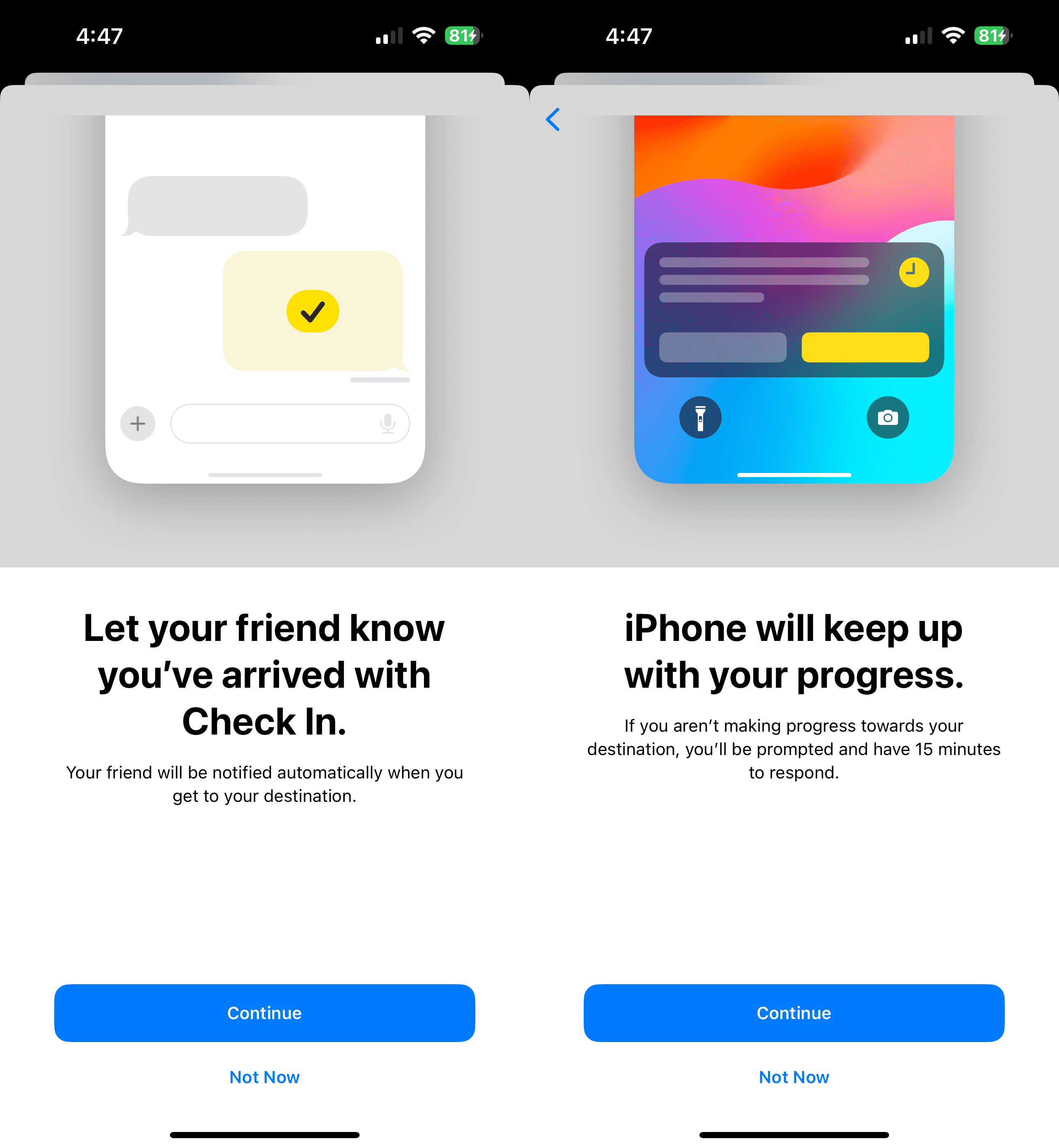
If this is your first time using Check In, follow the on-screen steps to learn more.
Select one of the following:
Limited: Includes current location and details about battery and network signal for iPhone and Apple Watch.
Full: Includes all limited data plus route traveled and location of last iPhone unlock and Apple Watch removal.
Once selected, tap the Continue button.
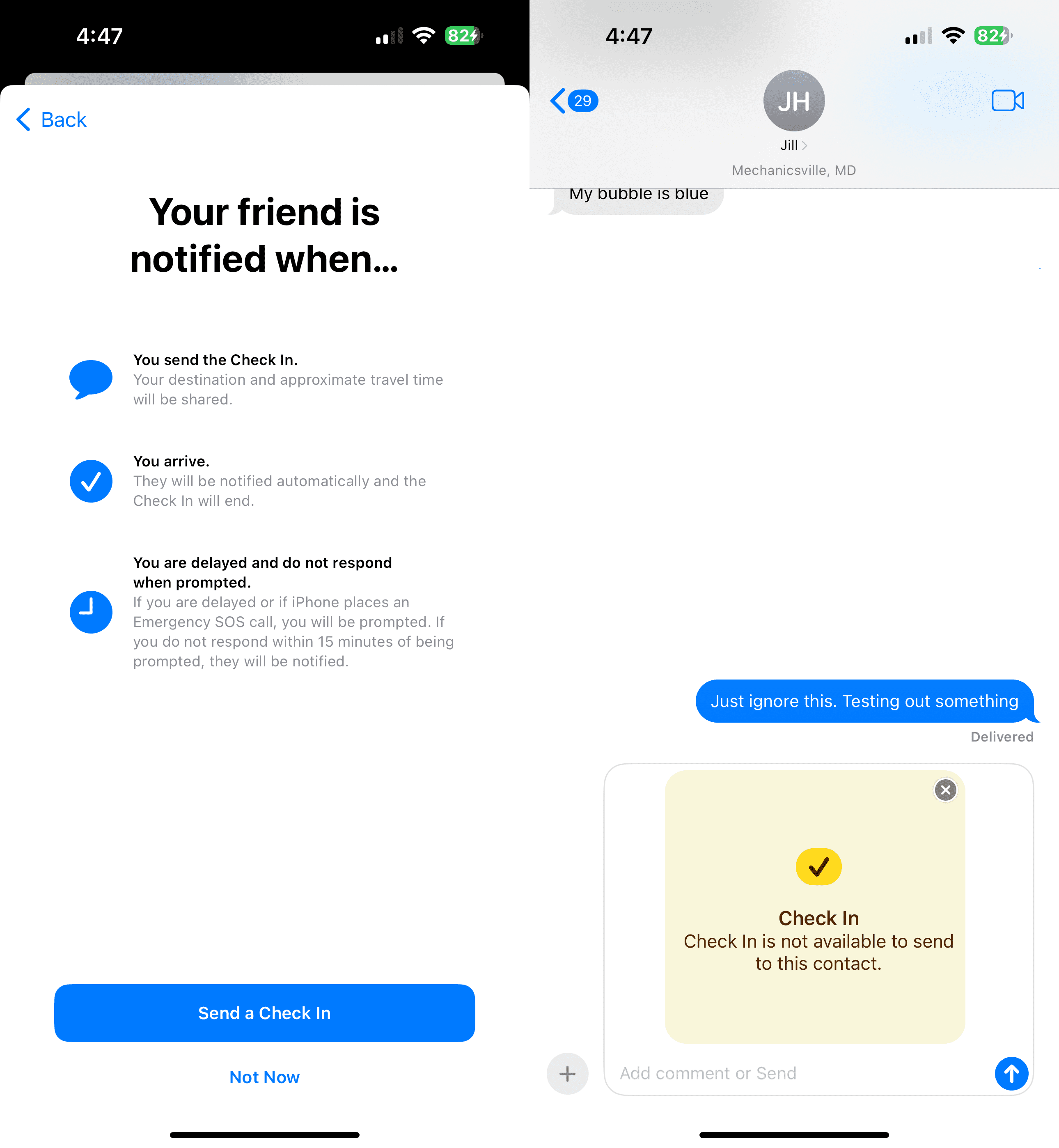
Tap the Send a Check In button.
From the iMessage chat bubble, tap the Send button.
It shouldn’t come as too much of a surprise, but even after iOS 17 is released later this year, Check In only works with other users that are running iOS 17. We tried using Check In to someone running the latest version of iOS 16, but were greeted with a message that states “Check In is not available to send to this contact.” This likely won’t be much of an issue, but you might have to nudge your friends, family, or loved ones to download the iOS 17 update once it’s finally made available.
Andrew Myrick is a freelance writer based on the East Coast of the US. He enjoys everything to do with technology, including tablets, smartphones, and everything in between. Perhaps his favorite past-time is having a never-ending supply of different keyboards and gaming handhelds that end up collecting more dust than the consoles that are being emulated.













Write a Comment