No matter how hard we try to keep our personal data, well, personal, that doesn’t different apps from being able to see what we’re doing. This includes your browser, as this is the gateway to the internet and handles all of your queries, browsing, and just about everything else.
At WWDC 2021, Apple spent quite a bit of time on all of the privacy features coming to your iPhone, iPad, and Mac this fall. This includes things like iCloud Private Relay, which acts as a type of VPN using your iCloud account. But there is also another feature that you might find yourself using even more.
Use Private Browsing Mode on iOS 15
With the release of iOS 15 and iPadOS 15, Apple has introduced slew of new changes for Safari on your iPhone and iPad. This includes a redesign (which has since been changed), along with a “new” Private Browsing Mode. Essentially, this is an Incognito Mode that you might be familiar with if you use something like Chrome, Firefox, or Microsoft Edge.
When activated, Private Browsing Mode provides the following description in Safari:
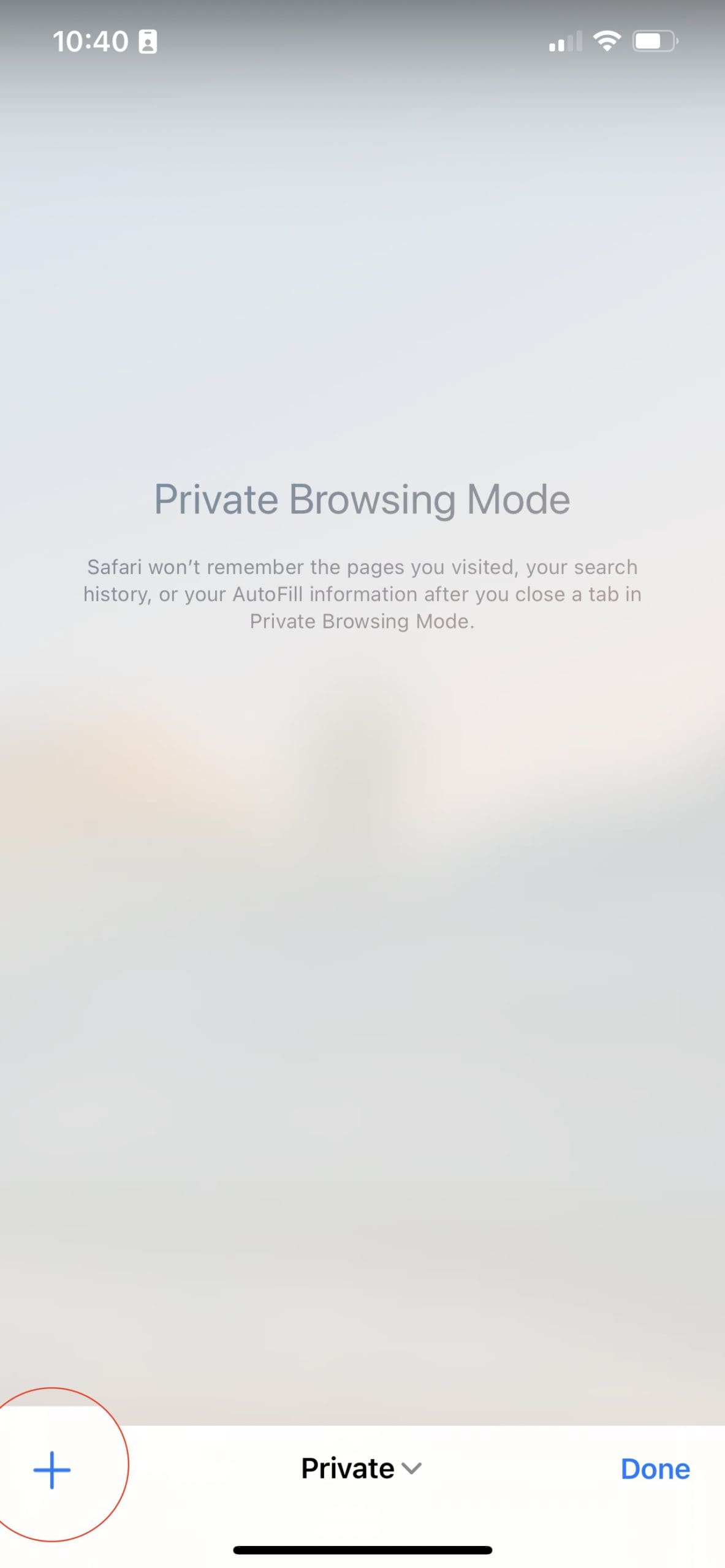
“Safari won’t remember the pages you visited, your search history, or your AutoFill information after you close a tab in Private Browsing Mode.”
So again, you can think of this as something similar to Incognito Mode, but designed for Safari. And in order to use this feature, there are actually two methods to activate it.
Method #1:
Open Safari on your iPhone or iPad.
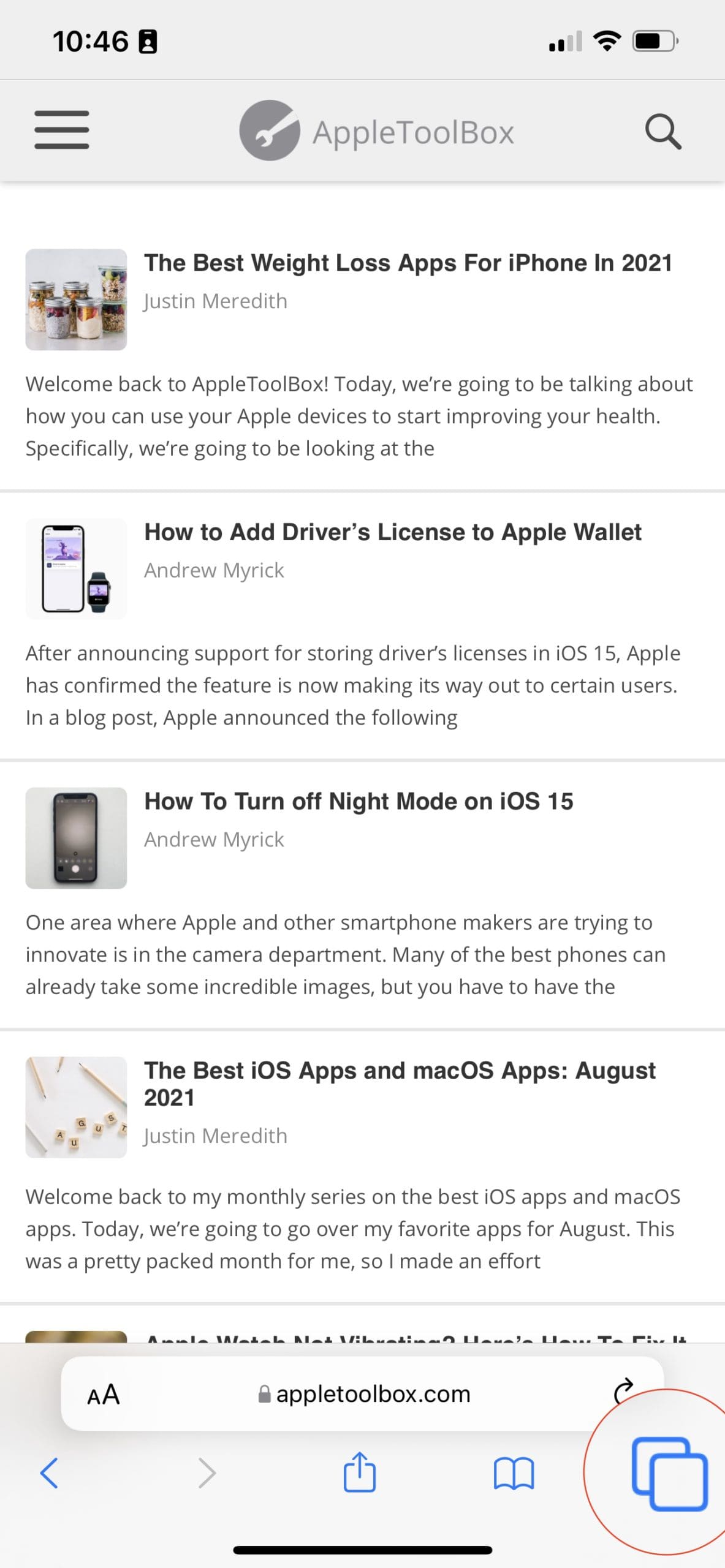
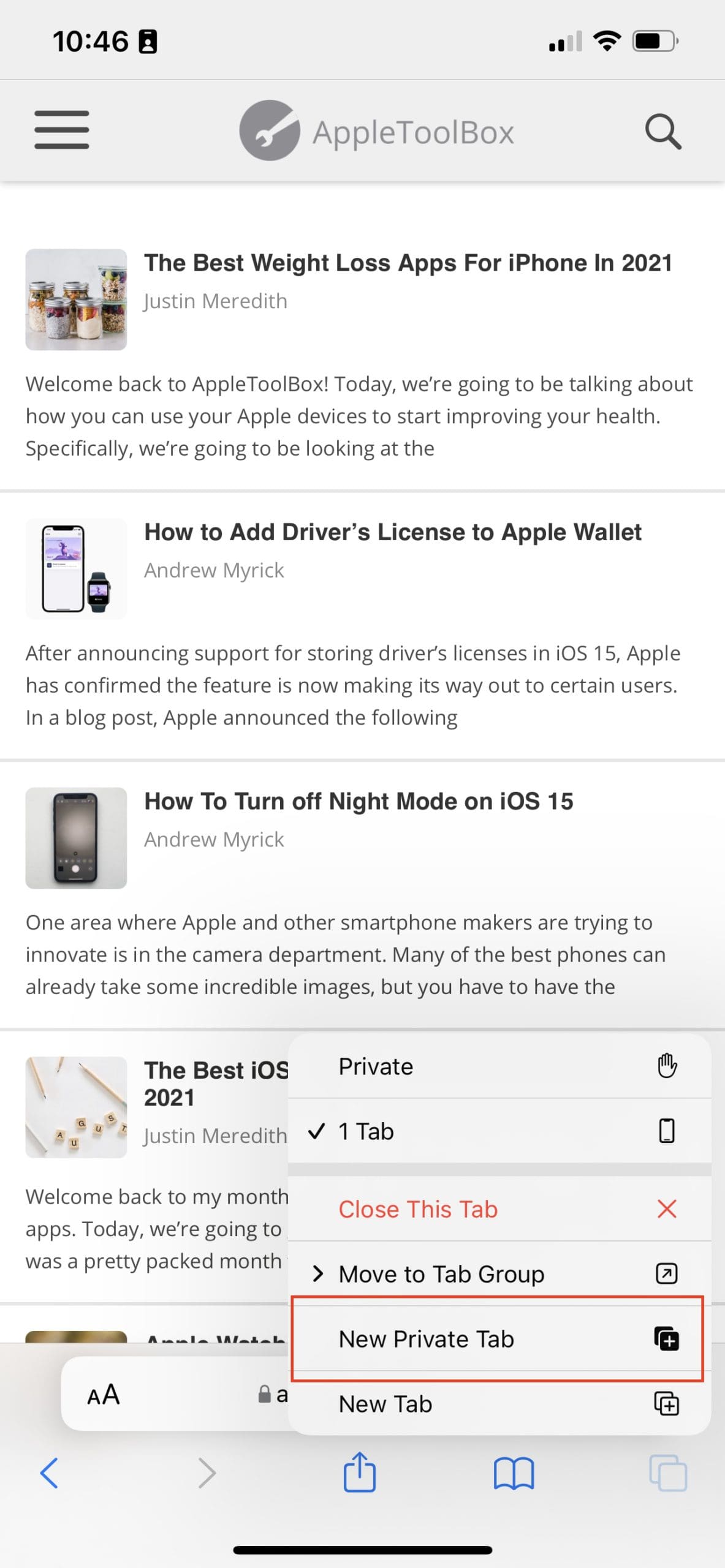
Long-press on the two-square icon (browser tabs).
Tap New Private Tab.
Method #2:
Open Safari on your iPhone or iPad.
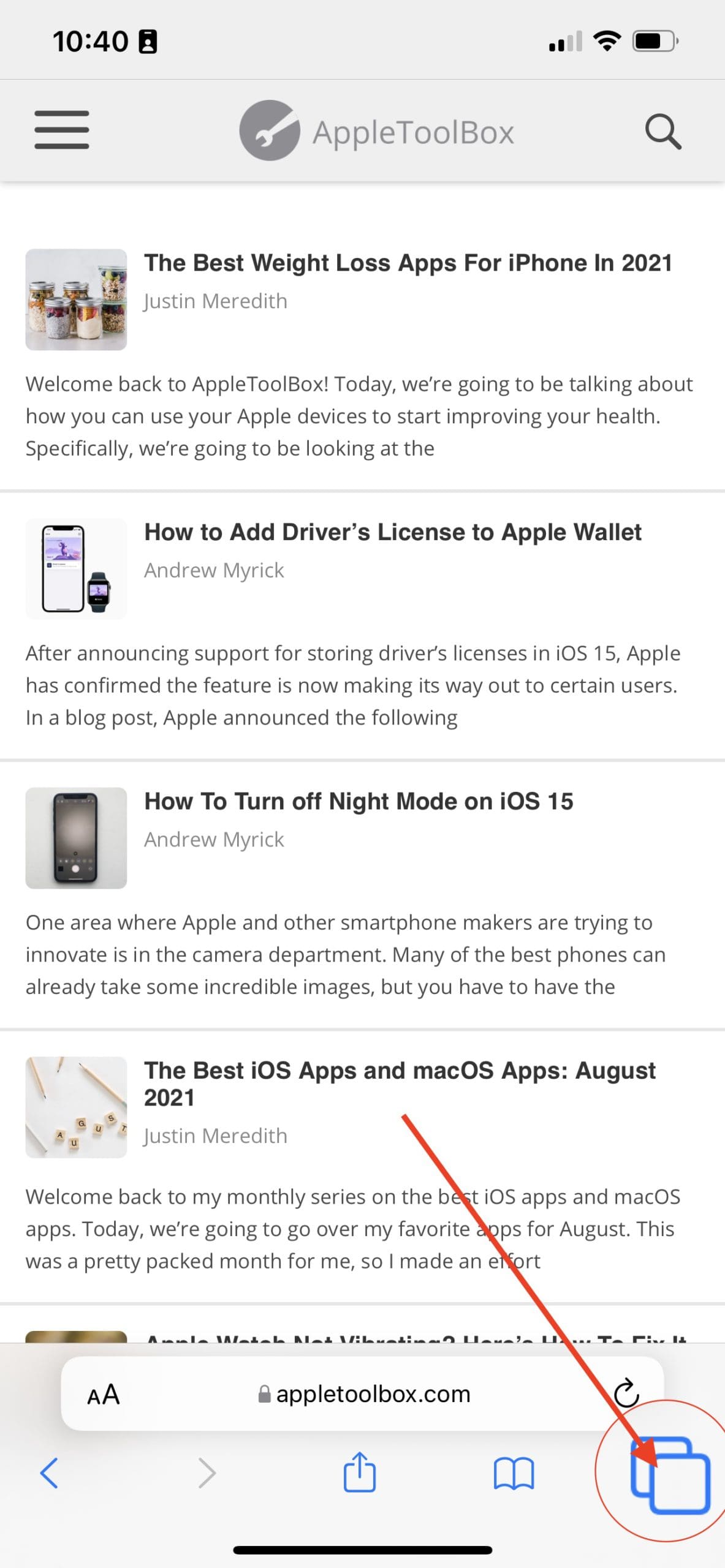
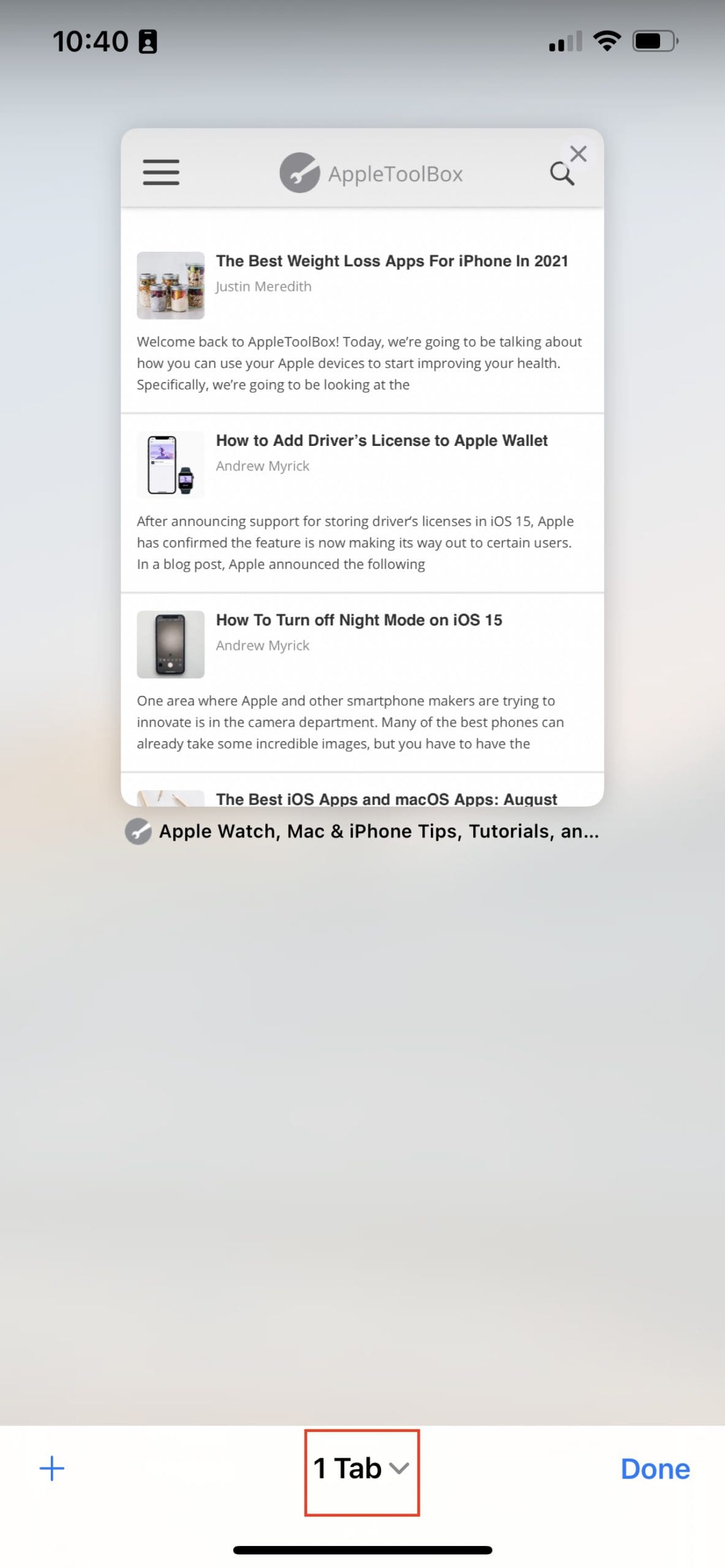
Tap the two-square icon in the bottom right corner to open your browser tabs.
Tap the “Tab” button at the bottom. (A number will be shown depending on how many browser tabs you have open.)
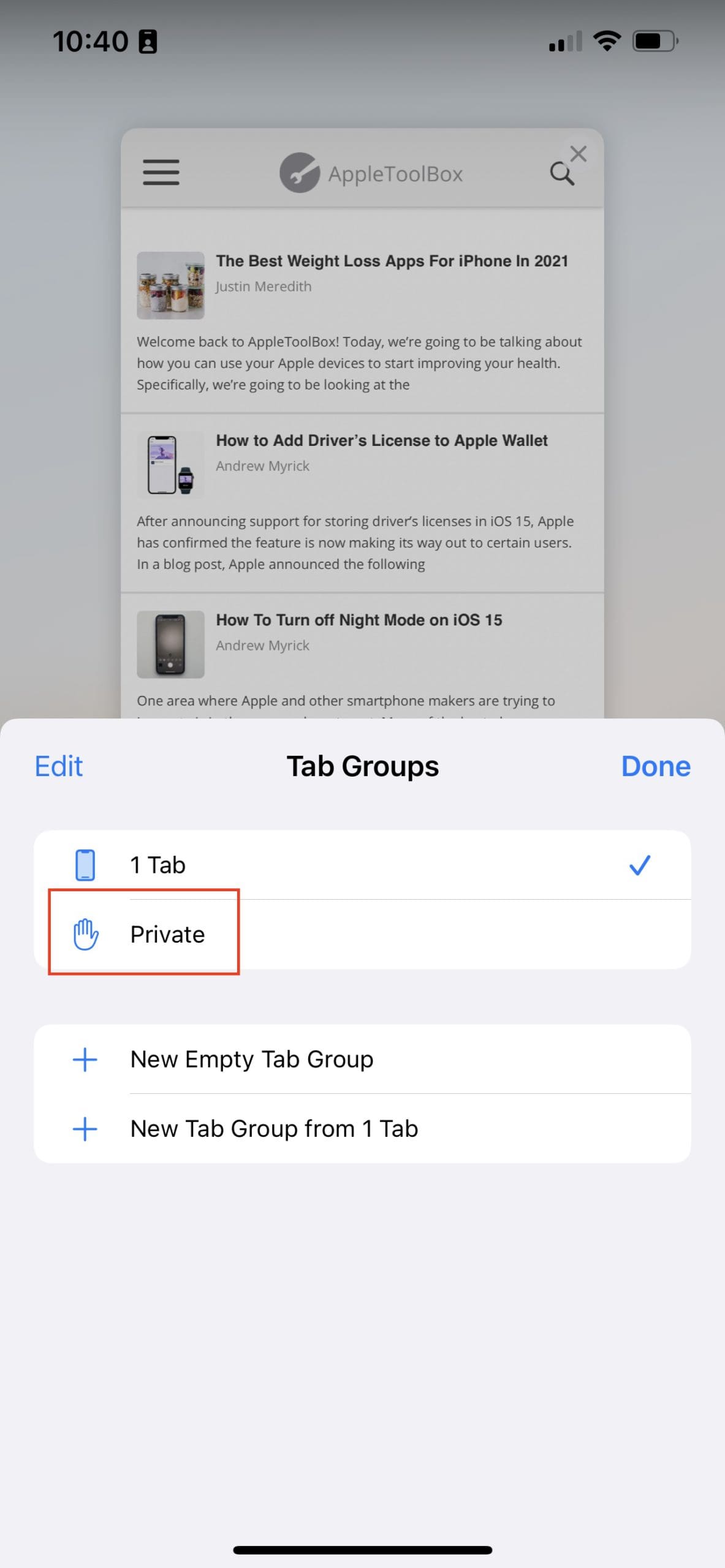
Select Private from the pop-up menu.
Tap the + icon in the bottom right corner.
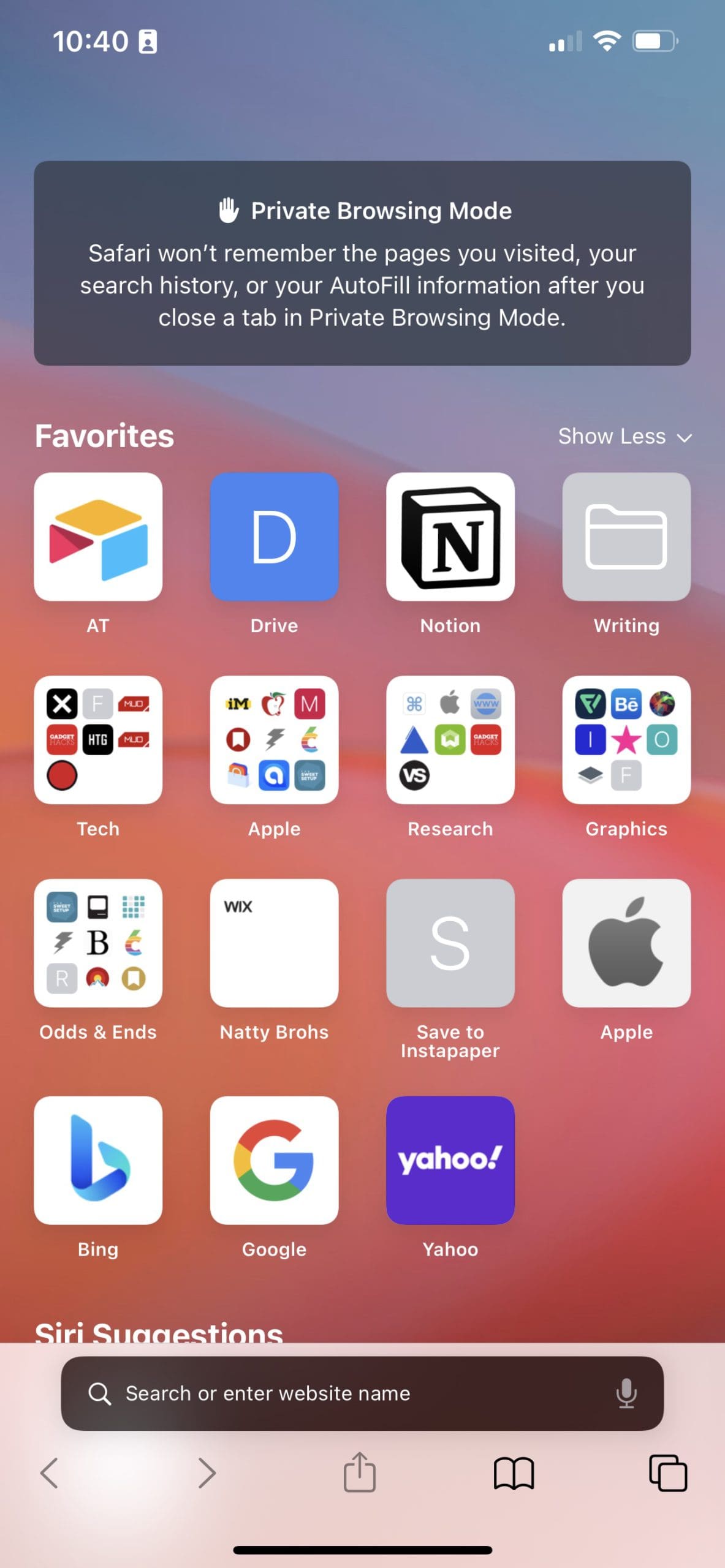
Now you’ve entered Private Browsing Mode in Safari on your iPhone! When you want to exit this mode, just follow the same steps again to go back to “normal” Safari.
Apple also made it easy to recognize when you’re using the normal browsing mode and this Private Browsing Mode. When the privacy mode is activated, the address and search bar at the bottom will turn darker than normal.
Conclusion
Another note when it comes to this mode is that a similar functionality is available on macOS Monterey. However, this is called “Private Browsing” and can be activated just by clicking Safari in the menu bar and selecting “New Private Window.” Or you can use the “Shift + CMD + N keyboard combination.
Apple is not the only company putting more of a focus on privacy. At Google I/O 2021, Google announced quite a few changes coming to Android 12 all revolving around privacy. These include things like status bar indicators when your camera or microphone are being used, and much more.
We, as users, can only do so much when it comes to trying to keep our information private. However, it’s kind of refreshing when a company like Apple or Google also brings more user-facing features to help us.
Andrew Myrick is a freelance writer based on the East Coast of the US. He enjoys everything to do with technology, including tablets, smartphones, and everything in between. Perhaps his favorite past-time is having a never-ending supply of different keyboards and gaming handhelds that end up collecting more dust than the consoles that are being emulated.











Write a Comment