The Apple TV is an underrated product that Apple is trying to show some more love by creating more integration with its other products. With streaming becoming so popular and mainstream media dying rapidly, we might actually finally begin to see widespread adoption of the Apple TV. If you already have an Apple TV and are new to the product, you might feel a little confused about how to work things around smoothly. It can take a bit of time to get used to all the features out there, but read on to find out how to use the Apple TV remote app and other tips and tricks to help you out.
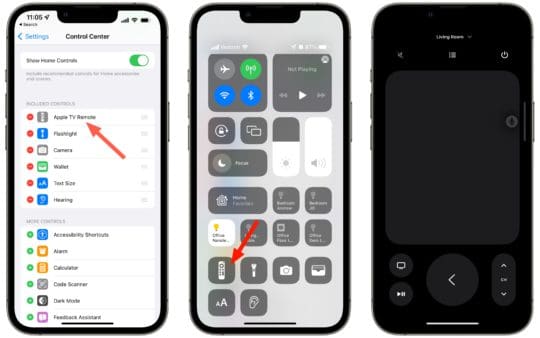
The Apple TV remote app is a sleek and minimal app that allows you to control your TV via AirPlay 2. All Apple TVs come with the Siri remote, and the remote app does a good job of trying to replicate the physical hardware with the touchpad taking up most of the screen so you can navigate easily. The remote app features include:
A play and pause button
TV button
Power button
Menu button
The remote app used to be available on the App Store as a standalone app, but Apple has worked hard to integrate it natively so that users can have a more seamless experience with their Apple products. Not many customers may have known that they could use their iPhone or iPad as a remote, so this integration helps with accessibility. If you still have the Apple TV remote app from the App Store, you can delete it as it doesn’t work with iOS 16.
How to Open the Apple TV Remote App
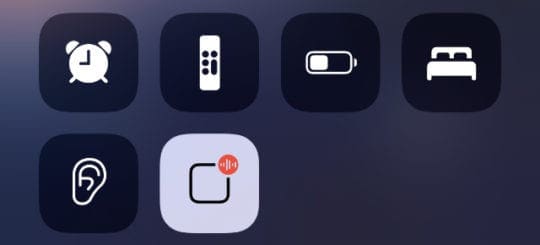
The primary way to open the remote app is through the Control Center. The Control Center is present in multiple places on your iOS device. When you unlock your phone and swipe on the right half, it slides open a screen with various nodules and buttons. Here, you can find the remote app. Alternatively, if you have something playing on your Apple TV, your iPhone automatically picks that up through the AirPlay 2 connection. Just like your AirPods, you can open the remote app by clicking on the icon next to the media player on your lock screen. Since Apple got rid of the app, this is the only way you can open the Apple TV remote on your iOS 16 device.
Can You Change the Volume on the Apple TV Remote App?
You can only technically change the volume of what you’re watching in certain circumstances. Since the iPhone doesn’t have an IR emitter, it doesn’t have the ability to directly change volume levels like your physical Siri remote can. The app relies on AirPlay control instead. So, if you have a smart TV that allows for AirPlay 2 connection, then you would be able to use your Apple TV remote app to change the volume comfortably. Unfortunately, most smart TVs don’t have the need to support AirPlay connectivity, so they don’t. However, if you use the HomePods for your audio equipment, then you would be able to use your remote app to change the volume of your TV due to the equipment’s AirPlay connectivity options.
Put the Apple TV Remote App on Your Home Screen
If you like shortcuts and streamlining every aspect of your life, you may be interested in creating a Home Screen shortcut for your remote app. Since you can’t technically open the app without having an Apple TV on, you’ll have to employ some trickery. Here’s a step-by-step guide on how:
Open the Shortcuts app and press on the plus icon in the top right.
Search for the term “Remote” in the actions selector screen.
Select Apple TV Remote.
Tap on Wake Apple TV.
Repeat steps 1-3, except tap on Show Remote Control.
Tap on the blue text to select the Apple TV you wish to pair it to.
Tap the dropdown at the top center of the screen to rename and add to your Home Screen.
Go to your Home Screen, find the new icon, and tap it to start up your Apple TV and open the remote app at the same time.









Write a Comment