iOS 16 brought about a seismic change for Apple users, as Apple has been gearing up for the general release of the iPhone 14 series. You may feel a little overwhelmed with the new changes — there were a lot! One feature that seemed to have gone under everyone’s radar is the new iOS 16 keyboard haptics. Small quality-of-life changes like this are rarely announced, as they’re just not important enough to warrant a segment of their own, especially on such a big stage like Apple’s “Far Out” event. If you like your texting to feel dynamic, you’d certainly like the keyboard haptics change. But could the iOS 16 keyboard haptics feature be draining your battery? Find out more below.
The iOS 16 keyboard haptics change is relatively small, to be honest. All it does is make each letter you type vibrate slightly, giving a more dynamic and organic feel. It feels like you’re actually pressing on something as you type on your iOS device now. Not many people may understand the underground hype around this feature, but once you try it out, you’ll probably never stop. To turn it on, go to your Settings app > scroll down to Sounds & Haptics > Keyboard Feedback > toggle on Haptic.
Is iOS 16 Keyboard Haptics Draining Your Battery?
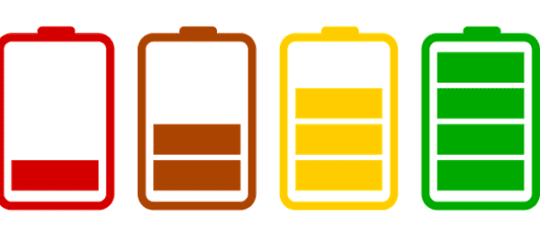
While it’s still too early to definitively proclaim the new iOS 16 keyboard haptics feature is draining battery life, Apple themselves have released a small disclaimer stating: “Turning on keyboard haptics might affect the battery life of your iPhone” in their support document. If Apple takes up space to give a disclaimer like that, there have probably been some tests that indicate that the feature does, in fact, drain battery life. Although we haven’t realized any noticeable differences with it on or off, we’d probably trust Apple’s intuition on the matter, seeing as they have intimate knowledge of the subject matter. Perhaps as people settle with iOS 16 and more people test out keyboard haptics, we’ll have more definitive answers. All that is to say, although it may drain battery life, it isn’t an important enough distinction for you not to turn it on.
iOS 16 Tips to Save Battery Life
If you’re worried about your iOS 16 battery life draining too fast, like many others out there, then try these quick tips:
Keep Location Tracking to a Minimum
We all know by now that location tracking and GPS drain your battery significantly. Your iPhone is working constantly, providing satellites with real-time data on your geolocation, which isn’t easy on your device. Typically when you download an application that tracks your location, you’ll be given a prompt asking if you give permission to the app or not. If you want to review all the apps that are tracking your location, then head over to Settings > Privacy & Security > Location Services. You can see each application and see what permissions it has. Alternatively, you could use Safety Check to have a full review of the permissions each app has.
Try Dark Mode
Dark Mode was introduced in previous iterations of iOS and became an instant hit. Users have been asking for the dark version of certain apps for ages to reduce eye strain, and Apple has delivered. If you haven’t enabled Dark Mode yet, we strongly suggest you do. It takes up less power as you’re putting less stress on the LED screen to load brighter colors. Some studies suggest that Dark Mode may even save up to 30% battery life compared to using your iPhone without it on. To turn on Dark Mode, go to Settings > Display & Brightness > and turn on Dark Mode. You can even toggle Dark Mode on and off, depending on whether it’s night or not.
Optimize Battery Charging
Battery Charging has been a feature since iOS 13, and it looks to reduce the time your iPhone spends in a fully charged state. Having a charger in while your iOS device is at full capacity can damage the battery’s hardware and put unnecessary strain on it, ultimately reducing your battery life. Most newer devices have this feature enabled by default, but if you don’t, here’s how you can turn it on. Head over to Settings > Battery > Battery Health > Optimized Battery Charging.
Turn Off Siri
Just like location tracking, Siri can have a significant strain on your battery. Siri is a feature that’s constantly running in the background so that it can pick up on your voice prompts when you need the AI assistant. Not many people use Siri in normal situations, so you may opt to turn Siri off altogether. To do this, go to Settings > Siri & Search and turn off Listen for “Hey Siri”, Press Side Button for Siri, and Allow Siri When Locked.









Write a Comment