Updating the software on your iPhone should make it faster, right? That’s the idea. However, some updates don’t hit the mark. Occasionally, a glitch or software error can cause a phone to slow down after an update.
You might notice that apps take longer to open. Safari might become unresponsive or take forever to load. You may also notice that accessing media like videos and photos takes longer than normal. If you recently updated to iOS 17.2 and your phone is slow, don’t worry. There are steps you can follow to optimize the performance of your Apple smartphone and beat iOS lag.
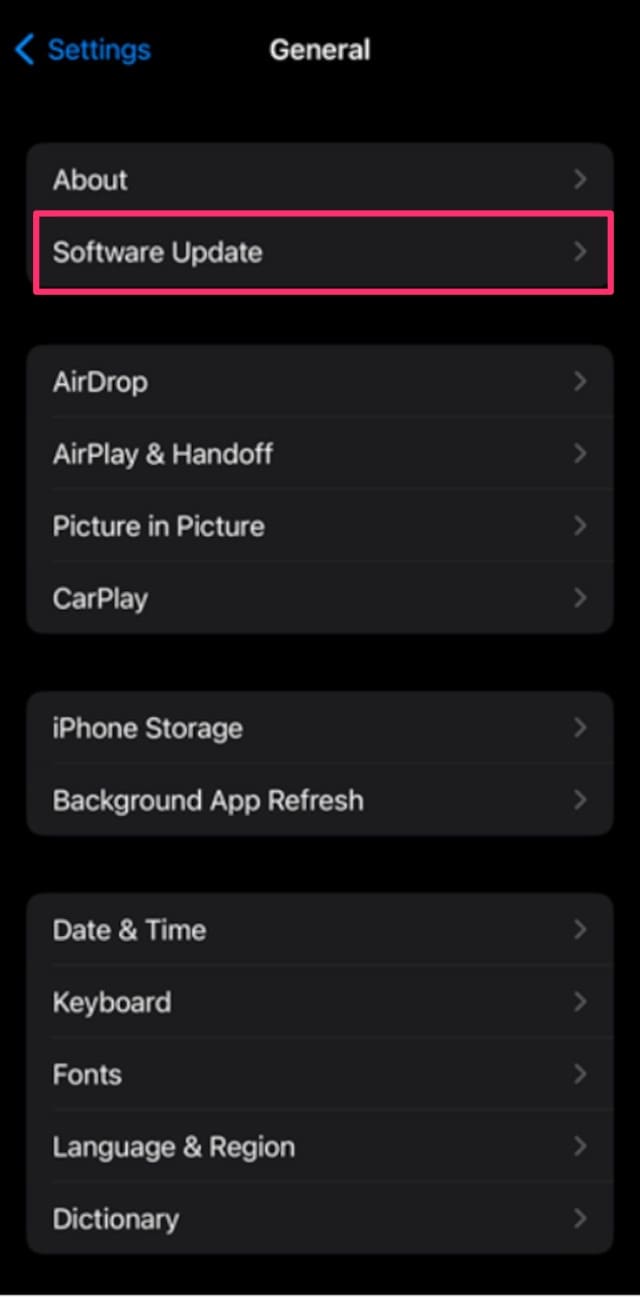
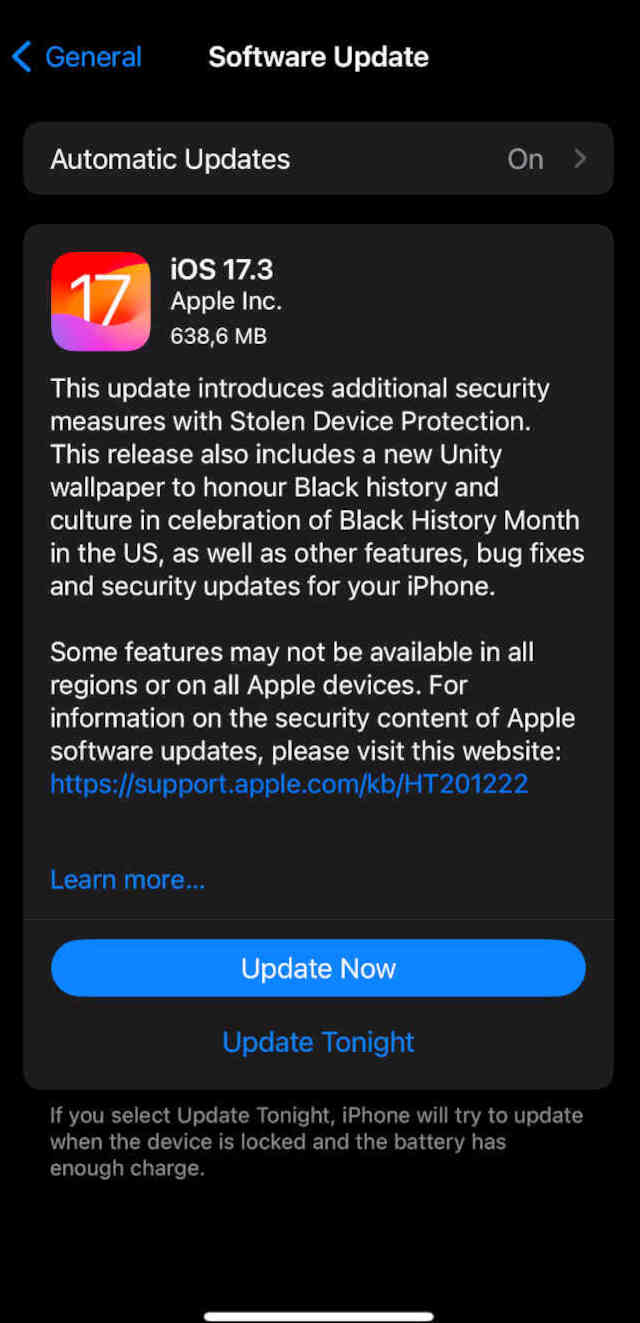
Sometimes your iPhone may download the software update but not install it. This is easily fixed. Go to Settings > General >Software Update. If the software still needs to be installed, you should see a red dot next to “Software Update.” Whether this red dot (usually with a number in it) is present or not, click “Software Update.” Your phone will prompt you to install the latest version of the software if required.
Quick Tips:
Always update your iPhone or other iOS device as soon as an update becomes available.
Don’t try and perform other tasks with your phone while it’s updating.
Let your iPhone charge while the software installs.
Your iPhone may restart after the software update – this is normal.
Once the software installs double-check in Settings > General > Software Update that there are no further updates and that the current software is up-to-date.
If issues continue, follow these further steps.
2. Wait 24 Hours
This is a simple but sometimes frustrating step. Waiting might seem counterintuitive, but once an update has taken place, your phone performs some background tasks. These can temporarily slow the phone down for a few hours. If after 24 hours you’re still experiencing iOS lag, move on to the next step.
3. Update Apps
Unless you’re only using your iPhone for calls and texts—and who does that these days—you’re bound to have numerous apps from the App Store. App updates generally optimize them to work with the latest version of iOS. If you don’t update your apps soon after updating your phone’s software, you may find they run slowly or, in some cases, not at all.
Checking for app updates is easy:
Find the App Store icon on your phone.
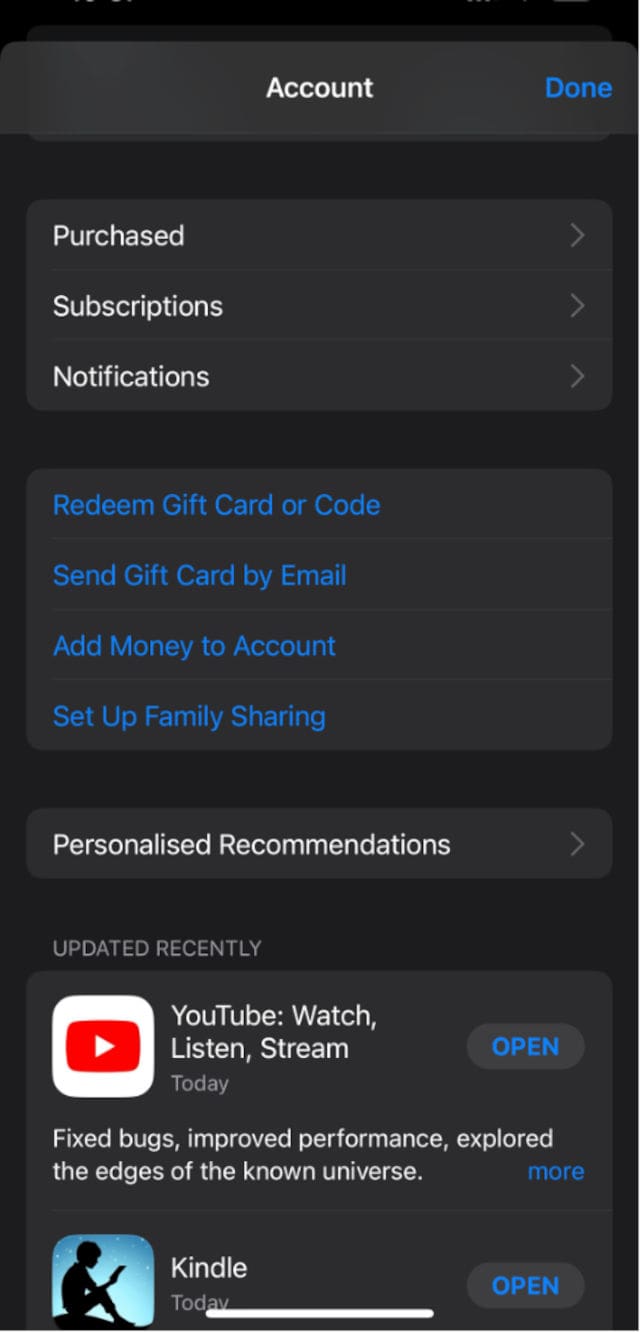
Click the icon, then click the circle with your initials in, found in the top right corner.
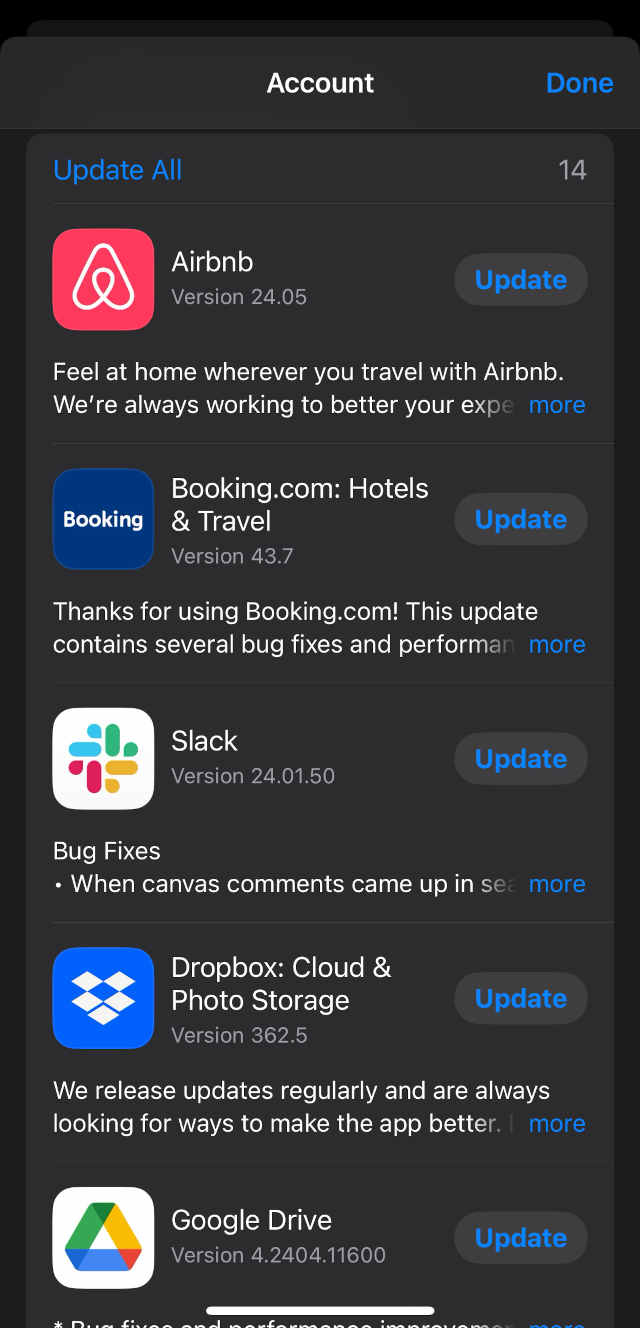
Scroll down and you will see a list of apps that require updates.
If all you see is “Updated recently,” your apps are current and require no updates.
If you see a list of apps requiring updates, you can either click “Update” on individual apps or “Update All.”
Don’t try and use an app while it is updating.
You should find that once your apps are up to date, your new software and phone work more smoothly. Once all updates are complete, switch your phone off and on again and check its performance.
4. Check Your Storage
Your iPhone is essentially a tiny computer. Just like a computer, if its memory is full, it won’t perform adequately. New software needs free space for storage and to perform tasks effectively.
To check the state of your current storage:
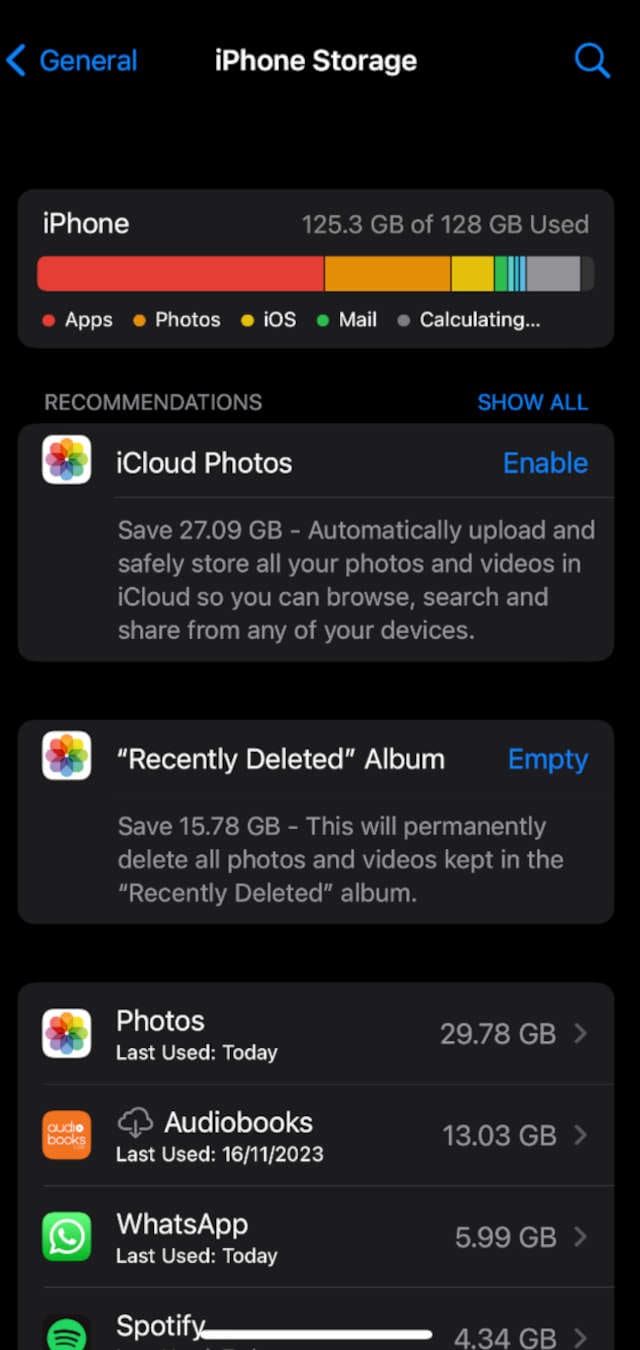
Go to Settings > General > iPhone Storage. This will show a bar indicating how full your phone is and what’s using up the space.
If the iPhone has less than 5GB free, consider deleting some apps or media.
The list below the storage bar shows you what apps are using the most storage.
Tip: Emptying your “Recently Deleted” photo album may free up space, but there is no way to retrieve these photos and videos unless you’ve previously backed them up.
5. Turn Off Background App Refresh
Many apps continually run to perform background tasks. This can include your email client checking for new mail or your Apple Books app syncing automatically, particularly if you use it on more than one device.
These background activities help provide a seamless experience for users. However, they can drain battery life and reduce performance, leading to iOS lag. You can turn background refresh off completely, or just for individual apps. Follow these steps:
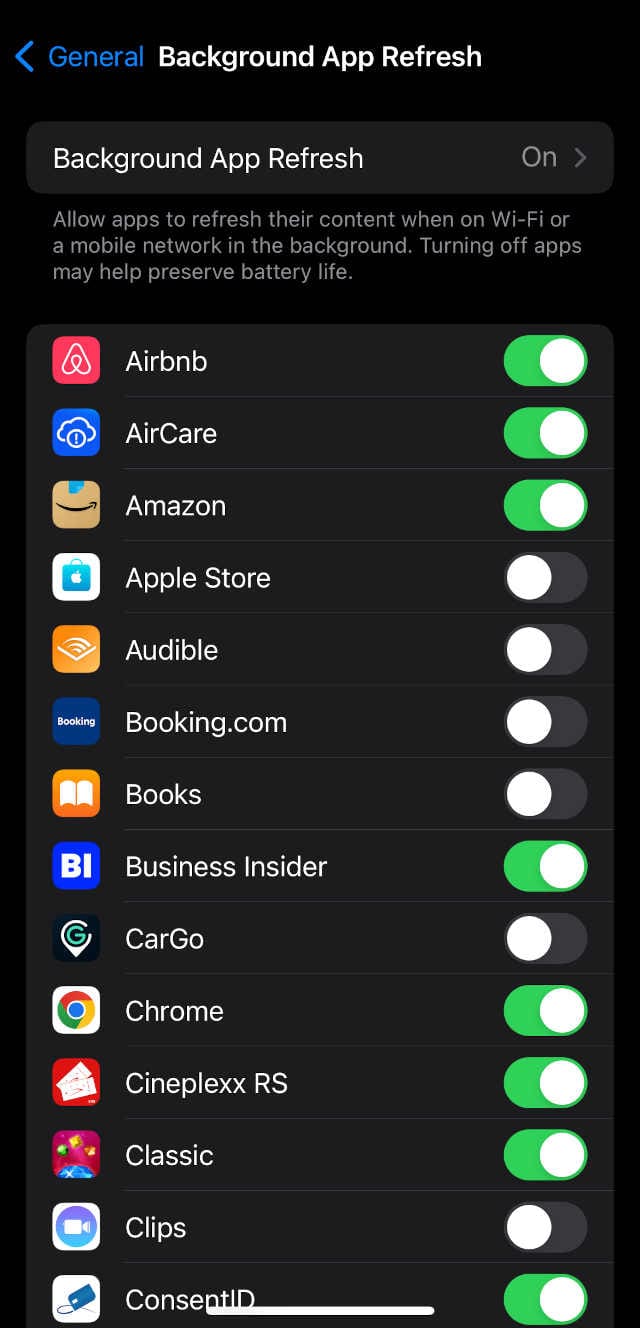
Click Settings > General> Background App Refresh.
The very top option allows you to choose to turn this feature on or off. Switch it to Wi-Fi only, or allow background refresh on Wi-Fi and Cellular Data.
If Background App Refresh is on, you’ll see a list of apps that utilize it. Use the button next to each app name to switch refresh off or on.
For example, you could turn background refresh off for all your games but leave it on for your email and banking apps.
6. Take a Look at Your iPhone’s Battery Health
In some cases, iOS lag might have more to do with battery health than software issues. While smartphones are incredibly sophisticated devices, batteries do eventually wear out. Following the manufacturer’s advice for proper charging can help prolong the life of your battery.
To check your iPhone’s battery health:
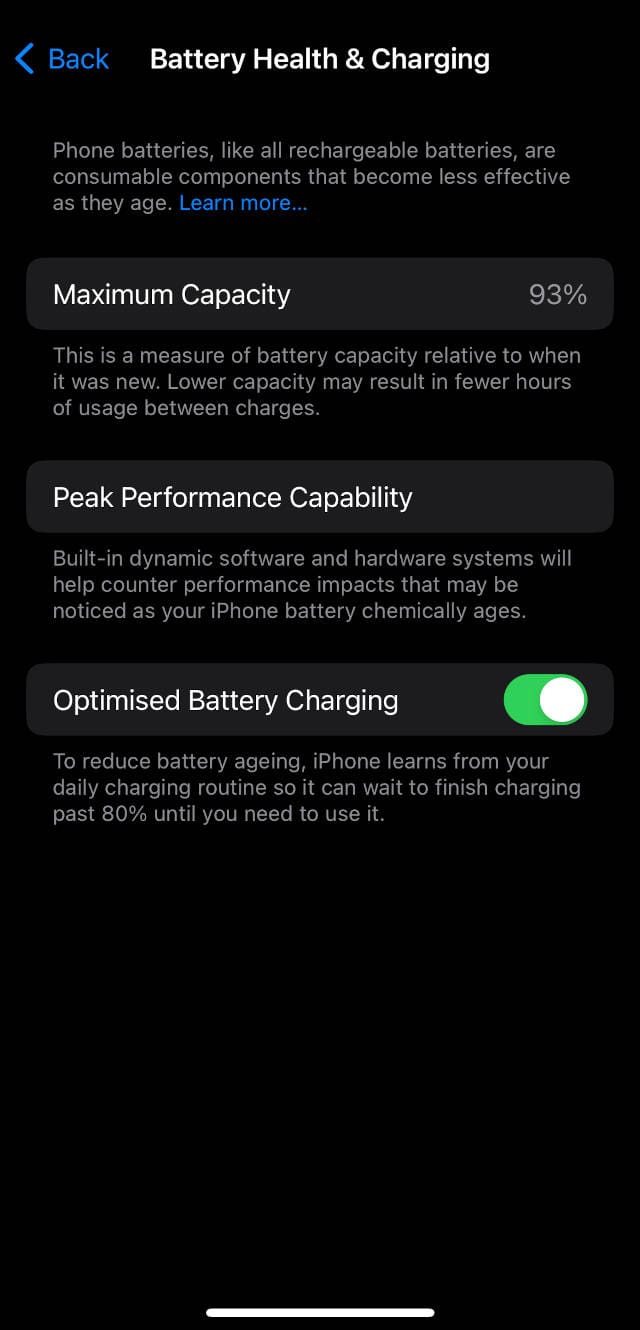
Go to Settings > Battery > Battery Health & Charging.
Review the information here. You should see the maximum capacity of the battery and any notices about performance concerns.
You can also switch “Optimized Battery Charging” on. This ensures that your phone doesn’t overcharge the battery which could contribute to battery aging and reduced capacity.
Following the above tips should eliminate your iPhone iOS lag issues. You can implement any of these steps whenever you experience a drop in performance. The battery advice will also prolong the life of your device and give you more time between charges.
Look out for iOS 17.3 and remember to do your software updates promptly. Keeping your phone and apps up-to-date is the number one way to optimize speed and performance on your smartphone. Leave us a comment and share this helpful guide on social media.
As an avid gamer, I’ve run into my fair share of error codes and weird faults that have forced me to find fixes to problems I never anticipated. That gave me a passion for sharing those fixes with others so we can all game without feeling like our hardware is rebelling against us.











Write a Comment