• Skip to primary navigation
  • Skip to main content
  • Skip to primary sidebar
  • Skip to footer

AppleToolBox

Tools and Fixes for Mac, iPad, iPhone & iWatch

Search posts

  • About
  • Contact

CONNECT WITH US

CATEGORIES

  • iPhone
  • iPad
  • iPod
  • Apple Watch
  • Mac/MacBook
  • AirPods
  • Apple TV
  • News
  • Apple Services
  • HomePod
  • Reviews

SITE

  • Home
  • About Us
  • Contact
  • Advertise

Search posts

You are here: Home / iPhone / iPhone: Enable/Disable Grid in Camera App

iPhone: Enable/Disable Grid in Camera App

By Michelle Honeyager 2 comments Last updated March 14, 2022

You probably either really love or really hate the grid feature on your iPhone’s camera app. So below we’ll go into how to turn it on or off.

What The Camera App Grid Is For

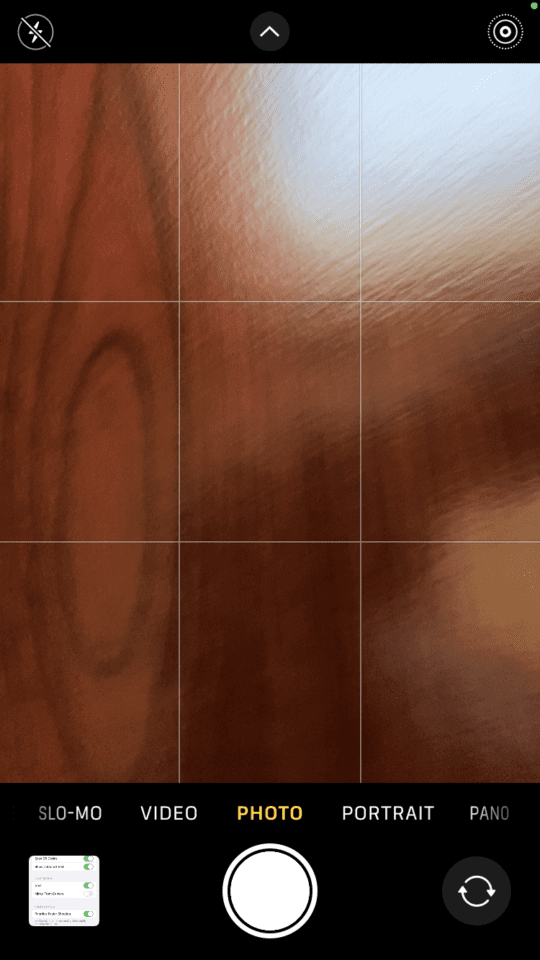
What the grid does is it overlays four narrow lines over the screen of your camera app. The lines overlap to create nine distinct squares. The idea is that it helps you take more professional photos by helping you orient the screen so that all the elements in the photo are balanced. It helps anyone with an untrained eye line elements up against the grid squares for a pro-level photo.

However, if you’re just taking casual photos for yourself, which means you might simply be eyeballing it, you might not need the grid. In fact, the little white lines may even seem annoying to you. So below we’ll go over how to enable and disable these gridlines on the iPhone’s camera app.

Enabling and Disabling the Grid on the Camera App

Whether you love or hate the grid, luckily, it’s an easy feature to toggle on and off.

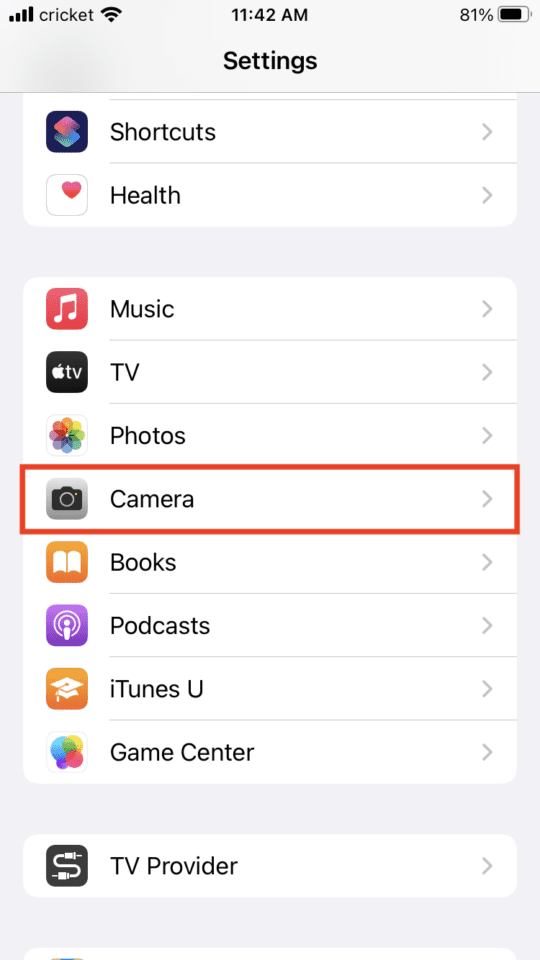
Simply go into your Settings App and scroll until you see your Camera app listed. Some iPhones might list both together as Photos and Camera. Select whatever option takes you to the Camera app:

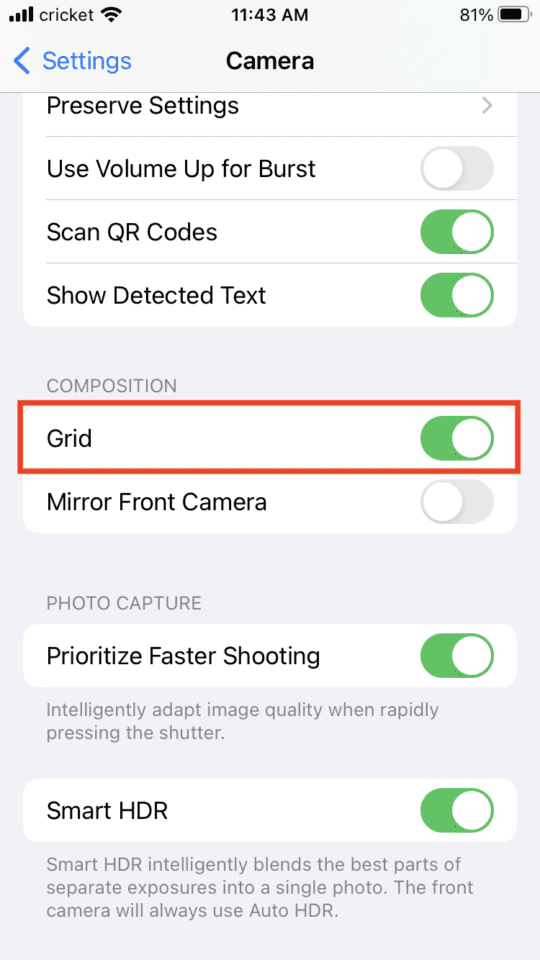
You’ll see a toggle button for the grid. Tap it to turn it green if you want it on:

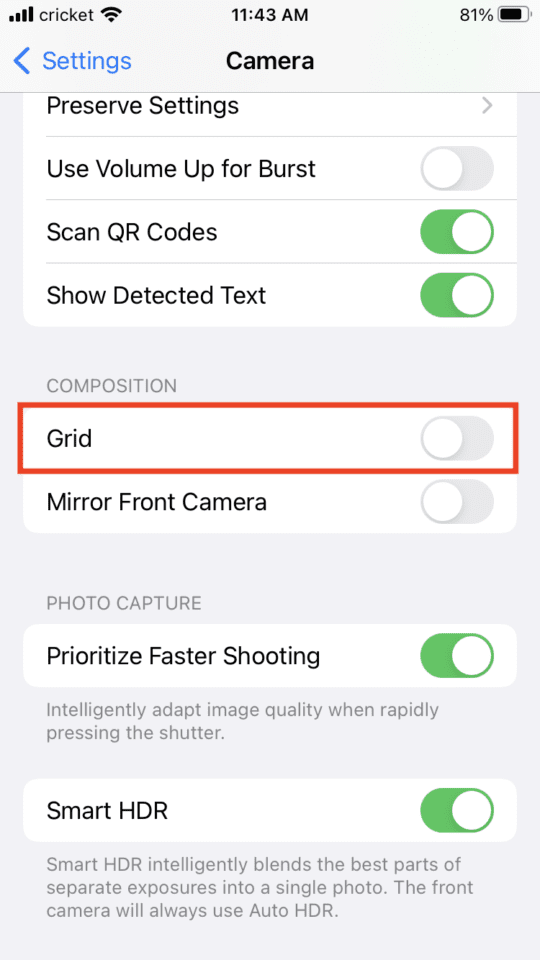
Tap the grid toggle to turn it gray if you want it off:

If you toggle it on, you’ll see those gridlines on your camera app (not that anything could fix a blurry photo of my computer desk):

Now you can either go the highly measured route of taking photos by using the grid, or you can just wing it for photos that look good taken as a whole.

Related Posts:

  • sidecar on iPadOS and macOS
    Sidecar not working in iPadOS and macOS? How to fix…
  • 2023 Mac Studio lifestyle - 1
    macOS Could Not Be Installed, How-To Fix
  • Update Apple ID settings on your iPhone, iPad, or Mac after changing your password
    Getting a Message to Update Apple ID Settings on…
  • iOS 16 Unsend Messages on Your On Your iPhone
    No Text or Message Notification Alerts or Sounds on…
  • How to use ChatGPT on iPhone and iPad - Hero
    How to Use ChatGPT on iPhone and iPad
  • Missing Holidays on iPhone Calendar? How-to Fix Hero
    How To Duplicate and Copy Calendar Events in iOS and…
  • iPhone 15 Pro unboxing
    How To Extend Your iPhone Battery Life
  • iPhone 15 Pro Max - 1
    10 Handy Apple Shortcuts You Can Use Every Day
  • Windows computer
    How to AirDrop from iPhone to Windows PC

Reader Interactions

Write a Comment Cancel reply

Show 2 Comments

  1. Garry says

    March 9, 2023 at 11:18 PM

    Why does the grid on my iPhone not shut off the slid button on the grid button will not move

    Reply
  2. garry mcdorman says

    August 8, 2022 at 8:02 AM

    there must be a simpler way to turn off the bloody CAMERA grid

    Reply

Primary Sidebar

Recent Posts

  • How to Export iTunes Library to New Computer
  • What the Gemini Desktop App Will Bring to Mac
  • What to Do When Windows 11 Won’t Detect Your iPad
  • Outlook Outage 2026: iPhone Fixes for Sign-In Chaos
  • Guide to Changing iMessage Backgrounds on iPhone and Mac
  • Has Apple Killed Vision Pro? (Insane Sales Flop Explained)

Connect with us

Footer

ABOUT

  • About Us
  • Contact us
  • Advertise
  • Privacy
  • Terms of Use

GUIDES

  • iOS & iPadOS
  • Apple ID
  • iCloud
  • App Store
  • iTunes
  • FaceTime
  • iMessage
  • Siri
  • Books and iBooks
  • Game Center
  • AirPlay

CONNECT

  • Facebook
  • Twitter
  • FeedBurner
  • YouTube

© Copyright 2010-2024 Guiding Tech Media · All Rights Reserved

This site and its content are in no way affiliated or endorsed by Apple, Inc. · Reproduction without explicit permission is prohibited