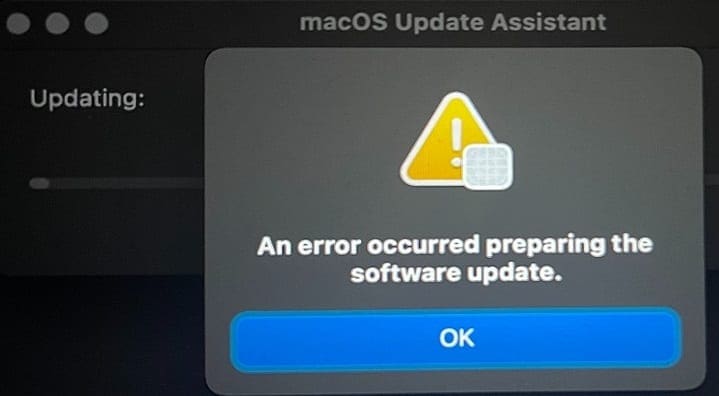
Keeping your MacBook up-to-date is crucial if you want to benefit from the latest features and security improvements. Unfortunately, the update process may sometimes fail with various error messages. “An error occurred preparing the software update” is one of the most common Mac update errors. Let’s see how you can troubleshoot the problem and update your device.
Fix: An Error Occurred Preparing the Software Update on Mac
Try Again Later or Check the Full Installer
Apple’s servers may be overloaded due to a large number of users trying to update their Macs at the same time. As you already know, slow downloads can corrupt the update installer. One way to deal with this issue is to simply try again later.
Alternatively, navigate to your Applications folder, locate and select the Install macOS [Insert Update Version].app and check if you have the full installer. For example, if you’re trying to install Big Sur, look for Install macOS Big Sur.app.
If the installer is available, reboot your Mac into Safe Mode, and launch the installer. Check if you can install the update. If the issue persists in safe boot, delete the update installer, empty the Trash folder and try again.
Free up Some Space
This error message may also indicate that your Mac doesn’t have enough space to save the update files. Remove all the files and apps you no longer need or back up your data to an external hard drive.
Turn off your Mac and press and hold the Option button before turning the device back on.
In just a few seconds, the Startup Manager should display two options: Select Mac HD and Log Into Your Wifi.
Follow the on-screen instructions, and log back to the Home Screen.
Delete or back up your data and check if you can update your Mac.
Reinstall macOS
Many users said that their devices displayed a prohibitory symbol after they restarted their machines in an attempt to fix the error. This indicates the update files got corrupted or failed to install properly. In other words, the startup disk contains an operating system that your Mac cannot use.
Press the power button until your Mac turns off.
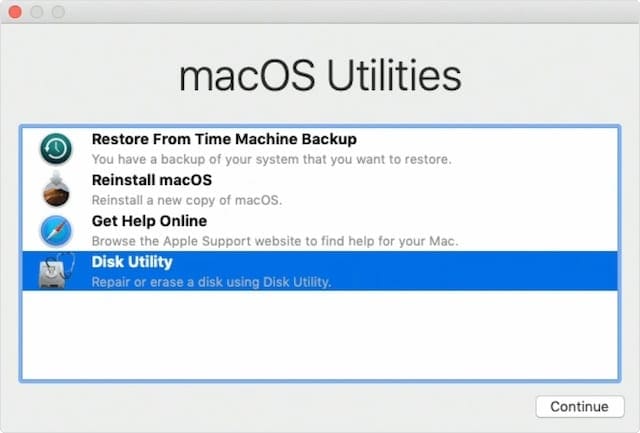
Then turn on the device and immediately press and hold the Command (⌘) and Rkeys. This will launch macOS Recovery.
Select Disk Utility and let the tool repair your startup disk.
If the Disk Utility doesn’t find any errors, go back to macOS Recovery and reinstall your operating system.
If you can’t reinstall the OS or the issue persists after that, wipe your drive. After you erase all the data from the computer, install the latest macOS version and restore your data from Time Machine.
Use an External Drive
Get your hand on an external drive (ideally, an SSD).
Turn on your computer and then hold the Shift, Option, Command, and R keys to start up from macOS Recovery.
Enter your WiFi password when prompted. Then plug your external drive into your Mac.
Navigate to Disk Utility and select Show all devices.
Select your external drive and hit the Erase option. Then select your drive name, APFS Format, and GUID Scheme before you hit the Erase button again.
Go to Utilities and click Reinstall macOS. Accept the terms and conditions and select your external drive as a boot device. You’re going to download the OS to the external drive.
Follow the on-screen instructions and wait for the process to finish.
Then, launch Finder, select Macintosh HD Data, select your user account and go to your Documents folders.
Access your files and copy them to another external storage device such as a USB flash drive.
Next, free up at least 30GB of space on your Mac. Don’t forget to empty the Trash folder.
Restart your Mac and hold the Shift, Options, Command, and R keys again.
Reinstall macOS on your Macintosh HD drive. The storage space issue should be gone now. You should be able to install the latest OS version on your machine. At this stage, you no longer need your external drive.
Install Mojave
Use this solution if the system rejects your password when you try to use Disk Utility.
Grab a Thunderbold cable and connect the problematic Mac to a desktop computer.
You can use an external hard drive if you don’t have a flash drive.
Hold the Option key and restart your desktop computer. Install Mojave on your flash drive.
Then use the flash drive to boot up your device.
Navigate to Disk Utility, put your laptop in Target Disk Mode, mount Macintosh HD Data, and check if your password works now.
Delete as much data as possible. Ideally, make sure you have at least 40 or 50 GB of free space.
Restart your Mac and check if you can complete the update install process.
Conclusion
If your Mac says that an error occurred while preparing the software update, this could indicate you don’t have enough free space to install the update. Free up some space and try again. Make sure you have at least 40 GB of free space. If the issue persists, reinstall macOS.
Did you manage to fix this error? Which method worked for you? If you used other solutions to fix this problem, list the steps to follow in the comments below.
Madalina has been a Windows fan ever since she got her hands on her first Windows XP computer. She is interested in all things technology, especially emerging technologies — AI and DNA computing in particular.
When I selected Mac HD, it boot but go to recovery screen with 4 options. Since I haven’t backup through time machine before. I have no way to access the login screen. Please help.
Um… which of the options should you actually select in Step 2? I get three options: macOS installer, Macintosh HD, and Choose Network.
1. Turn off your Mac and press and hold the Option button before turning the device back on.
2. In just a few seconds, the Startup Manager should display two options: Select Mac HD and Log Into Your Wifi.
3. Follow the on-screen instructions, and log back to the Home Screen.
4. Delete or back up your data and check if you can update your Mac.












When I selected Mac HD, it boot but go to recovery screen with 4 options. Since I haven’t backup through time machine before. I have no way to access the login screen. Please help.
Um… which of the options should you actually select in Step 2? I get three options: macOS installer, Macintosh HD, and Choose Network.
1. Turn off your Mac and press and hold the Option button before turning the device back on.
2. In just a few seconds, the Startup Manager should display two options: Select Mac HD and Log Into Your Wifi.
3. Follow the on-screen instructions, and log back to the Home Screen.
4. Delete or back up your data and check if you can update your Mac.