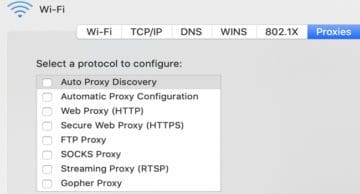
If the SOCKS proxy keeps turning itself on after you reboot your Mac, some kind of malware may have taken over your computer. This unusual behavior usually indicates malware keeps re-adding the proxy server to intercept web traffic data, display ads, and even hijack your browser. Here’s what you can do to get rid of the problem.
While your Mac has excellent antivirus and anti-malware protection, advanced malware may sometimes sneak into your system. To detect and remove malware, install an anti-malware program and scan your computer. For example, you can install and run the free version of Malwarebytes for Mac. Remove the proxy again, go to Network Preferences and check if the proxy settings remain unchanged.
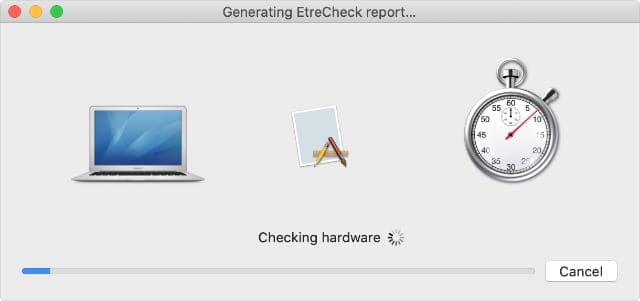
Run Etrecheck
EtreCheck looks at all the hardware on your MacBook Pro
If this issue is caused by adware, Etrecheck should be able to identify the culprit. Download Etrecheck from the App Store or the official website, run the tool, and check the report. If the tool finds any adware or other suspicious-looking daemons, delete them and untick SOCKS Proxy. Restart your Mac, and check if the issue persists.
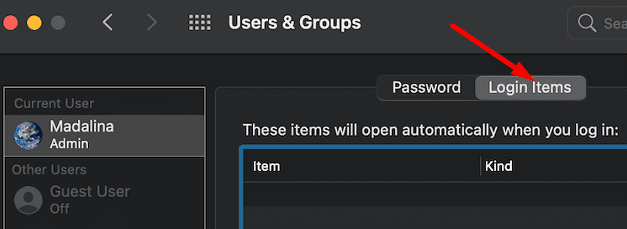
Remove All Login Items
If the issue persists after running an anti-malware scan, one of the programs installed on your laptop could be resetting your proxy settings. Or maybe your Mac does that when you log in. To verify this hypothesis, disable SOCKS proxy, and restart your Mac in Safe Mode. Check if the proxy is on. Most likely, it won’t be.
Then navigate to System Preferences, and select Users and Groups. Take a screenshot of the current settings. Then remove all of your login items, and restart your Mac.
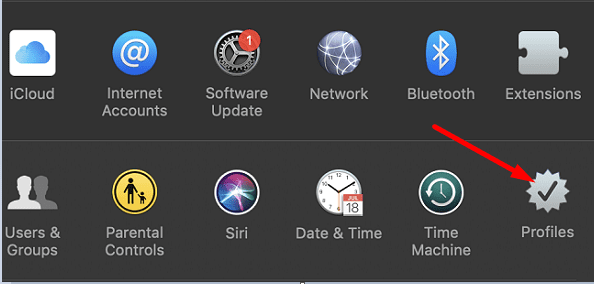
Check if there are any unknown profiles and extensions saved on your Mac. Remove them and check if the proxy issue persists. Navigate to System Preferences, and select Profiles. Delete all unknown profiles by clicking the minus button.
Then launch Safari and go to Preferences. Click Extensions and delete all the suspicious extensions. Disable SOCKS proxy again, restart your Mac, and check if the issue persists.
Conclusion
If the SOCKS proxy keeps turning on by itself on Mac, scan your system for malware. You can also download and run Etrecheck to remove adware and unwanted launch daemons. If the issue persists, remove all login items, unknown profiles, and extensions. Did these tips help you fix the problem? Share your feedback in the comments below.
Madalina has been a Windows fan ever since she got her hands on her first Windows XP computer. She is interested in all things technology, especially emerging technologies — AI and DNA computing in particular.











Write a Comment