• Skip to primary navigation
  • Skip to main content
  • Skip to primary sidebar
  • Skip to footer

AppleToolBox

Tools and Fixes for Mac, iPad, iPhone & iWatch

Search posts

  • About
  • Contact

CONNECT WITH US

CATEGORIES

  • iPhone
  • iPad
  • iPod
  • Apple Watch
  • Mac/MacBook
  • AirPods
  • Apple TV
  • News
  • Apple Services
  • HomePod
  • Reviews

SITE

  • Home
  • About Us
  • Contact
  • Advertise

Search posts

You are here: Home / Mac / macOS: How to Launch App from Terminal

macOS: How to Launch App from Terminal

By Michelle Honeyager 1 comment Last updated September 14, 2022

The typical way to open an app is to click on the icon on the Dock or desktop. You might also hit the Go menu at the top of the screen, select Applications and find the app through that menu to open it. Sometimes, people prefer to launch apps straight from a Terminal command line. If you’re already in the Terminal, for instance, it might make sense to simply open an app from there. Below we’ll go into how to open apps on the Mac from the Terminal.

Opening Mac OS X Apps Using Terminal

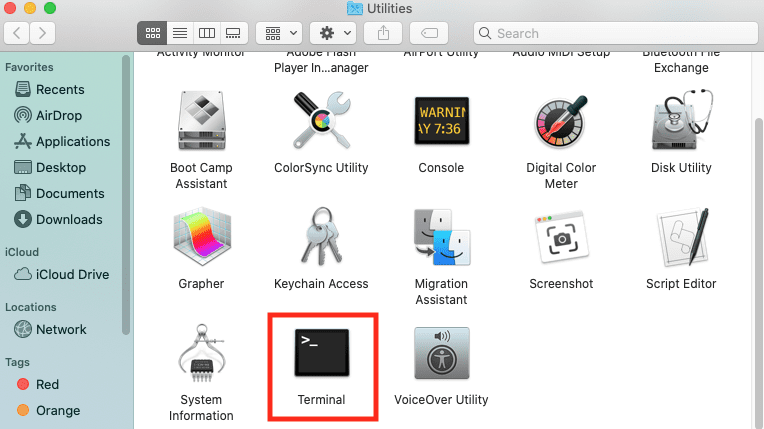
To start, open Terminal:

  1. Click on the Go menu at the top of the screen. (You might have to click an empty spot on the desktop to make Go appear if you’re using another program.)
  2. Select Utilities.
  3. Click on Terminal to open it.

  1. Type “open -a ApplicationName” and hit enter. In the place of ApplicationName, put the application you want to open, like Word or Notes. For instance, if you wanted Notes opened, you’d enter: open -a Notes
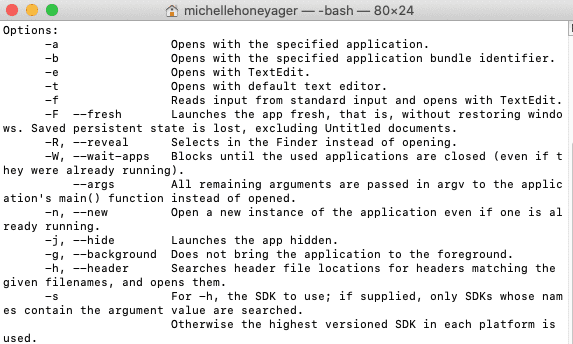
  1. However, command prompts can be different for certain versions of Max OS X, so you can also type the word open in the command prompt to get a help file explaining more detailed ways to use the open prompt. This is what I get when I type open and hit enter in Terminal:

Related Posts:

  • 2023 Mac Studio lifestyle - 1
    macOS Could Not Be Installed, How-To Fix
  • macOS Monterey Universal Control
    How to Reset Dock on Mac
  • sidecar on iPadOS and macOS
    Sidecar not working in iPadOS and macOS? How to fix…
  • Update Apple ID settings on your iPhone, iPad, or Mac after changing your password
    Getting a Message to Update Apple ID Settings on…
  • Games coming to macOS Sonoma
    How to Play Windows Games on Mac
  • iOS 16 Unsend Messages on Your On Your iPhone
    No Text or Message Notification Alerts or Sounds on…
  • How to use ChatGPT on iPhone and iPad - Hero
    How to Use ChatGPT on iPhone and iPad
  • Missing Holidays on iPhone Calendar? How-to Fix Hero
    How To Duplicate and Copy Calendar Events in iOS and…
  • Delete-Group-Reminders-Folder-macOS
    MacBook Will Not Start Up After macOS Update, How-To Fix

Reader Interactions

Write a Comment Cancel reply

Show 1 Comments

  1. Rosie Hotchkiss says

    February 14, 2023 at 6:16 AM

    I’m currently using an pi operating system. In Linux terminal how would I enter a command to open itunes app

    Reply

Primary Sidebar

Recent Posts

  • Are Apple’s Safety Precautions Enough for AirTags?
  • How to Hide Username and Photo on the Mac Lock Screen
  • Microsoft Resume vs. Apple Handoff – Which Wins for Cross-Device Work?
  • How to Export iTunes Library to New Computer
  • What the Gemini Desktop App Will Bring to Mac
  • What to Do When Windows 11 Won’t Detect Your iPad

Connect with us

Footer

ABOUT

  • About Us
  • Contact us
  • Advertise
  • Privacy
  • Terms of Use

GUIDES

  • iOS & iPadOS
  • Apple ID
  • iCloud
  • App Store
  • iTunes
  • FaceTime
  • iMessage
  • Siri
  • Books and iBooks
  • Game Center
  • AirPlay

CONNECT

  • Facebook
  • Twitter
  • FeedBurner
  • YouTube

© Copyright 2010-2024 Guiding Tech Media · All Rights Reserved

This site and its content are in no way affiliated or endorsed by Apple, Inc. · Reproduction without explicit permission is prohibited