Microsoft has always developed its Office products with the Mac operating system in mind. This history goes back a long way, to the very beginning, in fact. Excel was released on the Mac in September 1985, two years before the first Windows version even existed.
Regardless of this strong alliance, there are sometimes stability problems with Office applications running on Mac systems; issues that don’t affect their Intel-developed Windows counterparts.
With this in mind, let’s look at how to fix and avoid Microsoft 365 apps crashing on Mac.
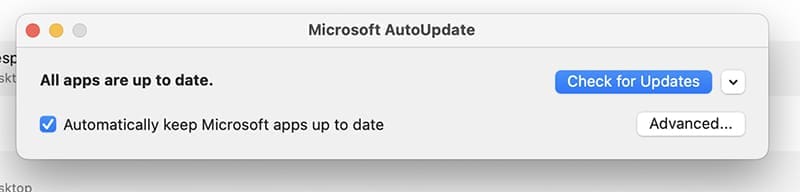
Whether you’re experiencing problems with one app or the whole suite of programs, an update and restart should be your first port of call if Microsoft 365 doesn’t work on Mac. Here’s how to do it:
Updating an App
Step 1. From inside the app, click “Help” and then “Check for Updates.”
Step 2. Install all available updates.
Updating the Operating System
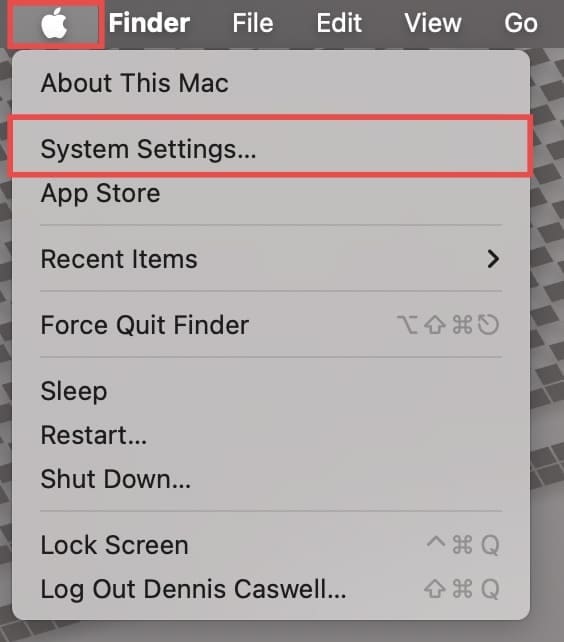
Step 1. Click the Apple icon button in the top-left corner, and select “System Settings…” from the drop-down menu.
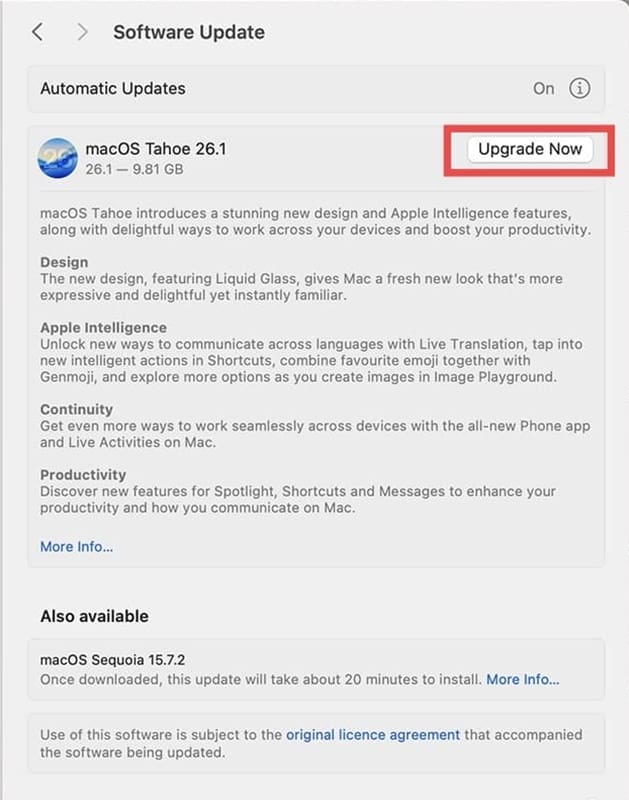
Step 2. From the “General” tab, locate and click on “Software Update.” Your Mac will automatically check for a new software version.
Step 3. Click the “Update Now” or “Upgrade Now” button.
Option 2. Clear Corrupted Caches
Corrupted files or user settings can often lead to crashes, especially when they are app-specific. Clearing preferences and AutoRecovery files can mitigate these issues.
Clearing Preferences
Step 1. Make sure you quit all 365 applications. Open “Finder.” In the menu bar, select “Go” and then click “Go to Folder” from the drop-down.
Step 2. Type in the following path: “~/Library/Containers/” and press “Enter.”
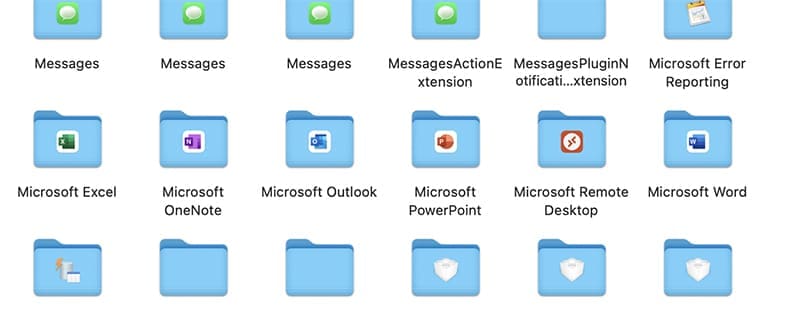
Step 3. Find the folders related to Office apps that may be causing the problem, move them to the Desktop and test them.
Step 4. If one isn’t working correctly, move it to the trash.
Step 5. Restart your computer and try launching the Office app again.
Clearing AutoRecovery Files
Repeat Steps 1 to 4 above, but at Step 2, type the following instead: “~/Library/Containers/com.microsoft.Word/Data/Library/Preferences/AutoRecovery.”
Option 3. Isolate Conflicts
If the crashes persist, the problem could be something external unrelated to the 365 programs themselves. To discover if that’s the case, you can try restarting the system in Safe Mode, which disables many third-party apps and add-ons.
Step 1. Shut down your Mac.
Step 2. Restart and hold down the Shift key until you see the login window.
Step 3. Log in and try opening the Microsoft app.
If the app works in Safe Mode, you’ll know that another app, third-party font, or extension is the likely cause.
You’ll then be able to narrow the issue down to a recent third-party app you’ve installed.
Option 4. Reinstall Office
If all of the above steps fail to resolve the issue, you may need to uninstall the 365 Suite (or the individual apps if you don’t have them all) and replace it with a clean installation.
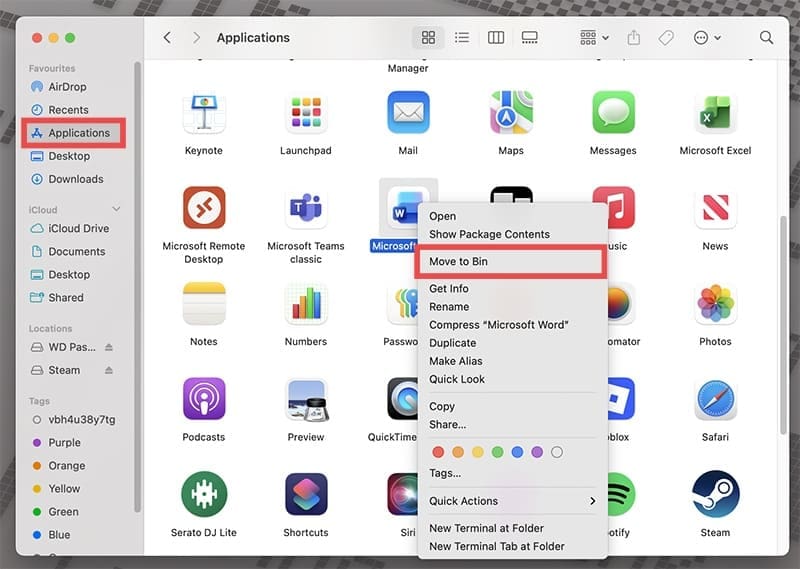
Step 1. Quit all Office apps you have open. Open “Finder” and navigate to “Applications.” Drag each app to the “Trash,” or right-click and select “Move to Bin.”
Step 2. Delete any associated files by following the “Clearing Preferences” steps in Option 2, but this time, at Step 2, locate two specific folders by typing the following: “~Library/Containers/UBF8T346G9.Office/” and “~Library/Group Containers/UBF8T346G9.Office/”, navigate to, and delete the contents of each of those folders.
Step 3. Empty the Bin and restart your Mac.
Step 4. Download and install the Microsoft apps again from the App Store.
As an avid gamer, I’ve run into my fair share of error codes and weird faults that have forced me to find fixes to problems I never anticipated. That gave me a passion for sharing those fixes with others so we can all game without feeling like our hardware is rebelling against us.


















Write a Comment