If your Mac no longer displays the option for “Files on Demand”, you’ve come to the right place. In this quick guide, we’ll list five solutions that you can use to get rid of this issue. Rest assured, you’re not the only OneDrive user experiencing this glitch.
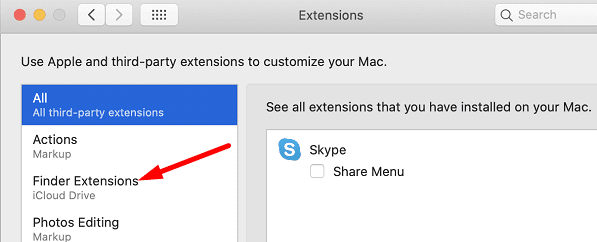
Try disabling all of your Finder extensions and then enable them back one by one. In this manner, you’ll quickly identify which extensions are in conflict with OneDrive. Click on the Apple menu, go to System Preferences, and then click Extensions.
By the way, many users identified the Google Drive Finder extension as the culprit. If you installed this extension on your machine, disable it and check if the Files on Demand option is available again.
Enable Files On Demand via Terminal
Quit OneDrive for Mac. Then launch Terminal and run the following command to enable Files on Demand:
Restart your OneDrive app and check if the issue persists.
Delete OneDrive’s JSON File
Exit OneDrive completely.
Then navigate to Library/Caches/OneDrive. Open the folder.
Locate and delete the .json file.
Click on File, and select Utilities.
Select Keychain and remove all the OneDrive-related items.
Restart OneDrive again. The app will take longer to load this time.
Check if the Files On Demand feature is working now.
Reset OneDrive for Mac
Try resetting your OneDrive for Mac settings, and check if this solution solves your issue.
Launch Finder, go to Applications and locate OneDrive for Mac.
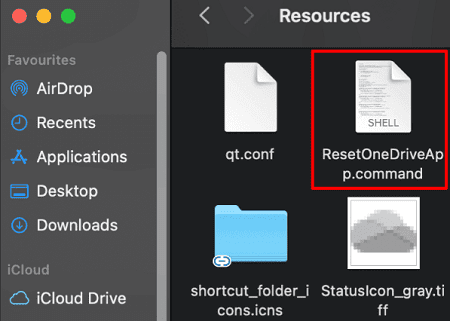
Right-click on the OneDrive app, and select Show Package Content.
Go to Contents and select Resources.
Then double click on the ResetOneDriveAppStandalone.command to run the app reset script.
Wait until macOS resets your OneDrive app, and then restart your device.
Log in to your OneDrive account again and check if the issue persists.
Reinstall OneDrive
Go to the Applications folder and drag OneDrive to the Trash folder.
Then empty the Trash folder and restart your computer.
Reinstall OneDrive for Mac from the App Store and check if the Files on Demand option is available now.
Conclusion
If OneDrive for Mac won’t show the Files on Demand option, disable all Finder extensions. You can use PlistBuddy to enable Files On Demand via Terminal. If the issue persists, delete the JSON file from OneDrive’s cache, and reset the app. As a last resort, uninstall OneDrive for Mac, restart your computer, and reinstall a fresh copy of the app.
Did you manage to fix the problem with the help of this guide? Which of the solutions above worked for you? Let us know in the comments below.
Madalina has been a Windows fan ever since she got her hands on her first Windows XP computer. She is interested in all things technology, especially emerging technologies — AI and DNA computing in particular.
I have never done this, i tried following your instructions and i am not going anywhere with the instructions, probably it is me because i know nothing about computers, but i am trying to see one drive in my mac.











I have never done this, i tried following your instructions and i am not going anywhere with the instructions, probably it is me because i know nothing about computers, but i am trying to see one drive in my mac.
YESSSSSS. The Extensions solution fixed my problem straight away! It totally was google drive. Thanks so much for this article!