Excessive screen time has become an issue for many families, with children often spending hours daily glued to phones, tablets, and computers. While screens can provide educational and social benefits, too much recreational screen use has been linked to problems like shorter attention spans, sleep issues, less exercise, and more.
Fortunately, Apple’s iOS operating system offers a built-in tool called Screen Time that allows parents to monitor and set limits on how much time their kids spend on devices. By following some best practices around setup and usage, Screen Time can be an effective way to help encourage healthy technology habits.
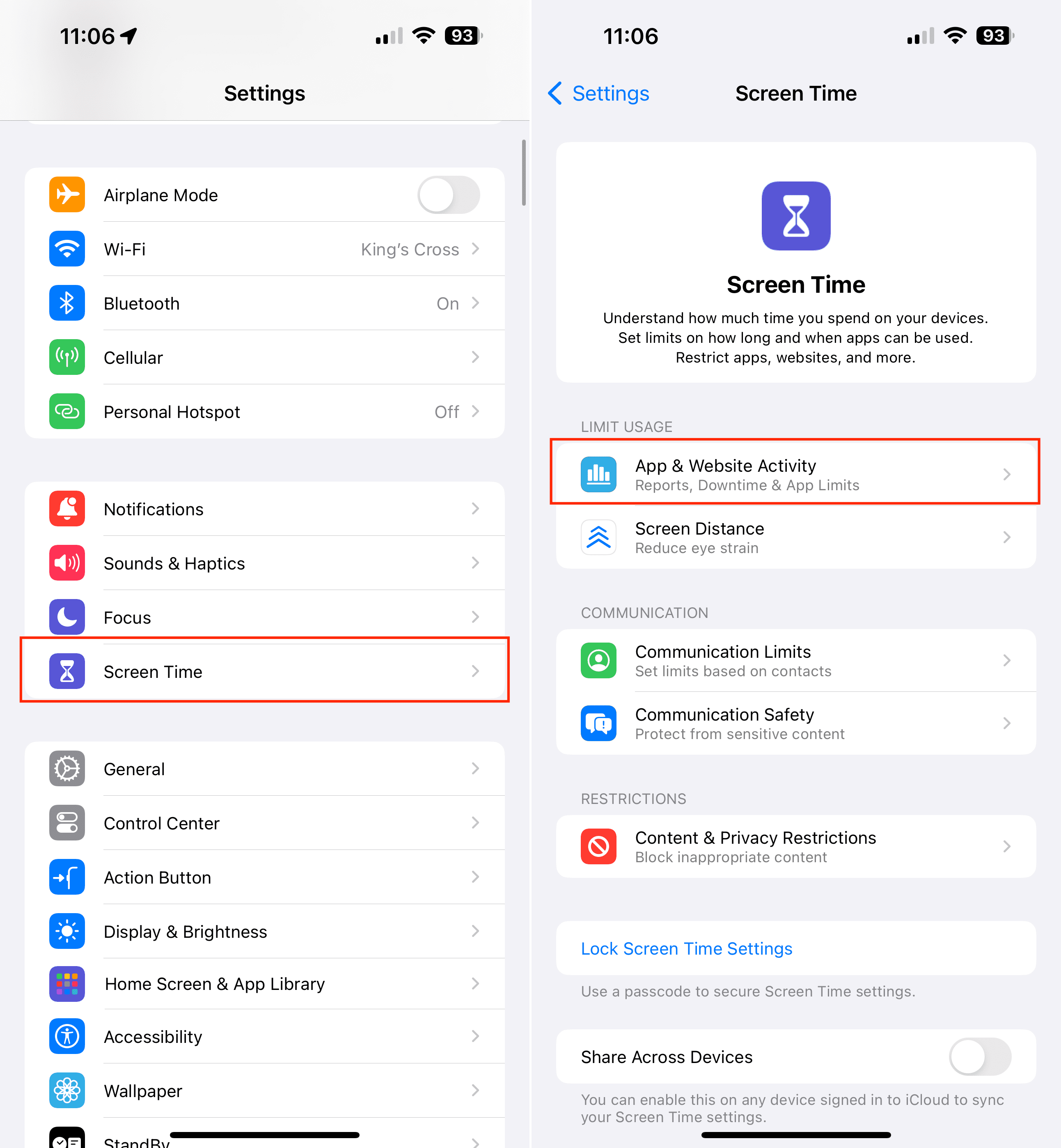
The first step is simply enabling the Screen Time functionality on your child’s iPhone or iPad. To do this:
Open the Settings app
Tap App & Website Activity.
When prompted, tap the button to turn Screen Time on.
You’ll then be walked through some additional setup steps:
Share Screen Time Across Devices (recommended)
Set Up Family Sharing
Create Screen Time Passcode
Sharing Screen Time usage across your child’s devices gives you a more complete view of total usage, while Family Sharing allows you to manage multiple kids from your own device. The Screen Time Passcode prevents your child from easily overriding the limits you set.
Using Downtime
One of the most useful Screen Time features is Downtime, which allows you to schedule specific times of day when your child’s device usage should be limited.
For example, you could set a Downtime from 8PM to 7AM every day to prevent late-night usage. During Downtime hours, only phone calls and allowed apps will work.
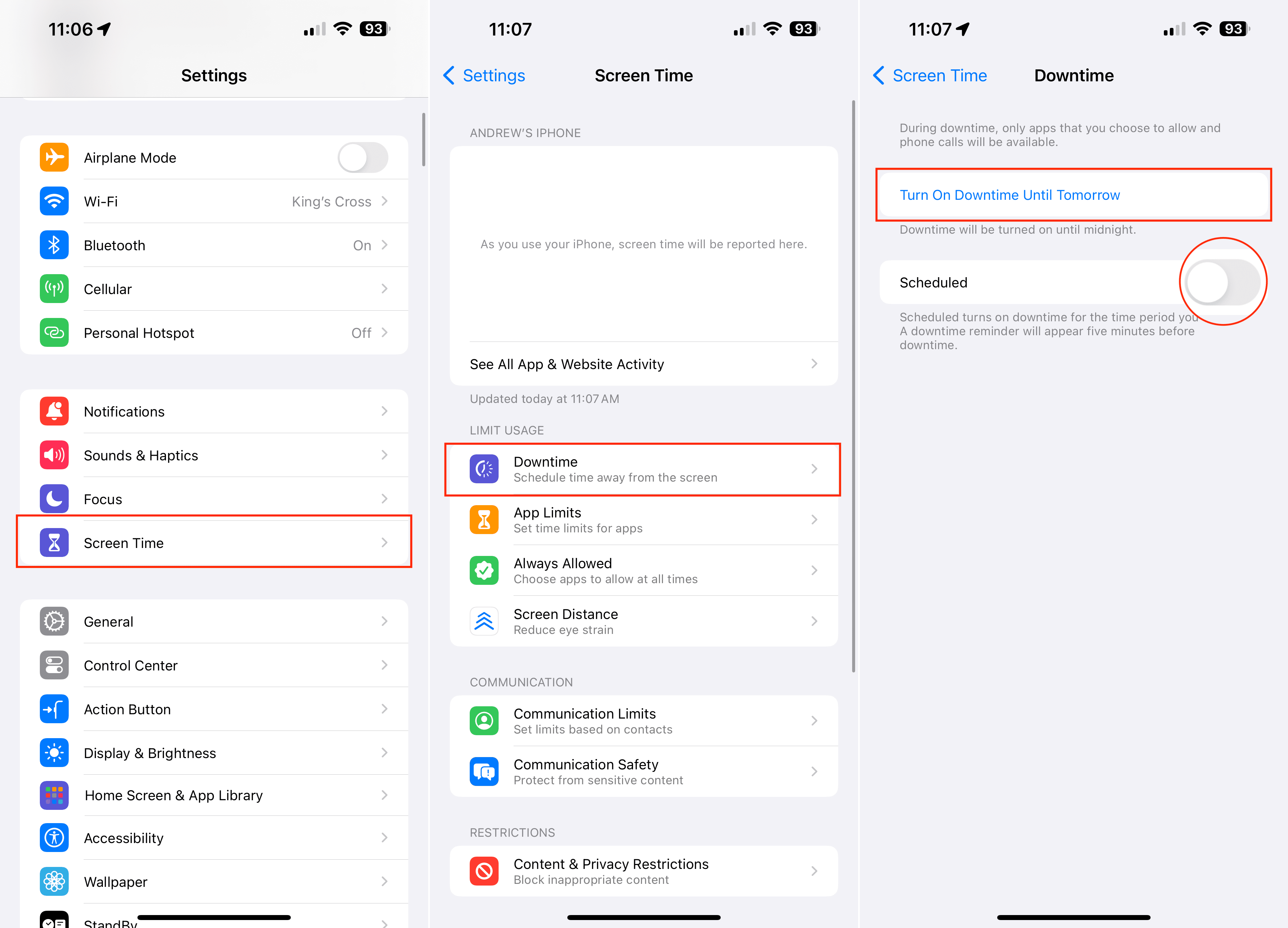
To configure Downtime:
Open the Settings app on your iPhone or iPad.
Tap Screen Time.
Under the Limit Usage section, tap App & Website Activity.
Tap Downtime.
If you want to turn on Downtime immediately, tap the Turn On Downtime Until Tomorrow button.
If you want to create a schedule, tap the toggle next to Scheduled.
Follow the on-screen steps to create a Downtime Schedule.
It’s best to allow messaging, phone calls, alarm clocks, and other essential apps to ensure your child still has access when needed.
You can also set Downtime to turn on automatically based on a schedule, like every weekday for school nights. Exceptions can also be made for special occasions.
Setting App Limits
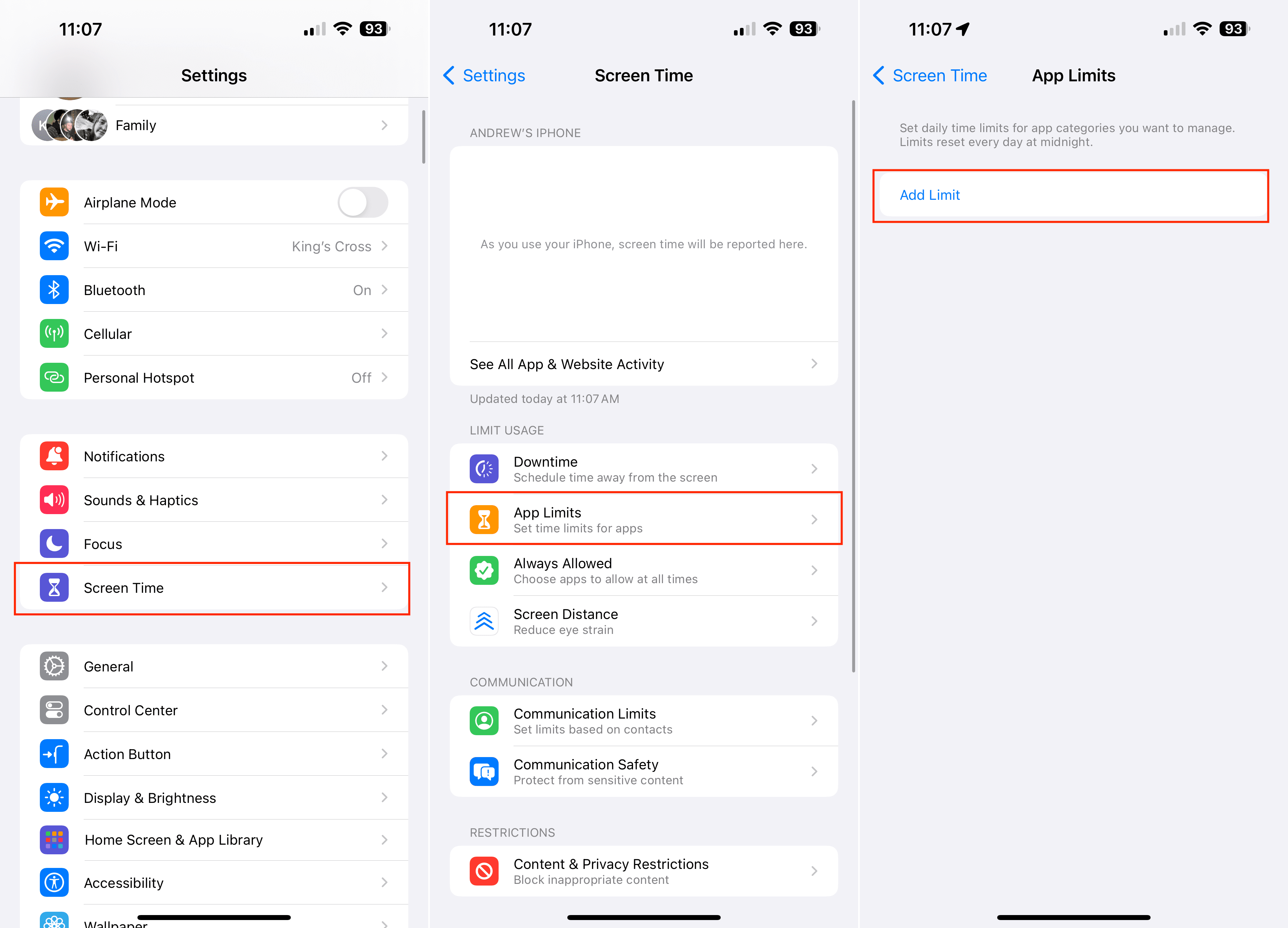
To restrict specific app categories or individual apps, you can set daily time limits:
Open the Settings app on your iPhone or iPad.
Tap Screen Time.
Under the Limit Usage section, tap App Limits.
Tap the Add Limit button.
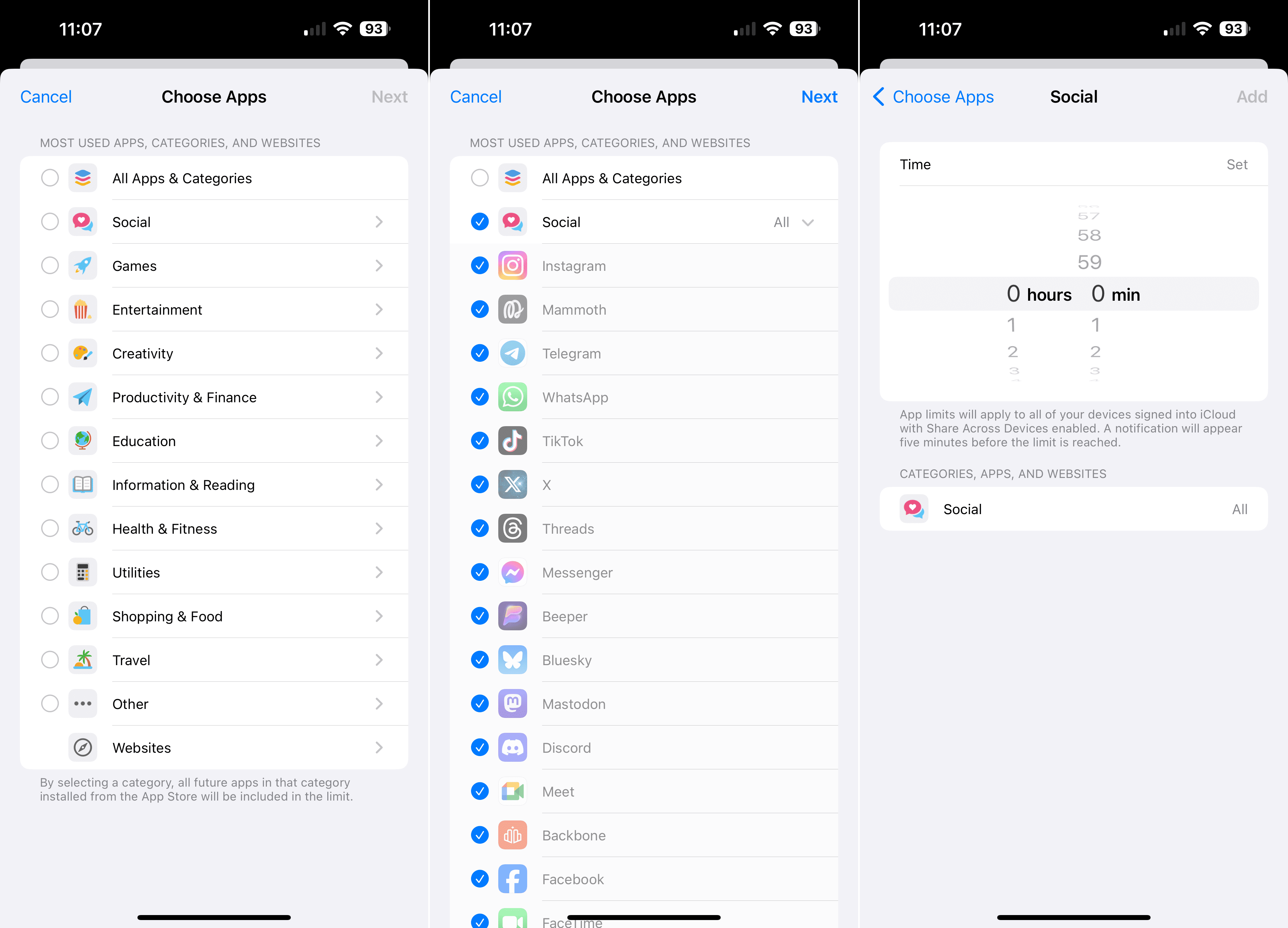
Select one of the following categories:
All Apps & Categories
Social
Games
Entertainment
Creativity
Productivity & Finance
Education
Information & Reading
Health & Fitness
Utilities
Shopping & Food
Travel
Other
Websites
If you are looking for to set limits for a specific app, tap the listed category that the app would fall under (i.e. Instagram is under Social).
Select the app from the list of options.
Tap the Next button in the top right corner.
Set the duration that you want the App Limit to be set for.
Tap the Add button in the top right corner.
For example, you could limit Games to 2 hours per day or Social Networking apps to 1 hour per day. iOS will then lock the apps once the limit is reached in a 24-hour period, preventing further usage.
You can also block apps entirely if you want to completely restrict access.
When setting app limits, have a conversation with your child so they understand the reasons for the rules.
Using Communication Limits
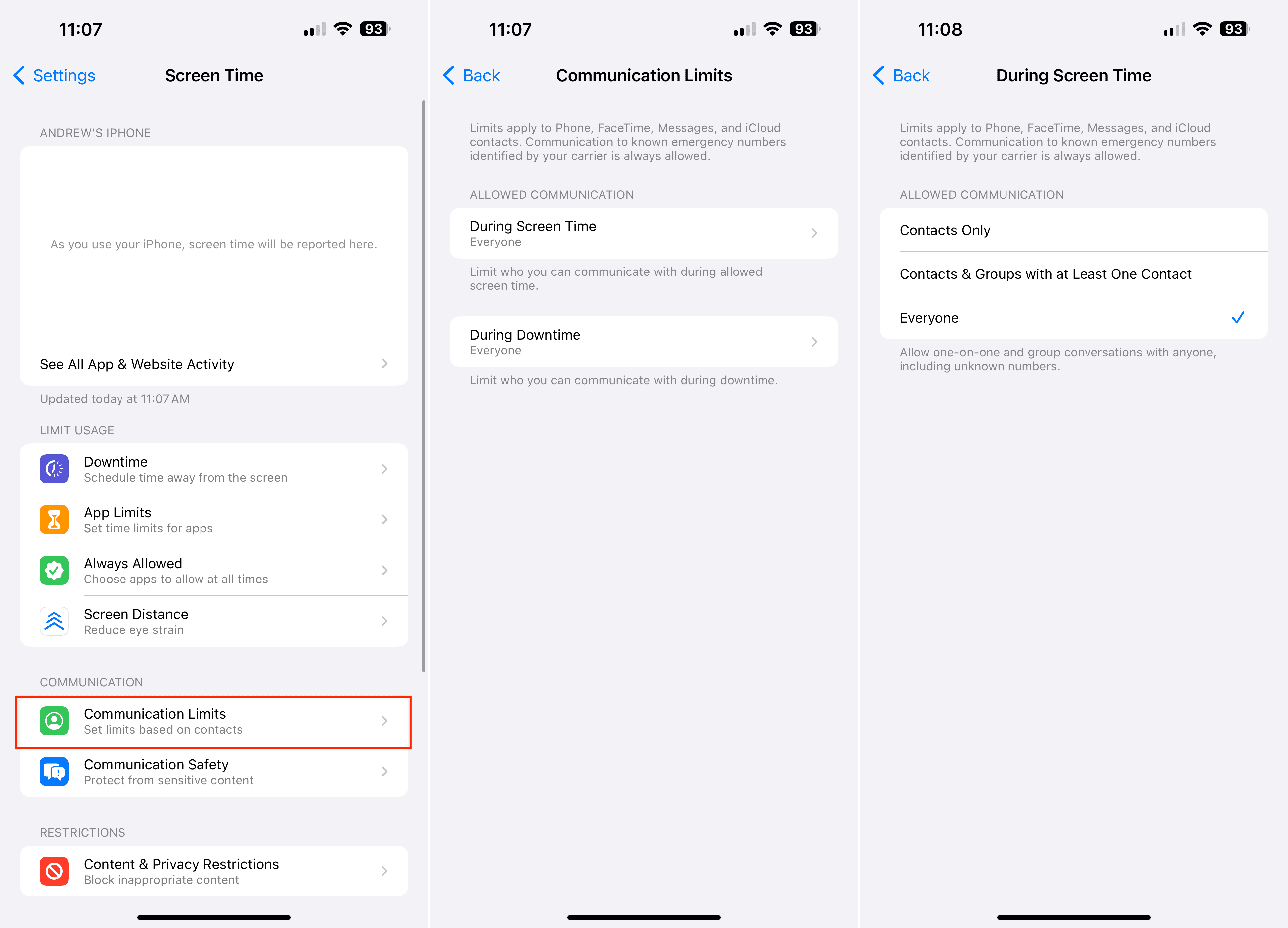
Another helpful restriction is Communication Limits, which allows limiting who your child can communicate with, and when:
Open the Settings app on your iPhone or iPad.
Tap Screen Time.
Under the Communication section, tap Communication Limits.
Tap either During Screen Time or During Downtime.
Select one of the following options:
Contacts Only
Contacts & Groups with at Least One Contact
Everyone
Tap the < Back button in the top left corner to save your changes.
This can prevent late night communications and interactions with unknown contacts. You can choose to always allow close family members no matter the time or day.
Avoid Being Too Restrictive
Some screen time can be beneficial, so avoid being too restrictive. Make sure to have open conversations and set reasonable limits that offer a balance of learning, creativity, and socialization along with non-screen activities.
Be consistent in enforcing the rules, and revisit them as your child gets older to encourage increasing independence and self-regulation over time. With some thoughtful limits in place, Screen Time can be a parenting win.
Tips for Making Screen Time Work
Here are some additional tips for setting up effective Screen Time limits:
Set a Screen Time Passcode so only you can modify restrictions
Use Family Sharing to manage all kids’ devices from one place
Try the Screen Time widget to monitor usage throughout the day
Consider third-party parental control apps for even more customization
Make sure “Share Across Devices” is on so usage is tracked correctly
Revisit reports occasionally to see what improvements can be made
Have your child help choose apps and reasonable time limits
Set device charging stations outside bedrooms to discourage late night use
Encourage outdoor playtime, reading books, family activities and more to balance screen usage
While no system is perfect, Apple’s Screen Time parental controls provide an integrated way to monitor activity and set healthy boundaries around iOS device usage. With some planning and open communication, parents can find an appropriate balance of technology and other enrichment for kids.
Conclusion
Setting up effective screen time limits on iOS devices is a valuable step towards managing digital well-being. By utilizing the built-in Screen Time features of iOS, users can gain better control over their device usage, ensuring a balanced approach to technology in their daily lives.
Whether it’s for personal discipline, managing children’s screen time, or simply creating a healthier digital environment, these tools empower users with the flexibility and insight needed to make informed decisions about their screen time. Remember, the goal isn’t to eliminate device usage but to create a harmonious relationship with technology that respects our time and enhances our lives.
Andrew Myrick is a freelance writer based on the East Coast of the US. He enjoys everything to do with technology, including tablets, smartphones, and everything in between. Perhaps his favorite past-time is having a never-ending supply of different keyboards and gaming handhelds that end up collecting more dust than the consoles that are being emulated.












Write a Comment