The Favorites tab in the Phone app is the ideal spot for, well, your favorite contacts. These are the people that you call most often. Having them handy so you can ring them up with a tap is terrific. But what happens when that list of Favorites starts to grow? It becomes harder to find the Favorite you want to call.
You can rearrange the Favorites on your iPhone any way that you like. But probably the easiest, especially if you have a lot of Favorites, is by name. So here, we’ll show you how to put your Favorites in alphabetical order on iPhone.
Open the Phone app on your device and then follow these steps to alphabetize your Favorites.
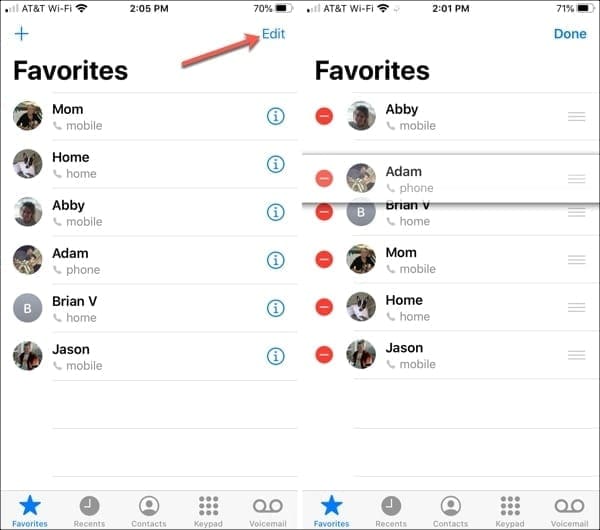
Select the Favorites tab at the bottom of the Phone app.
Tap Edit at the top of the screen.
Tap and hold the right side (three lines) for one of your favorites, drag them up or down in the list per their name, and release.
Continue to do this for each contact in your Favorites, putting them in alphabetical order.
Tap Done when you finish.
Tap and hold to rearrange Favorites
Add or remove Favorites
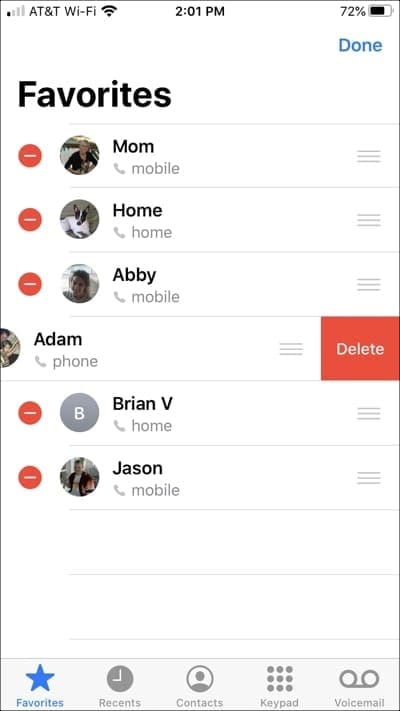
You’ll notice when you tap that Edit option on the Favorites screen that each contact has a minus sign to the left. You can remove a contact from your Favorites by tapping that minus sign and then tapping Delete. This will simply remove the person from your Favorites, it will not delete the contact from your device.
Remove a Favorite
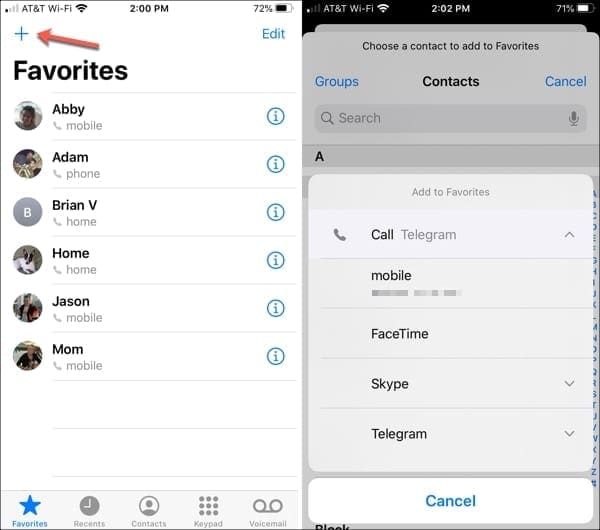
As a refresher, you can also add more people to your Favorites list easily. Before or after you tap Edit on the top right, a plus sign will display on the top left. Tap it, pick a contact, and select the contact detail to add.
Add a Favorite in the Phone app
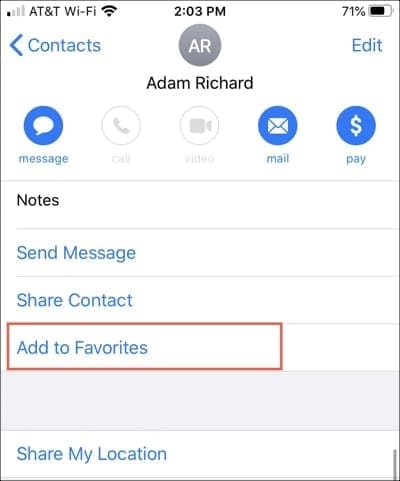
If you open the Contacts app you can add a contact to your Favorites from there as well. Select the contact, scroll down below Notes on their card, and tap Add to Favorites.
Add a Favorite in the Contacts app
Find your Favorites fast
Whether you 20 or just a handful of contacts in your Favorites list, rearranging them to be in alphabetical order will keep them nice and neat.
Now that you know how to put your Favorites in alphabetical order on iPhone, are you going to do it? If not, how will you arrange them? Let us know in the comments below or message us on Facebook or Twitter!
Sandy worked for many years in the IT industry as a project manager, department manager, and PMO Lead. She then decided to follow her dream and now writes about technology full-time. Sandy holds a Bachelors of Science in Information Technology.
She loves technology– specifically – terrific games and apps for iOS, software that makes your life easier, and productivity tools that you can use every day, in both work and home environments.
Her articles have regularly been featured at MakeUseOf, iDownloadBlog and many other leading tech publications.
Thanks for the tutorial, but, with all due respect, I don’t want to spend all day, dragging folders & bookmarks into alphabetical order.
There should be a feature that does this automatically on mobile Safari for iOS?
Apple are so backwards, sometimes. This is UX 101.
What is wrong with i phone? Alphabetizing should be an automatic function in organizing Favorites. Blackberry was a superior phone. It was organized in grids- & alphabetical — not sequential . I am so disappointed in iPhone. I miss blackberry. Especially the keyboard. iPhone sucks.
Thanks for making something so easy to follow. A quick and EASY SOLUTION to a problem, that should not have been a problem… It should have been designed with just a touch and hold to move it. Why take something simple and complicate it for consumers ?????
Hi. Thanks for the tip, but… It’s not a great deal of help as it’s labour intensive. I don’t have a better way of alphabetising the list, but do know that, using he same technique, put my most often called favourites at the top and work down, and then shuffle them as things in my life change. A more useful thing might be how to alphabetise the favourites in the Safari bookmarks. That grows quickly and is a pain!
Thanks for your comments. The process is a tedious one especially if you have a lot of Favorites. I’m sorry there’s not an easier way.
As far as alphabetizing bookmarks in Safari, it looks like (currently) you can only alphabetize those on Mac using the Sort By option when you right-click. Other than that, it appears to be manual on iOS just like these Favorites….unless I’ve just missed it. I’ll look more and let you know if I find anything!










Thanks for the tutorial, but, with all due respect, I don’t want to spend all day, dragging folders & bookmarks into alphabetical order.
There should be a feature that does this automatically on mobile Safari for iOS?
Apple are so backwards, sometimes. This is UX 101.
What is wrong with i phone? Alphabetizing should be an automatic function in organizing Favorites. Blackberry was a superior phone. It was organized in grids- & alphabetical — not sequential . I am so disappointed in iPhone. I miss blackberry. Especially the keyboard. iPhone sucks.
Thanks for making something so easy to follow. A quick and EASY SOLUTION to a problem, that should not have been a problem… It should have been designed with just a touch and hold to move it. Why take something simple and complicate it for consumers ?????
Donnie Pierce
Windsor,N.C.
USA
I am sorry, but that is not sorting things alphabetically. That is just manual sorting.
Sorting alphabetically, would be an automated feature.
Hi. Thanks for the tip, but… It’s not a great deal of help as it’s labour intensive. I don’t have a better way of alphabetising the list, but do know that, using he same technique, put my most often called favourites at the top and work down, and then shuffle them as things in my life change. A more useful thing might be how to alphabetise the favourites in the Safari bookmarks. That grows quickly and is a pain!
Cheers and thanks for your good work.
Rich Knowles. Halifax, Nova Scotia, Canada.
Hi Rich,
Thanks for your comments. The process is a tedious one especially if you have a lot of Favorites. I’m sorry there’s not an easier way.
As far as alphabetizing bookmarks in Safari, it looks like (currently) you can only alphabetize those on Mac using the Sort By option when you right-click. Other than that, it appears to be manual on iOS just like these Favorites….unless I’ve just missed it. I’ll look more and let you know if I find anything!
Sandy