You hear a song you really like, but you don’t know the name or artist. Depending on where you are, you might only have a few seconds to pull out your iPhone and Shazam the track before it ends or the station is changed. The faster you pull the trigger, the better your chances of figuring out the song, which is why you should know the quickest ways to use Shazam on your iPhone.
Sure, you could pull up the Shazam application or ask Siri the name of the song, but that can take up precious time that you might not have. Instead of those traditional methods, there are two speedier options to recognize a song: by swiping down the Control Center or tapping the back of your iPhone.
The Control Center feature on the iPhone has been around since iOS 7, allowing users to quickly access important device settings with a single swipe of the finger. Now, with the most modern version, you can swiftly turn on your flashlight, enable Airplane Mode, and record your screen in a matter of seconds.
And so it would make sense that in the Control Center is where you would find one of the fastest and easiest ways to use Shazam to identify a song on your iPhone. Before you access the Shazam control though, you must make sure it’s available in the Control Center.
Launch the Settings application.
Tap on Control Center.
Add the Music Recognition control (tap on the green plus button).
If it’s already under Included Controls, you can go straight to using the Shazam control. To use Shazam from your Control Center:
Swipe down from the top right of your iPhone.
Tap on the Shazam control.
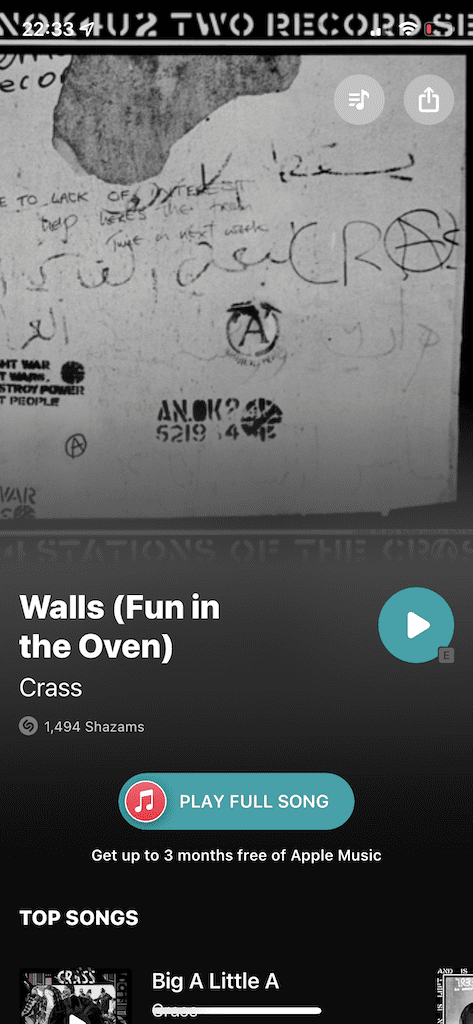
Give your iPhone a few seconds to listen to and recognize the audio playing in the background. As long as it’s loud enough and isn’t being interfered with by other audio, your iPhone should quickly recognize it. At the top of the screen, you’ll see a notification featuring the song title and the name of the artist(s).
If you tap on the notification, you’ll either be redirected to the official Shazam application (if you have it downloaded) or the Shazam App Clip (if you don’t have the app and are running iOS 15). Either way, you can then play the song in Apple Music, view other similar songs, and more.
Use Shazam With BackTap
If you’re unfamiliar with Back Tap, it’s an accessibility feature on iOS 14+ (iPhone 8 and later) that allows you to run any number of actions by simply tapping on the back of your iPhone. With Back Tap you can change applications, turn on your flashlight, lock your screen, take a screenshot — and turn on Shazam to listen for music.
This option is faster than the previous one, and while it does take a bit of setup, you only need to do it once and you’re set. First, you’ll have to create a shortcut that runs Shazam. To do this:
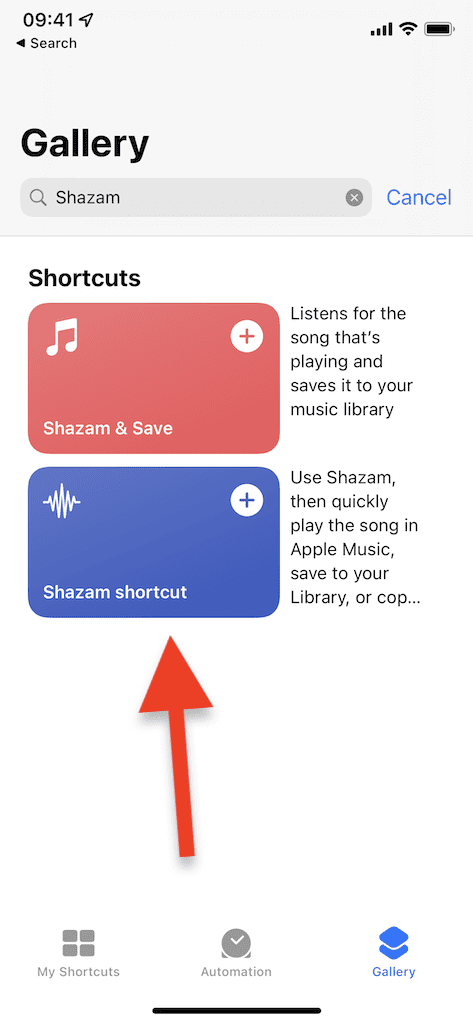
Launch the native Shortcuts application.
Go to Gallery tab.
Type Shazam in the search bar and hit Search.
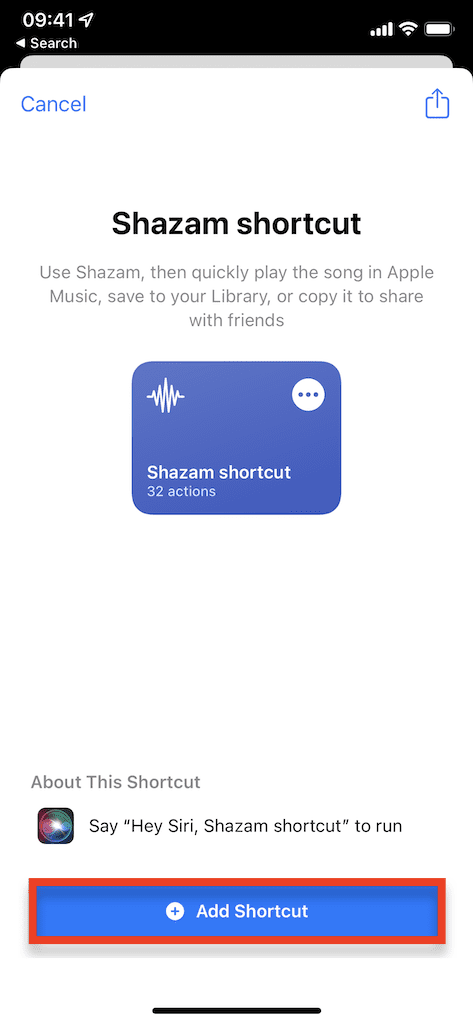
Add the Shazam shortcut to your library.
Next, you’ll need to add the Shazam shortcut to BackTap.
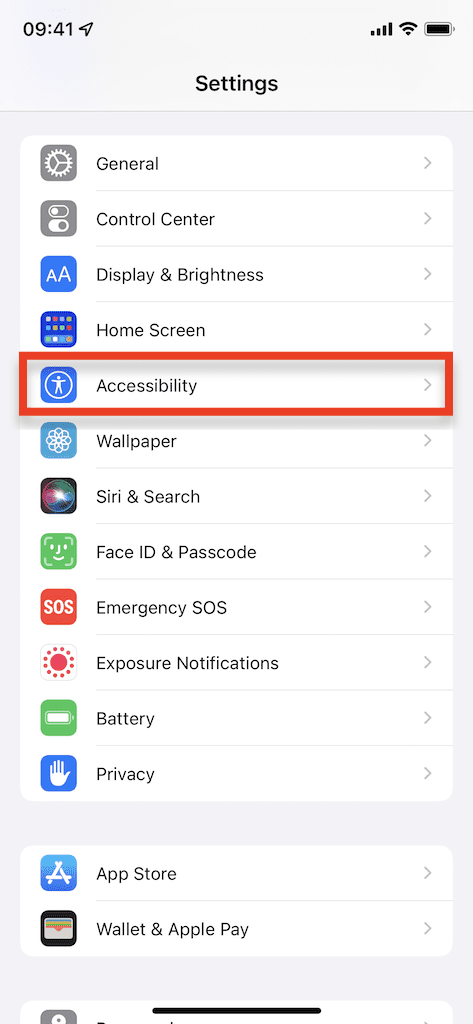
Launch the Settings application.
Tap on Accessibility.
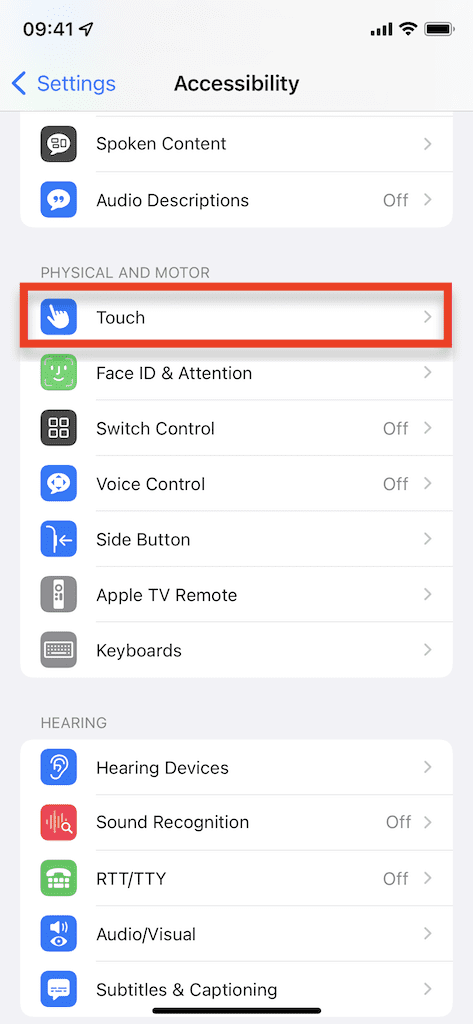
Go into Touch.
Find Back Tap.
You have two Tap Back options: Double Tap and Triple Tap. Although Double Tap is the faster option, it is prone to accidents, especially if you fidget with your iPhone, so consider the benefits and downsides before making a decision. Once you choose an option, go through the list of actions and select the Shazam shortcut.
Finally, you can run the Shazam shortcut by tapping the back of your iPhone, either twice or three times. If Back Tap is run successfully, a Shazam window should appear, listening to the background for music. Once it recognizes the song, you have the option to play the song in Apple Music, save it to your library in Apple Music, or save the song to your clipboard.
Conclusion
Shazam doesn’t have to be a pain to bring up on your iPhone. Whether it’s too loud where you are or you simply don’t have the time, the two methods in this guide can help your chances at discovering the music playing where you are. Do you know any other methods to quickly pull up Shazam on your iPhone? Let us know in the comments below.
















Write a Comment