It’s the worst feeling when you have a song in the back of your head and can’t remember the name. It’s also horrible when you hear a song in public but have no way of identifying it quickly. Shazam has been around for a while and can help you with these issues. It’s a song identifying app that recognizes tunes and shows you what they are with a whole bunch of the artist’s and song’s information. If you’ve never heard about it, keep reading to learn more about Shazam for iOS 16 and some of the new features that make your life a lot easier.
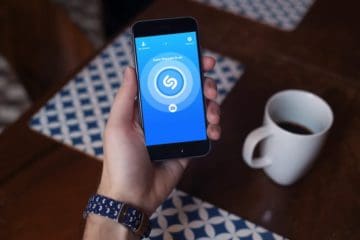
Shazam is an app available on the App Store that allows you to press a button to activate your iOS device’s microphone so that it can listen to your surroundings. If it picks up recognizable melodies or lyrics, it’ll pick it up and provide you with the information from its database. It’s a great tool for finding new artists when you’re in public or if you forgot a song but remember its melody. According to some Apple patent filings, it’s working on integrating Shazam straight into your AirPods with Siri support, too. So in the future, you’ll be able to identify songs through your AirPods’s microphone, too.
Shazam for iOS 16’s New Song Identification Feature
Since a few iOS versions ago, you can put Shazam on your Control Center for easier access. When trying to find a song out and about, it’s crucial you’re able to whip out your phone quickly and press the Shazam button. Shazam for iOS 16, however, allows you to use Siri for help with identifying songs. You can wake up Siri and say something along the lines “Hey Siri, what’s this song?” and it’ll open up Shazam to help you out.
We’re noticing a lot more emphasis on cultivating Apple-owned proprietary technology and integration between all of them. Previous iterations of the iPhone and iOS didn’t seem to innovate as heavily to create an Apple ecosystem with the company’s users. Now, you can use all your Apple products in sync with each other for a complete technological deal. We’re excited to see how Apple might use Shazam and similar apps in the future.
iOS 16: More Customization For Control Center
If you’re a more casual iOS 16 user, you may not be taking full advantage of the Control Center, which can be such a useful tool. To access Control Center, simply swipe down on the right half of your screen. To add Control Center modules, simply go to Settings > Control Center and scroll down to see the options. Here are some features you can enjoy:
Voice Memos
If you’re an individual who appreciates taking voice notes and reflections, you can access the voice recording app easily with Control Center. Unfortunately, it doesn’t have an easy way for you to record voice memos on the fly without leaving the Control Center, so we hope that Apple add that feature in the future. For now, clicking on the Voice Memo module will redirect you to the Recording app.
Quick Note
Quick Note is a great way for you to jot down ideas on the fly. When you add the module to your Control Center and click on it, it brings up a notepad where you can write, draw, add pictures, or create lists. If you need to create a quick grocery list or do a quick sketch, Quick Note is your friend. You can then save those Quick Notes to your regular note app if you need to remember any information you’ve jotted down.
Wallet
For those who travel frequently and use digital tickets, the Wallet app is great. You can store any boarding passes, digital passes, or use Apple Pay with the Wallet app. It can get awkward having to shuffle through your phone to find your digital boarding pass, and the social anxiety can mount if there’s a long line waiting behind you as you do that. If you add the Wallet nodule to your Control Center, you’re a swipe and tap away from accessing that pass.
Screen Recording
One of the most useful modules you can add is the Screen Recording feature. It’s tedious to record your screen on iOS devices, so this feature is great for those who need to demonstrate certain actions on their phones. If you have an elderly family member who struggles with using their new iPhone, you can record your screen for them and show them how it’s done. Simply press the Screen Recording module on your Control Center, and it begins recording after three seconds.











Write a Comment