The Shazam app is an awesome tool for song recognition. Just tap the app, it listens to the song playing, and then gives you details about the tune. Shazam offers a terrific feature called Auto Shazam so you can capture the song currently playing without lifting a finger.
Here’s how Auto Shazam works, its ins and outs, and how it connects with Shazam.
Auto Shazam is a feature of the Shazam app that captures songs automatically. So, instead of digging for your phone, opening Shazam, and tapping to recognize the song, Auto Shazam can capture the tune for you. And you don’t have to do a thing.
How do I turn on Auto Shazam?
There are two ways for you to enable Shazam’s Auto Shazam feature.
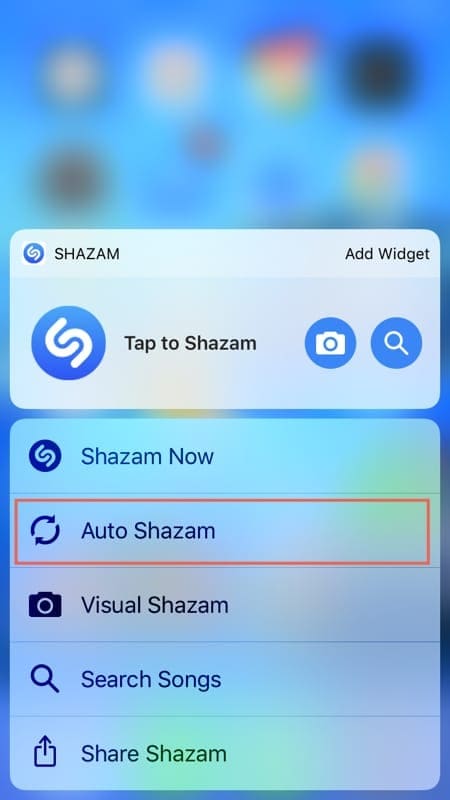
Turn on Auto Shazam with 3D Touch
Tap and hold the Shazam app on your iPhone.
Tap Auto Shazam from the menu.
Turn on Auto Shazam with 3D Touch
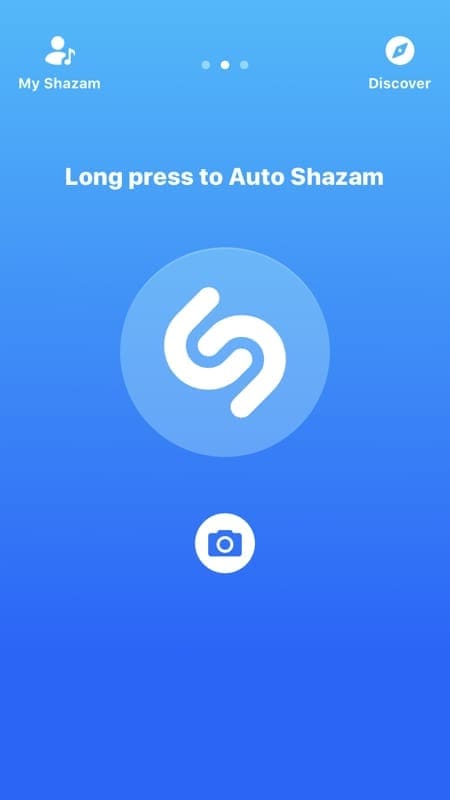
Turn on Auto Shazam in the Shazam app
Open the Shazam app.
Tap and hold the large button in the center to enable Auto Shazam.
Turn on Auto Shazam in the app
How does Auto Shazam work?
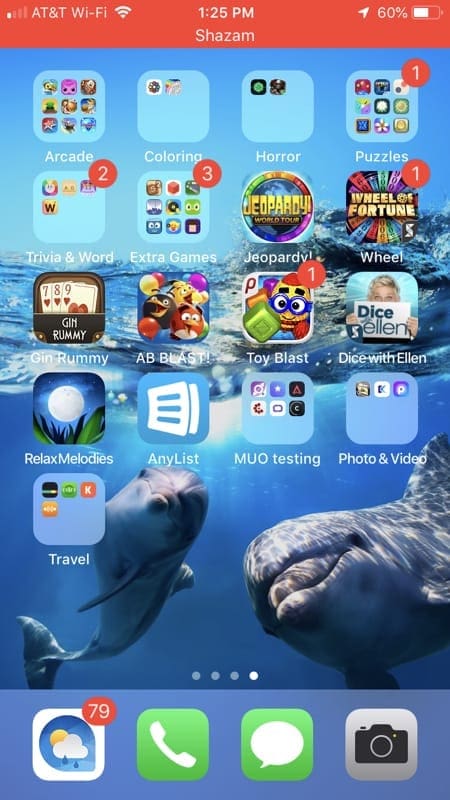
Once you enable Auto Shazam, you will see a red bar across the top of your iPhone screen that says “Shazam.” This is an obvious indicator that the feature is turned on, in case you aren’t sure.
Red bar showing Auto Shazam is on
While Auto Shazam is enabled, it will continue to capture songs that are playing near you, just like how the Shazam app does when you tap its button.
Where are the songs captured in Shazam?
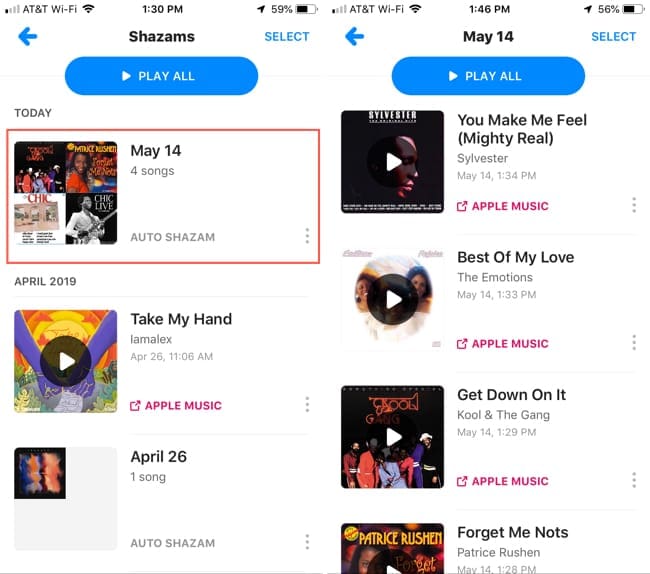
If you want to get song information, just tap the red bar while the feature is enabled. This will open the Shazam app and you can go to My Shazam > Shazams to see the songs captured. They will be grouped together by date and display “Auto Shazam.”
Songs captured with Auto Shazam
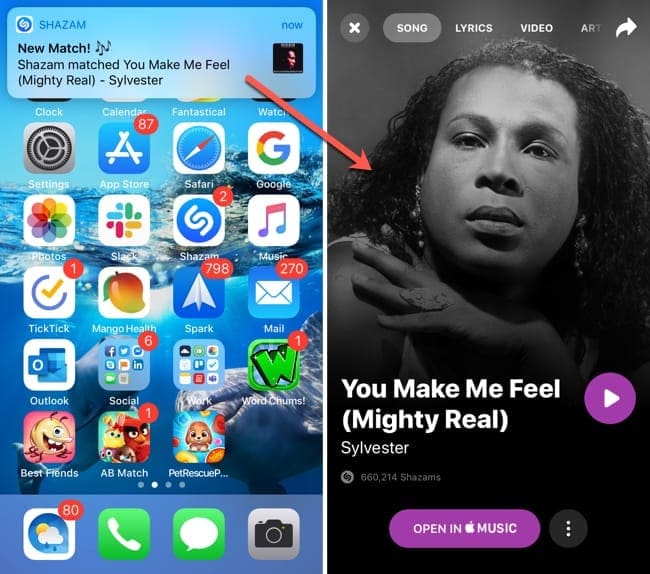
You will also see an alert on your screen from Auto Shazam that shows the song currently playing as soon as its recognized. You can tap it instead of the red bar and you’ll be taken directly to the song details in Shazam.
Alert and song details from Auto Shazam
Does enabling Auto Shazam affect my battery life?
Turning on the Auto Shazam will affect your iPhone’s battery life, although how much is hard to say. It will also depend on how many other apps you have running in the background.
Auto Shazam has been optimized to be as efficient as possible. It will automatically switch off when the battery drops to 20% and the user will be notified.
And…
If left on, Auto Shazam will automatically switch off after about 6 hours.
How much data does Auto Shazam use?
Shazam states that the audio recorded uses a low bit-rate. And the amount of data depends on how many Shazams are captured and how much music is sensed around you during the Auto Shazam session.
To be safe, it’s wisest to use Auto Shazam when you are connected to Wi-Fi.
How do I turn off Auto Shazam?
If you are finished with Auto Shazam, it will turn off automatically after six hours, as stated above by Shazam. However, you can disable Auto Shazam manually as well.
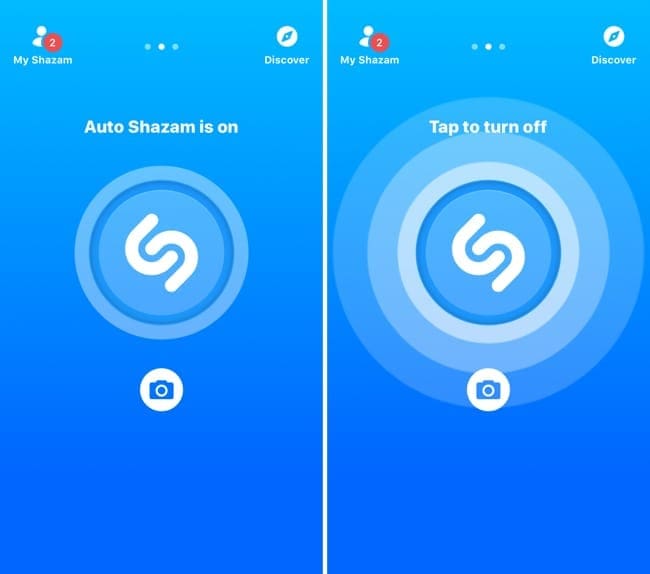
Tap either the red bar or open the Shazam app and then tap the large Shazam button in the center. You will see that Auto Shazam is disabled because the app will be back to its point where you can enable it again and the red bar on your screen will be gone.
Tap to turn off Auto Shazam in the app
Will you use Auto Shazam?
Now that you know a little bit more about Auto Shazam on iPhone? Let us know if you do, we’d love to hear from you!
Sandy worked for many years in the IT industry as a project manager, department manager, and PMO Lead. She then decided to follow her dream and now writes about technology full-time. Sandy holds a Bachelors of Science in Information Technology.
She loves technology– specifically – terrific games and apps for iOS, software that makes your life easier, and productivity tools that you can use every day, in both work and home environments.
Her articles have regularly been featured at MakeUseOf, iDownloadBlog and many other leading tech publications.
I wish there were a middle ground auto-shazam that wasnt ALWAYS listening, draining battery and using data etc, but rather was a better on demand listening response. I was hoping auto-shazam, or a version of it, might just be an option to smartly start recognizing music as soon as you open the app. Opening the app, AND THEN pressing a second button to get your Shazam is slightly slower and redundant to me. With the current system I have missed the snippets I was trying to catch on a song in passing quickly due to having to wait for the app to load then tapping the button. Imagine having faith that while the app loads it is trying to recognize your song, and all you need to do is just open the app? Seems like a no-brainier for a middle ground between the two Shazam modes… Anyways sorry for ranting, thanks for your informative article









My shazam is locked do not let me recognize the liric….also i do not see the old screen with the three little dots and the red bar on top
Shazam’s update is awful
I wish there were a middle ground auto-shazam that wasnt ALWAYS listening, draining battery and using data etc, but rather was a better on demand listening response. I was hoping auto-shazam, or a version of it, might just be an option to smartly start recognizing music as soon as you open the app. Opening the app, AND THEN pressing a second button to get your Shazam is slightly slower and redundant to me. With the current system I have missed the snippets I was trying to catch on a song in passing quickly due to having to wait for the app to load then tapping the button. Imagine having faith that while the app loads it is trying to recognize your song, and all you need to do is just open the app? Seems like a no-brainier for a middle ground between the two Shazam modes… Anyways sorry for ranting, thanks for your informative article
Hello, I want to ask. If I use headphones, does auto Shazam still work?
If tried auto Shazam without headphones and it works perfectly.
But, when I use headphone auto Shazam didn’t detect the songs. Can you help me with that?
HI Risna,
At this time, Shazam does not work with headphones on iOS devices like the iPhone; however, it does work on headphones with Android devices.
We expect Apple to add headphone support for iOS devices in the future–especially since Apple now owns Shazam! So stay tuned.