• Skip to primary navigation
  • Skip to main content
  • Skip to primary sidebar
  • Skip to footer

AppleToolBox

Tools and Fixes for Mac, iPad, iPhone & iWatch

Search posts

  • About
  • Contact

CONNECT WITH US

CATEGORIES

  • iPhone
  • iPad
  • iPod
  • Apple Watch
  • Mac/MacBook
  • AirPods
  • Apple TV
  • News
  • Apple Services
  • HomePod
  • Reviews

SITE

  • Home
  • About Us
  • Contact
  • Advertise

Search posts

You are here: Home / iPhone / The Many Ways of Setting a Timer on iPhone

The Many Ways of Setting a Timer on iPhone

By Louis Roundtree 0 comments Last updated February 4, 2026

Things to Know
  • The clock app on your iPhone allows you to set a timer, use a stopwatch, and set alarms, as well as see the time in cities around the world.
  • Other ways of setting a timer on iPhone devices include using voice control and getting Siri to do it, or using the search function to get directly into the timer.
  • You can reuse previous timers or set them from scratch, and delete them as needed.

Need to time five minutes to cook a perfect boiled egg? Or maybe you’re trying out the Pomodoro studying technique, and want timers for 25 minutes of work and five-minute breaks? The iPhone’s timer function is a convenient way to set timers of any duration. You choose how long you want the timer to be, and whether you want the timer to give you an alarm when that time is up.

Learn how to set a timer on iPhone devices below, using three different intuitive methods.

Contents

  • Ways of Setting a Timer on iPhone
    • The Clock App
    • Siri
    • The Search Function

Ways of Setting a Timer on iPhone

The Clock App

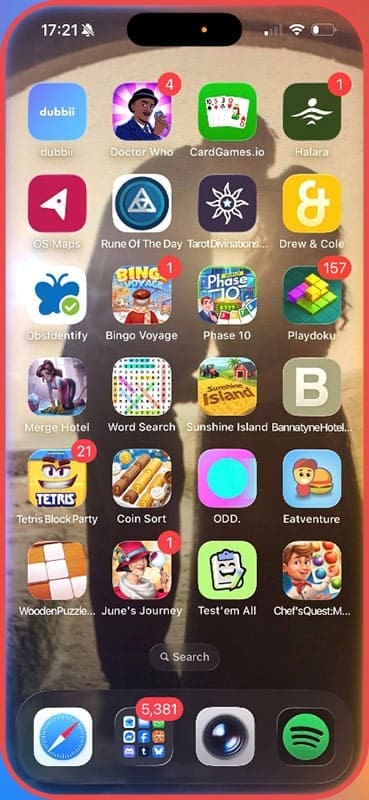
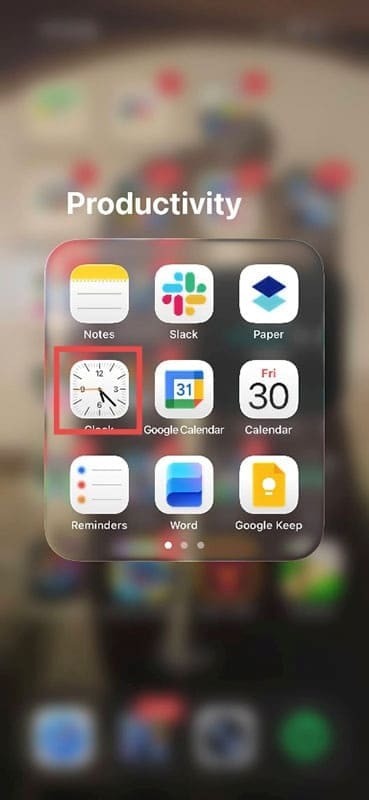
Step 1. Find the Clock app on your iPhone. If you have folders on your iPhone, the clock may be in Productivity by default. Otherwise, it should be directly on your home screen.

The Many Ways of Setting a Timer on iPhone 1

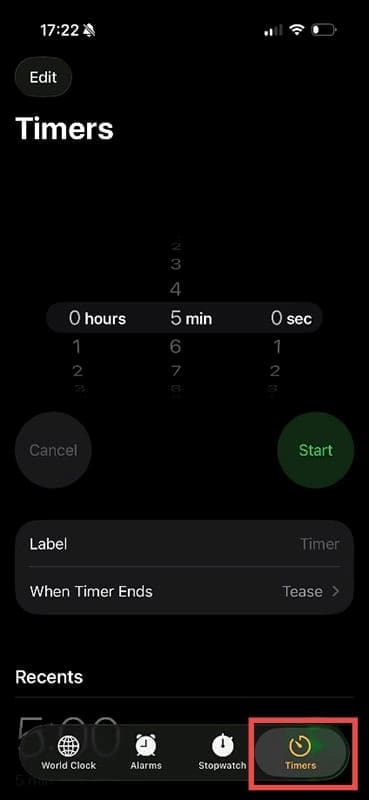
Step 2. Tap on the Clock app and then tap timers at the bottom of the screen.

The Many Ways of Setting a Timer on iPhone 2

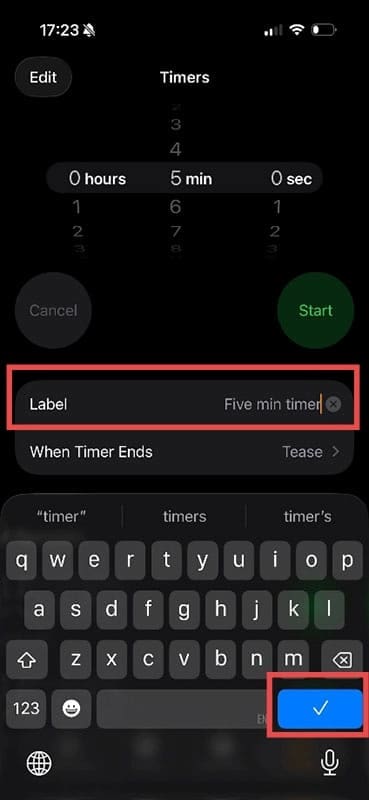
Step 3. If you want to change the name of your timer, tap on Label, then type in whatever you want to name your timer. This is a useful feature if you want to reuse multiple timers. Press the blue tick icon when you’re happy with your choice.

The Many Ways of Setting a Timer on iPhone 3

Step 4. You can also choose what happens when your timer ends. Tap on “When Timer Ends,” choose an alarm style, then “Set.” As well as having an alarm, you can choose the option to “Stop Playing.” If you choose to play music from one of your apps, for example, Spotify, the timer can stop the music once the time has elapsed.

The Many Ways of Setting a Timer on iPhone 4

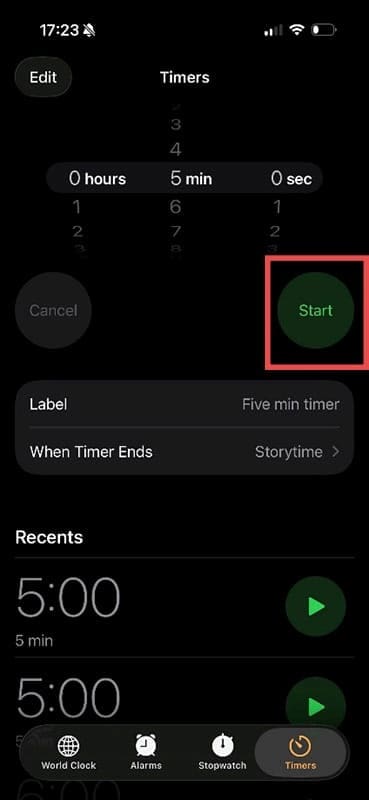
Step 5. Scroll the numbers up and down to choose the required time, then press “Start” when you’re ready for the timer to run.

Siri

Step 1. Say “Hey Siri” or just “Siri,” and you should see the edges of your iPhone screen glow with multiple colors to indicate Siri is listening. On older devices or those running pre-iOS 26, you may see a swirling sphere.

The Many Ways of Setting a Timer on iPhone 6

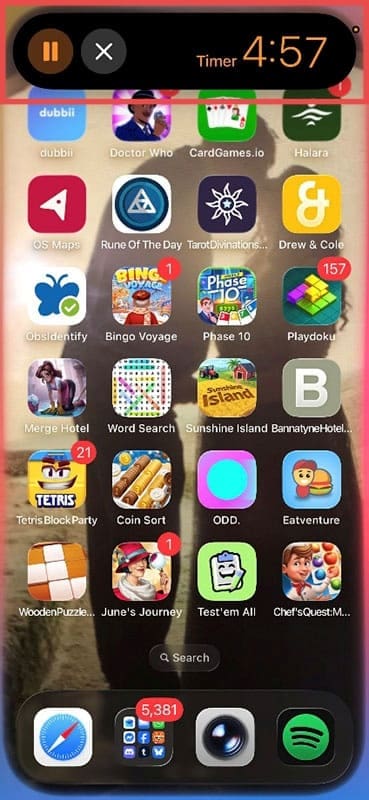
Step 2. Say “Set a timer for [your time].” Your iPhone will instantly set this timer, and you’ll see it active on the screen.

The Many Ways of Setting a Timer on iPhone 7

Note: If Siri doesn’t activate, head to Settings > Apple Intelligence & Siri (or just “Siri” on older models) > Talk & Type to Siri and ensure you haven’t accidentally switched this function to “Off.”

The Many Ways of Setting a Timer on iPhone 8

The Search Function

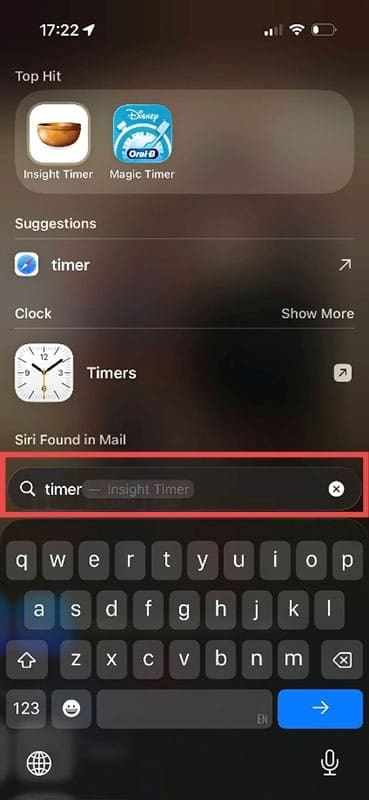
Step 1. Swipe down on the center of your iPhone’s home screen. You’ll see recently opened apps and a search bar.

The Many Ways of Setting a Timer on iPhone 9

Step 2. Type “Timer” into the search bar, and the option for Timers should appear for you to select. Alternatively, if “Set Timer” has been used recently, you may see it here and can just press that.

The Many Ways of Setting a Timer on iPhone 10

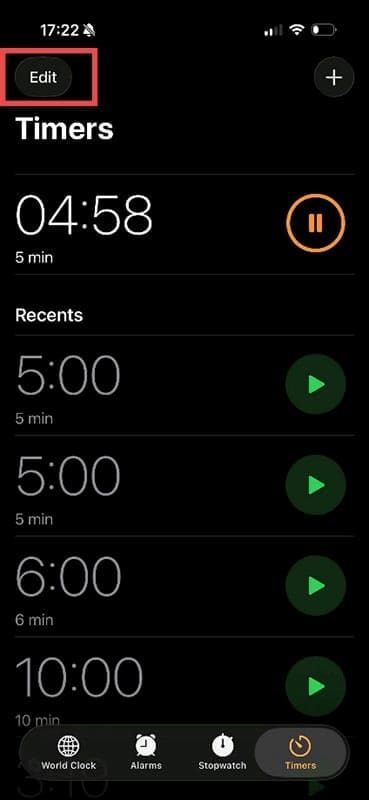
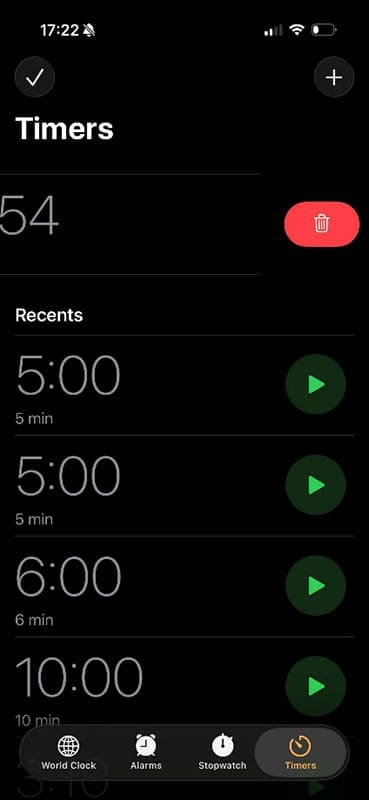
Step 3. You’ll now see a list of previously used timers. Tap on the one you want to use, tap “Edit” to change one, or swipe left to delete one, as needed.

The Many Ways of Setting a Timer on iPhone 11 The Many Ways of Setting a Timer on iPhone 12

Related Posts:

  • Photo of an Apple Watch on an amber background
    Apple Watch Alarms - How to Set Up, Use, and Fix…
  • pexels-dominika-roseclay-1036808
    The Best ADHD Apps For iPhone
  • The Clock App Widget on an iPhone Screen
    How to Set Multiple Timers on iPhone and iPad
  • iphone alarm not ringing
    iPhone Alarm Not Going Off in iOS 26? Here’s What to Do
  • Windows computer
    How to AirDrop from iPhone to Windows PC
  • iPhone 15 Pro Max - 4
    Best iPhone Lock Screen Widgets for iOS 17
  • pexels-tima-miroshnichenko-6860464
    How To Start Using Regex With The Shortcuts App
  • iPhone 15 Pro Max - 1
    10 Handy Apple Shortcuts You Can Use Every Day
  • The Clock App Widget on an iPhone Screen
    How To Change Alarm Volume on Your iPhone
Louis Roundtree
Louis Roundtree

As an avid gamer, I’ve run into my fair share of error codes and weird faults that have forced me to find fixes to problems I never anticipated. That gave me a passion for sharing those fixes with others so we can all game without feeling like our hardware is rebelling against us.
Reader Interactions

Write a Comment Cancel reply

Primary Sidebar

Recent Posts

  • How to Manage Your iPhone Call Log
  • Are Apple’s Safety Precautions Enough for AirTags?
  • How to Hide Username and Photo on the Mac Lock Screen
  • Microsoft Resume vs. Apple Handoff – Which Wins for Cross-Device Work?
  • How to Export iTunes Library to New Computer
  • What the Gemini Desktop App Will Bring to Mac

Connect with us

Footer

ABOUT

  • About Us
  • Contact us
  • Advertise
  • Privacy
  • Terms of Use

GUIDES

  • iOS & iPadOS
  • Apple ID
  • iCloud
  • App Store
  • iTunes
  • FaceTime
  • iMessage
  • Siri
  • Books and iBooks
  • Game Center
  • AirPlay

CONNECT

  • Facebook
  • Twitter
  • FeedBurner
  • YouTube

© Copyright 2010-2024 Guiding Tech Media · All Rights Reserved

This site and its content are in no way affiliated or endorsed by Apple, Inc. · Reproduction without explicit permission is prohibited

Last Updated on February 5, 2026 by Louis Roundtree