Time Machine needs quite a lot of time to encrypt your first backup. The good news is that subsequent backups should complete much faster. Unfortunately, many macOS users complained about Time Machine taking an awful lot of time to encrypt backup data. For example, encrypting a 4TB drive can take days. Well, if you’re using an external HDD, the encryption process is going to take weeks to complete. If you want to speed it up, follow the steps below.
How to Fix Extremely Slow Backup Encryption on Time Machine
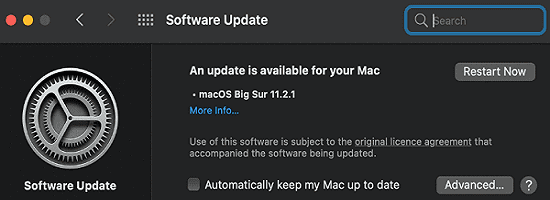
Install the Latest macOS Version
As Apple explains, installing Big Sur can help you improve Time Machine performance on APFS-formatted backup disks. If you’re not running Big Sur yet on your MacBook, go to System Preferences, click on Software Update, and check for updates.
By the way, if you’re backing up your data to the same disk but you’re not using the APFS format, you need to erase your backup disk first. Of course, this means deleting all the data stored on that disk. Then, set up Time Machine to use that backup disk again.
Keep in mind that the first backup usually takes longer to complete. To speed up Time Machine in general, you can run the following Terminal command: sudo sysctl debug.lowpri_throttle_enabled=0
⇒ Tip: To check your disk format, launch Finder, and then select your backup disk. Click on File, select Get Info, and go to the Format section.
Exclude Large Files
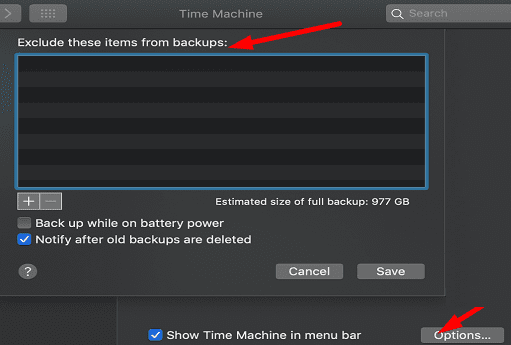
If you store large video files on your Mac, Time Machine will need to work really hard to back up and encrypt all that data. To speed up the process, you can exclude large files from backup.
Navigate to Time Machine preferences, and select Options. Click the Add button and remove large files from backup.
Encrypt Your Disk First
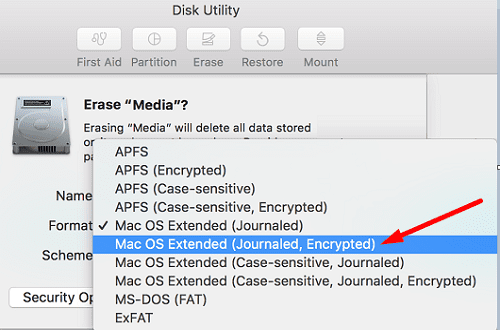
Try encrypting your drive first, and then encrypt your backups. Launch Disk Utility, select your drive, and format it to Mac OS Extended (Journaled, Encrypted). The whole process should take a couple of minutes to complete.
Then select your disk in Time Machine, and click on Encrypt backups. The progress bar should advance pretty quickly. Check if creating your Time Machine backup disk as Journaled and Encrypted speeds up the backup encryption process.
Disable Background Programs
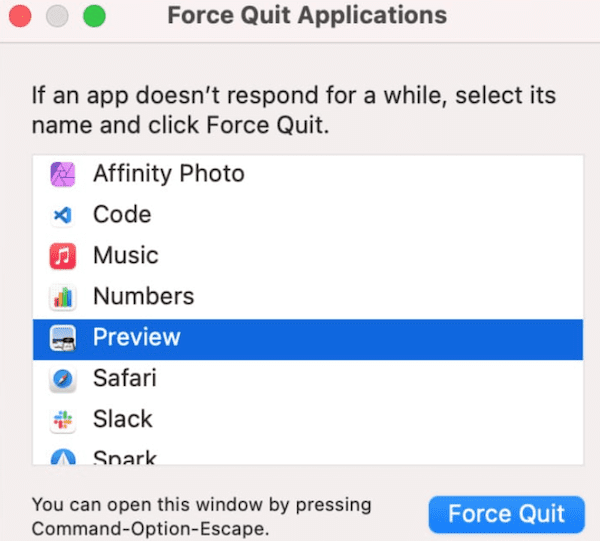
When you’re backing up your data with Time Machine, do yourself a favor and close all the apps and programs running in the background. If they’re constantly accessing your disk while Time Machine is running, they might interfere with the backup encryption process. Click on the Apple menu, select Force Quit, and force-stop all the unnecessary programs.
Scan and Repair Your Backup Disk
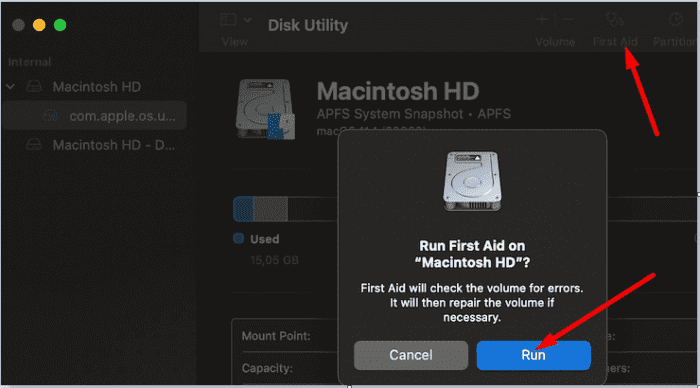
Maybe your backup disk is not working properly or Time Machine can’t access some of its sectors. Run Disk Utility, and let the tool scan and repair your disk. Go to Applications, select Utilities, and launch Disk Utility. Select your backup disk and run First Aid.
Restart your Mac, and check if the issue persists.
Conclusion
If Time Machine is taking forever to encrypt your backup data, install Big Sur and check if you notice any improvements. This macOS version packs many useful Time Machine improvements. Additionally, exclude large files, disable background programs, and run First Aid to repair your backup disk. If the issue persists, try encrypting your disk first using the Mac OS Extended (Journaled, Encrypted) format, and then back up your data. Which of these solutions worked for you? Let us know in the comments below.
Madalina has been a Windows fan ever since she got her hands on her first Windows XP computer. She is interested in all things technology, especially emerging technologies — AI and DNA computing in particular.
I was backing up 4 TB in total from 3 different drives. Initial backup took about half a day. Then the encryption started and after two days it was only at 16%.
Now I followed this article and started with an encrypted drive and ONLY backed up the internal ssd (250 GB) that took 2 hrs. Then I mounted another ssd — another 2 hrs. Now mounted my main data drive (3.7 TB) which took 14 hrs. How is this so much faster?
The first time I formatted the drive as Mac OS Extended(Journaled) and ran Time Machine and selected Encrypt Data. It took 6 hours to get to 10%. I gave up and stopped Time Machine by right clicking on the disk icon on the time machine window. I then reformatted the drive using Disk Utility and selected Mac OS Extended(Journaled, Encrypted). I then ran Time Machine again and selected Encrypt Data again. Wow! What a difference! My first ever backup of a 3 year old MacBook Air with 128 Gbyte SSD only took 1 hour and 15 minutes. Thanks for the good information.











Thank you! This saved me so much time.
I was backing up 4 TB in total from 3 different drives. Initial backup took about half a day. Then the encryption started and after two days it was only at 16%.
Now I followed this article and started with an encrypted drive and ONLY backed up the internal ssd (250 GB) that took 2 hrs. Then I mounted another ssd — another 2 hrs. Now mounted my main data drive (3.7 TB) which took 14 hrs. How is this so much faster?
The first time I formatted the drive as Mac OS Extended(Journaled) and ran Time Machine and selected Encrypt Data. It took 6 hours to get to 10%. I gave up and stopped Time Machine by right clicking on the disk icon on the time machine window. I then reformatted the drive using Disk Utility and selected Mac OS Extended(Journaled, Encrypted). I then ran Time Machine again and selected Encrypt Data again. Wow! What a difference! My first ever backup of a 3 year old MacBook Air with 128 Gbyte SSD only took 1 hour and 15 minutes. Thanks for the good information.