While Apple garners a lot of attention when new software features are introduced, a lot of us just focus on the features that we will actually use. But Apple also does a lot in the “background” in a way to keep your information and data as private and secure as possible.
However, when it comes to privacy and security, there’s a lot more that goes into it besides using a password manager or setting up Face ID.
Whether you realize it or not, there are an increasingly alarming number of cybersecurity threats taking place on a regular basis. We’ve all seen news headlines when a company’s infrastructure has been compromised, resulting in leaked information for its customers. Unfortunately, this has become “the norm” in 2022, and it doesn’t seem to be getting any better anytime soon.
Alongside the release of iOS 16 Developer Beta 3, Apple also introduced a brand new “Lockdown Mode” for iOS, iPadOS, and macOS. This is already available in the latest Developer Beta, allowing users to “test it out”, but you probably won’t need to actually use it. As for what Lockdown Mode is and does, here’s Apple’s official description:
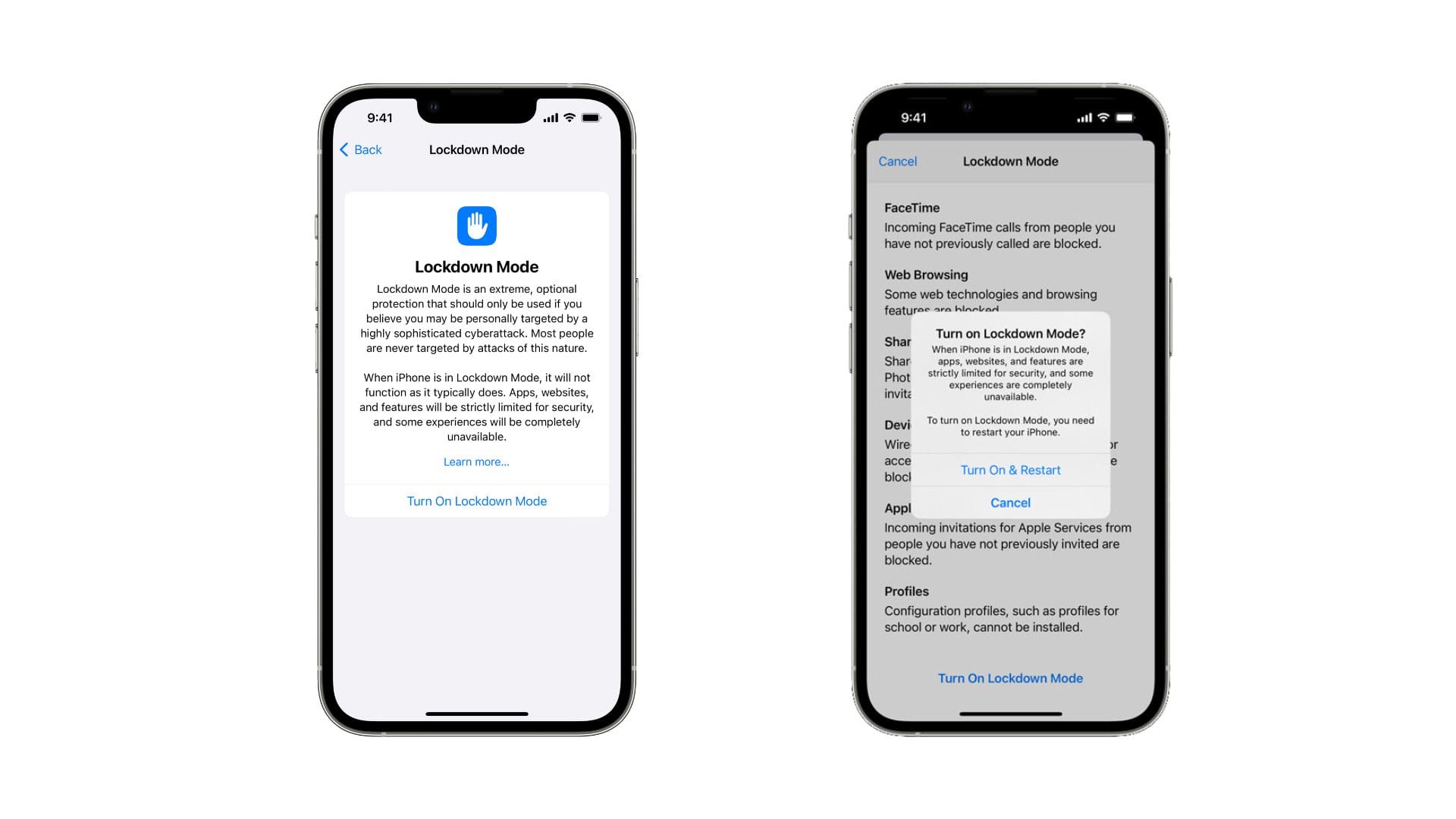
“Lockdown Mode is an extreme, optional protection that should only be used if you believe you may be personally targeted by a highly sophisticated cyberattack. Most people are never targeted by attacks of this nature.
When iPhone is in Lockdown Mode, it will not function as it typically does. Apps, websites, and features will be strictly limited for security, and some experiences will be completely unavailable.”
Along with introducing this new feature for its various devices, Apple also announced a bounty program “for qualifying findings in Lockdown Mode, up to a maximum of $2,000,000”. It also is “making a $10 million grant” to the Dignity and Justice Fund which is “designed to pool philanthropic resources to advance social justice globally.”
How To Use Lockdown Mode
As we stated previously, the likelihood of you needing to use Lockdown Mode on your devices is extremely slim. However, as cybersecurity threats continue to rise, Apple is doing whatever it can in an effort to provide its users with as much protection as possible. In the event that you need to know how to use Lockdown Mode, here are the steps you need to take:
Open the Settings app on your iPhone or iPad.
Scroll down and tap Privacy & Security.
Scroll all the way to the bottom until you reach the Security section.
Tap Lockdown Mode.
Tap the Turn On Lockdown Mode button.
On the next page, tap the Turn On Lockdown Mode button at the bottom.
Confirm by tapping the Turn On & Restart button.
When enabling and activating Lockdown Mode, a lot of the functionality you have come to enjoy on your iPhone will be turned off. Apple provides a list of the changes that occur when activating this mode, with the list also including the following:
Messages: Most message attachment types other than images are blocked. Some features, like link previews, are disabled.
Web browsing: Certain complex web technologies, like just-in-time (JIT) JavaScript compilation, are disabled unless the user excludes a trusted site from Lockdown Mode.
Apple services: Incoming invitations and service requests, including FaceTime calls, are blocked if the user has not previously sent the initiator a call or request.
Wired connections with a computer or accessory are blocked when iPhone is locked.
Configuration profiles cannot be installed, and the device cannot enroll into mobile device management (MDM), while Lockdown Mode is turned on.
Once the potential threat has passed, you can follow the steps above to turn off Lockdown Mode. Your iPhone or iPad will again need to restart in order for the changes to properly take effect. Once your device is finished restarting, all of the features and functionality will be available.
Andrew Myrick is a freelance writer based on the East Coast of the US. He enjoys everything to do with technology, including tablets, smartphones, and everything in between. Perhaps his favorite past-time is having a never-ending supply of different keyboards and gaming handhelds that end up collecting more dust than the consoles that are being emulated.







Write a Comment