From time to time, new apps are released onto the App Store which turns into a phenomenon of sorts. We’ve seen this with apps like WidgetSmith and of course TikTok, but even obscure apps can come out of seemingly nowhere. That’s one of the great things when it comes to the App Store is that you never really know what’s going to be the “next big thing”. But the possibilities are always there for something new and different to become “hip”.
If you open up the App Store on your iPhone today, and head over to the Top Free Apps section, HBO Max, TikTok, and Instagram have been dethroned. There’s a new champion atop the leaderboard, and the app’s name is called Locket.
Locket is an app that was released right at the tail-end of December 2021, and was created by a single developer, Matthew Moss. Matthew did not expect Locket to take off in such a manner, as the premise of the app is about as simple as it gets.
Moss shared in a recent interview that the reason he created Locket was to have an easier way to keep in touch with his long-distance girlfriend. That’s why you won’t find any ads or in-app purchases, as the app was simply created for a single purpose – staying connected.
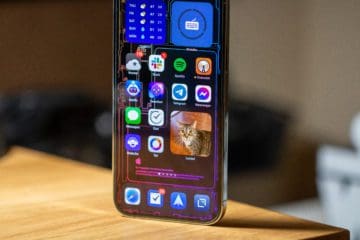
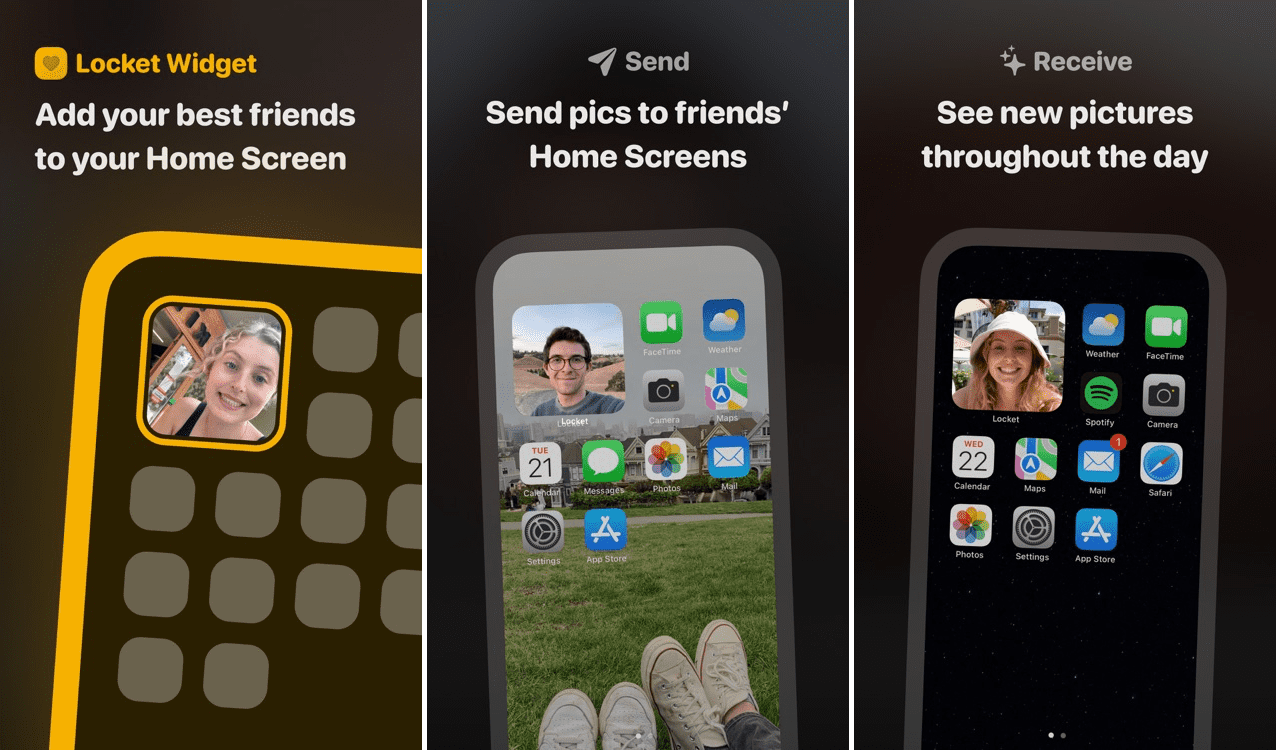
After downloading and installing the app, Locket is a widget that lives on your Home Screen that is constantly updated. But instead of just acting as a hub for your conversations, it works in a similar way to Snapchat, minus needing to constantly open the app just to see what someone sent. Once the widget is placed on the Home Screen, and you have added a few contacts, the widget will be updated with pictures sent from those that you have added.
Since Locket is free, there’s really nothing to lose if you want to give the app a shot. All you need is the Locket app, and a friend or two that also have an iPhone and want another way to stay connected. Here’s how to set up Locket for iPhone:
Open the App Store on your iPhone.
Click the Search icon in the bottom toolbar.
Search for Locket.
Tap the Get button to download the app.
Once the app is installed, go to your Home Screen.
Tap on the Locket icon.
If you don’t see Locket on your Home Screen, check in the App Library under Recently Added.
Once Locket is open, you’ll need to follow the on-screen instructions in order to get the app set up for the first time.
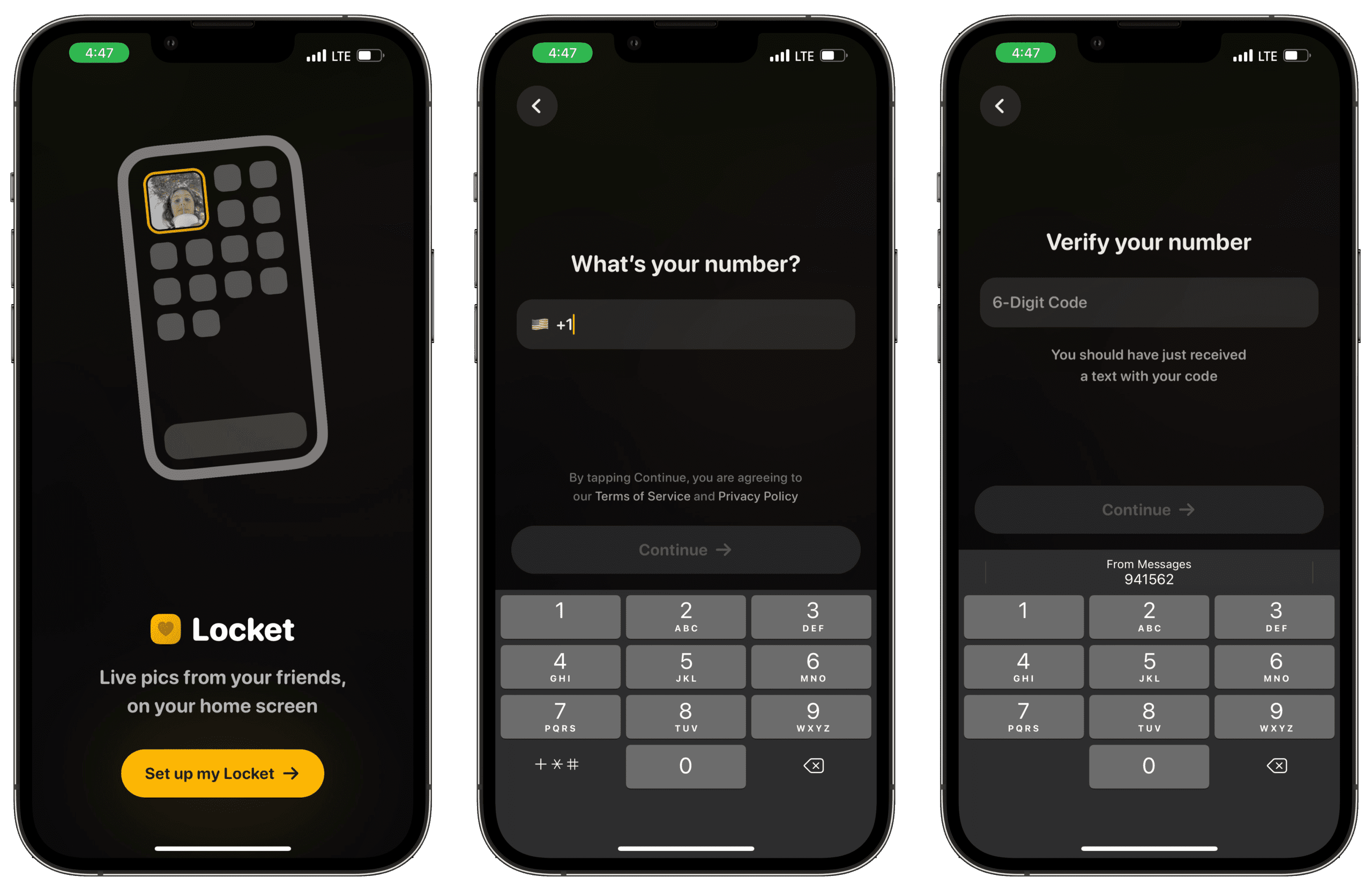
With the Locket app open, tap Set up my Locket.
Enter your phone number.
Tap Continue.
Enter the 6-digit verification code that was texted to your phone number.
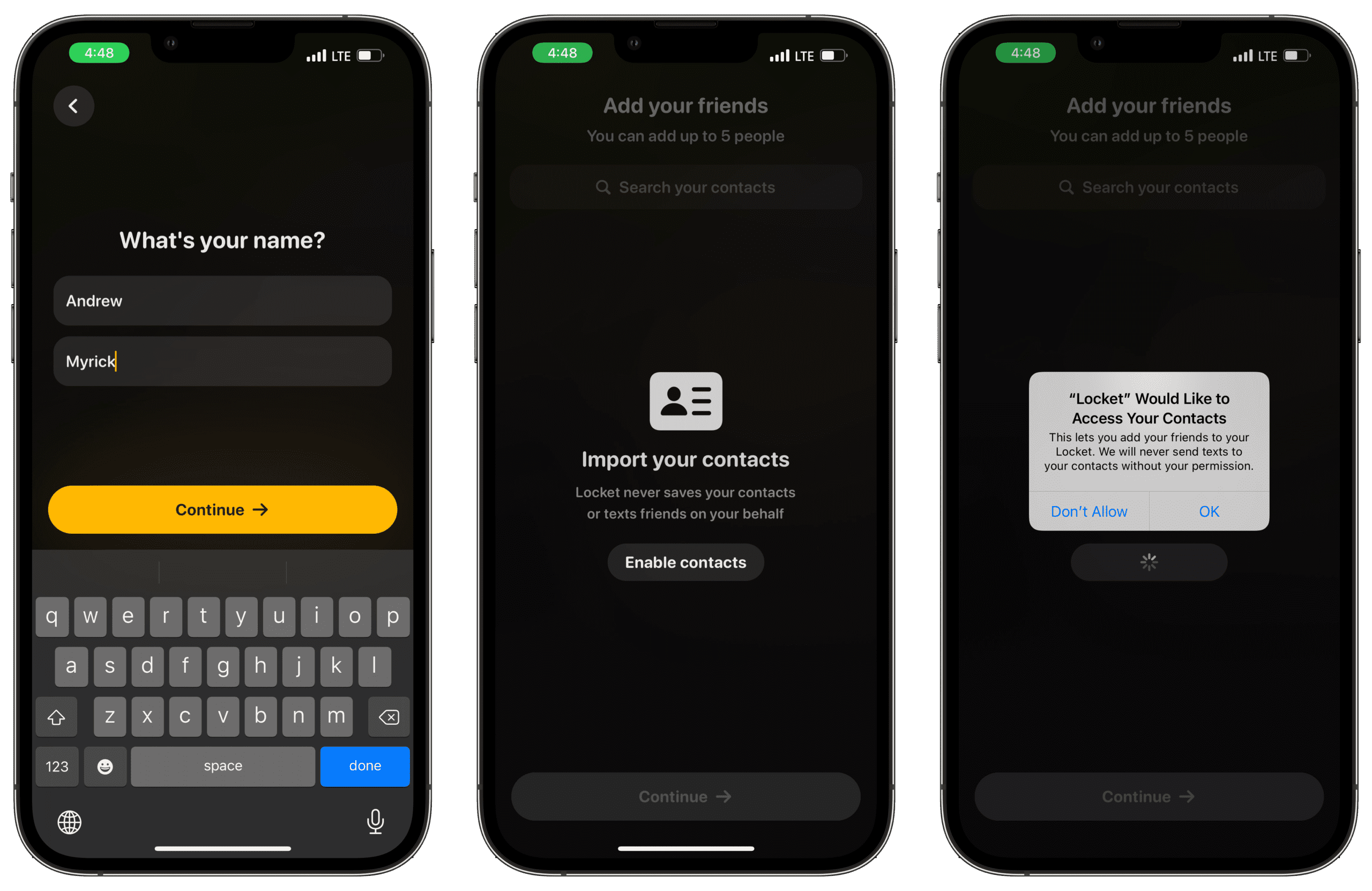
Enter your first and last name.
Tap Continue.
Tap the Enable contacts button.
On the pop-up dialog box, tap OK.
Search through your contact list and add up to five people.
Once selected, tap the Continue button at the bottom.
After you select a contact, Locket will pre-populate a message to send, prompting them to also download and setup the app. From there, you’ll need to proceed with enabling the Locket Widget on your Home Screen.
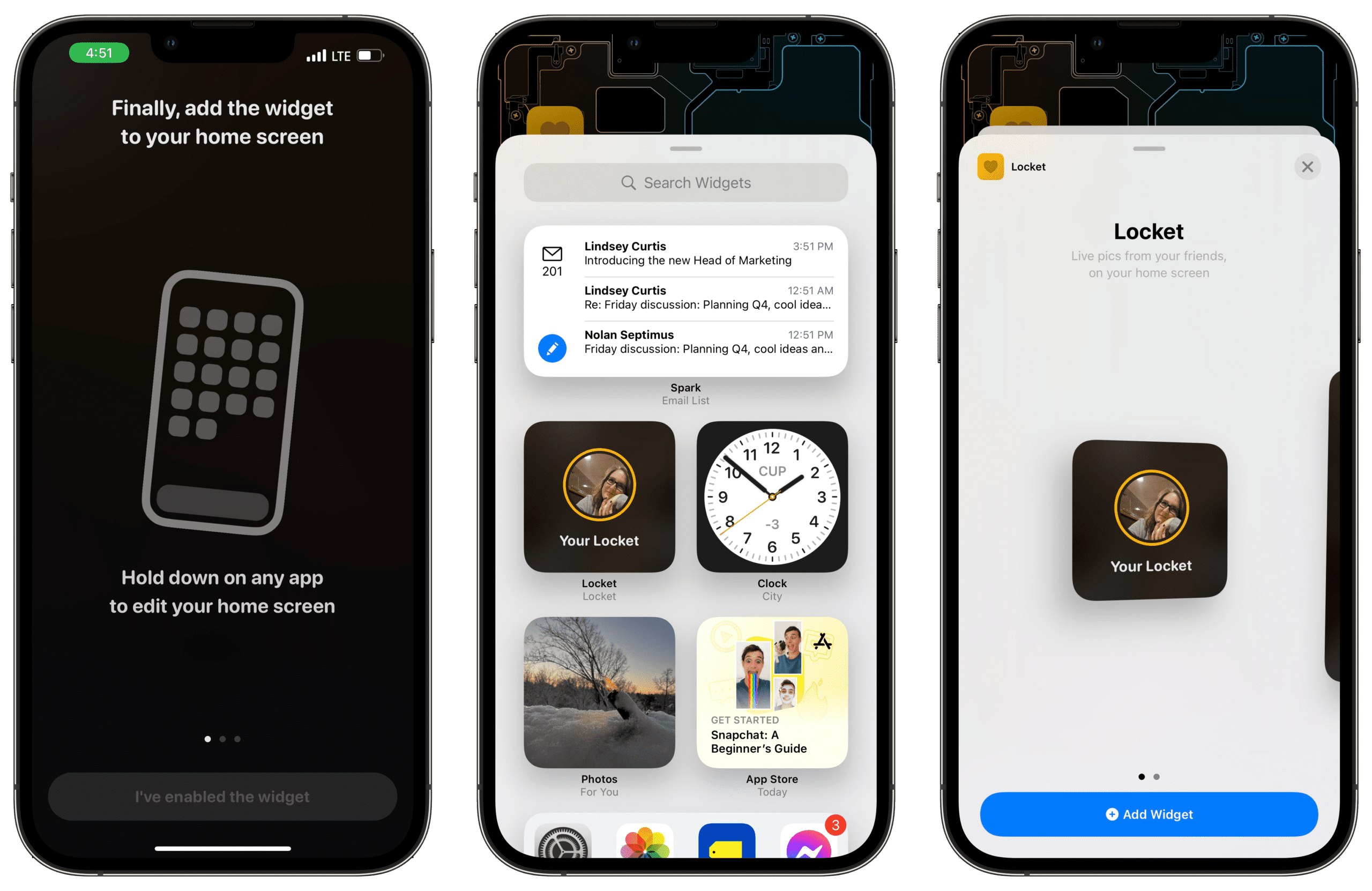
From your Home Screen, hold down on an empty space to enter Jiggle Mode.
Tap the + icon in the top left corner.
Select the Locket Widget from the list of widget options.
Choose the size of your widget (small or large), and tap Add Widget.
Tap Done in the top right corner.
Tap the LocketWidget that was just added to your Home Screen.
Tap the Finish button when taken to the Locket app.
From the dialog box, tap Allow when prompted to allow notifications from Locket.
Tap OK to allow Locket to use your Camera.
With all of the permissions granted, and contacts added, it’s time to start using Locket.
How To Use Locket for iPhone
With Locket, you have the ability to add up to five contacts. We aren’t sure whether the app will eventually be able to add support for more, but five is a good starting place. After your friends or loved ones have set up Locket for themselves, here’s how you can use Locket for iPhone:
Open the Locket app on your iPhone.
You can also tap the Widget on your Home Screen if you’ve already added it.
Take a picture.
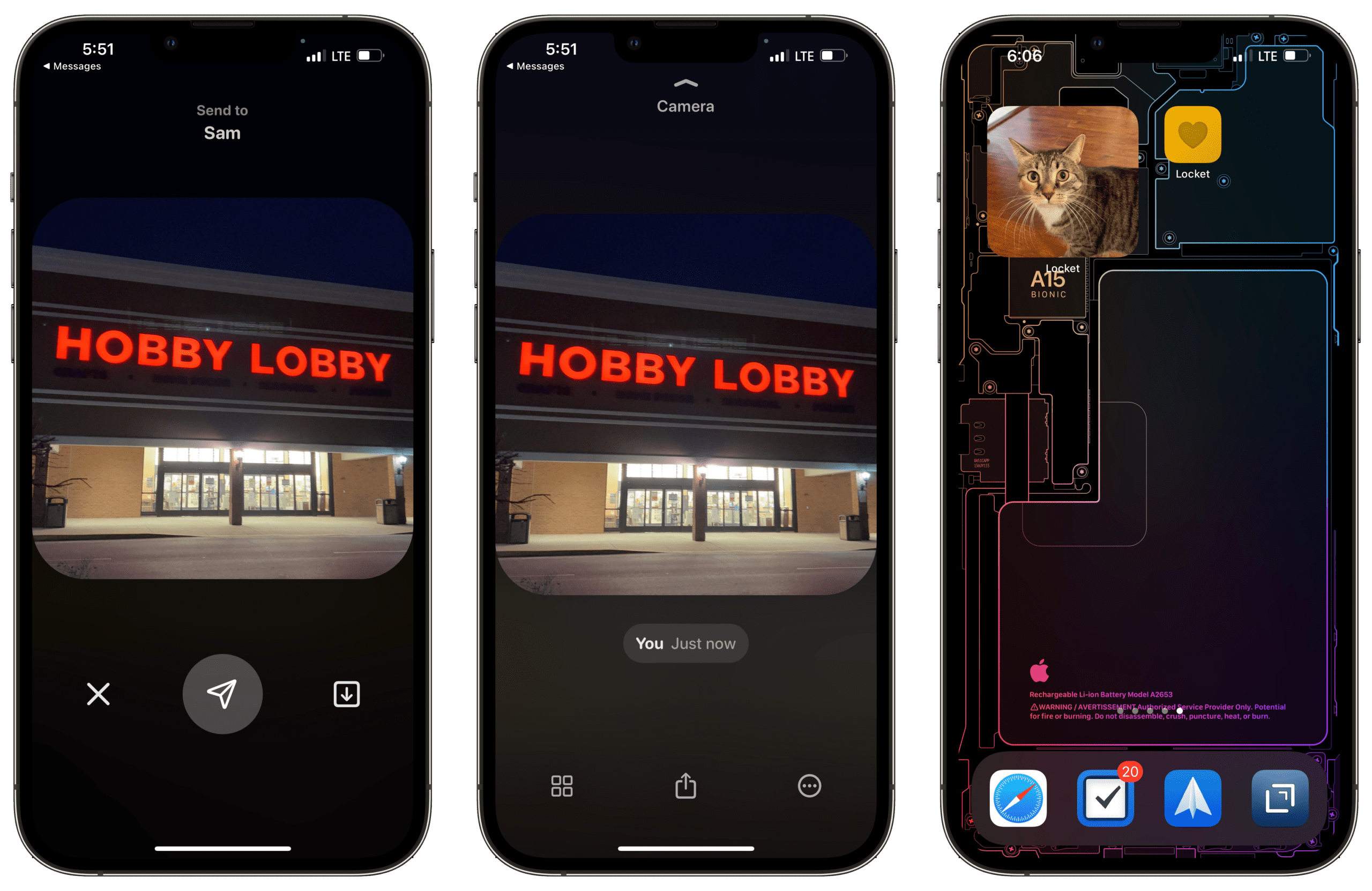
That’s it! Your picture will automatically be sent to your Locket friends, and their Locket widget will be updated automatically with the latest picture that was sent.
But if you are looking to explore the app, you do have a few extra features. For one, you can enable flash for when the photo is being taken, along with being able to switch between using the selfie camera or the main camera on the back of your iPhone.
Swiping up from the bottom will reveal your Locket history, which includes timestamps for when the photos were sent. You can scroll through the different pictures to see what has been sent, which includes the photos that you sent to your friends and loved ones.
Andrew Myrick is a freelance writer based on the East Coast of the US. He enjoys everything to do with technology, including tablets, smartphones, and everything in between. Perhaps his favorite past-time is having a never-ending supply of different keyboards and gaming handhelds that end up collecting more dust than the consoles that are being emulated.











Write a Comment