• Skip to primary navigation
  • Skip to main content
  • Skip to primary sidebar
  • Skip to footer

AppleToolBox

Tools and Fixes for Mac, iPad, iPhone & iWatch

Search posts

  • About
  • Contact

CONNECT WITH US

CATEGORIES

  • iPhone
  • iPad
  • iPod
  • Apple Watch
  • Mac/MacBook
  • AirPods
  • Apple TV
  • News
  • Apple Services
  • HomePod
  • Reviews

SITE

  • Home
  • About Us
  • Contact
  • Advertise

Search posts

You are here: Home / Mac / What to Do When a Wireless Keyboard Won’t Connect to Mac

What to Do When a Wireless Keyboard Won’t Connect to Mac

By Louis Roundtree 0 comments Last updated February 27, 2026

Things to Know
  • If your wireless keyboard won’t connect to Mac devices, it could just mean the Bluetooth service needs resetting, by switching it off and on again.
  • You could also check accessibility settings like Slow Keys, as these aren’t compatible with all keyboards.
  • It’s also worth checking that your Mac software is up to date.

Wireless keyboards are a game-changer for reducing desk clutter and letting you work pretty much anywhere. But if your favorite wireless keyboard won’t connect to Mac machines, don’t worry, it doesn’t necessarily mean the keyboard is broken.

Try these four fixes first before purchasing a replacement wireless keyboard.

Contents

  • Wireless Keyboard Won’t Connect to Mac Fix #1: Reset Bluetooth
  • Fix #2: Change Accessibility Settings like Slow Keys
  • Fix #3: Re-pair Your Devices
  • Fix #4: Update your macOS

Wireless Keyboard Won’t Connect to Mac Fix #1: Reset Bluetooth

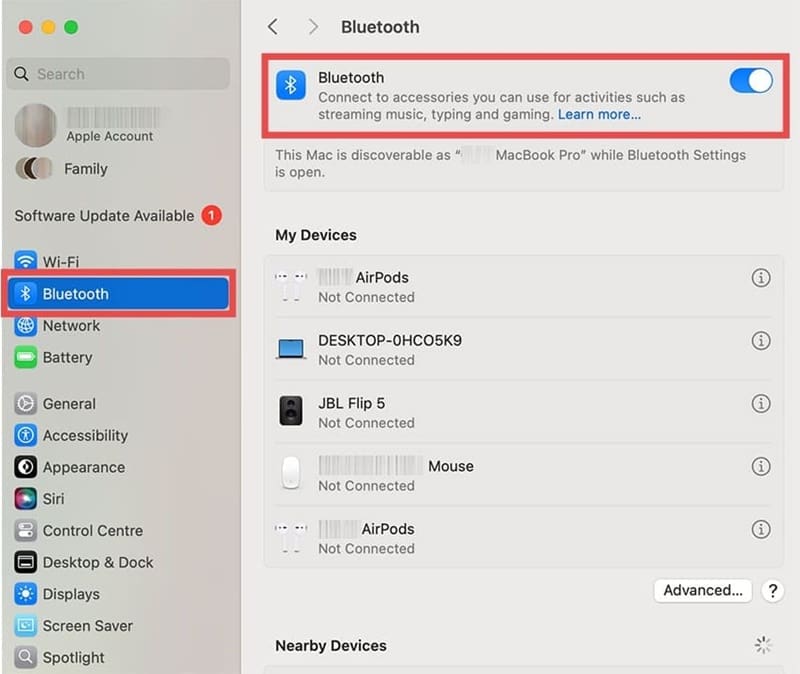
Step 1. Head to System Settings > Bluetooth. You can also search for Bluetooth by pressing Command + Space to bring up the Spotlight Search box.

What to Do When a Wireless Keyboard Won’t Connect to Mac 1

Step 2. Toggle the switch next to Bluetooth by clicking on it once. The toggle button will shift to the left and the background of the button will become grey.

What to Do When a Wireless Keyboard Won’t Connect to Mac 2

Step 3. Wait at least two minutes, then toggle the Bluetooth switch back to “on.” You should see the keyboard in the list of available devices. Click on it to connect. If you’ve used the keyboard before, it should appear under “My Devices” and should connect automatically. Click on the name of the keyboard if it doesn’t.

Note: Make sure your wireless keyboard is switched on during this process.

Fix #2: Change Accessibility Settings like Slow Keys

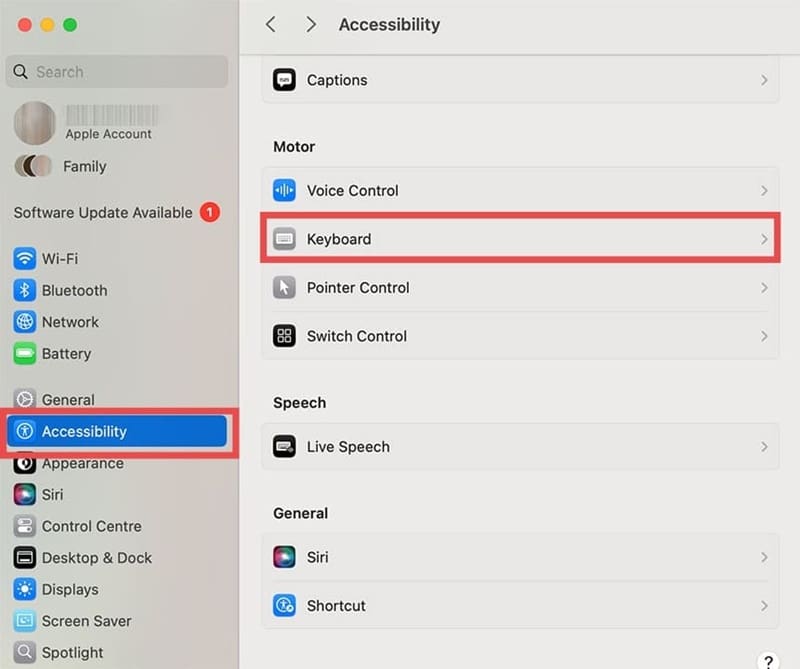
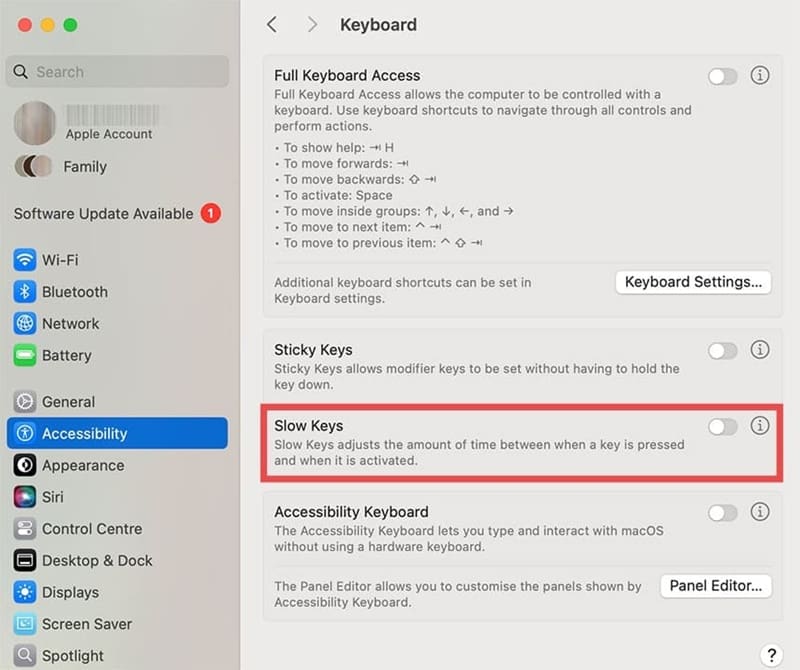
Step 1. Check if you’ve accidentally switched on the Slow Keys function, which makes keys only work when you hold them down for a long time. Head to Settings > Accessibility > Keyboard.

What to Do When a Wireless Keyboard Won’t Connect to Mac 3

Step 2. Find the option for Slow Keys and ensure it’s switched off. Try using the keyboard again to check if this fix has worked.

What to Do When a Wireless Keyboard Won’t Connect to Mac 4

Fix #3: Re-pair Your Devices

Step 1. This fix is for when your keyboard has been working fine and then suddenly stopped working. Use the instructions from “Fix #1” to find your Mac’s Bluetooth settings again. Find the keyboard under “My Devices” and look for the “i” icon, which provides additional information.

What to Do When a Wireless Keyboard Won’t Connect to Mac 5

Step 2. Click the “i” and click “Forget This Device.” Confirm that you want to do this.

What to Do When a Wireless Keyboard Won’t Connect to Mac 6

Step 3. Turn off the wireless keyboard for a minute. Turn it back on, and wait for it to appear under the list of available devices.

Step 4. Click on the keyboard’s name and click “Connect” to re-pair the device and get back to work.

What to Do When a Wireless Keyboard Won’t Connect to Mac 7

Fix #4: Update your macOS

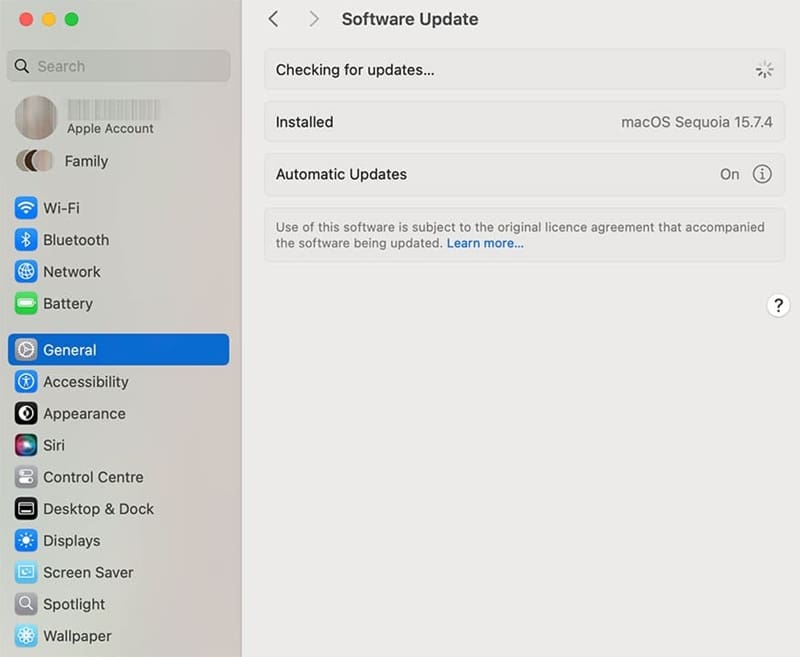
Step 1. Out-of-date software can cause issues with wireless and Bluetooth connectivity. Check your macOS software is up to date by heading to Settings > General > Software Update.

What to Do When a Wireless Keyboard Won’t Connect to Mac 8

Step 2. If an update is available, you can choose to update now or at a later time.

What to Do When a Wireless Keyboard Won’t Connect to Mac 9

Other top tips include making sure your keyboard is fully charged, and testing it with another device to see if it’s a problem with the keyboard or the Mac itself.

Related Posts:

  • 2023 Mac Studio lifestyle - 1
    macOS Could Not Be Installed, How-To Fix
  • 2022 Mac Mini with Studio Display and Accessories
    Mac Tips For New Users In 2023
  • Spotlight Replacement Apps Mac Hero
    Spotlight Search Not Working on MacBook, How-To Fix
  • Apple Studio Display Setup - 4
    Best Mechanical Keyboards for Mac
  • change the default keyboard on iPhone
    How to Change Your Default Keyboard on iPhone
  • Desk Setup 2022 - 2
    Grovemade's Desk Accessories Are Unbelievably Elegant
  • macOS Ventura Spotlight
    How to Use Spotlight in iOS 16
  • Screen Shot 2021-07-12 at 4.52.12 AM
    AirPods Max Review: How They Look Six Months Later
  • pexels-tranmautritam-696899
    iPhone Tips for New Users In 2023
Louis Roundtree
Louis Roundtree

As an avid gamer, I’ve run into my fair share of error codes and weird faults that have forced me to find fixes to problems I never anticipated. That gave me a passion for sharing those fixes with others so we can all game without feeling like our hardware is rebelling against us.

Reader Interactions

Write a Comment Cancel reply

Primary Sidebar

Recent Posts

  • Guide to Changing iMessage Backgrounds on iPhone and Mac
  • Has Apple Killed Vision Pro? (Insane Sales Flop Explained)
  • 5 Great Apps for Staying Organized on Your iPhone
  • What Are iPhone Antennas and Do You Need One?
  • iPhone Alarm Not Going Off in iOS 26? Here’s What to Do
  • How to Fix a Slow Charging iPhone

Connect with us

Footer

ABOUT

  • About Us
  • Contact us
  • Advertise
  • Privacy
  • Terms of Use

GUIDES

  • iOS & iPadOS
  • Apple ID
  • iCloud
  • App Store
  • iTunes
  • FaceTime
  • iMessage
  • Siri
  • Books and iBooks
  • Game Center
  • AirPlay

CONNECT

  • Facebook
  • Twitter
  • FeedBurner
  • YouTube

© Copyright 2010-2024 Guiding Tech Media · All Rights Reserved

This site and its content are in no way affiliated or endorsed by Apple, Inc. · Reproduction without explicit permission is prohibited

Last Updated on February 28, 2026 by Louis Roundtree