You can personalize Siri to call you anything. For instance, if you want Siri to call you “daddy” or “awesome” and even “beautiful,” it’s easy to set Siri to do just that!
All you have to do is set up that nickname or preferred name in your contact info–it’s really that easy!
And for those of you with names that Siri has trouble pronouncing, this tip is for you too.
How to teach Siri to call you by your nickname or name preference
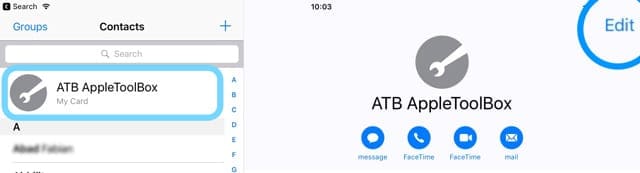
Tap the Contacts app on your iPhone, iPad or iPod touch
Find My Card–it should show up at the top
Tap your card
Choose Edit
Tap your contact card and choose Edit to add a nickname or another name alias
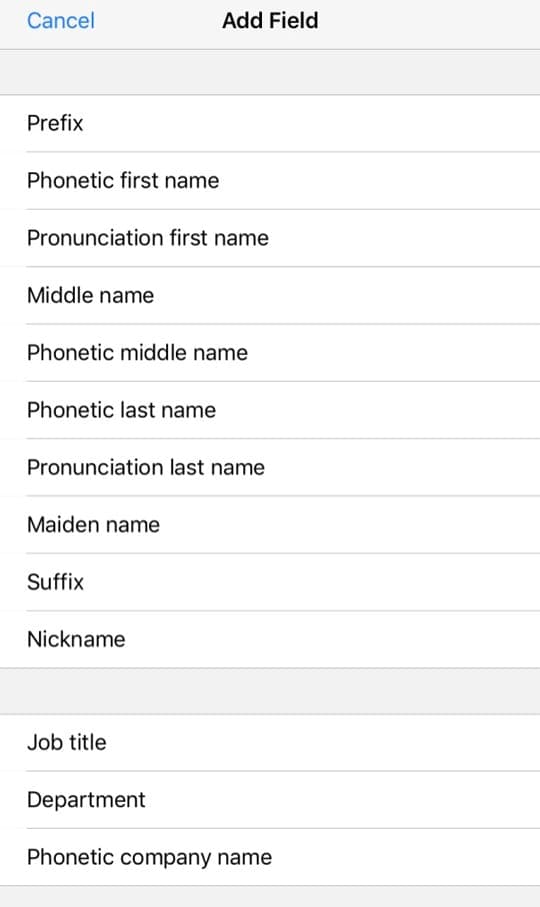
Scroll and the way down and choose ‘add field’
Select Phonetic First (Middle or Last) Name, Nickname, Pronunciation First (or Last), or another category
Select what type of additional name or information you provide in the contacts app add field option
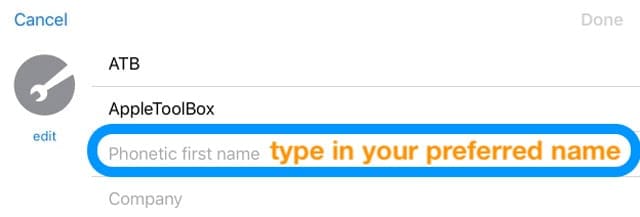
Scroll back up to your name information
Type in whatever you want Siri to call you under Phonetic first name or whatever category you chose in step 6
Type in your nickname or preferred name into the additional field
If Siri mispronounces your name, enter the letter(s), you think that best represents the sounds of your first or last name
Tap Done to save
Then ask Siri a question and see if it answers with your new name!
Word of warning!
Important information about nicknames
When you share your contact card with anyone, iOS includes your nickname.
And that nickname is often the name that shows up in your iMessages, AirDrop, FaceTime calls, emails sent using the Mail App, other people’s Contacts app, and many other communications you send out.
If you or more importantly your friends and colleagues, have Prefer Nicknames on in the Contacts App AND you set-up a nickname using the nickname field, everyone sees your nickname instead of your actual name.
And guess what?
Prefer Nicknames is usually on!
That’s why it’s best to add a nickname or preferred name using the add field Phonetic First Name (or similar) instead of adding the field Nickname or changing your actual first name (or last) in your contacts card.
So if you want to keep your nickname to yourself, stick with adding a Phonetic first name (or another category other than nickname.)
You may not want the world to know how you prefer Siri to call you! Just a thought.
How to delete a nickname Siri uses
Launch the Contacts app then tap Edit
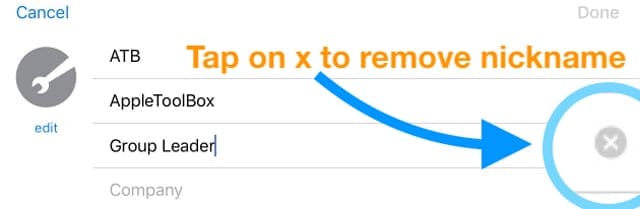
Tap your nickname
Change or delete by tapping on the nickname (or another name) and choosing the x to remove it!
Tap the “x” to remove any nickname or preferred name from the contacts app
Tap Done
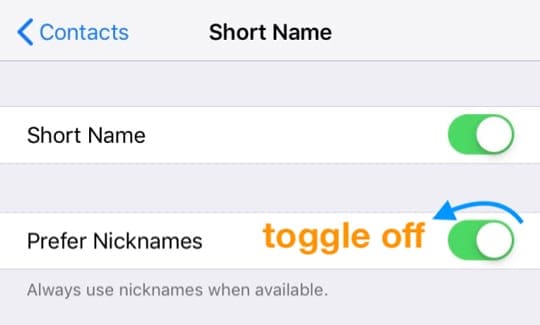
How to turn off Prefer Nicknames
Open Settings
Choose Contacts
Tap Short Name
Toggle off Prefer Nicknames
Turn off your iPhone using nicknames in the contacts app
Just remember that this impacts your device only–so you won’t see nicknames for your contacts.
But if you set-up a nickname and others have Prefer Nicknames on, they see your nickname instead of your actual first and last name–and you have no control over that other than deleting your nickname!
Get Siri to pronounce your name or someone else’s name
There are a few methods to get Siri to pronounce your name correctly. You can use the way above and spell out how your name sounds using the options for phonetic or pronunciation first, middle, or last names.
Or you can tell Siri that “you’re pronouncing (insert the name) wrong!”
Activate Siri via “Hey Siri” or pressing the Side/Home button
Ask Siri open the contact card for the person’s name Siri mispronounces
Get Siri to open the contact card of a name Siri mispronounces
Respond with “that’s not how you pronounce (insert the name)“
Siri asks how you how to pronounce the name correctly
Let Siri know it’s pronouncing a name wrong
Slowly pronounce the name correctly
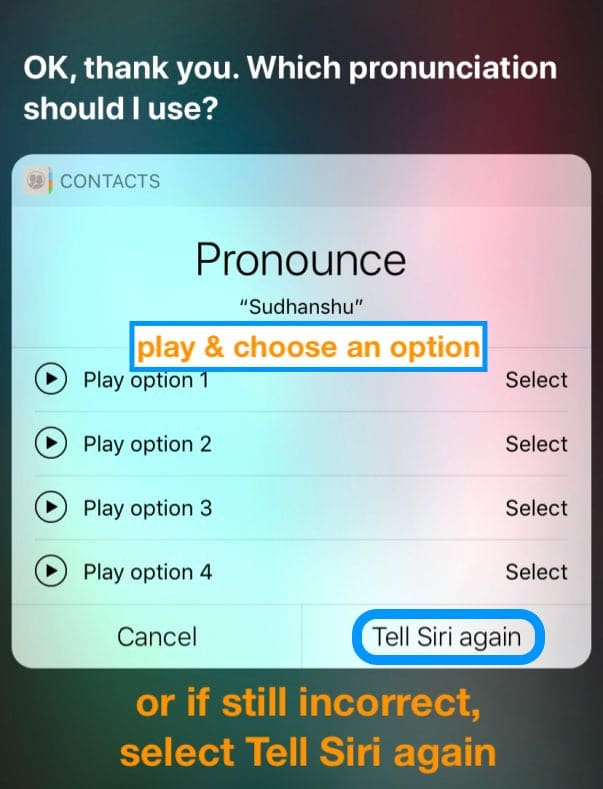
Siri provides options based on your correct pronunciation
Play and choose one of the options
If none of the options are correct, press Tell Siri again and repeat steps 4-7 until it’s right
Siri shows you pronunciation options, or you can try again using Tell Siri again
Do this process for any mispronounced names, including first names, last names, even nicknames!
Why doesn’t Siri or any of my apps use last names?
iOS by default turns on the feature Short Name and sets the first name only as the default. This feature allows more names to appear on-screen when needed.
iOS’ Short Name settings apply to Apple apps like Mail, Messages, FaceTime, Phone, and even some third-party apps.
But what if you have a lot of co-workers, friends, or family with the same first name? Or want last names to show?
The good news is it’s easy to customize this feature
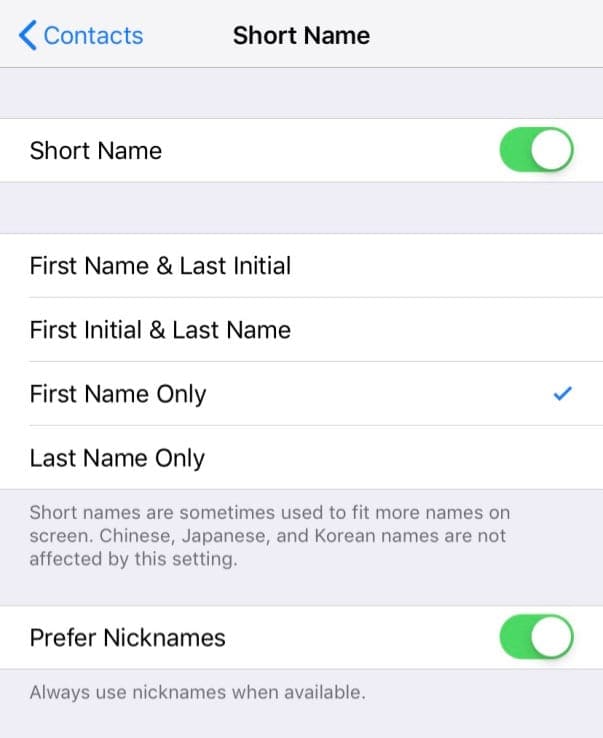
Go to Settings > Contacts
Tap Short Name
From the list select your preferred options, like First Name and Last Initial
Choose your preferred short name style options
You can also simply turn off Short Name
When Short Name is off, your native Apple apps show first and last names as listed in your Contacts app.
Any third-party apps that use iOS’ name shortening also add both first and last names to your contacts.
Do you see incorrect letters and numbers instead of the contact’s names?
This problem often happens on Exchange accounts.
Turn off Prefer Nicknames by going to Settings > Contacts > Short Name > Prefer Nicknames.
Obsessed with tech since the early arrival of A/UX on Apple, Sudz (SK) is responsible for the original editorial direction of AppleToolBox. He is based out of Los Angeles, CA.
Sudz specializes in covering all things macOS, having reviewed dozens of OS X and macOS developments over the years.
In a former life, Sudz worked helping Fortune 100 companies with their technology and business transformation aspirations.
Thank you so much I wanted to add a nickname for me and also my sister I knew they use to have it all the time like 2 years ago.
But they did an update and it went away I was trying to look for it for a while but I just gave up today I thought about it again and I saw this one I tried one before and I thought this one wouldn’t work.
But actually it totally works I am so happy!
Thank you so much for helping me out and everyone else!














Thank you so much I wanted to add a nickname for me and also my sister I knew they use to have it all the time like 2 years ago.
But they did an update and it went away I was trying to look for it for a while but I just gave up today I thought about it again and I saw this one I tried one before and I thought this one wouldn’t work.
But actually it totally works I am so happy!
Thank you so much for helping me out and everyone else!
Thanks for providing such a nice information.