• Skip to primary navigation
  • Skip to main content
  • Skip to primary sidebar
  • Skip to footer

AppleToolBox

Tools and Fixes for Mac, iPad, iPhone & iWatch

Search posts

  • About
  • Contact

CONNECT WITH US

CATEGORIES

  • iPhone
  • iPad
  • iPod
  • Apple Watch
  • Mac/MacBook
  • AirPods
  • Apple TV
  • News
  • Apple Services
  • HomePod
  • Reviews

SITE

  • Home
  • About Us
  • Contact
  • Advertise

Search posts

You are here: Home / iPhone / 2 Ways to Transfer Files from iPhone to Windows

2 Ways to Transfer Files from iPhone to Windows

By Louis Roundtree 0 comments Last updated October 18, 2024

Things to Know:
  • While iPhones offer AirDrop for transferring files to other Apple devices, this doesn’t work with Windows laptops.
  • There are several alternative ways to transfer files from iPhone to Windows
  • Use your iPhone cable or any cloud storage app that works on both devices.

Contents

  • Method 1: How to Transfer Files from iPhone to Windows Machines Using Just a USB Cable
  • Method 2: Wirelessly Transfer Files from iPhone to Windows Devices
  • Bonus Tips and Troubleshooting

Method 1: How to Transfer Files from iPhone to Windows Machines Using Just a USB Cable

Step 1: Note — this method only works for transferring media like photos and videos. If you want to transfer other types of files, move straight to Method 2.

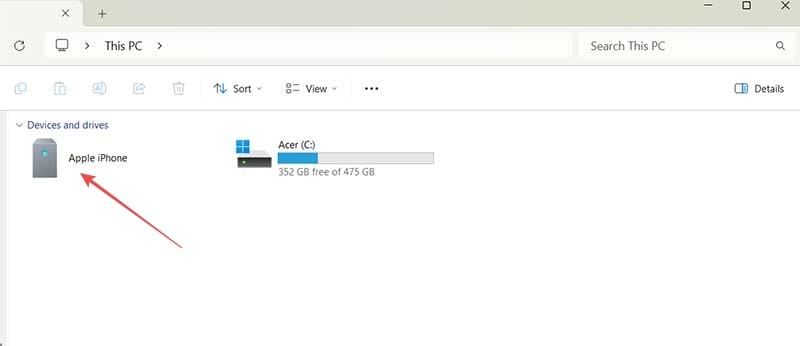
Plug the iPhone into the Windows PC using the appropriate cable. You’ll see your iPhone under “Devices and Drives” in File Explorer.

How to Transfer Files from iPhone to Windows Machines Using Just a USB Cable 1

Step 2: Double-click the Apple iPhone icon and you’ll see “Internal Storage.”

How to Transfer Files from iPhone to Windows Machines Using Just a USB Cable 2

Step 3: Double-click “Internal Storage” and the next icon, “DCIM” to open a page containing multiple folders. Each of these folders has a date and contains images and videos you took in that month.

How to Transfer Files from iPhone to Windows Machines Using Just a USB Cable 3

How to Transfer Files from iPhone to Windows Machines Using Just a USB Cable 4

Step 4: Double-click the folder of your choice to access the photos and images within.

How to Transfer Files from iPhone to Windows Machines Using Just a USB Cable 5

Step 5: Select the files you want to transfer from iPhone to Windows and right-click anywhere in the same panel to access the “Copy” function.

How to Transfer Files from iPhone to Windows Machines Using Just a USB Cable 6

Step 6: Click “Copy” and then open a folder you want to move the files to. Click Ctrl and V together to paste in the copied files.

How to Transfer Files from iPhone to Windows Machines Using Just a USB Cable 7

Method 2: Wirelessly Transfer Files from iPhone to Windows Devices

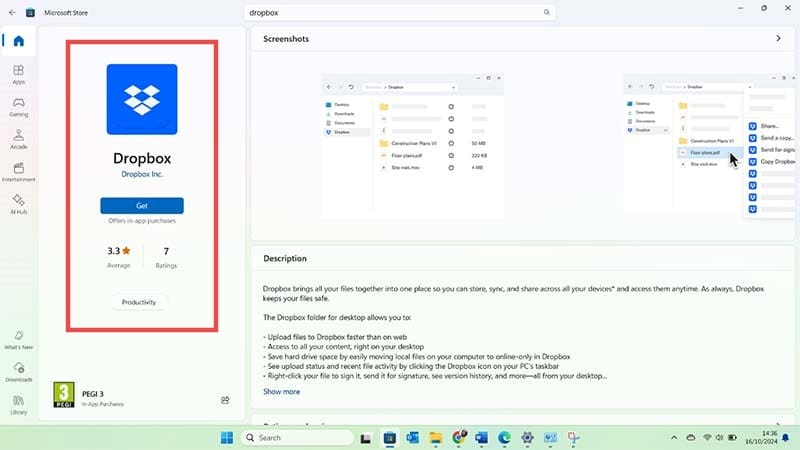
Step 1: Make sure you have a cloud storage account and a corresponding app that you can get for both your Windows device and your iPhone, e.g., OneDrive, Dropbox, or Google Drive.

Wirelessly Transfer Files from iPhone to Windows Devices 1

Step 2: Sign in to the app using the same login details on both devices. Then, on your iPhone, save any files you want to access on your Windows device in the same Cloud storage app. In this example, we’re saving a screenshot of some text directly from the Photos app:

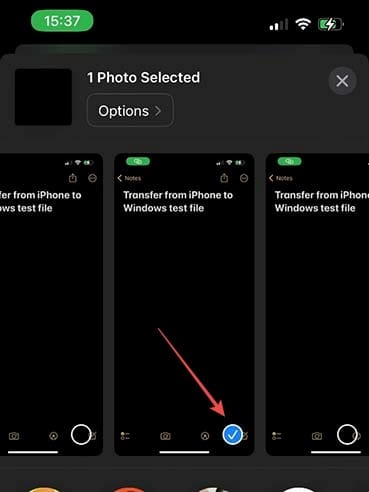
  1. Select the photo you want
    Wirelessly Transfer Files from iPhone to Windows Devices 2
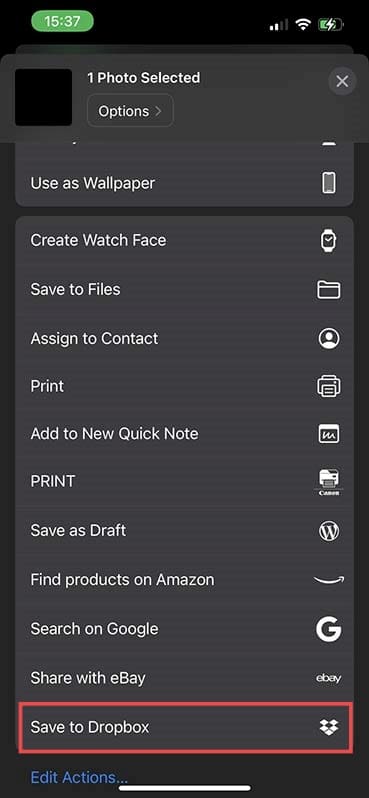
  2. Select “Share” then “Save to Dropbox” (or the Cloud storage app of your choice).
    Wirelessly Transfer Files from iPhone to Windows Devices 3
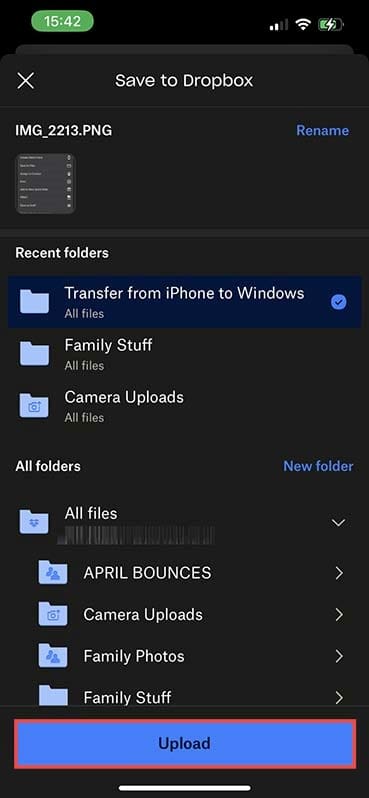
  3. Choose the folder you want to use and click “Upload.”
    Wirelessly Transfer Files from iPhone to Windows Devices 4

Step 3: Open the same app on your Windows device. (Note: It’s best to wait 10-15 minutes to ensure the file has had time to upload to the cloud service.) Navigate to the same folder and the file you saved should be there. You can now access the file or copy it to your Windows PC or laptop as needed.

Wirelessly Transfer Files from iPhone to Windows Devices 5

Bonus Tips and Troubleshooting

Here’s how to deal with common issues that crop up when using these methods:

  • iPhone won’t connect by USB cable: This is usually a problem with the cable itself or the USB slot. Try the cable in a different USB socket or use a different cable.
  • Files appear in the Cloud storage app on one device but not the other: Check that both devices have an active internet connection. Wait 10-15 minutes, reboot both devices and check again.

As long as both devices have a strong Wi-Fi connection, the wireless method is usually the most reliable. Just double-check you have enough storage for any larger files you may want to transfer, such as long videos.

Related Posts:

  • MacBook, iPhone, and Camera Lenses
    Why Does My iPhone DCIM Folder Appear Empty on a PC?
  • pexels-cottonbro-4705628
    The Best NAS Drives For Mac
  • 2023 Mac Studio lifestyle - 1
    How to Eject USB From Mac
  • Windows computer
    How to AirDrop from iPhone to Windows PC
  • photo of an iphone with ios 16 downloaded on it
    iOS 16 Tips and Tricks: The Definitive List
  • pexels-andrea-piacquadio-3760811
    Automator Workflow Types: Understanding The Differences
  • An iPhone, Mac, and MacBook on a table
    How to Transfer Your Photos from iCloud Photos to…
  • iPhone 15 event - iPhone 15 and iPhone 15 Plus FineWoven Accessories
    Best Lightning to USB-C Adapters for iPhone 15
  • Apple M2 Pro and M2 Max with MacBook Pro lifestyle
    How to Transfer File Between iPhone and Mac
Louis Roundtree
Louis Roundtree

As an avid gamer, I’ve run into my fair share of error codes and weird faults that have forced me to find fixes to problems I never anticipated. That gave me a passion for sharing those fixes with others so we can all game without feeling like our hardware is rebelling against us.

Reader Interactions

Write a Comment Cancel reply

Primary Sidebar

Recent Posts

  • How to Manage Your iPhone Call Log
  • Are Apple’s Safety Precautions Enough for AirTags?
  • How to Hide Username and Photo on the Mac Lock Screen
  • Microsoft Resume vs. Apple Handoff – Which Wins for Cross-Device Work?
  • How to Export iTunes Library to New Computer
  • What the Gemini Desktop App Will Bring to Mac

Connect with us

Footer

ABOUT

  • About Us
  • Contact us
  • Advertise
  • Privacy
  • Terms of Use

GUIDES

  • iOS & iPadOS
  • Apple ID
  • iCloud
  • App Store
  • iTunes
  • FaceTime
  • iMessage
  • Siri
  • Books and iBooks
  • Game Center
  • AirPlay

CONNECT

  • Facebook
  • Twitter
  • FeedBurner
  • YouTube

© Copyright 2010-2024 Guiding Tech Media · All Rights Reserved

This site and its content are in no way affiliated or endorsed by Apple, Inc. · Reproduction without explicit permission is prohibited

Last Updated on October 19, 2024 by Louis Roundtree