Through the Photos app, Apple makes it simple to go back and re-experience important events in our lives. These aptly named Memories, which include photos and videos alike, are accessible on iPhone and iPad, Mac, and Apple TV. It’s this third platform that’s the focus of this article.
First introduced across all Apple platforms in 2016, the Memories feature automatically recognizes and compiles related photos and videos to create short, shareable music videos that include music. Apple uses deep learning capabilities to sort and search in the Photos app to create these snippets.
These snippets typically are arranged by a day on the calendar (or range of dates), location, or by a person (using built-in facial recognition). Photos and videos taken around significant holidays throughout the year are also likely to get added to Memories.
Apple creates automatic Memories and shares them across your devices through iCloud automatically. For this to occur, make sure you’re using the latest software for iOS, macOS, and tvOS.
Make sure:
To sign into each device with iCloud using the same Apple ID.
Turn on iCloud Photos across all of your devices.
Note: Currently, videos aren’t part of Memories on Mac.
Create Your Memories From Scratch
Although Apple places great emphasis on the automatic creation of Memories in Photos, you can easily create your own. You can create a memory using any Moment, Collection, Year, or Album in your photo library. Creating new Memories is only possible on Mac, iPhone, and iPad.
You can’t create new Memories on Apple TV.
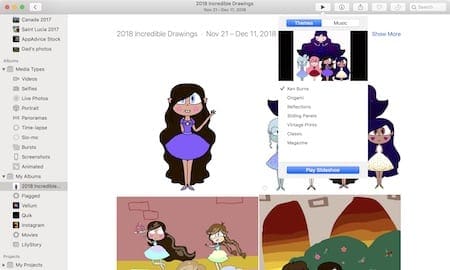
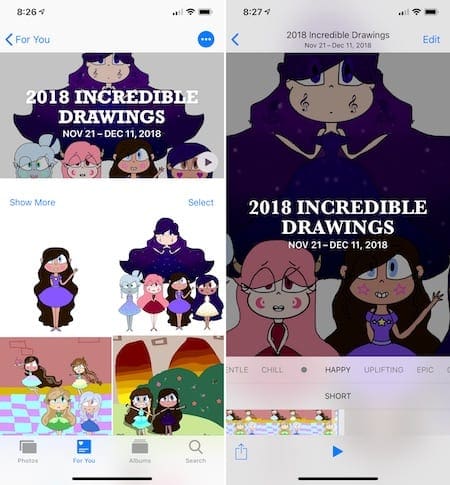
In the following example, I’ve created a Memory based on my album, 2018 Incredible Drawings, which includes artwork created by my daughter.
On your Mac:
Open an Album and click Show as Memory in the header.
In the Moments or Collections tab, click the title of a group of photos to open them as a Memory.
Tap on the Play icon to add a theme and music to the memory.
Scroll down and click Add to Memories, so your creation is accessible across all devices.
On your iOS device:
Tap the header of any Moment, Collection, Year, or Album.
Select the … icon at the top right of the screen, then tap Add to Memories.
Tap the Play icon to begin playing the memory.
Tap anywhere on the video to change the theme and music.
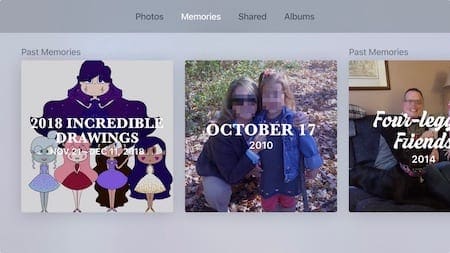
Viewing iPhone Memories on Apple TV
To experience your memories on Apple TV, follow these steps:
Using your Siri remote, select the Photos app.
At the top of the screen, select Memories.
Scroll to find the memory you’d like to view and tap on it.
Tap the Play button to watch the video.
Extra Features
Although you can’t create or change Memories on Apple TV, you can do other things such making a memory one of your favorites, deleting a memory, or blocking a memory. You can find these choices by pressing and holding on the Siri remote’s Touch Surface.
Adding a memory to your favorites and deleting a memory are self-explanatory; blocking a memory, not so much.
When you block a memory on Apple TV, you remove memories based on how it was created initially. For example, if a memory was formed based on a person, blocking it would eliminate that person from any future Photo app memory. The action would work the same when blocking memories that would include a date or location.
You can reset your Memories settings in Settings > Photos on your Apple TV.
A Beautiful Time Machine
With Memories, Apple has created a simple way to review past events across multiple devices. The memory feature on Apple TV isn’t as extensive as what you’ll find on iOS and macOS. It still gets the job done, however, and serves as a great way to travel back in time to experience a wonderful event once again.
How do you use Memories on your Apple device? Let us know below.













Write a Comment