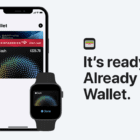
Gone are the days when you need to remember all of your various credit and debit cards when you head out to the store. With the iPhone or Apple Watch and Apple’s Wallet app, you can store pretty much all of your cards in one place. Then, just by double-pressing the Side button, you can make the necessary payments using your preferred card when at checkout.
But as we’ve seen recently, the Wallet app is continuing to expand and become more versatile than we ever imagined. Soon, you’ll be able to even store a verified version of your Driver’s License or State ID card, right from within the Wallet app. Residents of both Arizona and Maryland can already do so, making it even easier to pass through TSA checkpoints at the airport.
What Is Apple Account Card?
When Apple released the first iOS 15.5 beta to developers, a little change was spotted that included mentions of something called “Apple Account Card”. As it turns out, this is starting to replace the old ‘iTunes Pass’ card that was previously available for Apple users.
Essentially, iTunes Pass provided a one-stop-shop for any balance attached to your Apple ID. This includes things like using an Apple Gift Card or adding money to your Apple ID in order to pay for apps, games, movies, music, or anything else on your Apple devices.
Now that iOS 15.5 is rolling out to iPhone users everywhere, some started seeing a new prompt from within the Wallet app. This is for a new “Apple Account Card”, but it’s not the same as the Apple Card or Apple Cash Card. Just like with iTunes Pass, the Apple Account Card is tied directly to your Apple ID. It can be used for any of your purchases from Apple’s App Store or the iTunes Store, but can also be used actually in an Apple Store if you have a balance available.
How To Set Up Apple Account Card
If you’re interested in adding the Apple Account Card to the Wallet app on your iPhone or iPad, there are a couple of pre-requisites that you have to follow. First and foremost, you’ll need iOS 15.5 or iPadOS 15.5 installed, as this is the software version that enables the Apple Account Card. Next, you’ll need (or want) to have a balance attached to your Apple ID. This can be as easy as loading your account from the App Store using your credit or debit card, or you can go to a physical store and pick up a gift card before loading it onto your account.
With those requirements met, here’s how you can set up Apple Account Card on your iPhone:
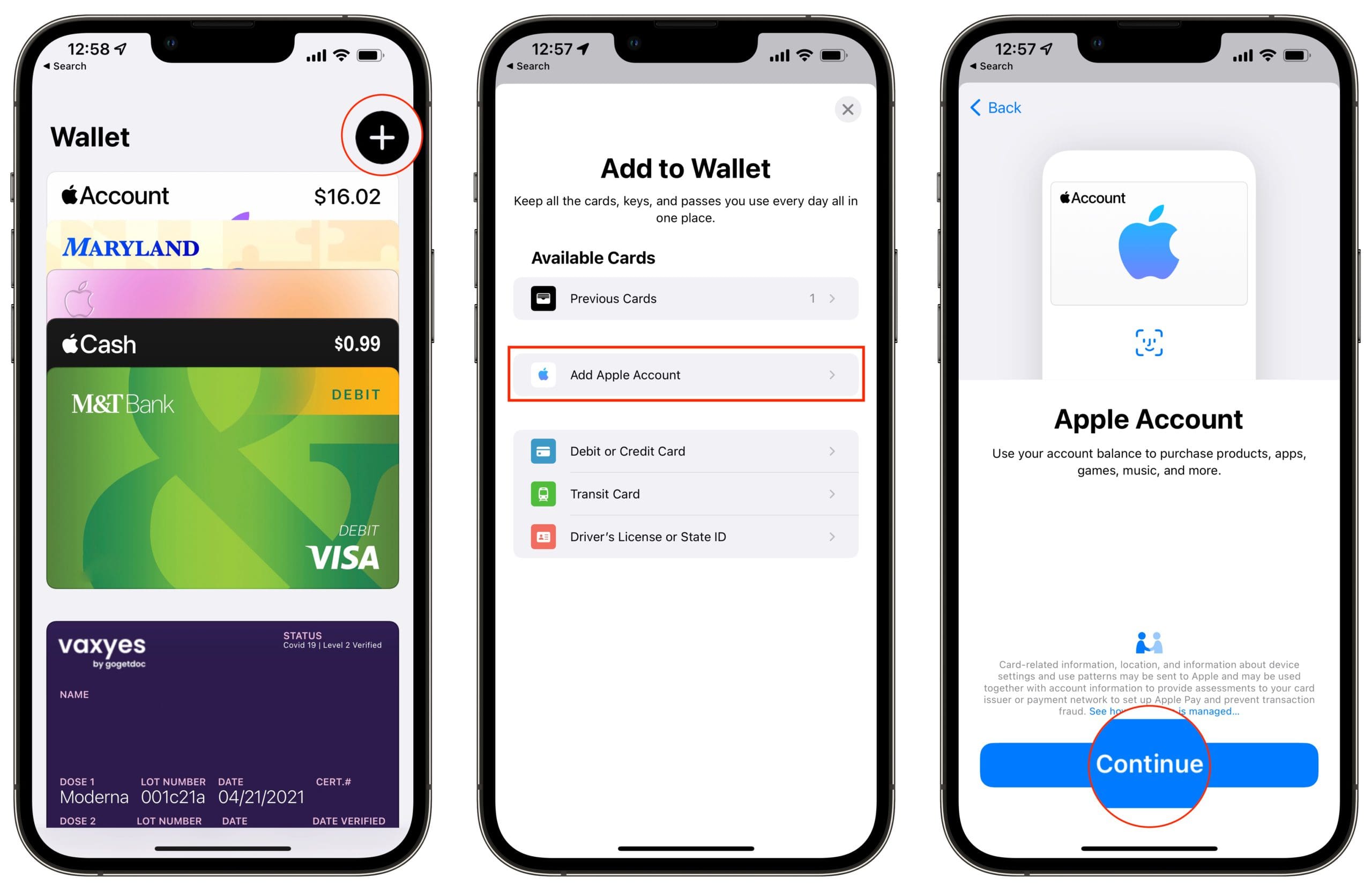
Open the Wallet app on your iPhone.
Tap the + button in the top right corner.
Under Available Cards, tap Add apple Account.
Tap the Continue button at the bottom of the screen.
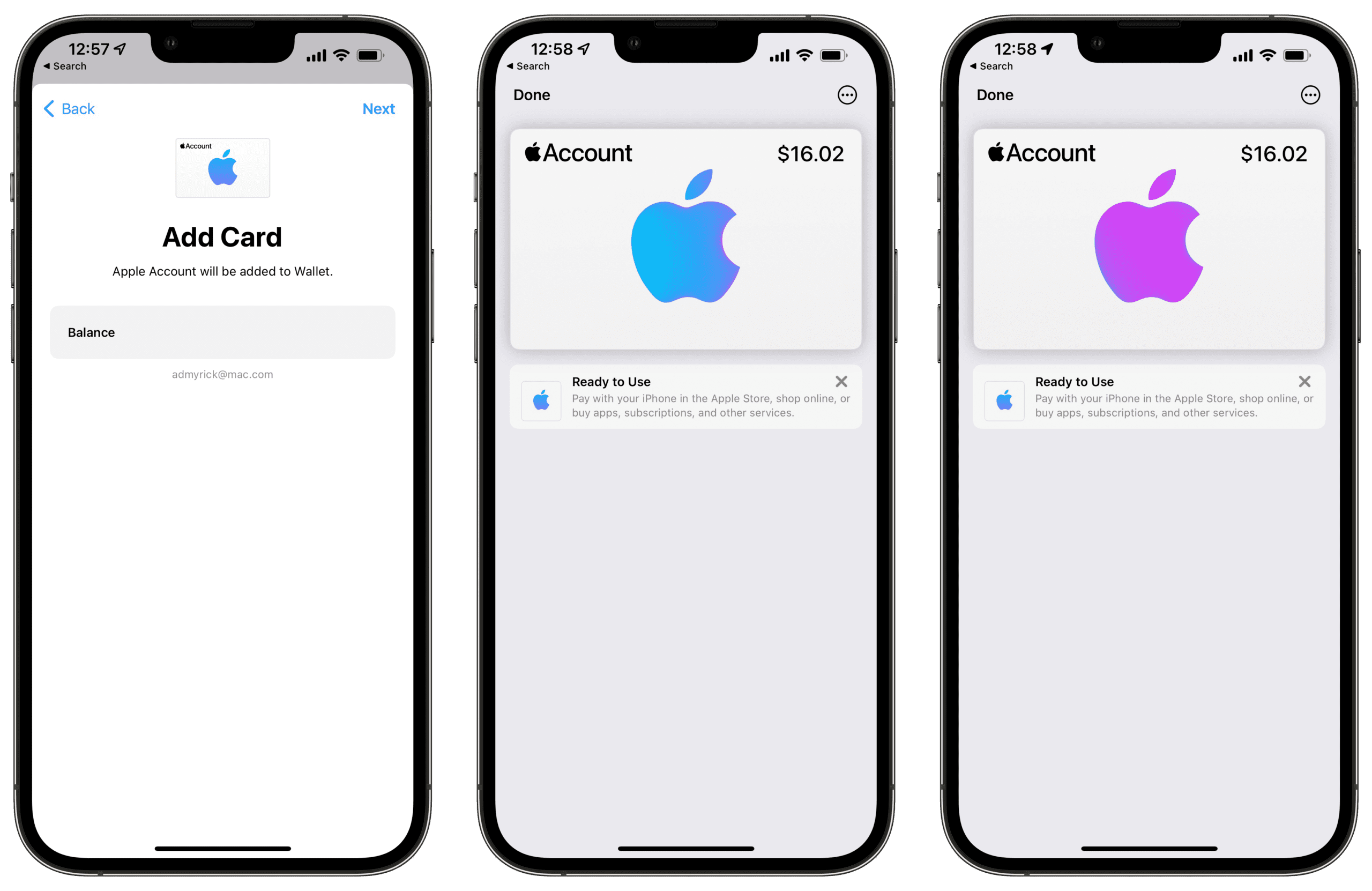
From the Add Card screen, tap the Next button in the top right corner.
Once added, tap the Done button in the top left corner.
As you might expect, the Apple Account Card appears in the list of cards within the Wallet app. Chances are, it will be placed at the top of the list, and you can just simply tap the card in the app in order to bring it to the foreground. From there, you’ll be presented with a rather awesome-looking parallax effect that changes the colors of the Apple logo as you move your phone.
In the top right corner of the Account Card, your available balance can be seen, but there’s nothing else to really access from here. Tapping on the three horizontal dots in the top right corner takes you to your Apple Account settings, where you can reach out to Apple Support or remove the card from your Wallet.
Andrew Myrick is a freelance writer based on the East Coast of the US. He enjoys everything to do with technology, including tablets, smartphones, and everything in between. Perhaps his favorite past-time is having a never-ending supply of different keyboards and gaming handhelds that end up collecting more dust than the consoles that are being emulated.









Write a Comment