• Skip to primary navigation
  • Skip to main content
  • Skip to primary sidebar
  • Skip to footer

AppleToolBox

Tools and Fixes for Mac, iPad, iPhone & iWatch

Search posts

  • About
  • Contact

CONNECT WITH US

CATEGORIES

  • iPhone
  • iPad
  • iPod
  • Apple Watch
  • Mac/MacBook
  • AirPods
  • Apple TV
  • News
  • Apple Services
  • HomePod
  • Reviews

SITE

  • Home
  • About Us
  • Contact
  • Advertise

Search posts

You are here: Home / Apple Services / How to Use the Undo Feature in Apple Notes (iPhone, iPad, and Mac)

How to Use the Undo Feature in Apple Notes (iPhone, iPad, and Mac)

By Danny Maiorca 0 comments Last updated January 30, 2024

Apple Notes is an incredibly useful tool for jotting your groceries, keeping note of your next big business idea, noting travel itineraries, and many other useful features. But as is always the case when typing something, you might need to use the undo feature at some point. Fortunately, it’s quite easy to undo content you no longer want to feature in your note.

Related Reading:

  • How to Use Notes on Mac: A Complete User Guide
  • How to Link Related Notes on iPhone, iPad, and Mac
  • How to Store Apple Notes Locally
  • How to Recover Notes Stored on Your Mac
  • How to Use Smart Folders in Apple Notes

Keep reading to learn how to use the undo feature in Apple Notes on your iPhone and iPad. We’ll also cover the separate instructions required for doing the same on a Mac.

Contents

  • How to Use the Undo Feature in Apple Notes on iPhone or iPad
  • How to Use the Undo Feature in Apple Notes on Your Mac
  • Undoing Your Notes Is Easy, Regardless of Your Device

How to Use the Undo Feature in Apple Notes on iPhone or iPad

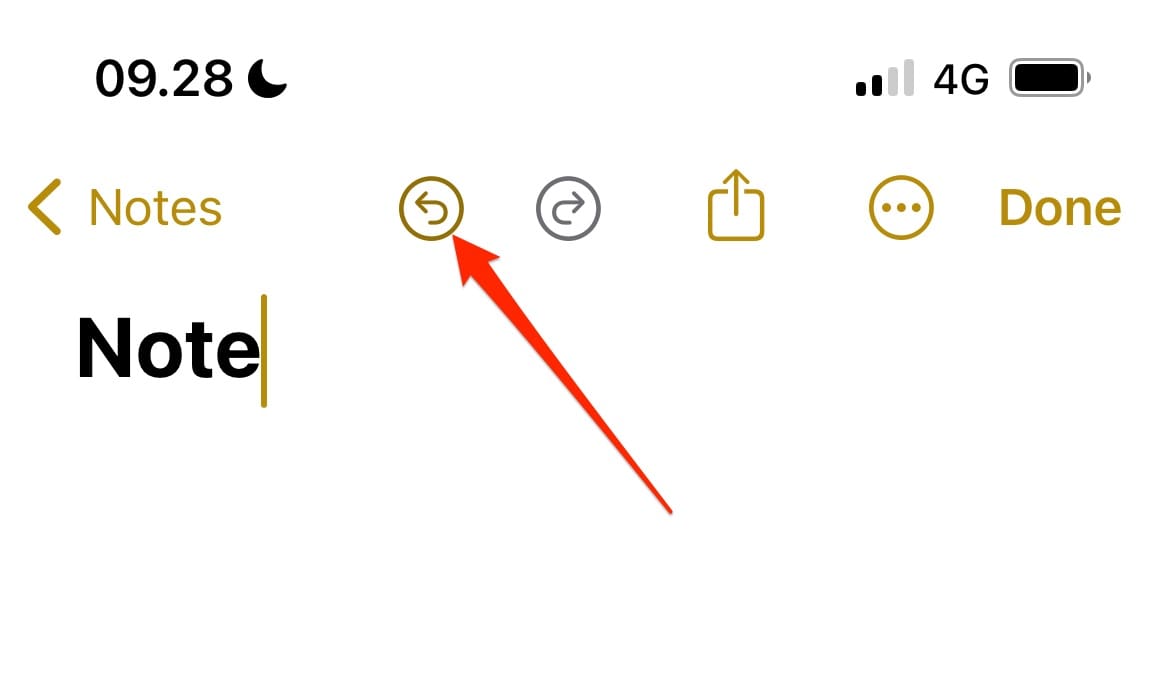
The easiest way to undo something in Apple Notes on your iPhone or iPad is to tap the undo icon. You’ll see this close to the top of your screen; it’s a curled arrow pointing left. The Undo Icon Appearing in Apple Notes

After pressing the button, your note will immediately revert to its previous state.

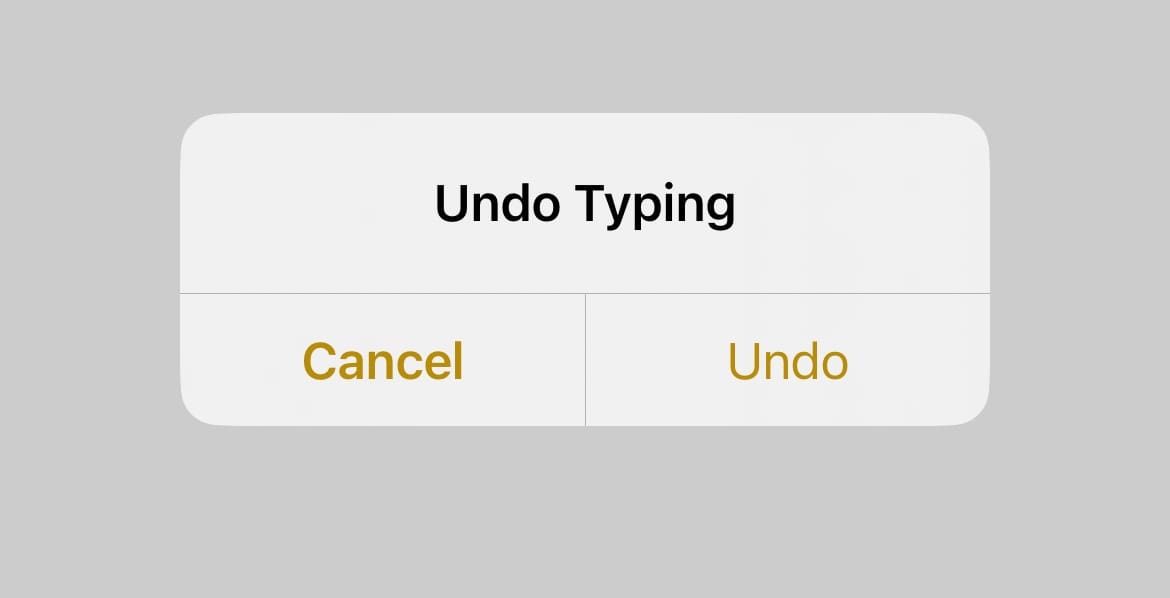
Alternatively, shake your iPhone or iPad to prompt the Undo Typing window. When that appears, select Undo, and your changes will take effect. The Undo Typing Window in Apple Notes

How to Use the Undo Feature in Apple Notes on Your Mac

If you use Apple Notes on your Mac, you can also use the undo feature without too much difficulty. While you don’t have an undo button, you can instead go to File > Undo Typing. The Undo Typing Option in Apple Notes on macOS

You have to use this feature if the most recent action you performed in the app was something related to your note. If you deleted a note more recently, for example, the undo option will be associated with that instead.

If you already have text within the main part of your note, another option is to simply press command + z on your keyboard. Keep in mind that if you only have the title of your note, this action might simply highlight the title rather than actually delete anything.

Undoing Your Notes Is Easy, Regardless of Your Device

Apple Notes is arguably the easiest way to keep track of what you’re doing if you use an iPhone, iPad, or Mac. The search feature is user-friendly, and you can also pin essential notes to ensure that you don’t lose them. And if you ever need to remove text from your device, it’s very easy to undo your notes.

Now that you’ve read this guide, you should have all the information you need to use the undo feature in Apple Notes successfully. If you’re having any trouble doing this, please let us know in the comments section below.

Related Posts:

  • iPhone 15 Pro Max - 4
    Best iPhone Lock Screen Widgets for iOS 17
  • Apple Notes Header
    How to Recover Notes Stored on Your Mac
  • Screen Shot 2021-04-25 at 10.20.25 PM
    How To Recover Photoshop Files On Mac
  • How to Recover Unsaved Word Document on Mac in 5 Best Ways
    How to Recover Unsaved Word Document on Mac in 5 Best Ways
  • Screen Shot 2021-08-12 at 7.36.51 PM
    The Best AirPods Max Cases For 2021
  • iphone and airpods on a table
    These Apps Have the Best iOS 17 Widgets
  • MacBook Pro 2021 iPad Mini iPhone 13 Pro AirPods 3 Beats Fit Pro iPad Pro Best Apple Products - 2
    The Best Apps and Games Of 2022, According to Apple
  • iOS Photos
    Find and Recover Recently Deleted Photos for iPadOS 17
  • 2023 Mac Studio lifestyle - 1
    macOS Could Not Be Installed, How-To Fix
Danny Maiorca

Danny has been a professional writer since graduating from university in 2016, but he’s been writing online for over a decade. He has been intrigued by Apple products ever since getting an iPod Shuffle in 2008 and particularly enjoys writing about iPhones and iPads. Danny prides himself on making complex topics easy to understand. In his spare time, he’s a keen photographer.
Reader Interactions

Write a Comment Cancel reply

Primary Sidebar

Recent Posts

  • How to Export iTunes Library to New Computer
  • What the Gemini Desktop App Will Bring to Mac
  • What to Do When Windows 11 Won’t Detect Your iPad
  • Outlook Outage 2026: iPhone Fixes for Sign-In Chaos
  • Guide to Changing iMessage Backgrounds on iPhone and Mac
  • Has Apple Killed Vision Pro? (Insane Sales Flop Explained)

Connect with us

Footer

ABOUT

  • About Us
  • Contact us
  • Advertise
  • Privacy
  • Terms of Use

GUIDES

  • iOS & iPadOS
  • Apple ID
  • iCloud
  • App Store
  • iTunes
  • FaceTime
  • iMessage
  • Siri
  • Books and iBooks
  • Game Center
  • AirPlay

CONNECT

  • Facebook
  • Twitter
  • FeedBurner
  • YouTube

© Copyright 2010-2024 Guiding Tech Media · All Rights Reserved

This site and its content are in no way affiliated or endorsed by Apple, Inc. · Reproduction without explicit permission is prohibited