• Skip to primary navigation
  • Skip to main content
  • Skip to primary sidebar
  • Skip to footer

AppleToolBox

Tools and Fixes for Mac, iPad, iPhone & iWatch

Search posts

  • About
  • Contact

CONNECT WITH US

CATEGORIES

  • iPhone
  • iPad
  • iPod
  • Apple Watch
  • Mac/MacBook
  • AirPods
  • Apple TV
  • News
  • Apple Services
  • HomePod
  • Reviews

SITE

  • Home
  • About Us
  • Contact
  • Advertise

Search posts

You are here: Home / iPad / How To Store Apple Notes Locally

How To Store Apple Notes Locally

By Andrew Myrick 0 comments Last updated December 29, 2022

While we may have an affinity for note-taking apps on the iPhone, iPad, and Mac, the truth is that Apple’s own Notes app is pretty powerful. This obviously wasn’t always the case, which opened the door for third-party developers to create incredible alternatives.

Related Reading

  • Use the Notes App to Secretly Send Messages to Your Friends
  • How To Use Quick Notes Without Apple Pencil on iPad
  • Best Note-taking Apps for iPad
  • How to Retrieve Deleted Notes on Your iPhone or iPad
  • Does Apple Pencil Work With iPhone?

How To Store Apple Notes Locally

One feature that used to be available for the Apple Notes app by default was the ability to have separate “notebooks” for online and offline syncing. Some notes would automatically be saved to your iPhone, iPad, or Mac, while others would sync with iCloud whenever possible. Doing so makes your notes available on any of your devices, provided that you are signed into the same iCloud account.

Unfortunately, Apple removed the default account offering, instead only leaving users with the ability to use iCloud syncing. However, if you dive into the Notes settings, you’ll be able to bring back the ability to store Apple Notes locally. Here’s how you can do so from the iPhone or iPad.

How To Store Apple Notes Locally - iPhone

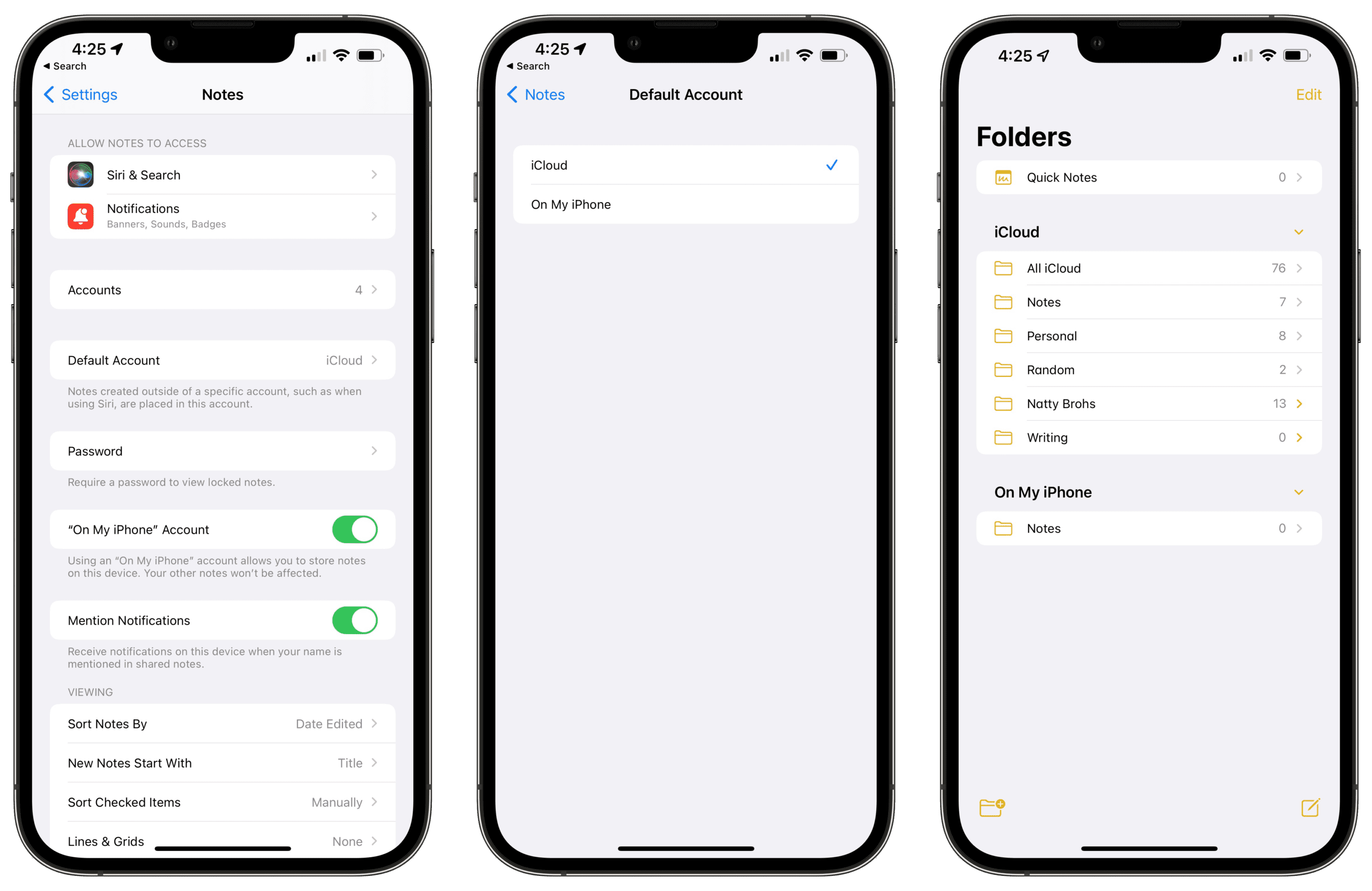
  1. Open the Settings app on your iPhone or iPad.
  2. Scroll down and tap Notes.
  3. Tap the toggle next to “On My iPhone” Account to the On position.
  4. Tap Default Account.
  5. Select On My iPhone.
  6. Tap the Notes button in the top left corner.
  7. Exit the Settings app.

Once the above steps are completed, you can open the Notes app and navigate to the Folders section. Now, you’ll see an On My iPhone section at the bottom of the Folders page.

For those who want to store Apple Notes locally on the Mac, the steps are just slightly different. But you can still do so, and here’s how:

How To Store Apple Notes Locally - Mac

  1. Open the Notes app on your Mac.
  2. Click Notes in the menu bar.
  3. Select Preferences from the drop-down menu.
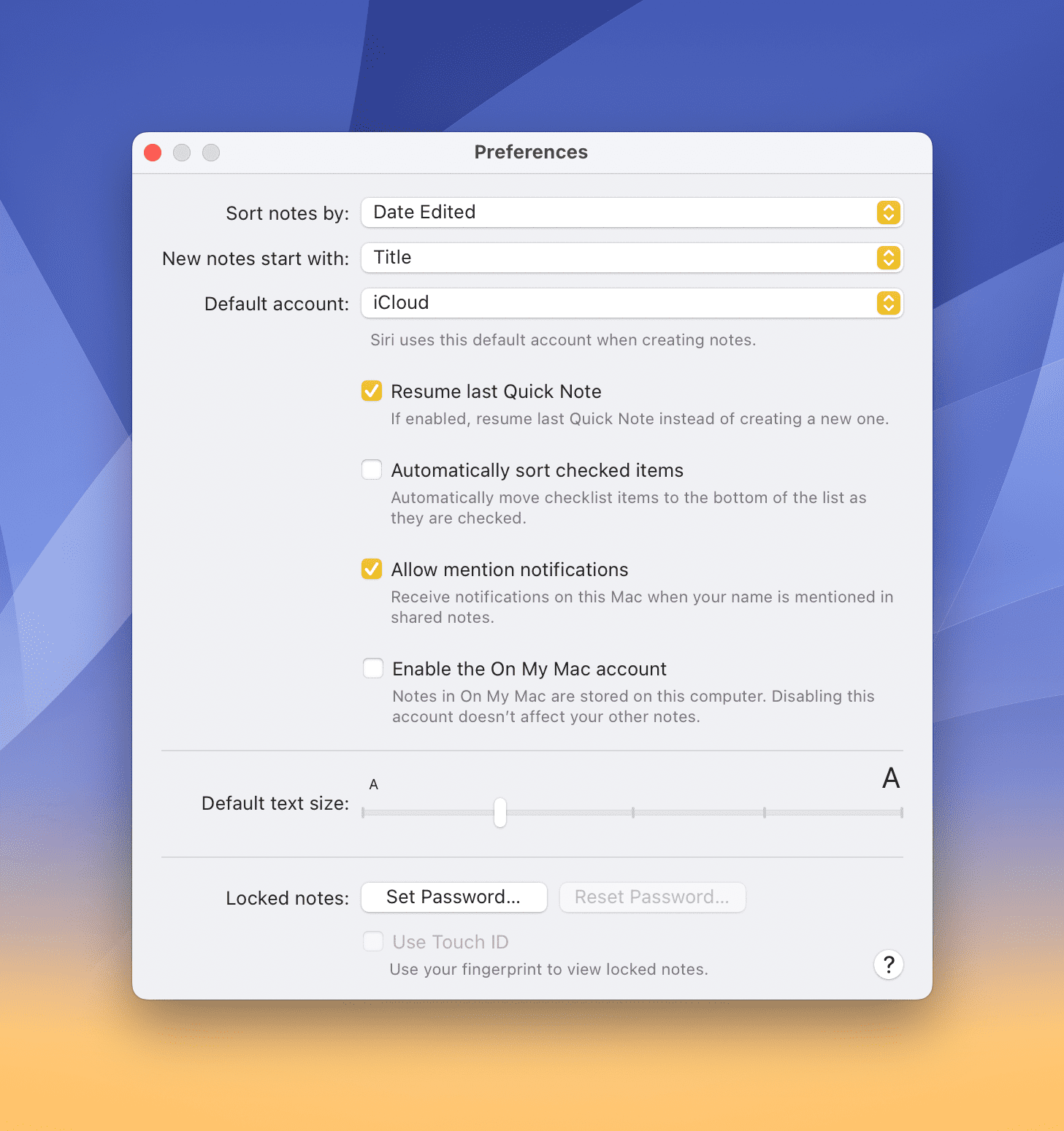
  4. Click the checkbox next to Enable the On My Mac account.
  5. Click the drop-down menu next to Default account.
  6. Select On My Mac.
  7. Close the Notes preferences page.

Because the Apple Notes app on the Mac is not as constrained as the iPhone version, as soon as you enable the “On My Mac” account, it will appear in the sidebar. From there, you can simply click Notes under the On My Mac section and then begin writing and saving notes locally.

As a reminder, this means that if you create notes on any of your devices under the “local” account, they will not appear on your other devices. However, you can always just drag and drop those notes into the iCloud section in the event that you need to access something on another device.

Related Posts:

  • Apple iPad Pro M2 - Hover Apple Pencil
    Apple Pencil Not Charging? How To Fix
  • pexels-anna-shvets-4226613
    The Best Apple Pencil Alternatives: Choosing Your Stylus
  • pexels-karolina-grabowska-5624998
    The Best Apple Gifts for The 2022 Holidays
  • Notes app on iPhone
    How to Retrieve Deleted Notes on Your iPhone or iPad
  • iPhone 15 Pro Max - 4
    Best iPhone Lock Screen Widgets for iOS 17
  • iphone and airpods on a table
    These Apps Have the Best iOS 17 Widgets
  • photo of an iphone with ios 16 downloaded on it
    iOS 16 Tips and Tricks: The Definitive List
  • pexels-designecologist-1779487
    The Best iPhone And Mac Shortcuts For Beginners
  • pexels-vlada-karpovich-7561034
    The Best Apple Gifts For Tech Fans
Andrew Myrick
Andrew Myrick

Andrew Myrick is a freelance writer based on the East Coast of the US. He enjoys everything to do with technology, including tablets, smartphones, and everything in between. Perhaps his favorite past-time is having a never-ending supply of different keyboards and gaming handhelds that end up collecting more dust than the consoles that are being emulated.

Reader Interactions

Write a Comment Cancel reply

Primary Sidebar

Recent Posts

  • How to Manage Your iPhone Call Log
  • Are Apple’s Safety Precautions Enough for AirTags?
  • How to Hide Username and Photo on the Mac Lock Screen
  • Microsoft Resume vs. Apple Handoff – Which Wins for Cross-Device Work?
  • How to Export iTunes Library to New Computer
  • What the Gemini Desktop App Will Bring to Mac

Connect with us

Footer

ABOUT

  • About Us
  • Contact us
  • Advertise
  • Privacy
  • Terms of Use

GUIDES

  • iOS & iPadOS
  • Apple ID
  • iCloud
  • App Store
  • iTunes
  • FaceTime
  • iMessage
  • Siri
  • Books and iBooks
  • Game Center
  • AirPlay

CONNECT

  • Facebook
  • Twitter
  • FeedBurner
  • YouTube

© Copyright 2010-2024 Guiding Tech Media · All Rights Reserved

This site and its content are in no way affiliated or endorsed by Apple, Inc. · Reproduction without explicit permission is prohibited

Last Updated on December 29, 2022 by Mitch Bartlett