• Skip to primary navigation
  • Skip to main content
  • Skip to primary sidebar
  • Skip to footer

AppleToolBox

Tools and Fixes for Mac, iPad, iPhone & iWatch

Search posts

  • About
  • Contact

CONNECT WITH US

CATEGORIES

  • iPhone
  • iPad
  • iPod
  • Apple Watch
  • Mac/MacBook
  • AirPods
  • Apple TV
  • News
  • Apple Services
  • HomePod
  • Reviews

SITE

  • Home
  • About Us
  • Contact
  • Advertise

Search posts

You are here: Home / Apple Watch / Fix: Apple Watch Complications Are Missing

Fix: Apple Watch Complications Are Missing

By Madalina Dinita 0 comments Last updated September 23, 2021

If the option for complications disappeared from your Apple Watch App interface, don’t panic. Sometimes, your complications may show while in “My Faces” but they won’t show up on your watch. If you’re experiencing similar issues, head below for more information on how to solve this problem.

Contents

  • What to Do if Complications Disappeared From Apple Watch App
    • Get the Latest Updates
    • Enter Edit Mode on Your Watch
    • Offload the Apple Watch App
    • Unpair Your Watch
    • Conclusion

What to Do if Complications Disappeared From Apple Watch App

⇒ Important Notes:

  • Some complications are not compatible with every Apple Watch face. For more information, see Apple Watch faces and their features.
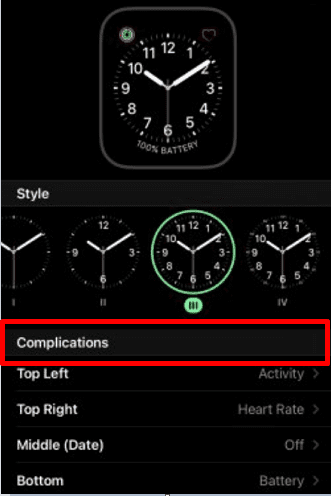
  • The latest watchOS versions work a bit differently. Simply tap on a watch face, and the Complications menu will pop up when you want to edit the complications associated with the respective watch face.

Complications-menu-watchOS

Get the Latest Updates

Before you do anything else, make sure to update your watch and iPhone to the latest version.

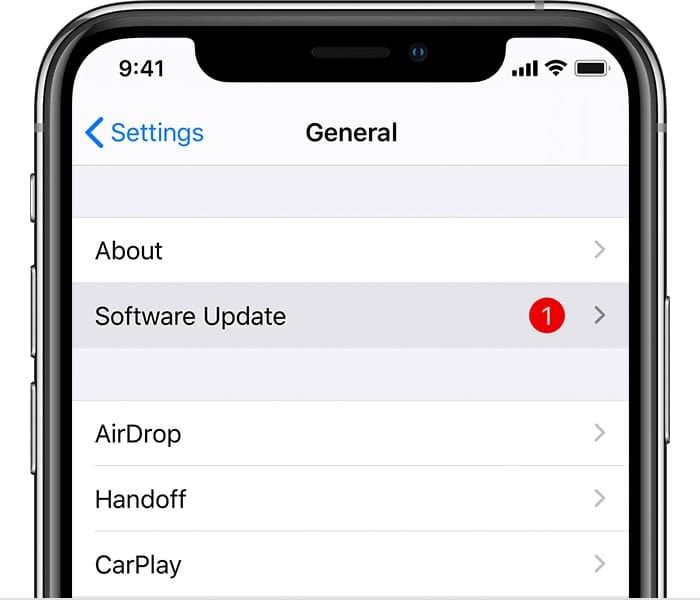
  • On your iOS device, go to Settings, tap General, and then select Software Update.

    Software Update iPhone XS Max on iOS 13
    Make sure your device is running the latest software.
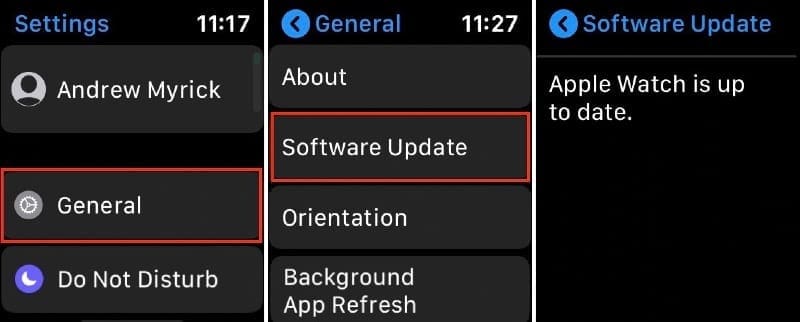
  • Then launch the Apple Watch App on your iPhone, and go to My Watch. Select General, and tap Software Update.Apple Watch Updates

Restart your devices, and check if your complications show properly now.

Enter Edit Mode on Your Watch

  1. Long press in the center of the watch screen until the Edit option pops up.
  2. Tap Edit to enter Color Edit Mode.
  3. Then select the Complications tab.
  4. Next, tap the face location where you want to add a complication.
  5. Go to the Complications list and select the one you want to use.
  6. Select the next spot and repeat the steps above to add a new complication.

Offload the Apple Watch App

Try offloading the Apple Watch App, and check if this solution solves the problem. The app itself will be removed, but app data will remain on the iPhone.

  1. Navigate Settings, and select General.
  2. Then tap iPhone Storage.
  3. Select the Apple Watch App.
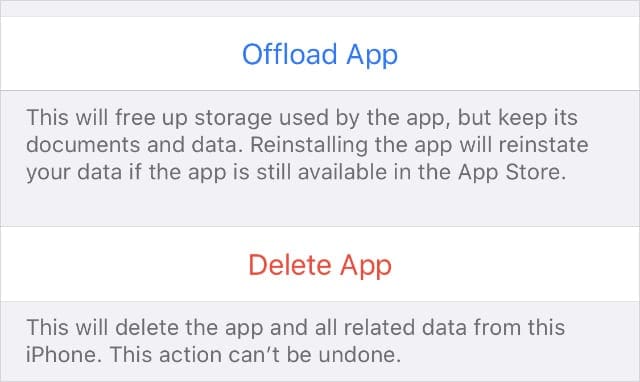
  4. Tap Offload App.

    Offload and Delete App buttons from iPhone Storage Settings
    Choose to Offload or Delete apps from your iPhone settings.
  5. Restart your iPhone after removing the Watch App.
  6. Launch the App Store, and reinstall the Apple Watch App. Check to see if the issue persists.

Unpair Your Watch

  1. Launch the Apple Watch App on your iPhone.
  2. Select My Watch, and go to All Watches.
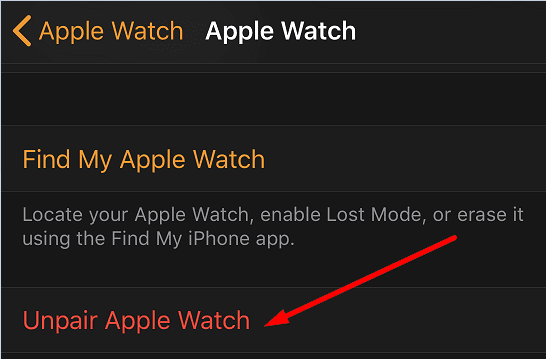
  3. Tap the Info button, and select Unpair Apple Watch.unpair apple watch from iphone
  4. Restart your iPhone and watch.
  5. Pair your devices again, and restore data.

Conclusion

If Apple Watch complications disappeared, update your Apple Watch and iPhone to the latest version. Additionally, enter Edit Mode on your watch, and manually select the complications you want to use. If the issue persists, offload the Apple Watch App, and unpair your devices.

We hope one of these solutions worked for you! Hit the comments below and let us know which method worked best for you.

Related Posts:

  • Apple Watch Ultra Tips and Tricks
    Apple Watch Tips and Tricks for 2023
  • iPhone 15 Event - Double Tap Apple Watch Series 9
    How to Download watchOS 10
  • pexels-cottonbro-5081424
    Getting Started With watchOS 8: Great New Features,…
  • Photo of someone using Apple Music on their smartphone
    How to Fix Apple Music Not Working on iPhone / iPad
  • photo of an iphone with ios 16 downloaded on it
    iOS 16 Tips and Tricks: The Definitive List
  • Apple Watch with butterfly face on pink blossom
    Where to Find the Best New Apple Watch Faces
  • watchOS 9 Hero
    What's new in watchOS 9?
  • Photo showing the Notion app open on an iPad
    Notes vs. Notion: Which Is Better for Note-Taking as…
  • WWDC 2021 Hero
    WWDC21 Recap: Everything You Missed In Apple's 2-Hour Event
Madalina Dinita

Madalina has been a Windows fan ever since she got her hands on her first Windows XP computer. She is interested in all things technology, especially emerging technologies — AI and DNA computing in particular.

Reader Interactions

Write a Comment Cancel reply

Primary Sidebar

Recent Posts

  • How to Turn Off Apple Music’s Dark Mode
  • How to Disable Predictive Text in iOS 26
  • How to Stop Sharing Analytics in iOS 26
  • How to Manage Your iPhone Call Log
  • Are Apple’s Safety Precautions Enough for AirTags?
  • How to Hide Username and Photo on the Mac Lock Screen

Connect with us

Footer

ABOUT

  • About Us
  • Contact us
  • Advertise
  • Privacy
  • Terms of Use

GUIDES

  • iOS & iPadOS
  • Apple ID
  • iCloud
  • App Store
  • iTunes
  • FaceTime
  • iMessage
  • Siri
  • Books and iBooks
  • Game Center
  • AirPlay

CONNECT

  • Facebook
  • Twitter
  • FeedBurner
  • YouTube

© Copyright 2010-2024 Guiding Tech Media · All Rights Reserved

This site and its content are in no way affiliated or endorsed by Apple, Inc. · Reproduction without explicit permission is prohibited