You might want to use your Apple Watch in all kinds of scenarios, including situations where your device must come into contact with water. Sometimes, that’ll be a standard rain storm – but in other cases, you may need to use your Apple Watch while swimming and whatnot. When that happens, it’s a good idea to know what the Water Lock feature is.
So, what exactly is Water Lock on the Apple Watch? Which devices have this feature, and how do you use it? Keep reading, and we’ll reveal the answers to each of these questions.
What Is the Water Lock Feature and Why Does It Exist?
Water Lock is a tool that has been on the Apple Watch since 2016. While it might seem like the feature was designed to stop water from getting into your device, that isn’t really the case. Instead, you’ll use Water Lock to stop your screen from responding to touches when you’re swimming or doing something similar.
The Water Lock feature will also remove water from your speaker after you’ve turned it back off. This is another advantage of using your device beyond the fact that it should still work in a depth of up to 50 meters.
Which Apple Watches Have Water Lock?
All Apple Watches from the Apple Watch Series 2 onwards have the Water Lock feature. So, it’s highly likely that you will be able to access this feature on your current device.
When Should You Use Water Lock?
Activating Water Lock is a good idea if you want to still wear your device while swimming. On top of that, it’s also worth turning the feature on when you use your Apple Watch in the shower or bath.
You probably won’t need to use Water Lock if you’re using your Apple Watch while out and about in rainy weather. However, you might find that it’s worth considering if you find yourself outside in torrential conditions.
Does Water Lock Protect Against All Kinds of Liquid?
Water Lock should work when any form of liquid makes contact with your screen. You should also be able to eject both freshwater and saltwater from your microphone after you’ve finished using your device.
It’s worth noting that liquids other than water could damage your device. So, you’ll need to be careful when using your Apple Watch in some scenarios – such as cooking.
How to Turn Water Lock On and Off
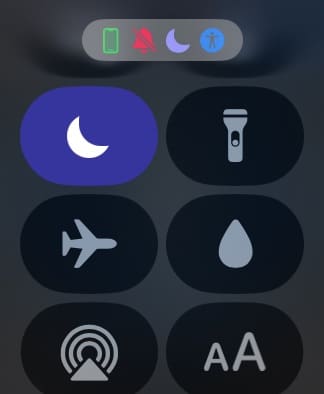
Turning the Water Lock feature on for your Apple Watch is incredibly easy. All you need to do is tap the Action Button on the side of your device to open the Control Center. After doing that, tap the water droplet icon to switch on Water Lock.
Note that when Water Lock is activated, you can see your most recent screen. However, your device won’t register any taps.
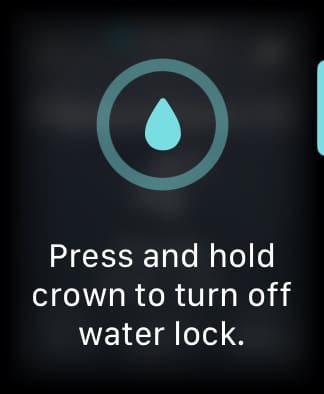
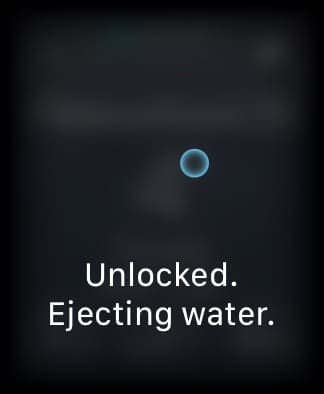
To turn off Water Lock, hold the Digital Crown. Within a few seconds, your Apple Watch should showcase a message saying that it’s removing water from your mic. After that, you’ll be able to use your device normally again.
All the Essential Info About the Apple Watch Water Lock Feature
Water Lock is a useful feature if you like to wear your Apple Watch while swimming. You can use the tool in freshwater and saltwater, making it a versatile tool. It’s also a nice addition to the already waterproof capabilities that most of the latest Apple Watches have.
You can use Water Lock on the Apple Watch Ultra and SE, along with the normal version. Now that you know how to use it, consider trying the feature next time you go swimming.
Danny has been a professional writer since graduating from university in 2016, but he’s been writing online for over a decade. He has been intrigued by Apple products ever since getting an iPod Shuffle in 2008 and particularly enjoys writing about iPhones and iPads. Danny prides himself on making complex topics easy to understand. In his spare time, he’s a keen photographer.












Write a Comment