Apple products mostly take care of themselves. You don’t need to worry about setting up antivirus software, finding drivers, or installing software updates. At least, you don’t usually need to worry about installing software updates.
There are a few reasons automatic software updates might not be working for your iPhone or apps. Most of the time it’s easy to remedy these problems, which is what we’re here to show you how to do. So if your iPhone stopped updating apps or software automatically, find out how to fix it below.
How do I turn on automatic app updates for my iPhone?
With the release of iPadOS and iOS 13, Apple made iPhones and iPads automatically update your software by default. Your iPhone doesn’t give you any notifications when it completes an update. So you can normally forget about it.
But if automatic updates aren’t working for apps on your device, you may need to double-check the settings. Here’s where to look:
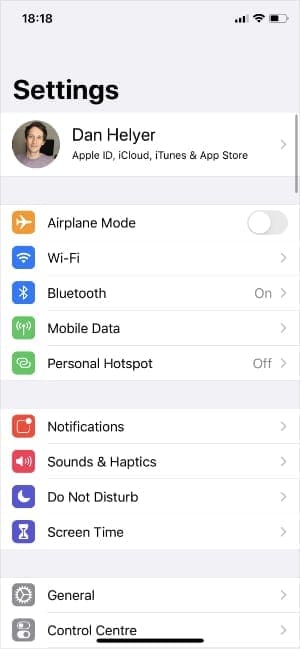
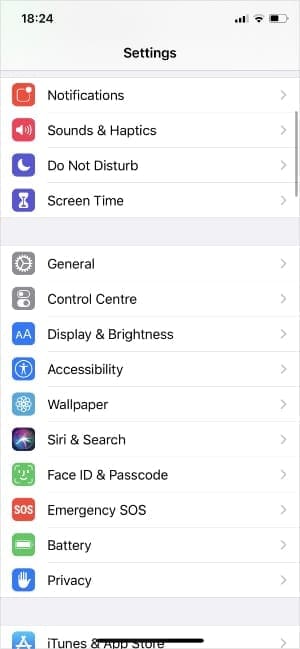
Open the Settings app on your iPhone and tap [Your Name] at the top of the screen.
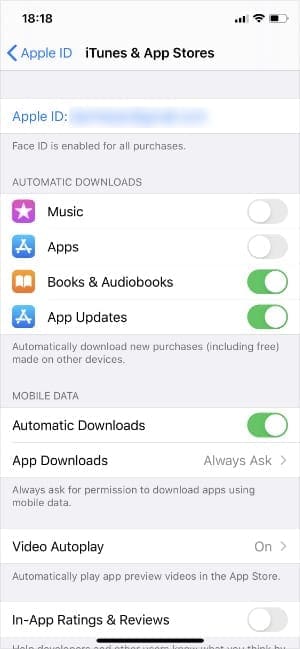
Now go to iTunes & App Store and turn on the Apps button beneath the Automatic Downloads heading.
If you want apps to download over cellular data as well as Wi-Fi, turn on the Automatic Downloads option beneath the Cellular Data heading.
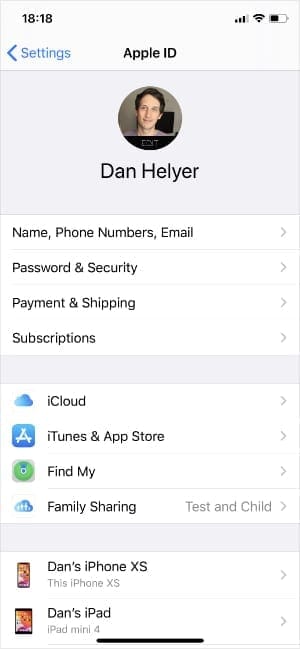
Tap [Your Name].
Select iTunes & App Store.
Turn on App Updates.
How do I turn on automatic software updates on my iPhone?
Just because your iPhone updates every app automatically, doesn’t mean it will update the operating system as well. This is usually a much larger update that your iPhone installs overnight when it’s charging and connected to Wi-Fi.
But you still need to make sure you turned on this feature if automatic software updates aren’t working on your iPhone:
Open the Settings app on your iPhone.
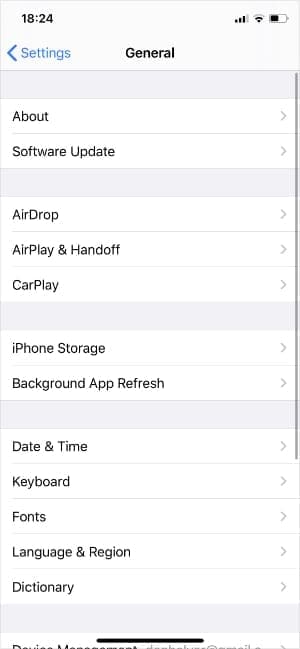
Go to General > Software Update.
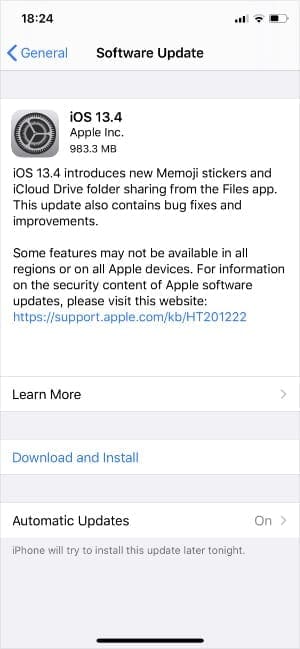
Open the Automatic Updates option and tap the toggle to turn it on.
Tap General.
Select Software Update.
Turn on Automatic Updates.
Why isn’t my iPhone updating software or apps automatically?
You might find that automatic software or app updates aren’t working even when your iPhone settings are correct. This might happen for a few different reasons, most of which are easy to remedy.
Follow each of the steps below to fix your automatic update problems.
Step 1. Connect to Wi-Fi
It’s possible to automatically update apps over cellular data, but we recommend using Wi-Fi instead. As for iOS updates, downloading them over Wi-Fi is usually the only option.
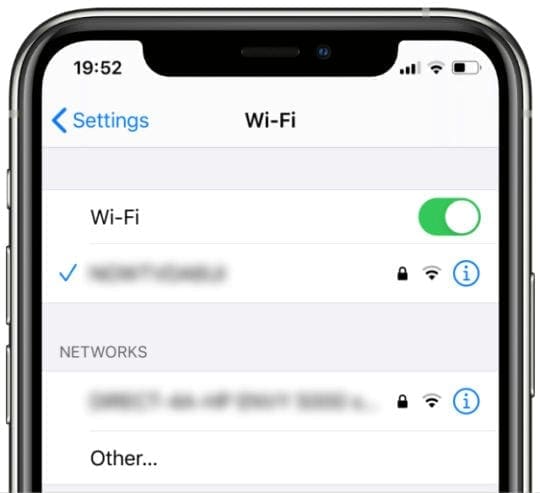
Make sure your iPhone spends long periods of time connected to the Internet on a stable Wi-Fi network. This provides plenty of opportunities for it to download and update apps or software.
Connect your iPhone to Wi-Fi in the Settings.
If you want to use cellular data to update apps:
Go to Settings > [Your Name] > iTunes & App Store.
Turn on Automatic Downloads beneath the Cellular Data heading.
Step 2. Connect to power
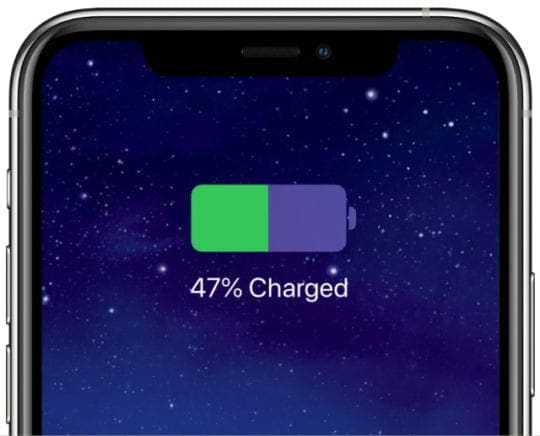
Your iPhone doesn’t waste power downloading and installing software updates if the battery is low. Keep your iPhone charged to at least 50 percent to encourage automatic software and app updates.
It also helps to plug your iPhone in overnight, even if it’s already charged.
Automatic software and app updates are most likely to start working when your iPhone is plugged in for long periods while remaining connected to Wi-Fi.
Charge your iPhone to at least 50 percent.
Step 3. Check your iPhone compatibility
If you’re waiting for a particular app or iOS update to install, it’s worth checking that your iPhone is compatible with that software. After all, you’ll be waiting a long time for an automatic software update if it isn’t available for your device.
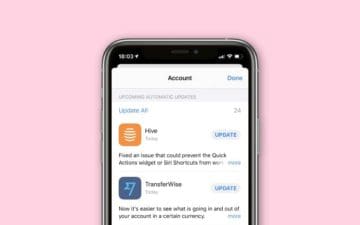
The simplest way to check this is to try installing those updates manually. Open the App Store and tap the Profile icon in the top-right corner to update your apps. Or go to Settings > General > Software Update to update iOS.
Alternatively, you can check the compatibility of apps on the App Store:
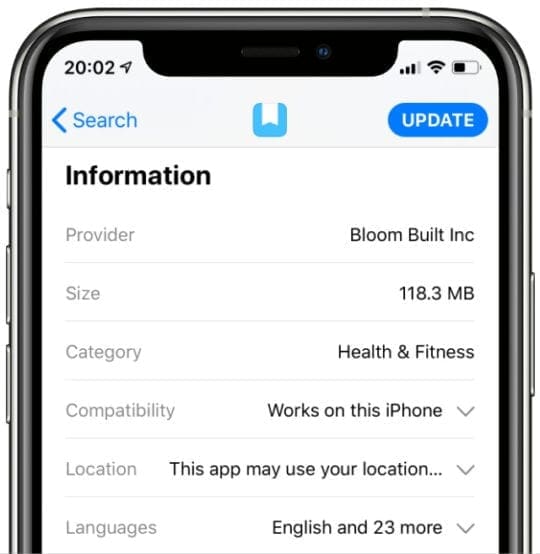
Find the app you want to install and scroll down to the Information section.
Next to Compatibility, it should say Works on this iPhone if that app is compatible.
If the App Store says an app “Works on this iPhone” it should update automatically.
Your iPhone may have stopped updating apps and software automatically because there isn’t enough free storage. This happens when you use too much space for existing apps, videos, music, and other media.
Don’t worry, it’s easy to clear some space without losing data. All you need to do is open the Settings:
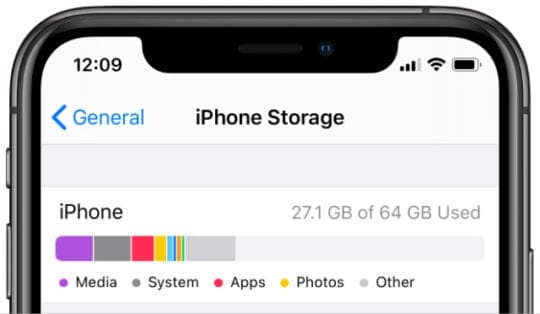
Open the Settings app on your iPhone and go to General > iPhone Storage to check how much free space is left.
The apps using up the most space appear at the top of this list. Tap them to offload their data and create more free space.
If you have a lot of photos, go to Settings > Photos and turn on iCloud Photos to store them online. You may need to get more iCloud storage to do this.
Try to keep at least three or four gigabytes of free space, if not more.
Check your free storage in the General settings.
You can usually install iOS updates without clearing more free space by connecting your iPhone to a computer. But that doesn’t help if you want your iPhone to install new updates automatically.
Step 5. Check for Apple server problems
Perhaps automatic software updates aren’t working on your iPhone because of an issue with Apple’s servers. If Apple’s servers are down, your iPhone can’t download new software from them.
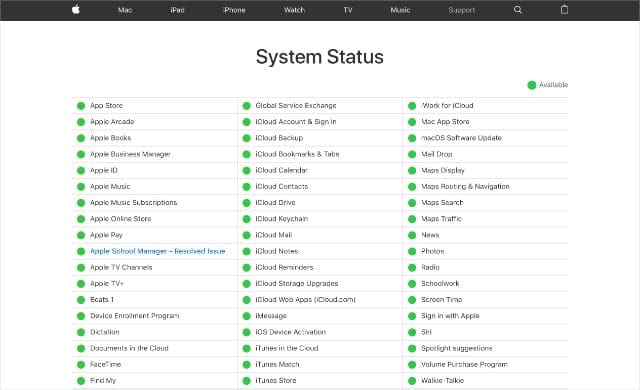
Visit Apple’s System Status website to check everything is up and running. Green circles mean that service is working normally. Yellow or red shapes mean there’s a problem. If that’s the case, all you can do is wait for Apple to fix it.
Find out if Apple’s services are up and running.
Step 6. Have patience
One of the nicest aspects of automatic updates—when they work—is that you can forget about them. This is good because your iPhone usually waits for the best time before installing new updates. If you never think about it, you don’t notice the delay.
In contrast, if you constantly check to see if your iPhone’s automatic software updates are working or not, you’re likely to be disappointed a lot of the time.
The reason your iPhone waits is twofold: it doesn’t want to drain the battery when you need it for other tasks, and it doesn’t want to overload the servers by installing new updates immediately.
We can only imagine what would happen if every iPhone in the world tried to download an iOS update at once…
Remaining patient is the best step you can take if you already followed the rest of our advice. Just wait. Forget about it. And let your iPhone do its thing, in its own time.
It might be boring, but this is the easiest step of the entire process. Image Credit: Quốc Bảo/Pexels
Find out how to fix errors that appear when updating
Of course, getting your iPhone to attempt an automatic software update is only half the battle. What happens when those updates fail to install?
There are a lot more troubleshooting steps to follow should that be the case.
If automatic software or app updates are working on your iPhone, but an error stops them installing, follow these tips to fix iPhone software update problems.
Dan writes tutorials and troubleshooting guides to help people make the most of their technology. Before becoming a writer, he earned a BSc in Sound Technology, supervised repairs at an Apple Store, and even taught English in China.
I believe Apple has a bug whereby it will not update automatically when connected to a magnetic charger. My phone updates fine automatically when plugged in. But if I leave it on the magnetic charger overnight auto updates never happen. it would be great if an Apple employee would file the bug or explore this.










I believe Apple has a bug whereby it will not update automatically when connected to a magnetic charger. My phone updates fine automatically when plugged in. But if I leave it on the magnetic charger overnight auto updates never happen. it would be great if an Apple employee would file the bug or explore this.
My wife and I have identical iPhones with identical options. Hers gets auto software updates and mine does not. We both use charging pads.
My iPhone was damaged and replaced with a new one. I can’t get it to pair with my Apple Watch!
Hi Janice,
Your Apple Watch is likely still be paired with your old iPhone.
In that case, you need to erase the watch via Settings > General > Reset > Erase All Content and Settings
Pair the watch with your new iPhone and then connect to a backup of your watch, if available.