• Skip to primary navigation
  • Skip to main content
  • Skip to primary sidebar
  • Skip to footer

AppleToolBox

Tools and Fixes for Mac, iPad, iPhone & iWatch

Search posts

  • About
  • Contact

CONNECT WITH US

CATEGORIES

  • iPhone
  • iPad
  • iPod
  • Apple Watch
  • Mac/MacBook
  • AirPods
  • Apple TV
  • News
  • Apple Services
  • HomePod
  • Reviews

SITE

  • Home
  • About Us
  • Contact
  • Advertise

Search posts

You are here: Home / iPhone / How to Automatically Send Messages in iOS 16

How to Automatically Send Messages in iOS 16

By Danny Maiorca 0 comments Last updated September 22, 2022

Many iPhone users prefer sending messages to others via Siri, and when used correctly, the feature is convenient. However, having to hear the voice read everything back before sending can get quite annoying. And in some instances, you might feel like you were better off typing everything out instead.

Related Reading:

  • How to Access Dictionaries in iOS 16
  • A Complete Guide to Apple’s Changes to Safari in iOS 16
  • How to Turn Off Your iPhone 14
  • How to Force Restart an iPhone 14
  • How to Make Siri Announce Notifications on iPhone

If you want to send messages via Siri quicker, good news – you can now do so on iOS 16. This article will show you how to automatically send messages once you’ve upgraded the software on your iPhone.

Contents

  • Which iPhones Is Automatic Message Sending Available On?
  • How to Set Up Automatic Message Sending on iOS 16
  • Sending Messages Automatically on iOS 16 Is Straightforward

Which iPhones Is Automatic Message Sending Available On?

When automatically sending messages on iOS 16, you don’t necessarily need to upgrade to an iPhone 14. As long as the model you have supports Apple’s 2022 software, you will have access to the tool.

You can download iOS 16 on all iPhone devices released in 2017 or later.

How to Set Up Automatic Message Sending on iOS 16

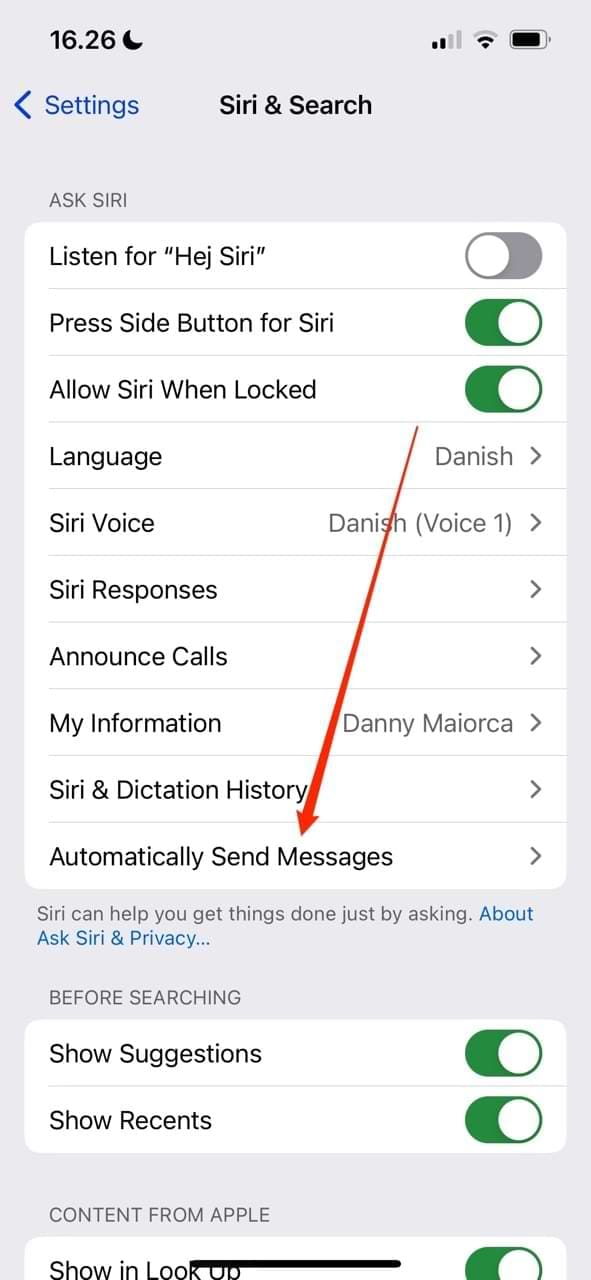
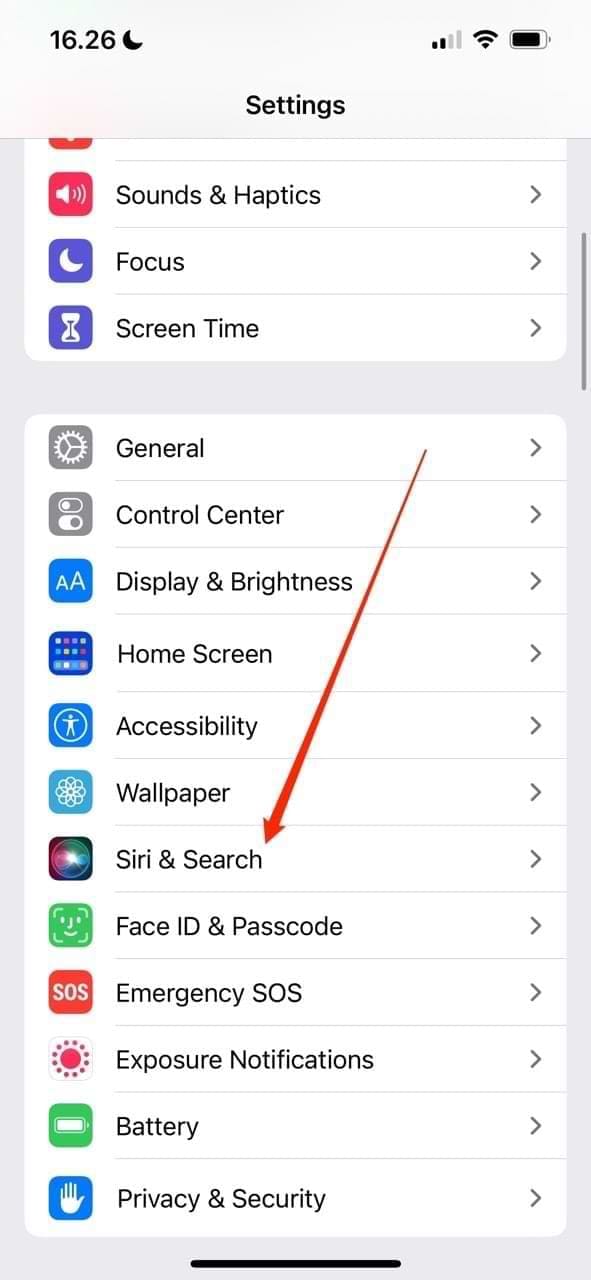
Screenshot showing the Siri and Search tab in iOS 16
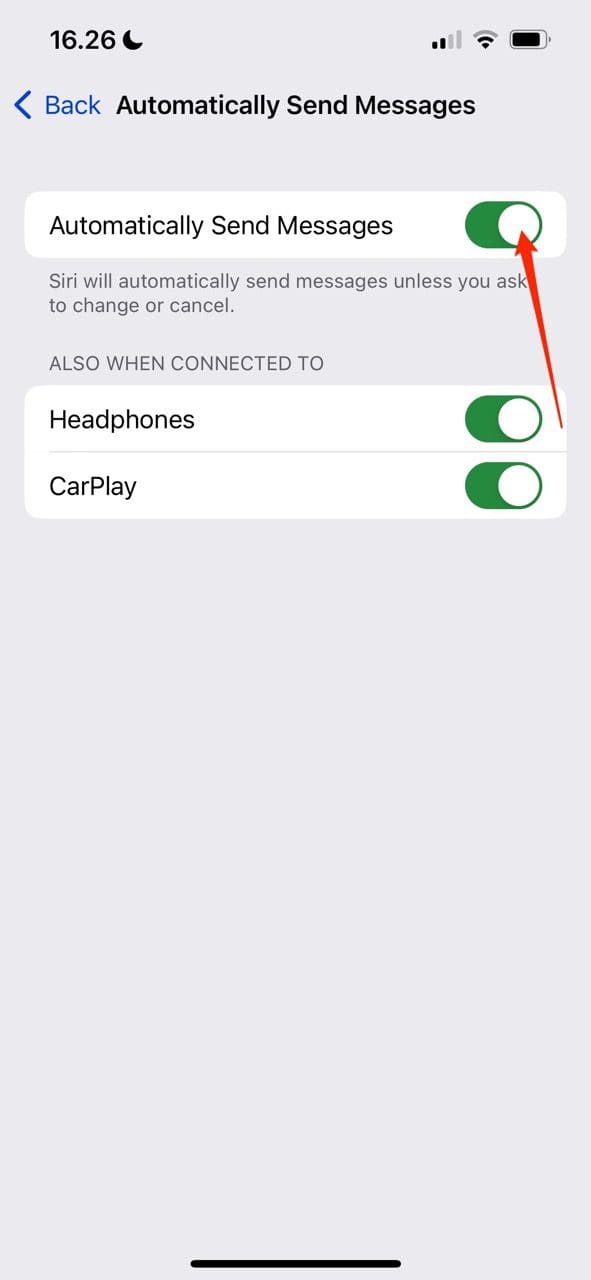
Screenshot showing the Automatically Send Messages option in iOS 16
Toggle button for iOS 16 in Siri
Screenshot showing the toggle settings on iOS 16 for sending messages via Siri

When you upgrade your iPhone’s software to iOS 16, you will need to manually enable automatic message sending. Luckily, however, doing so is very simple. All you need to do is follow the instructions; you can refer to the screenshots at the top of this section if you require extra assistance.

  1. Open the Settings app on your iPhone. When it has loaded, go to Siri & Search.
  2. At the bottom of the Ask Siri section, you’ll see a tab titled Automatically Send Messages. Select this.
  3. Toggle the Automatically Send Messages feature on.

You’ll notice that you’ve got the choice to determine whether you’d like to send messages automatically in iOS 16 when you’re connected to CarPlay or your headphones. Under the Also When Connected To section, you can toggle these on and off – depending on your preferences.

If you later want to stop automatically sending messages via Siri, you only need to toggle Automatically Send Messages off.

Sending Messages Automatically on iOS 16 Is Straightforward

Having read this article, you now have all of the information you need to turn automatic message sending in iOS 16 on and off. Setting everything up once you’ve upgraded your software is simple, and you should find that sending messages via Siri is even more convenient than before.

When using automatic message sending, you also have the opportunity to choose whether you want to enable the feature when you’re connected to other things. So, you can customize however you feel is necessary.

Related Posts:

  • pexels-cottonbro-5082579
    Getting Started With iOS 15: Everything Good And Bad
  • Multiple Windows iPad
    How to Open Multiple Windows of Safari on iPad With iOS 16
  • Apple Watch receiving message next to AirPods
    How to Stop Siri Reading Out Apple Watch Messages in…
  • WWDC 2021 Hero
    WWDC21 Recap: Everything You Missed In Apple's 2-Hour Event
  • A problem occurred with this webpage so it was reloaded, fix
    Can’t Clear the Browsing History in Safari on Your…
  • photo of an iphone with ios 16 downloaded on it
    iOS 16 Tips and Tricks: The Definitive List
  • How to use ChatGPT on iPhone and iPad - Hero
    How to Use ChatGPT on iPhone and iPad
  • pexels-designecologist-1779487
    The Best iPhone And Mac Shortcuts For Beginners
  • iOS 16 Unsend Messages on Your On Your iPhone
    No Text or Message Notification Alerts or Sounds on…
Danny Maiorca

Danny has been a professional writer since graduating from university in 2016, but he’s been writing online for over a decade. He has been intrigued by Apple products ever since getting an iPod Shuffle in 2008 and particularly enjoys writing about iPhones and iPads. Danny prides himself on making complex topics easy to understand. In his spare time, he’s a keen photographer.

Reader Interactions

Write a Comment Cancel reply

Primary Sidebar

Recent Posts

  • How to Manage Your iPhone Call Log
  • Are Apple’s Safety Precautions Enough for AirTags?
  • How to Hide Username and Photo on the Mac Lock Screen
  • Microsoft Resume vs. Apple Handoff – Which Wins for Cross-Device Work?
  • How to Export iTunes Library to New Computer
  • What the Gemini Desktop App Will Bring to Mac

Connect with us

Footer

ABOUT

  • About Us
  • Contact us
  • Advertise
  • Privacy
  • Terms of Use

GUIDES

  • iOS & iPadOS
  • Apple ID
  • iCloud
  • App Store
  • iTunes
  • FaceTime
  • iMessage
  • Siri
  • Books and iBooks
  • Game Center
  • AirPlay

CONNECT

  • Facebook
  • Twitter
  • FeedBurner
  • YouTube

© Copyright 2010-2024 Guiding Tech Media · All Rights Reserved

This site and its content are in no way affiliated or endorsed by Apple, Inc. · Reproduction without explicit permission is prohibited

Last Updated on September 22, 2022 by Mitch Bartlett