With iOS 15 and iPadOS 15, Apple is bringing the ability to install extensions. Technically, this was already possible with iOS 14, but Apple is hoping to expand things this year. Previously, the only “extensions” you could download and use were content blockers. While that largely remains true right now, the goal is to have extensions turn into an entire ecosystem in the App Store.
How To Install Safari Extensions on iPhone and iPad
If you want to test out some Safari Extensions for yourself, then you’ll need to actually download them. However, it’s not exactly like you can just fire up the App Store and install them like you do every other app. Here’s how to install Safari Extensions on iPhone and iPad:
Open the Settings app on your iPhone or iPad.
Scroll down and tap Safari.
Under General, select Extensions.
Tap More Extensions.
Locate an extension that you want to download.
Follow the prompts from the App Store to download and install Safari extensions.
After the extension download has completed, you can open it up and get everything set up based on your needs. Whether it’s signing into your accounts, or setting up the different types of ads to be blocked, you’re free to do just that.
Best Safari Extensions for iOS 15 and iPadOS 15
Now that you have a better idea of how to install and use extensions on iOS 15 and iPadOS 15, it’s time to find some new ones to download. We’ve rounded up some of our favorites so far, but since it’s still early in the release cycle, we’re expecting this list to grow exponentially over the course of the next year. Without further adieu, here are our picks for the best Safari Extensions for iOS 15 and iPadOS 15.
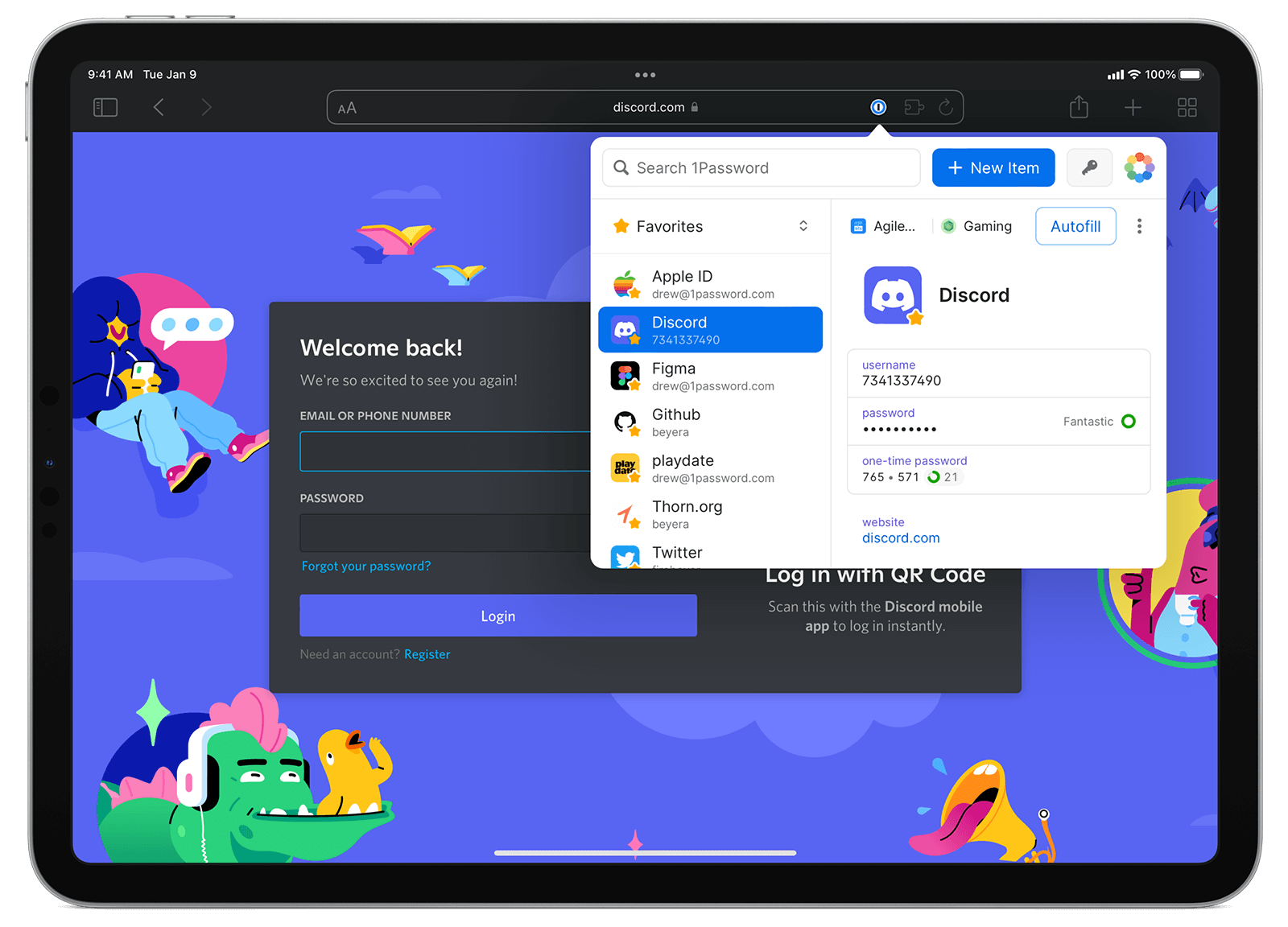
With the new 1Password Safari Extension, gone are the days of needing to fiddle around the with the auto-fill keyboard on your iPhone or iPad. At least in the case of the iPad, there’s a new 1Password icon that you can tap from the toolbar. This gives you access to 1Password whenever you’re browsing in Safari. Plus, the 1Password extension can even auto-fill two-factor authentication codes that you may find yourself needing.
Hyperweb is already one of the most robust Safari Extensions on the App Store. With this app, you have the ability to essentially customize your Safari browsing experience on both the iPhone and iPad. This includes adding “enhancements” to improve Safari even more, along with offering suggestions based on how you browse. You can even go so far to create a custom search engine based on the websites that you visit.
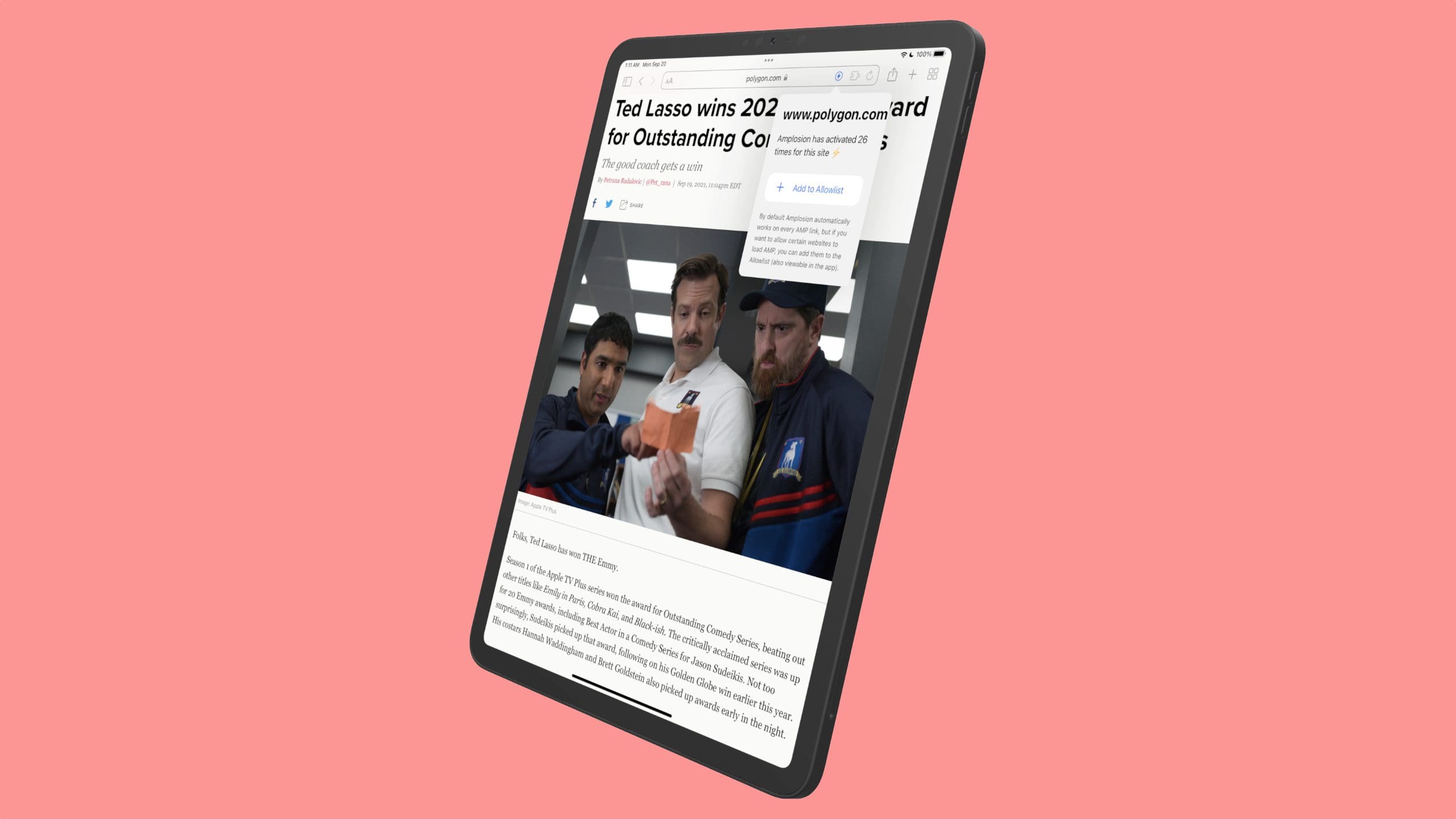
Google’s AMP pages can be rather frustrating to have to deal with, but thanks to Amplosion, you can ditch those pages altogether. Implosion comes from the same creator of Apollo for Reddit, and is open source so you can see all of the changes that are being made to the app, while being able to contribute if you’re a developer.
With Vidimote, you don’t have to fiddle around with trying to get the on-screen media controls to show when in Safari. Vidimote adds a simple icon in the toolbar that provides all of the controls that you need. These include jumping forwards or backwards quickly, changing the playback speed, and viewing the time remaining for whatever it is that you’re watching.
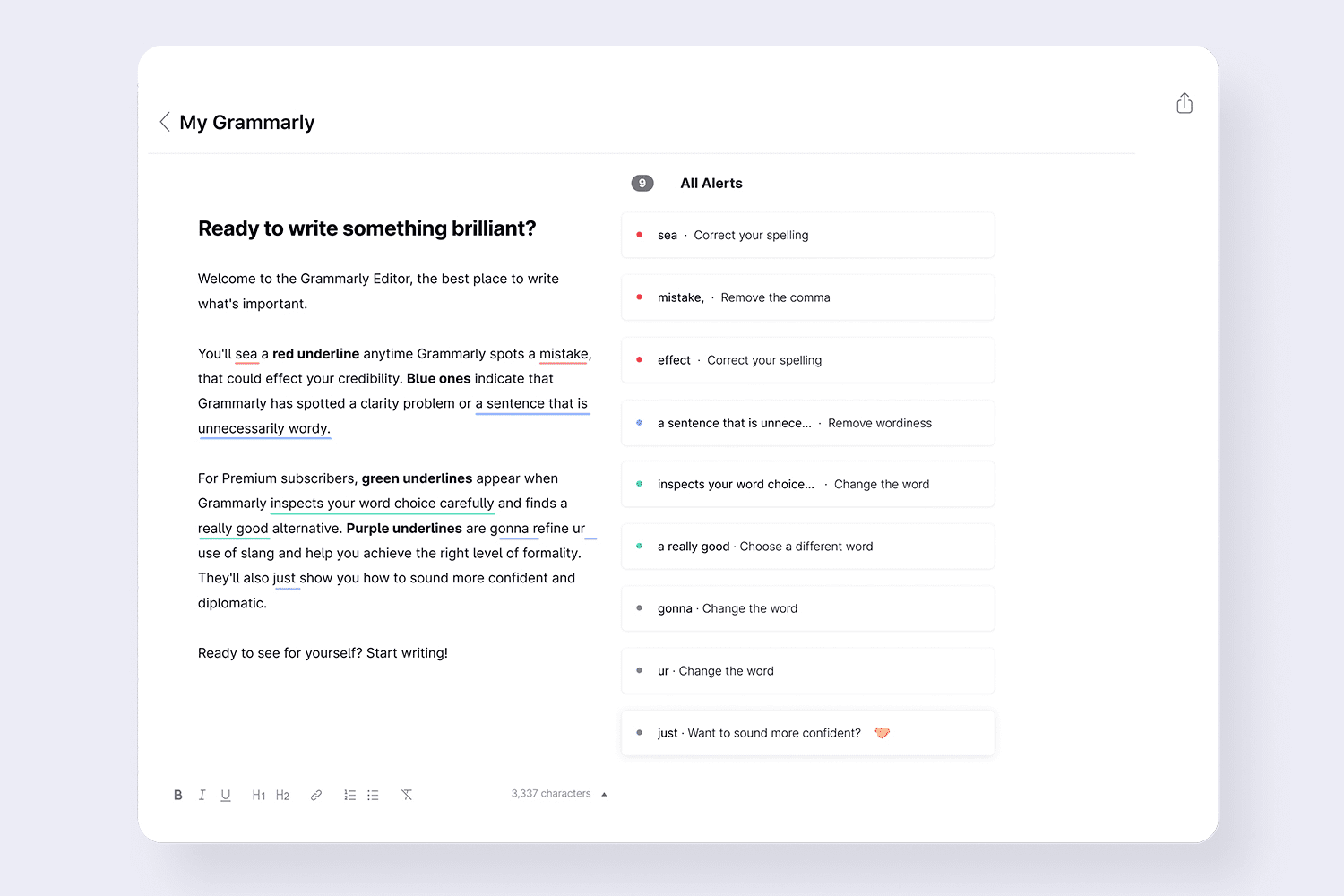
We’ve all been there before. You’re in the middle of typing out a long and exhausting email, and you’re just about to hit send. But before you do, you give it a once-over to make sure you didn’t miss anything. Come to find out, you had quite a few spelling and grammatical errors. That’s where Grammarly comes in, as this Safari Extension will analyze the words that you type, providing suggestions and helping you to fix any errors before you send your next email.
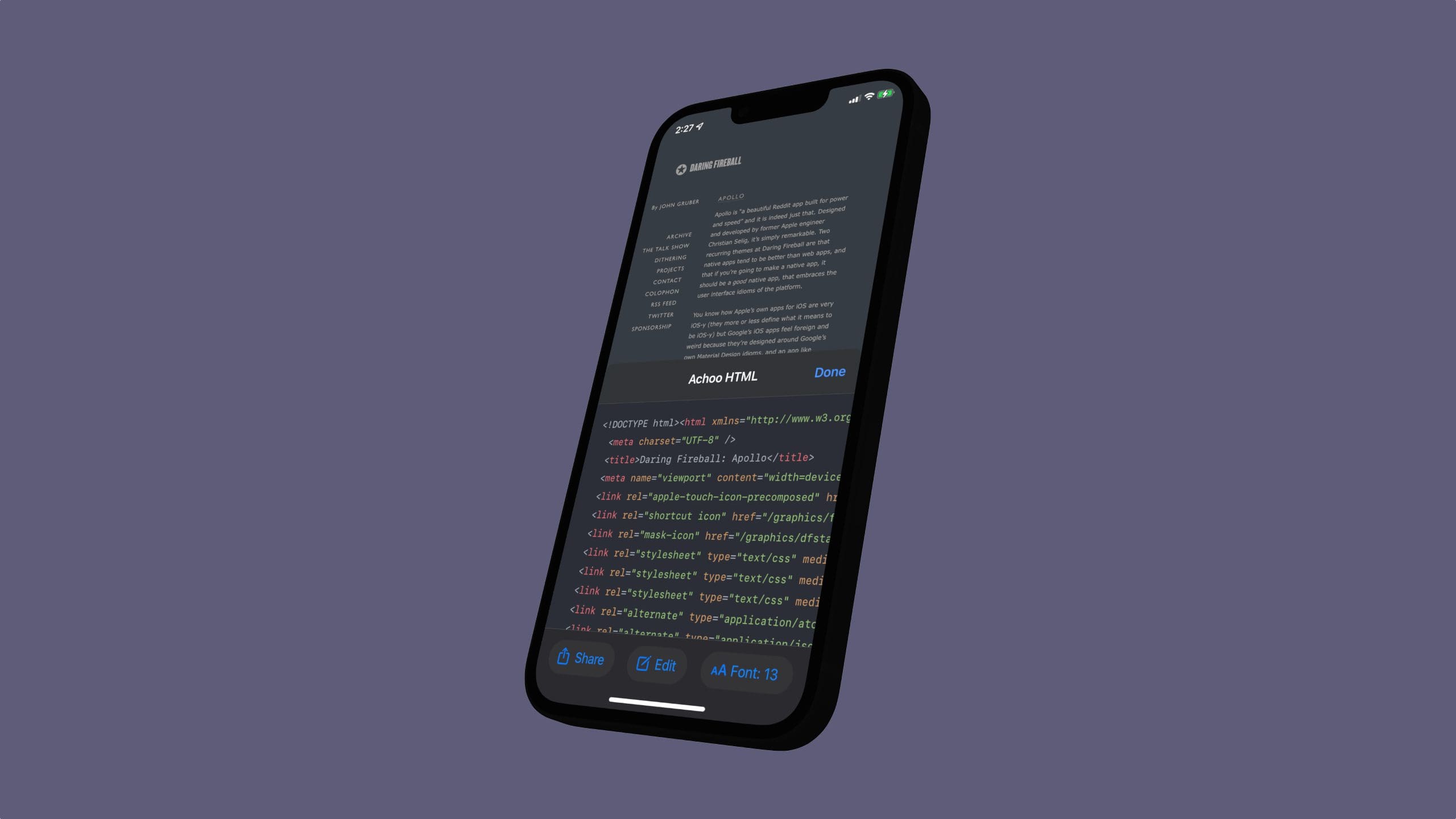
Achoo is an HTML Viewer & Inspector, also from the create of Apollo for Reddit and Amplosion. With this installed, you’ll be able to view the HTML source code for whatever webpage you are currently viewing “with a few taps”. It may not be the most useful tool for everyone, but if you’ve ever needed to use an HTML inspector, you’ll want to grab Achoo.
Andrew Myrick is a freelance writer based on the East Coast of the US. He enjoys everything to do with technology, including tablets, smartphones, and everything in between. Perhaps his favorite past-time is having a never-ending supply of different keyboards and gaming handhelds that end up collecting more dust than the consoles that are being emulated.














Write a Comment