Just like the iPhone, Apple TV, and Apple Watch, Apple has released the latest software version for the iPad. This time, we have iPadOS 15, matching up in version number with its counterpart for the iPhone. There are quite a few new features and changes available, and if you have been holding off from joining the iPadOS 15 Public Beta, you can finally download and install iPadOS 15.
It’s pretty obvious that Apple is bringing feature-parity to the iPhone and iPad. However, there are some other “quality of life” improvements that needed to be made. Plus, there are even more features and changes that turn the iPad into even more of a productivity machine than ever before. Here are some of our favorite features that you can find after you install iPadOS 15.
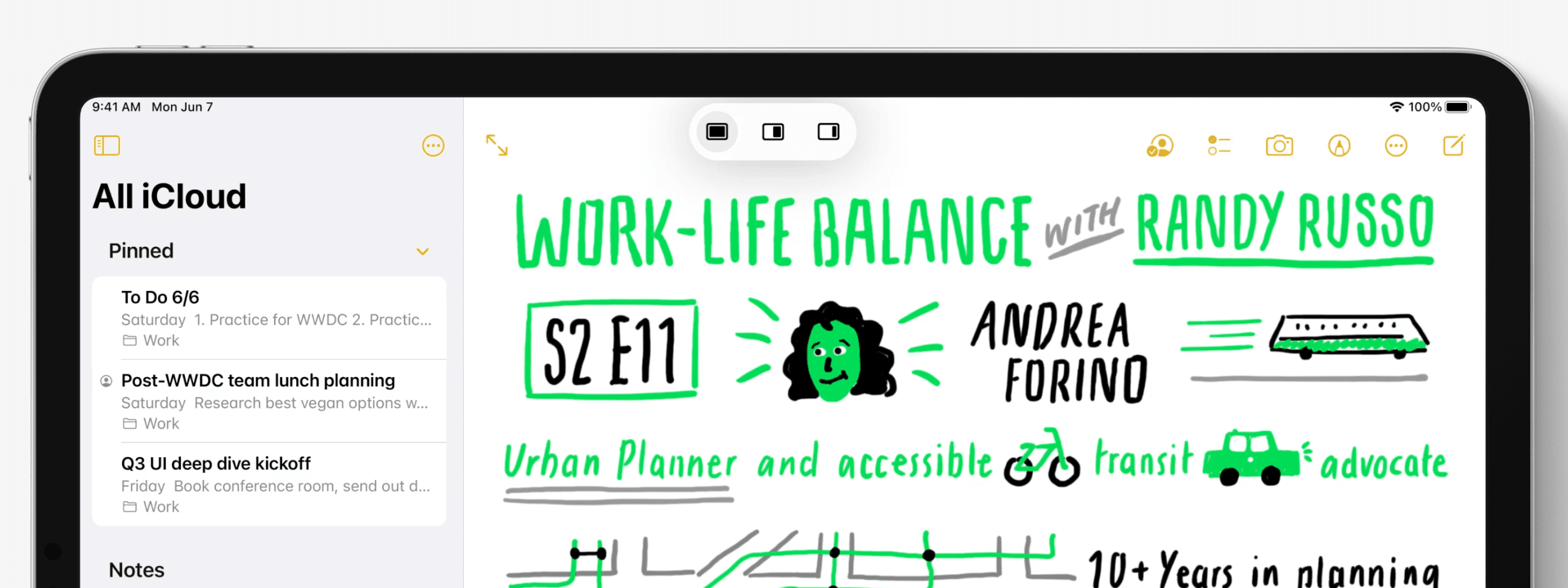
Improved Multi-tasking
Multi-tasking on the iPad has been pretty great, at least in the fact that you have the ability to do so. However, the actual implementation has been lacking, forcing you to learn keyboard shortcuts and gestures. And while those options are still available, Apple has added more on-screen cues and buttons to manage your different apps and windows.
Quick Notes
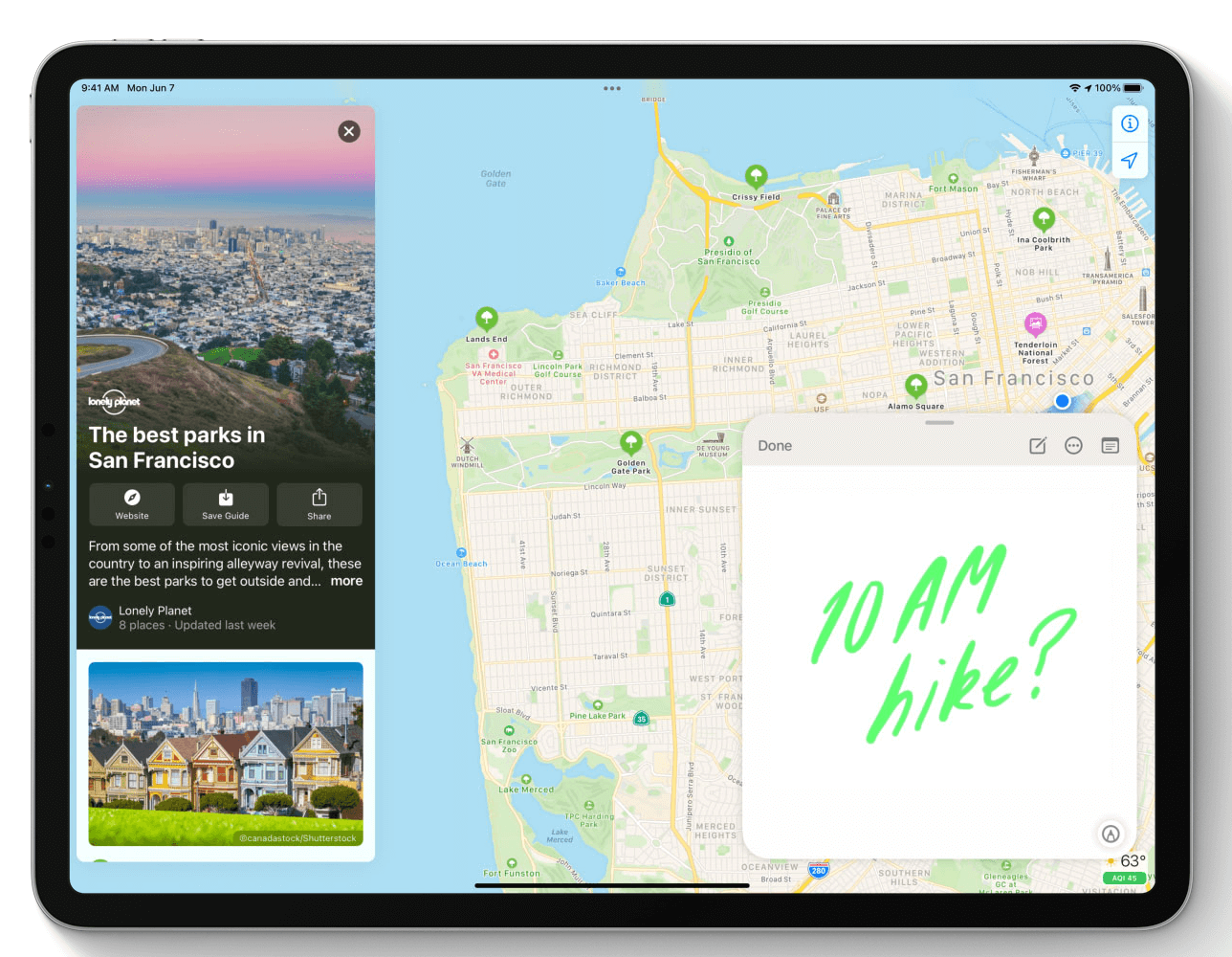
The Apple Pencil is an absolute necessity if you have an iPad. From taking laborious notes to just jotting down a number, the Apple Pencil is wonderful. But it’s functionality has been increased even more thanks to the introduction of Quick Notes. Just swipe up from the bottom left corner with your Apple Pencil, take down a quick note, and then you can view that note from a dedicated section in the Notes app.
Widgets
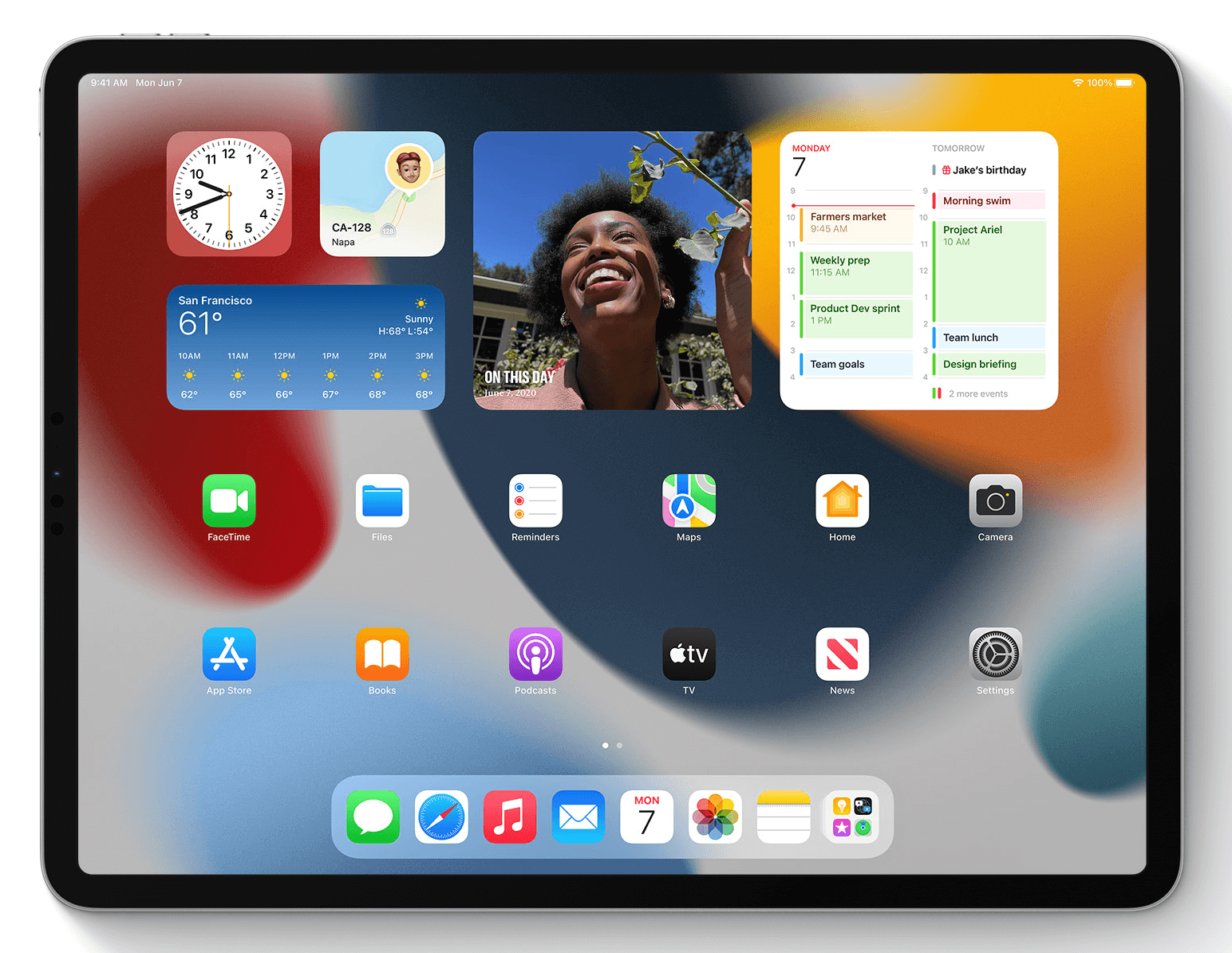
Just like our next pick, Widgets also originally debuted on iOS 14, but are now available on the iPad with iPadOS 15. In addition the same different sizes that you’ll get with iPhone widgets, there are a few more options available for the iPad. These are “XL” widgets, and are only available for select apps. Now that iPadOS 15 is available, expect to see more app developers implement larger widgets to take advantage of the bigger screen.
App Library
After being introduced on the iPhone with iOS 14, Apple has brought App Library to the iPad with iPadOS 15. Instead of having pages upon pages of apps and folders, all of your apps are organized into pre-determined folders. They are then accessible by swiping all the way to the right, or by the App Library button available in the Dock of your iPad.
And More
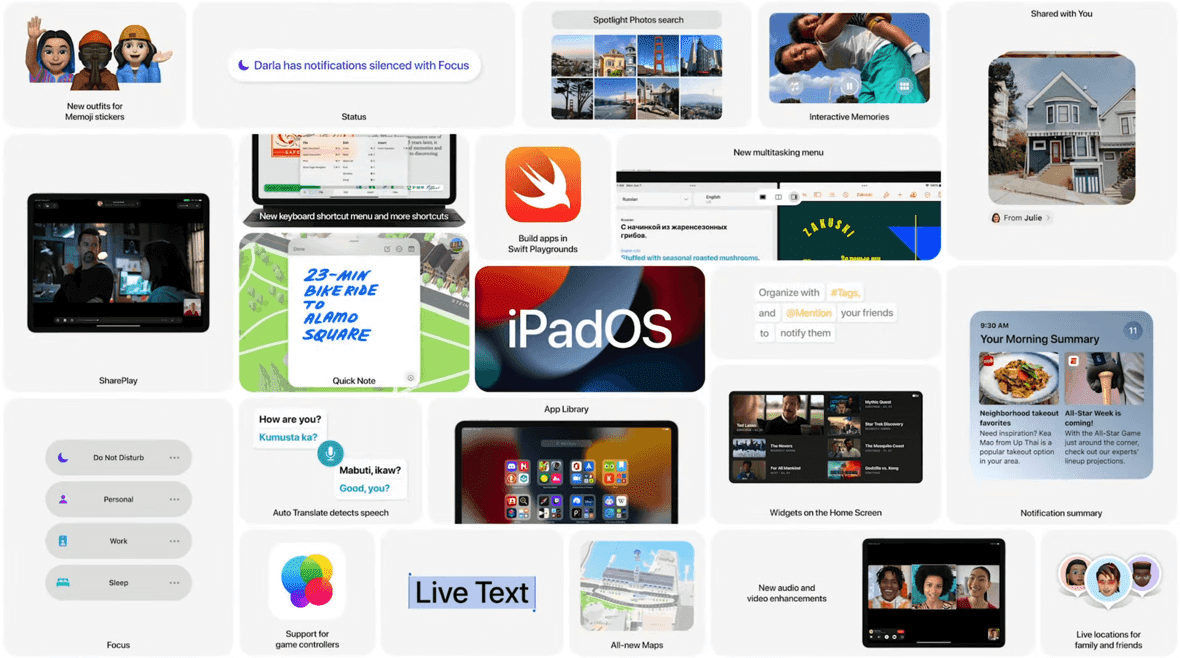
It feels as though there are more features onboard with iPadOS 15 compared to iOS 15. And this is pretty great considering that Apple continues turning its devices like the iPad Pro into suitable and reliable laptop replacements. While you can go through the entire list of new features, our recommendation is to take some time and explore your iPad after you install iPadOS 15. Doing so makes it so that you can learn the different nuances, along with exploring the different features.
Eligible Devices
Keeping in line with iOS 15, Apple is continuing support for iPadOS on devices dating back to 2015. This includes the original iPad Mini, while also being compatible with the iPad Air 2 from 2014. We’ll also see the new iPadOS arrive on all versions of the iPad Pro and the iPad. As you might expect, certain features may not be available on older models.
iPad 5th generation
iPad 6th generation
iPad 7th generation
iPad 8th generation
iPad Air 2nd generation
iPad Air 3rd generation
iPad Air 4th generation
iPad mini 4th generation
iPad mini 5th generation
9.7-inch iPad Pro 1st generation
12.9-inch iPad Pro 1st generation
9.7-inch iPad Pro 2nd generation
12.9-inch iPad Pro 2nd generation
10.5-inch iPad Pro
12.9-inch iPad Pro 3rd generation
11-inch iPad Pro
12.9-inch iPad Pro 4th generation
11-inch M1 iPad Pro
12.9-inch M1 iPad Pro
Before You Install iPadOS 15, Back Up Your iPad
You might be chomping at the bit to install iPadOS 15 now that the final version is available. However, there is one step that you’ll want to take before you do so. Backing up your iPad before installing a new version of iPadOS is extremely important and always recommended. By doing do, you can rest easy knowing that all of your files and apps are backed up securely through iCloud.
Open the Settings app on your iPad.
Tap your profile at the top of the page.
Tap iCloud.
Select iCloud Backup from the list.
Tap the Back Up Now button.
How To Download and Install iPadOS 15
After the iCloud backup has completed, you can finally start to download and install iPadOS 15 on your compatible iPad. The process might look a bit different for some, but other than those minor changes, it’s the same process as it’s always been.
Open the Settings app on your iPad.
Scroll down and tap General in the left sidebar.
Tap Software Update on the right side.
Tap the Download and Install button at the bottom.
In the event that you see the iPadOS 14.8 box, scroll down and select Upgrade to iPadOS 15.
Then, tap the Download and Install button.
Follow the on-screen prompts to finish installing iPadOS 15.
Those on older iPad models might see the “iPadOS 14.8” option instead of just being able to install iPadOS 15. This is done for a couple of reasons, with the biggest reason being that you might not be able to enjoy everything that iPadOS 15 has to offer. But instead of forcing the update onto users, you can stick with iPadOS 14.8 and will still be able to receive security updates.
Andrew Myrick is a freelance writer based on the East Coast of the US. He enjoys everything to do with technology, including tablets, smartphones, and everything in between. Perhaps his favorite past-time is having a never-ending supply of different keyboards and gaming handhelds that end up collecting more dust than the consoles that are being emulated.
I tried updating my ios on my I pad and after a while downloading it said error and didn’t work and ever since my iPad has been stuck saying support.apple.com/ipad/restore and I can’t seem to get it out even using I tunes or tenishore












I tried updating my ios on my I pad and after a while downloading it said error and didn’t work and ever since my iPad has been stuck saying support.apple.com/ipad/restore and I can’t seem to get it out even using I tunes or tenishore