Let’s say you’ve got a flight coming up and you want to watch a movie on the plane. It’s so much cheaper to rent one from iTunes than to buy it. But can you watch iTunes movie rentals on your iPhone or iPad without an internet connection?
This isn’t the only scenario where you might need to do that.
You could be planning a remote getaway — a log cabin in the woods with plenty of free time but zero Wi-Fi connection. Maybe you’re getting ready for a cross-country bus trip and don’t want to drain your cellular data. Or you could just have unreliable internet!
Whatever your circumstances, you’ll be glad to know that yes, you can watch an iTunes movie rental without an internet connection.
How do I rent a movie from iTunes on my iPhone or iPad?
Most movies on iTunes are available to rent. If you only expect to watch it once or twice, it’s generally cheaper to do so. You can rent movies through the iTunes Store using any Apple device: iPhone, iPad, iPod touch, Apple TV, or Mac.
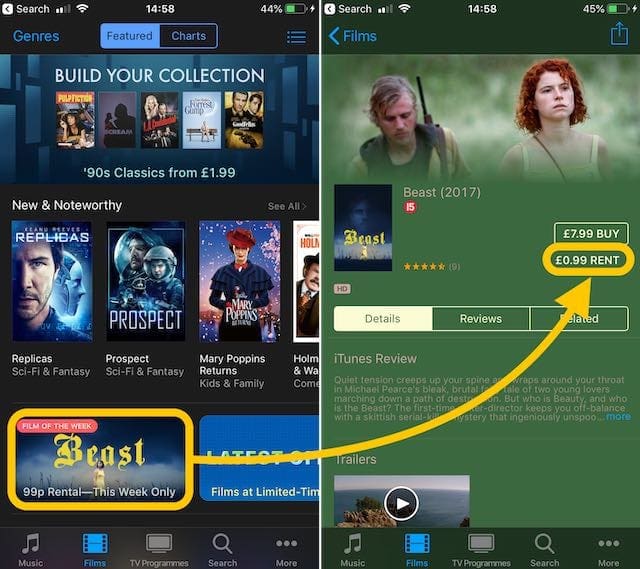
Open the iTunes Store and search or browse for a movie you want to watch. When you find one, tap its name or image to view the rental price.
Let’s take advantage of the 99p Film of the Week.
You’ll see a brief summary of the movie along with its trailer. And to the left, you should see a price to buy and a price to rent.
If there’s only a price to buy the film, it isn’t available to rent at this time.
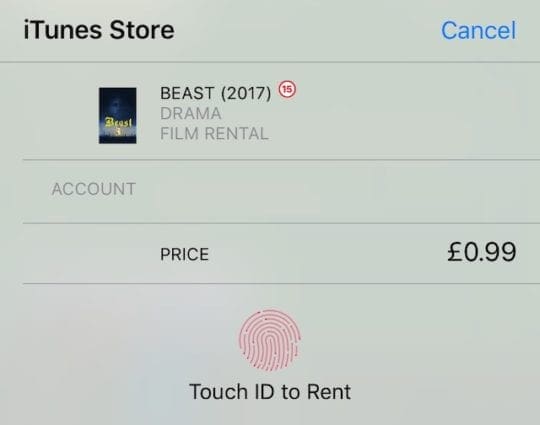
Enter your Apple ID password to confirm a movie rental.
Tap the rent button and login to your Apple ID using your password, Touch ID, or Face ID.
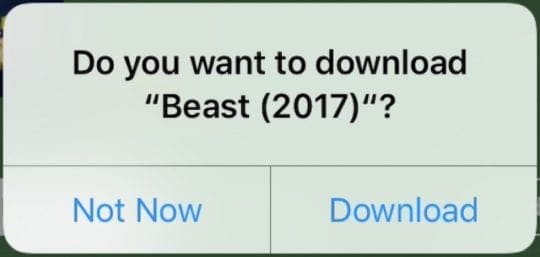
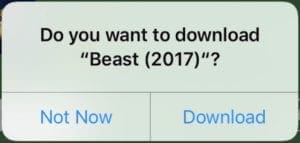
Apple gives you the option to download the movie to watch now or later if desired.
You can choose to start downloading your rented movie straight away.
After you’ve paid to rent a movie, it becomes available to watch on any of your Apple devices.
Where can I find my iTunes movie rentals on a Mac or iPhone and iPad?
After you’ve rented a movie from iTunes, you should see it with your movie collection on all your other Apple devices.
Mac is easy enough to find
When you next open iTunes on your Mac, you’ll see a Rented section with your movie in it.
It’s easy to find your rented movies in iTunes on a Mac.
But what about finding iTunes movie rentals on my iPhone or iPad?
For these devices, you need to open the TV app.
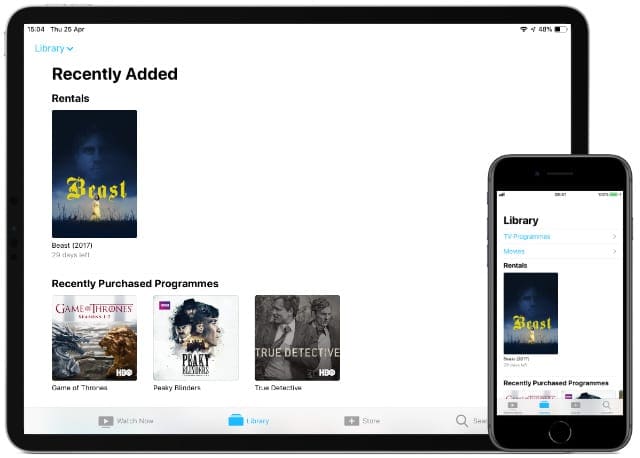
Your movie rental is probably suggested under Up Next on the Watch Now page.
Otherwise, tap the Library button to see a Rentals section beneath TV Programs and Movies.
Your iTunes movie rental will appear in the TV Library on all your Apple devices.
You can also search for your rented movie in the iTunes Store again and start playback or downloads from there.
How long do iTunes movie rentals last?
You have 30 days to start watching an iTunes movie rental.
Once you start the movie, you have just 48 hours finish it. However, you can watch it as often as you like during that 48-hour period.
There’s a countdown timer telling you how much time remains on your rental. Find this information just beneath the rented movie’s title and thumbnail in your TV app or the iTunes Store.
After the timer is up, the movie automatically disappears from your library; there’s no need to delete it.
You can see how long is left beneath the movie title.
How do I download iTunes movie rentals to watch offline?
You can choose to start downloading your rented movie straight away.
When you pay for a movie rental on iTunes, there’s always the option to download it straight away.
If you chose Not Now, you can start the download to watch offline at any other time when you have an internet connection.
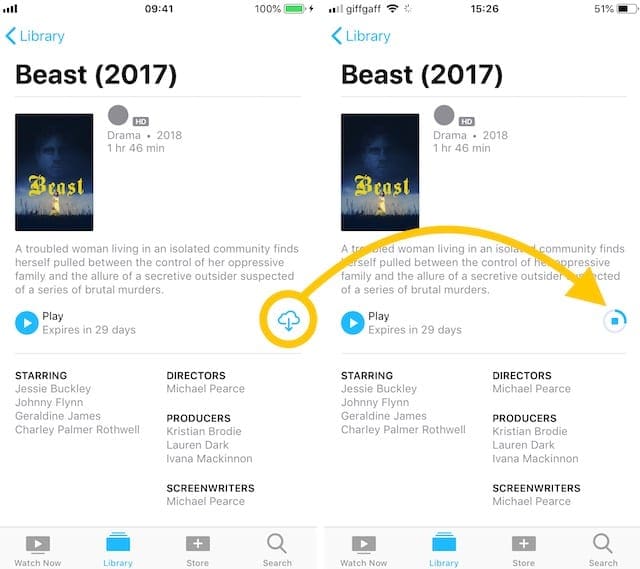
Find your movie rental in the TV app, iTunes, or the iTunes Store and tap the cloud icon next to it to start downloading.
A loading circle begins to fill in as the movie downloads. You can’t download movies on Apple TV, but you can AirPlay to it.
The length of time it takes to download a movie depends on the file size and the speed of your internet connection.
Unfortunately, you can’t see the time remaining on an iPhone or iPad.
Start your download by tapping the cloud icon.
Your movie is available to watch while only partially downloaded. However, if you plan to watch your iTunes movie rental offline, you need to wait for it to download fully.
We recommend you start downloading movies at least a day before you plan to watch them offline. This allows plenty of time to finish downloading.
How do I know when I’ve downloaded an iTunes movie rental?
While an iTunes movie is downloading, you can see a progress circle fill up beside the play button.
When that download is complete, the circle is replaced with a Downloaded message. Now you can watch your iTunes rental offline.
It’s clear to see when your rented movie has finished downloading.
If there is a cloud icon, you have not downloaded the movie rental. Tap the cloud to start your download.
How do I download my rented movie on a different device?
You can stream your iTunes movie rentals on any of your Apple devices. But you can’t watch it or have it downloaded on more than one device at the same time.
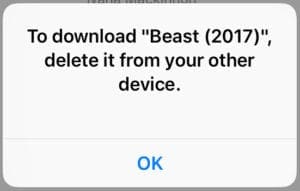
You’ll get this message if you try to download your rented movie on a second device.
That means if your movie is downloaded to your iPhone you can’t download it to your iPad as well. You need to delete the download first.
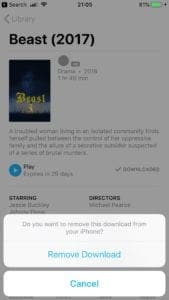
Make sure your device with the iTunes movie rental is connected to the internet, then tap the Downloaded button and choose to Remove Download.
You can then use the cloud icon to download the rental on another device.
Tap to Remove Download before downloading your rental on a different device.
Why isn’t my iTunes movie rental on all my devices?
You should be able to see your rented iTunes movies on all your Apple devices. Go to the TV or iTunes app to view your movie library and search for it.
If you can’t see your iTunes movie rental, try the following troubleshooting steps:
Make sure you sign into the same Apple ID account that rented the movie.
Go to Settings > iTunes & App Store to check your account.
Connect to the internet and test your connection is working.
Load a web page in Safari to test your connection.
Go to Settings > Wi-Fi to connect to a different network.
Download the latest version of iOS, macOS, or tvOS.
Go to Settings > General > Software Update to look for new updates.
Dan writes tutorials and troubleshooting guides to help people make the most of their technology. Before becoming a writer, he earned a BSc in Sound Technology, supervised repairs at an Apple Store, and even taught English in China.
Are you using the TV App to download the rental? If not, try opening that app and see if you can download it.
If the download cloud is still greyed out, try closing all open apps:
1. On an iPhone or an iPad with no home button from the Home screen, swipe up from the bottom of the screen and pause slightly in the middle of the screen
2. On an iDevice with a home button, double-click the Home button and swipe right or left to find the app that you want to close
3. Swipe right or left to locate the app you want
4. Swipe up on the app’s preview to close it
5. Repeat until all apps close
After closing all apps, power off the device, wait a few seconds, and power back on.
Open the TV app again and see if you can download.
If still not, check that your device has sufficient storage for that download by going to Settings > General > Storage. If there is not enough space, free some up by deleting photos, videos, or apps.
If space isn’t the issue, check if you have Screen Time enabled or any restrictions set–go to Settings > Screen Time > Content & Privacy Restrictions. Toggle these off if they are on. For iOS 11 and below, go to Settings > General > Restrictions.
If I download a series with 10 episodes, do I only have 48hours to watch all episodes? Or is it only when I “start watching” that the 48hour limit starts?
When you rent a movie from iTunes, you have 30 days to start watching it–even if you download it BUT DON’T open it and let it play.
As soon as you start to play an episode you rented, that particular episode is available for the next 48 hours to watch. If you start to play it but don’t finish it and 48 hours pass, you will need to rent it again.
iTunes should view each episode of a series as a separate piece of content. So you shouldn’t have to watch all 10 episodes within that 48-hour window.
All these episodes will automatically delete 30 days after you rent it. If you don’t watch those 10 episodes in that 30-day window, you’ll have to rent those episodes you didn’t get to watch again.
You can watch the rented movie from iTunes without an internet connection. But you should download the movie to your iOS devices before watching it. And you should know that you only have 30 days to start watching a movie after you rent it. After you start watching the movie, you have 48 hours to finish it. You can watch the movie as often as you like until it expires.
I always use a tool named M4VGear DRM Media Converter. It converts iTunes rented movies to common video format like MP4. In this way, you can play your iTunes rented movies anytime without internet connected.
I downloaded a rented movie through iTunes to watch on a flight,
Kept asking me to connect to the internet, hence never watched the movie or will bother in future
You can also get rid of the DRM protection with some third party tools like TunesKit DRM Media Converter. Then you can watch the iTunes rental or purchased movies, tv shows everywhere.













Dan, thanks for this article, because I’ve just noticed and always wondered why an iTunes movie only shows up on one device (and now I know).
Plus this is very helpful in explaining how to remove the download from one device in order to make it available to download on another.
And I didn’t even know for sure that you could fully download prior to when you won’t have wifi available.
It just seems that if I don’t have wifi, my Apple device just doesn’t like to play the media. Now I know why. Thanks again.
I’ve rented a movie in the iTunes store that I want to watch on a long flight.
So I clicked “Download”, although nothing then seemed to happen.
But the film is shown on my iTunes “rented” tab, and I can click to play it OK as long as I have an internet connection.
If I go offline I lose the ability to play it.
The download from the Cloud icon next to the film is greyed out, so I can’t click it to start or restart the download.
How do I get this to download!
Thanks!
Hi Ian,
Are you using the TV App to download the rental? If not, try opening that app and see if you can download it.
If the download cloud is still greyed out, try closing all open apps:
1. On an iPhone or an iPad with no home button from the Home screen, swipe up from the bottom of the screen and pause slightly in the middle of the screen
2. On an iDevice with a home button, double-click the Home button and swipe right or left to find the app that you want to close
3. Swipe right or left to locate the app you want
4. Swipe up on the app’s preview to close it
5. Repeat until all apps close
After closing all apps, power off the device, wait a few seconds, and power back on.
Open the TV app again and see if you can download.
If still not, check that your device has sufficient storage for that download by going to Settings > General > Storage. If there is not enough space, free some up by deleting photos, videos, or apps.
If space isn’t the issue, check if you have Screen Time enabled or any restrictions set–go to Settings > Screen Time > Content & Privacy Restrictions. Toggle these off if they are on. For iOS 11 and below, go to Settings > General > Restrictions.
Hope something works
Liz
Thanks Liz.
I should have said that I’m using a MacBook Pro…
But your suggestion to close and reboot seems to have done the trick!
It’s always the easiest things that I forget to do first!
So I quit iTunes, disconnected from the internet and it looks like I can play the film. So thank you for the reminder to quit and reboot!
Ian
If I download a series with 10 episodes, do I only have 48hours to watch all episodes? Or is it only when I “start watching” that the 48hour limit starts?
Hi Debbie,
When you rent a movie from iTunes, you have 30 days to start watching it–even if you download it BUT DON’T open it and let it play.
As soon as you start to play an episode you rented, that particular episode is available for the next 48 hours to watch. If you start to play it but don’t finish it and 48 hours pass, you will need to rent it again.
iTunes should view each episode of a series as a separate piece of content. So you shouldn’t have to watch all 10 episodes within that 48-hour window.
All these episodes will automatically delete 30 days after you rent it. If you don’t watch those 10 episodes in that 30-day window, you’ll have to rent those episodes you didn’t get to watch again.
Hope that helps,
Liz
You can watch the rented movie from iTunes without an internet connection. But you should download the movie to your iOS devices before watching it. And you should know that you only have 30 days to start watching a movie after you rent it. After you start watching the movie, you have 48 hours to finish it. You can watch the movie as often as you like until it expires.
I always use a tool named M4VGear DRM Media Converter. It converts iTunes rented movies to common video format like MP4. In this way, you can play your iTunes rented movies anytime without internet connected.
I downloaded a rented movie through iTunes to watch on a flight,
Kept asking me to connect to the internet, hence never watched the movie or will bother in future
You can also get rid of the DRM protection with some third party tools like TunesKit DRM Media Converter. Then you can watch the iTunes rental or purchased movies, tv shows everywhere.