If you spend a lot of time using Terminal—the command line app built into macOS—you should customize the way it looks and behaves to make it work even better for you.
You can change the text and background color in Terminal, the font, the window title, and more by editing Terminal’s profile.
A Terminal profile is a group of settings that change the way Terminal looks and behaves on your Mac. Apple includes 10 preset profiles with Terminal, but you can create as many custom profiles as you like.
Changing the Terminal profile could change everything from the colors, to the font, to the way scrolling works, to what happens when you close a tab.
You can open multiple Terminal windows or tabs at the same time, each using a different profile. This way, you could use different profiles for different tasks.
To change the colors in Terminal, you need to change the profile you’re using.
How to Change Your Terminal Profile
You might want to change your Terminal profile to choose better colors for low-light settings, to create a unique look for your Terminal window, or just to add a little spice to the humdrum app. Whatever your reason, it’s easy to change your profile from the Terminal preferences.
Here’s how:
Open Terminal.
In the menu bar, select Terminal > Preferences.
Go to the Profiles tab, then select the profile you want to use in the sidebar.
Select a different profile to change the color scheme in Terminal.
Each of the 10 preset profiles behaves in exactly the same way. The only differences between them are their color schemes and fonts:
Basic: Black text on a white background, or vice versa in dark mode.
Grass: Yellow text on a green background with red highlights.
Homebrew: Neon green text on a transparent black background with blue highlights.
Man Page: Black text on a yellow background.
Novel: Brown text on a beige, paper-like background.
Ocean: White text on a blue background.
Pro: White text on a transparent black background.
Red Sands: Stone-colored text on a transparent red background.
Silver Aerogel: Black text on a transparent grey background with blue highlights.
Solid Colors: Black text on a hot pink background with blue highlights.
When you find a Terminal profile with colors you like, double-click it to open a new window in that profile. Alternatively, click Default at the bottom of the sidebar to use that profile by default when opening new Terminal windows.
If you don’t see any profiles you like, create your own instead.
How to Create Your Own Terminal Profile
You can choose your own background color, font color, font, and window behavior for Terminal by creating a new profile. This is really easy to do and only takes a minute—that is, if you don’t spend too long deciding on a color scheme.
Here’s how to create your own Terminal profile:
Open Terminal.
In the menu bar, select Terminal > Preferences.
Go to the Profiles tab, then click Add (+) at the bottom of the sidebar.
Type a name for your new profile and use the tabs on the right to customize it to your tastes.
Create a memorable name so you can easily find your new profile.
The different tabs let you change various details about how your Terminal profile looks or behaves. You don’t need to change everything, you can just change the Terminal colors (from the Text tab) if you like. But in case you’re interested, here’s what each tab offers:
Text: Change the colors and choose your font and cursor style.
Window: Change the window size, title, and scrollback settings.
Tab: Change the title that shows for each of your tabs and more.
Shell: Create a command to run on startup and choose what happens when you exit the shell.
Keyboard: Change the action of different function keys.
Advanced: Enable or disable various input and bell settings.
If you don’t want to create a new Terminal profile from scratch, you can also edit the existing profiles. You might want to duplicate a Terminal profile first, so you don’t lose the original version of it.
To duplicate a profile:
Click to select the profile you want to duplicate in the Terminal preferences sidebar.
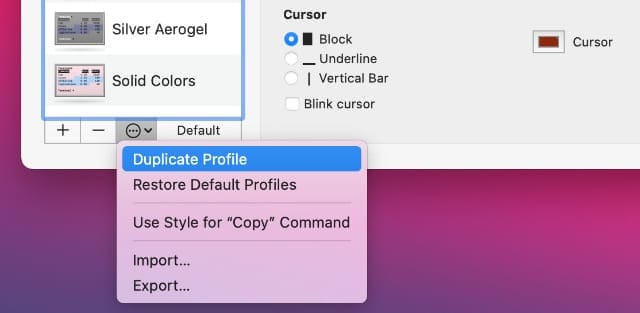
At the bottom of the sidebar, click the three dots to reveal a popup menu, then click Duplicate Profile.
If you already changed a preset profile, you can get it back by selecting Restore Default Profiles from this popup menu instead.
Duplicate a profile before making changes so you don’t lose the original.
Get Started With Some Useful Terminal Commands
Terminal is a tricky beast to master. It requires learning a lot of new commands and workflows as you get to grips with command line. But once you start to use Terminal, a world of possibilities awaits you.
Now you know how to change the color and behavior of Terminal to get it looking and working the way you want. So it’s time to start learning how to use it with these useful Terminal commands. They’ll teach you how to keep your Mac awake, show hidden files, and much more.
Dan writes tutorials and troubleshooting guides to help people make the most of their technology. Before becoming a writer, he earned a BSc in Sound Technology, supervised repairs at an Apple Store, and even taught English in China.













I want different colors for files, folders, links etc. when using terminal. Is that possible on the Mac?