If you’re thinking of buying a used iPhone from someone, you really want to make sure the display is original. As a matter of fact, some statistics suggest that about one-third of iPhone owners break their phone screens every year. That’s a huge number and it only increases the chances of getting an iPhone with a non-original display if you decide to purchase a second-hand device.
The good news is that there are a few ways to check if your iPhone display is original or not. We’ll explore them below.
By the way, you can use the same methods if you just bought an iPhone labeled as “new” from a shady website. Or maybe you recently got your screen replaced by a third-party repairer because that was cheaper and you have your doubts about the screen.
iPhone 11 and iPhone 12 Warn You If The Display is Not Original
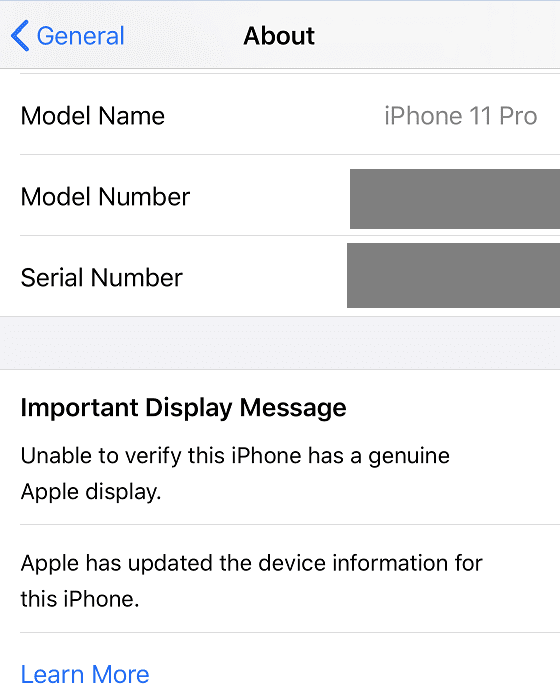
If you own an iPhone 11 or iPhone 12 device, things are a bit simpler. These iPhone models automatically display a warning if they detect your display is a non-genuine replacement. The message reads as follows: “Important Display Message: Unable to verify this iPhone has a genuine Apple display“.
To check if there is such a warning on your device, go to Settings, select General, and tap About.
The good news is that this notification doesn’t affect or limit your ability to use your iPhone. However, it does plant the seed of doubt in users’ minds.
Enable Maximum Brightness
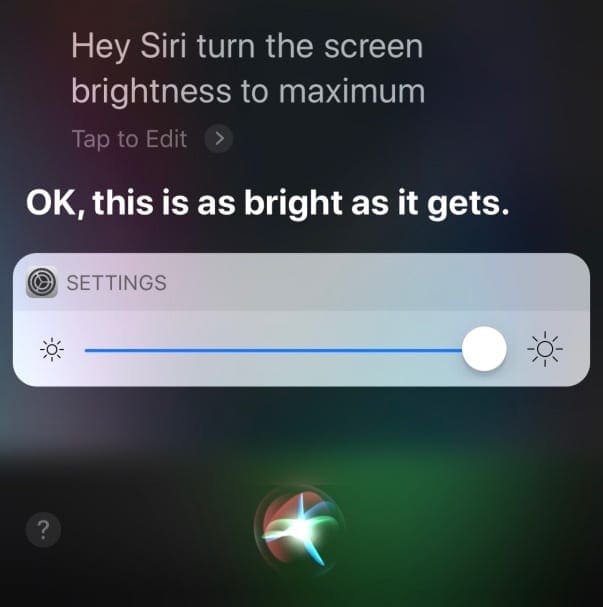
Ask Siri to turn up your screen’s brightness for you!
One way to test if your iPhone display is genuine or not is to put it on maximum brightness and then open a black picture. You can also zoom in on the image to make sure the whole screen is black. If the screen looks like it’s not even turned on, you have a genuine OLED display. On the other hand, if you notice even the slightest bit of gray or white, this indicates the display is not genuine.
As a quick reminder, an OLED display can produce pure black pixels and has a higher pixel density than other types of displays. Apple uses OLED displays on most iPhone models, although some devices such as the iPhone 11 IPS LCD still rely on LCD screens.
Shine a Torch or Flashlight on the Screen
Another method to check if your iPhone screen is original is to shine a torch or a flashlight on your phone’s screen. Then take a close look at the light’s reflection on the screen. An original iPhone display doesn’t have any gridline running through it. On the other hand, a non-genuine screen will have visible gridlines running through it.
Other Telltale Signs Your iPhone Display Is Not Genuine
When you swipe through the menus, the image is ghosting or leaves a trail behind.
There’s an overly blueish hue visible on the screen. Or the display has a yellowish tint due to incorrect display color calibration.
There’s a visible color mismatch between the Home button and the bezel color.
The receive grill is aligned perpendicularly to the surround. On an original device, the alignment should be parallel.
The proximity sensor is split in two and has a purple and shiny color to it.
Aftermarket screens are often raised higher than original Apple displays.
Adhesive-based dust removers usually tend to stick to the screen for longer probably due to poor oleophobic coating or lack thereof.
If you put a sticky note on the screen and you shake your iPhone, the sticky note has no problem adhering closely to the screen. On a genuine display, the sticky note should not remain attached to the glass.
However, keep in mind that the results of this test are not very reliable if the device has been in use for a long time. After months or years of usage, the device will no longer have an even coating.
Multi-Touch is unresponsive on certain screen areas.
During phone calls, the phone might register accidental touches and the display might remain on.
True Tone doesn’t work properly.
The screen dims or brightens inaccurately due to ambient light sensor issues.
When set on maximum brightness, the display is not actually that bright. Moreover, some areas are not uniformly bright.
If you want to enjoy a genuine iPhone experience, it’s always best to purchase your device directly from Apple or an authorized Apple reseller. In this manner, you can be 100 percent sure your device is original. If you break your iPhone screen, go to an Apple repair center to get your screen replaced.
If you purchase a second-hand iPhone or you have your device repaired by a third-party repairer, you’ll always run the risk of getting a copy iPhone screen. The choice is yours.
Madalina has been a Windows fan ever since she got her hands on her first Windows XP computer. She is interested in all things technology, especially emerging technologies — AI and DNA computing in particular.
Hello, please my iPhone says unknown part at the display section . And i want to know if I change the screen to original will my face ID work. Because is not at the moment.
Here we are facing a trouble to identify whether the apple replaced parts are genuine or fake, so please try to solve this which a website to identify the original products using their parts serial numbers.
Hope there will be appropriate action against it.











Hello, please my iPhone says unknown part at the display section . And i want to know if I change the screen to original will my face ID work. Because is not at the moment.
iPhone is the number one phone in the world
Here we are facing a trouble to identify whether the apple replaced parts are genuine or fake, so please try to solve this which a website to identify the original products using their parts serial numbers.
Hope there will be appropriate action against it.