For years, iOS users have been clamoring for more control over their Home Screens other than just folders. Apple provided a bit of leeway with the release of iOS 14 and the introduction of the App Library. This is similar to the “App Drawer” found on Android, but is found when swiping all the way to the right on your Home Screen.
Ending up with pages upon pages of applications can be a bit daunting to look at. Many folks end up never using those extra pages or the apps themselves. For better or for worse, you’ll want to go through and clean up your iPhone. This frees up your storage, and gives you some peace of mind.
With so many apps available to download, there are times where you may go through and try out a bunch of new things. However, over time, the list of apps on your iPhone or iPad can become enormous. Many of these are likely to be just “sitting there” waiting to be used, but the time never comes.
In that case, it might be time to sit down and do some Spring Cleaning. Whether it’s to clear up some storage, or just to clean up your home screens, you’ll want to make sure to go through and delete unused apps every once in a while.
Delete apps while using the App Store
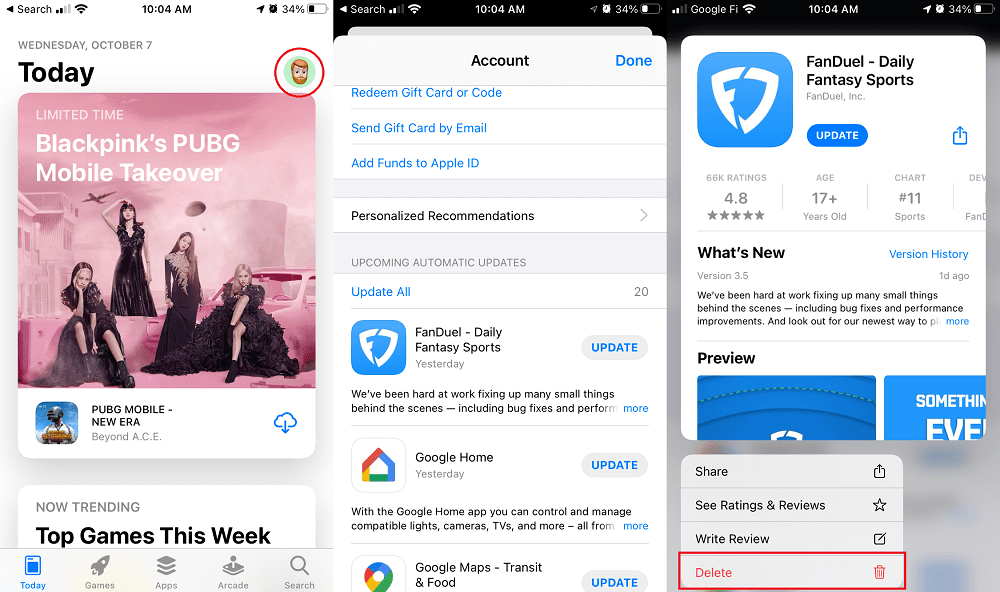
This is one feature that many folks may not actually know about. If you have a slew of pending app updates, the list can get pretty long. But this is also the perfect opportunity to see if an app really belongs on your iPhone. Nonetheless, here’s how you can delete apps, right from the App Store.
Open the App Store.
Tap your Profile Image in the top right-hand corner.
Scroll down to the Updates section.
Long press on the app you wish to delete.
From the drop-down menu, tap Delete.
Tap Delete again to confirm.
Delete apps from App Library
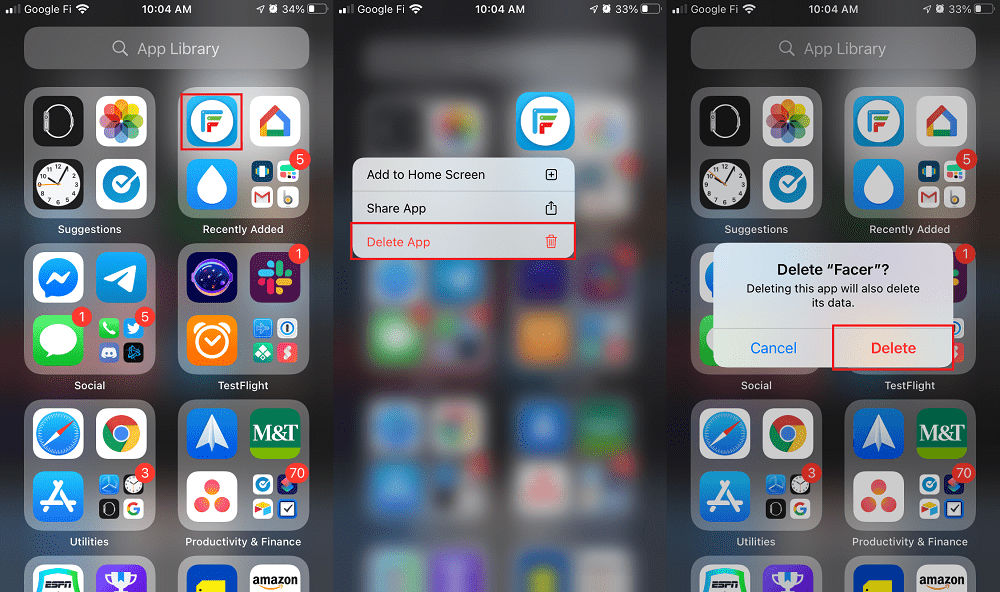
The App Library is a new addition to iOS 14. Now that you can remove Home Screens from appearing, all of your apps need a place to “live”. Apple has created automated folders for your applications, along with a search box at the top. If you’re perusing the App Library and find some apps you want to get rid of, here’s how you can do so.
Swipe all the way to the right to view the App Library.
Locate the app you wish to delete in one of the pre-populated folders.
Long press on the app.
From the drop-down menu, tap Delete App.
Tap Delete again to confirm.
Remove apps from Home Screen without deleting
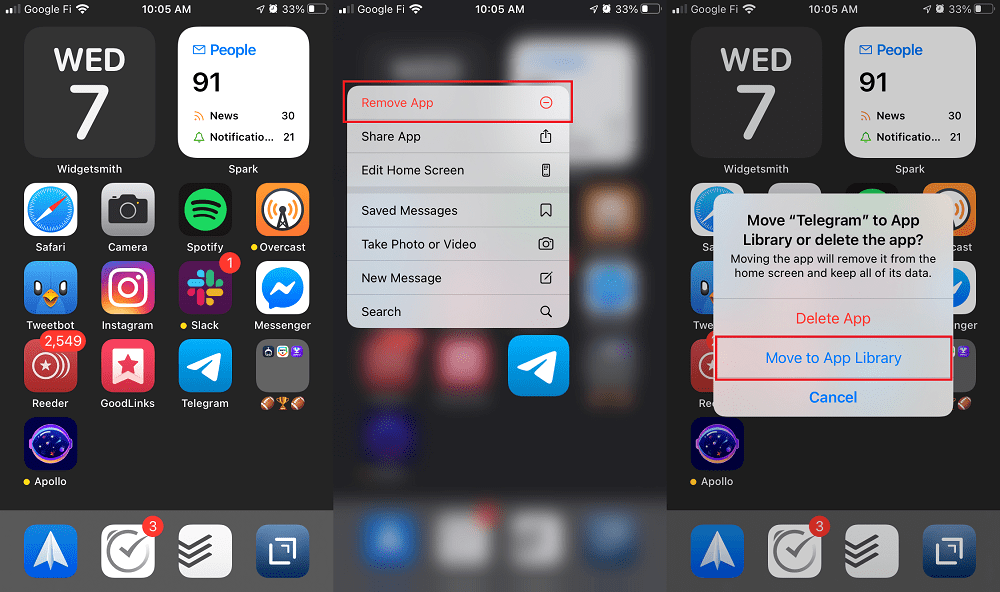
There are some applications that don’t need to be deleted but don’t deserve a spot on your Home Screen. Thankfully, you can remove an app from the Home Screen without hiding it in a folder or deleting it altogether. When removed, these apps will live in the App Library until you need them again.
Locate the app you wish to remove from the Home Screen.
Long press on the app.
From the drop-down menu, tap Remove App.
Select Move to App Library.
Reset Home Screen Configuration
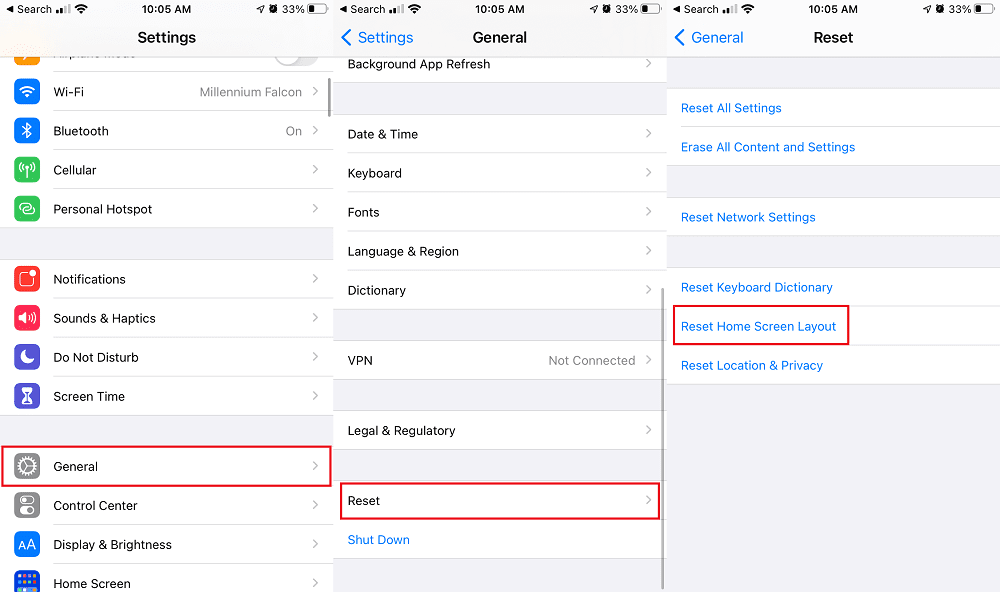
With all of the customization taking place with iOS 14, there can be a lot of moving parts. This may end up being a bit overwhelming, as you could have a jumbled mess of folders, widgets, and icons everywhere. If that’s the case, it may be time for a “reset”. Here’s how you can reset your Home Screen configuration on the iPhone.
Open the Settings app on your iPhone.
Tap General.
Scroll all the way to the bottom and select Reset.
Andrew Myrick is a freelance writer based on the East Coast of the US. He enjoys everything to do with technology, including tablets, smartphones, and everything in between. Perhaps his favorite past-time is having a never-ending supply of different keyboards and gaming handhelds that end up collecting more dust than the consoles that are being emulated.










Write a Comment