Reader View in Safari gives you a great way to see only the text and images relevant to the article. It can take away other distractions on a page or in an article that make it harder to read.
You can enable Reader View in Safari on your iPhone, iPad, and Mac for most any website you visit. But what makes the feature even better is that you can set it to turn on automatically for certain sites or all of those you visit. To improve your Safari experience, we’ll show you how to make the Safari Reader View automatic.
If you use your iPhone or iPad to browse the web in Safari, here’s how to enable Reader View for certain sites as well as all of them.
Turn on Reader View for certain sites
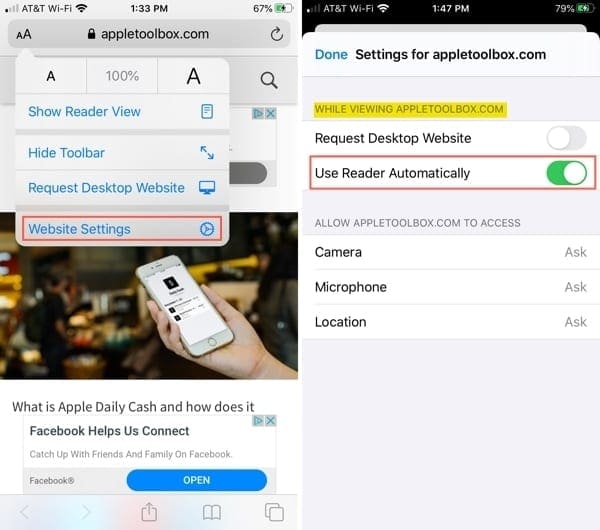
Tap the format button (labeled AA) on the left side of the address bar.
Select Website Settings.
Turn on the toggle for Use Reader Automatically. You’ll notice at the top that these are the settings for that particular website.
Open Website Settings on iPhone
Tip: You can quickly enable Reader View for the current page you’re visiting by tapping and holding the format button. You’ll see the page immediately change to Reader View. Tap and hold the button again to revert to the original view.
Turn on Reader View for all sites
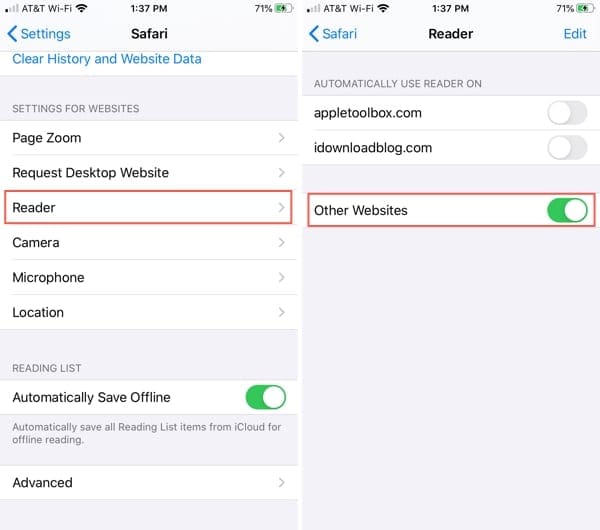
Open your Settings and select Safari.
Scroll down to Settings for Websites and tap Reader.
You’ll see your currently open pages and can turn on the toggles to automatically enable Reader View for those you want.
Turn on the toggle for Other Websites to enable the Reader for all other sites automatically.
Enable Reader for all sites on iPhone
Enable Safari Reader View automatically on Mac
Maybe Safari on your Mac is where you want to use Reader View. Like on iOS, you can enable it for specific sites or all of them.
When Reader View is available for the page you’re visiting, you’ll see the Reader View button in the Safari address bar.
Safari Reader View button
Turn on Reader View for certain sites
Click and hold the Reader View button in the address bar.
Select UseReader Automatically on [website name].
Enable Reader View for the current site
You’ll notice that the action lists the name of the website; not the particular article. This is handy because whenever you visit that site, whether the same page or a different one, Reader View will turn on.
You can also add specific websites manually, which we’ll show you below.
Turn on Reader View for all sites
Click and hold the Reader View button in the address bar.
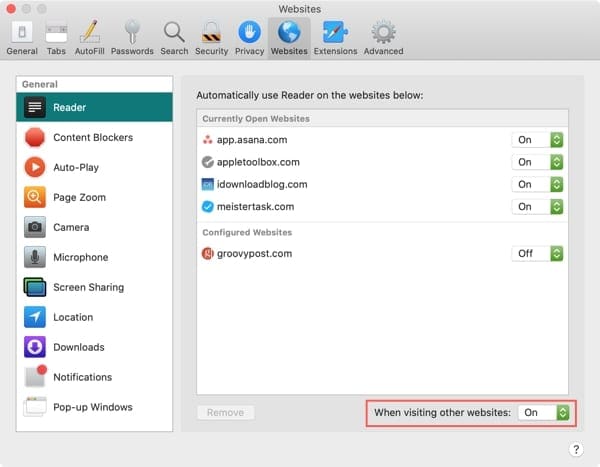
Select Reader Website Preferences.
In the window that opens, you’ll see a list of the sites currently open and configured to use Reader View automatically. (This is where you can go to enable Reader View for certain sites that you have open at the moment. Just click the drop-down box next to the website and pick On.)
At the bottom of the window, click the drop-down box for When visiting other websites and select On.
Enable Reader for all sites on Mac
Now, every website you visit in Safari on your Mac will supply the page in Reader View automatically.
An easier way to read in Safari
Reader View is a wonderful feature for distraction-free reading, especially for lengthy pages or those where you need to focus on what you’re reading.
Do you plan to make Safari Reader View automatic on your device now? Let us know your thoughts on this feature in the comments below!
Sandy worked for many years in the IT industry as a project manager, department manager, and PMO Lead. She then decided to follow her dream and now writes about technology full-time. Sandy holds a Bachelors of Science in Information Technology.
She loves technology– specifically – terrific games and apps for iOS, software that makes your life easier, and productivity tools that you can use every day, in both work and home environments.
Her articles have regularly been featured at MakeUseOf, iDownloadBlog and many other leading tech publications.














Write a Comment