Enrolling your MacBook through DEP or Apple Business Manager may not always work. You may sometimes get the following remote management error: “Unable to configure your Mac. An error occurred while obtaining automatic configuration settings“. Restarting your machine or turning it off completely for a few minutes may help you get rid of this error. However, if you already did that but the error persists, pursue the troubleshooting steps below.
Fix: An Error Occurred While Obtaining Automatic Configuration Settings
Run Apple Diagnostics
First of all, run Apple Diagnostics and check if your hardware is faulty. The tool will quickly determine which of your hardware components doesn’t work properly.
To run the tool, shut down your Mac and disconnect all external devices. Place your laptop on a flat surface in a well-ventilated area. Running the tool will generate a bit of heat, so ensure your Mac can quickly dissipate it.
If you own an Intel-based Mac, turn on the laptop and immediately press and hold the D key. Release it when a progress bar appears on the screen. If you own an Apple Silicon device, turn on your Mac and keep on pressing the power button as your laptop starts up. Release the Power button when the startup options appear on the screen. Then press the Command and D keys.
After testing your hardware, Apple Diagnostics will display a reference code on the screen. Search for that code in Apple Diagnostics’ list of reference codes to see what it means. If the tool didn’t detect any hardware issue, go to the next solution.
Check Your Cables and Adapters
If you already managed to successfully configure another Mac, use the exact same adapter, cable, and Ethernet jack with the problematic machine.
Additionally, use another USB-C port, especially if you have a four-port Mac model. Check if you notice any improvements. Rotate the USB-C adapter upside down. If the ports are half bad, this quick workaround should make a difference. Visually inspect the USB-C port connectors to check if the contacts are faulty.
Try using a different USB-C to Ethernet adapter to switch to Wi-Fi. Maybe the adapter you’re currently using is faulty. Ideally, use an Apple USB-C to Thunderbolt adapter connected to an Apple Thunderbolt to Ethernet Adapter. As you already know, macOS doesn’t always work properly with third-party hardware.
Reset NVRAM (or PRAM)
Reset the settings stored in NVRAM, and check if the error disappears. Shut down your laptop. Then turn it on, and immediately press and hold the Option, Command, P, and R keys for about 20 seconds. You can release the keys after the second startup sound or after the Apple logo appears and disappears for the second time. Wait until your Mac finishes starting up, and try to enroll it through DEP or Apple Business Manager again.
Some users said they had to do an NVRAM/PRAM reset before doing a wipe and reinstall. If you’re getting the same error after the reinstall, reset the NVRAM/PRAM again to complete the enrollment process.
Reinstall macOS
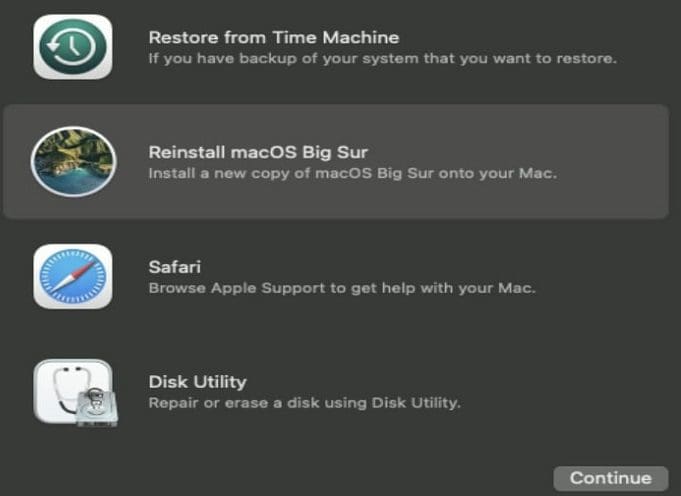
Press the Command and R keys to boot into Recovery Mode. When the Utilities window pops up, select Reinstall macOS. Follow the on-screen instructions to complete the process.
Re-Assign Device and Profile in Intune
If ABM is integrated with Azure Intune, try re-assigning your Mac and user profile in Intune.
Shut down your Mac.
Then unassign the device from MDM in ABM.
Wait for two minutes, and then re-assign the device to MDM in ABM.
After that, assign the profile again in Intune.
Sync the devices in Intune.
If the issue persists, reinstall macOS using the Delete Macintosh HD data volume delete method.
Conclusion
If you can’t enroll your Mac through Apple DEP or Apple Business Manager because the system could not obtain the automatic configuration settings, run Apple Diagnostics. If nothing’s wrong with your hardware, reset NVRAM (or PRAM), and reinstall macOS. Did you manage to get rid of this error? Let us know which solution worked for you.
Madalina has been a Windows fan ever since she got her hands on her first Windows XP computer. She is interested in all things technology, especially emerging technologies — AI and DNA computing in particular.











Write a Comment