• Skip to primary navigation
  • Skip to main content
  • Skip to primary sidebar
  • Skip to footer

AppleToolBox

Tools and Fixes for Mac, iPad, iPhone & iWatch

Search posts

  • About
  • Contact

CONNECT WITH US

CATEGORIES

  • iPhone
  • iPad
  • iPod
  • Apple Watch
  • Mac/MacBook
  • AirPods
  • Apple TV
  • News
  • Apple Services
  • HomePod
  • Reviews

SITE

  • Home
  • About Us
  • Contact
  • Advertise

Search posts

You are here: Home / Mac / Fix: Blank Account Settings Page in Music App on macOS

Fix: Blank Account Settings Page in Music App on macOS

By Madalina Dinita 0 comments Last updated February 26, 2024

Many macOS users have complained about not being able to access their Account Settings in the Apple Music App after installing Sonoma. When they try to open the page, the details are visible for only a fraction of a second, then the page goes blank.

Try reloading the page a few times in a row, sign out, restart your Mac, and sign back in. If these quick workarounds don’t do the trick, jump to the next solution.

Contents

  • Clear the Apple Music Cache
  • Use Your Fingerprint to Access Account Settings
  • Use the Web-Based Apple Music
  • Use the AppleID Manage Option

Clear the Apple Music Cache

Launch Finder, click on the Go menu, and select Go to Folder. Type Users > Username > Library > Caches > com.apple.iTunes.macOS-iTunes-cache

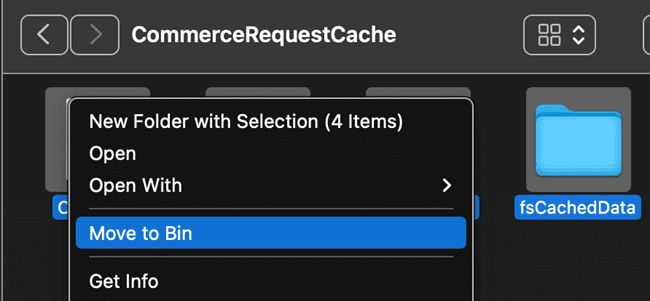
Open the com.apple.iTunes folder, select all the files from the CommerceRequestCache folder, and move them to the Bin.

macOS-CommerceRequestCache

Restart your MacBook, launch Apple Music, and check if clearing the cache solved the problem.

Use Your Fingerprint to Access Account Settings

If your MacBook supports TouchID, enable this option and your computer should prompt for your fingerprint when opening Account Settings in the Music App.

Go to System Settings, select TouchID & Password, add your fingerprint and follow the onscreen instructions.

If you don’t have this option, the app will prompt you to enter your username and password.

Some users confirmed they were able to access Account Settings by using their fingerprint. Maybe this quick workaround works for you as well.

Use the Web-Based Apple Music

You can also use the web-based Apple Music to access your Apple Music library and playlists.

Go to https://music.apple.com/, sign into your account, and hit the Play button.

Use the AppleID Manage Option

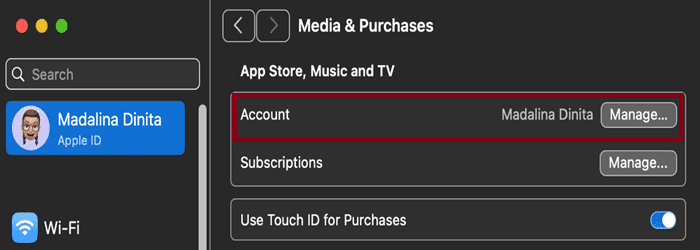
Go to System Settings and click on your AppleID. Select Media/Purchases and click on the Manage button under the Account section.Apple-Account-Media-and-Purchases

You should now be able to access the Account Settings page through the AppStore.

Important Note:

Don’t click on the Manage option on the Subscriptions line. You want to access the Account options, not the options related to your current subscriptions.

If you can’t view your hidden albums in Purchases, and download them again, try using an iOS device.

To access hidden music, open the Music App on your iOS device, click on your Profile picture, and then select Account Settings.

Did any of these workarounds do the trick for you? Did you find other solutions to fix this glitch? Let us know in the comments below.

Related Posts:

  • 2023 Mac Studio lifestyle - 1
    macOS Could Not Be Installed, How-To Fix
  • Photo of someone using Apple Music on their smartphone
    How to Fix Apple Music Not Working on iPhone / iPad
  • How-to-use-Profiles-in-Safari-on-macOS-Sonoma
    How to Use Profiles in Safari on macOS Sonoma
  • macOS Sonoma Screensaver
    How to Download macOS Sonoma
  • macOS Sonoma Screensaver
    How to Use Screen Savers on macOS Sonoma
  • How to Fix Mac Quick Look Not Working on MacBook and iMac
    How to Fix Mac Quick Look Not Working on MacBook and iMac
  • How-to-add-widgets-to-desktop-on-macOS-Sonoma
    How to Add Widgets to Desktop on macOS Sonoma
  • How to Recover Unsaved Word Document on Mac in 5 Best Ways
    How to Recover Unsaved Word Document on Mac in 5 Best Ways
  • What's New MacOS
    What’s New in macOS Sonoma
Madalina Dinita

Madalina has been a Windows fan ever since she got her hands on her first Windows XP computer. She is interested in all things technology, especially emerging technologies — AI and DNA computing in particular.

Reader Interactions

Write a Comment Cancel reply

Primary Sidebar

Recent Posts

  • How to Stop Your Pointer From Moving to Other Macs and Apple Devices
  • What Will Siri AI Bring to Apple Devices?
  • How to Check if Your Device Is Compatible With Siri AI
  • How to Get Rid of Reading List in Safari
  • Gaming Alternatives to Whisky: Which Is Better for Running Windows Games on Mac?
  • How to Hide App Results From Spotlight

Connect with us

Footer

ABOUT

  • About Us
  • Contact us
  • Advertise
  • Privacy
  • Terms of Use

GUIDES

  • iOS & iPadOS
  • Apple ID
  • iCloud
  • App Store
  • iTunes
  • FaceTime
  • iMessage
  • Siri
  • Books and iBooks
  • Game Center
  • AirPlay

CONNECT

  • Facebook
  • Twitter
  • FeedBurner
  • YouTube

© Copyright 2010-2024 Guiding Tech Media · All Rights Reserved

This site and its content are in no way affiliated or endorsed by Apple, Inc. · Reproduction without explicit permission is prohibited

Last Updated on February 26, 2024 by Mitch Bartlett