• Skip to primary navigation
  • Skip to main content
  • Skip to primary sidebar
  • Skip to footer

AppleToolBox

Tools and Fixes for Mac, iPad, iPhone & iWatch

Search posts

  • About
  • Contact

CONNECT WITH US

CATEGORIES

  • iPhone
  • iPad
  • iPod
  • Apple Watch
  • Mac/MacBook
  • AirPods
  • Apple TV
  • News
  • Apple Services
  • HomePod
  • Reviews

SITE

  • Home
  • About Us
  • Contact
  • Advertise

Search posts

You are here: Home / iPhone / Fix: The Requested App Extension Could Not Be Found

Fix: The Requested App Extension Could Not Be Found

By Madalina Dinita 1 comment Last updated October 18, 2021

Your iOS apps may sometimes throw a strange error message that says “The requested app extension could not be found“. This error usually pops up when you try to select something. For example, many users received this error when trying to assign a song for their alarm. Let’s explore what you can do to solve this problem.

Contents

  • Fix: iPhone Couldn’t Find the Requested App Extension
    • Force Close the App and Restart Your Phone
    • Check for Updates
    • Clear Your App Cache
    • Reinstall the Problematic App
    • Conclusion

Fix: iPhone Couldn’t Find the Requested App Extension

Force Close the App and Restart Your Phone

Swipe up from the bottom of the screen, select the problematic app, and then swipe up to close the app. Close all the apps running in the background and turn off your iPhone. Wait for one minute, and turn the device back on. Launch the problematic app again and check if you’re getting the same error.

By the way, you can also force restart the device to see if you notice any improvements. To do that, press and quickly release the Volume up button, and then the Volume Down button. Then immediately press and hold the Side button. Release it when the Apple logo appears on the screen.

Check for Updates

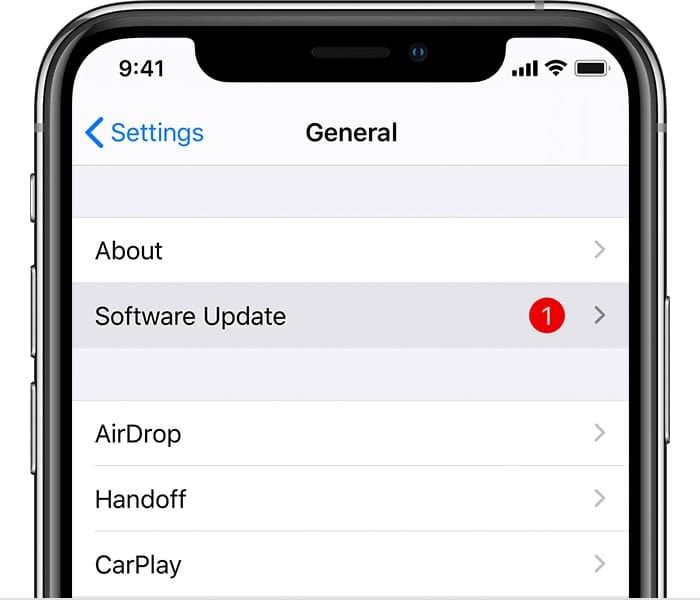
Software Update iPhone XS Max on iOS 13
Make sure your device is running the latest software.

If you’re not running the latest iOS version on your iPhone, go to Settings, tap General, and then select Software Update. Wait until your device downloads and installs the latest updates. Then restart it, and check if all of your apps work properly.

Clear Your App Cache

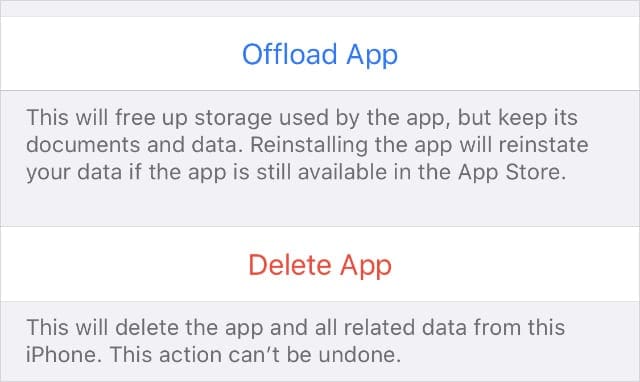
Your app cache could be causing an internal error that’s preventing the system from finding the requested app extension. Go to Settings, select General, and go to iPhone Storage. Select the problematic app and tap Offload App. Restart your iPhone and check the results.

Offload and Delete App buttons from iPhone Storage Settings
Choose to Offload or Delete apps from your iPhone settings.

Reinstall the Problematic App

If the error persists, uninstall the problematic app. Then restart your iPhone, and reinstall the app. Check if installing a fresh copy of the app solves the problem. If you’re still getting the same error, contact the app developer for further help.

Conclusion

If your iPhone says that the app extension you requested could not be found, close the app and restart your device. Then check for iOS updates, and clear the app cache. If the error persists, uninstall and reinstall the app.

Did these methods solve the problem for you? Did you find other ways to fix the issue? Let us know in the comments below.

Related Posts:

  • Photo of an Apple Watch on an amber background
    Apple Watch Alarms - How to Set Up, Use, and Fix…
  • Photo of someone using Apple Music on their smartphone
    How to Fix Apple Music Not Working on iPhone / iPad
  • pexels-designecologist-1779487
    The Best iPhone And Mac Shortcuts For Beginners
  • iphone alarm not ringing
    iPhone Alarm Not Going Off in iOS 26? Here’s What to Do
  • The Clock App Widget on an iPhone Screen
    How To Change Alarm Volume on Your iPhone
  • 2023 Mac Studio lifestyle - 1
    macOS Could Not Be Installed, How-To Fix
  • iPhone 15 Pro Max - 1
    10 Handy Apple Shortcuts You Can Use Every Day
  • photo of an iphone with ios 16 downloaded on it
    iOS 16 Tips and Tricks: The Definitive List
  • iPhone 15 Pro Max - 4
    Best iPhone Lock Screen Widgets for iOS 17
Madalina Dinita

Madalina has been a Windows fan ever since she got her hands on her first Windows XP computer. She is interested in all things technology, especially emerging technologies — AI and DNA computing in particular.

Reader Interactions

Write a Comment Cancel reply

Show 1 Comments

  1. Fiona says

    November 4, 2022 at 6:25 PM

    Unfortunately this did not work. “Clock” didn’t show up in my iPhone storage, and also cannot be uninstalled.

    Reply

Primary Sidebar

Recent Posts

  • What to Do When Windows 11 Won’t Detect Your iPad
  • Outlook Outage 2026: iPhone Fixes for Sign-In Chaos
  • Guide to Changing iMessage Backgrounds on iPhone and Mac
  • Has Apple Killed Vision Pro? (Insane Sales Flop Explained)
  • 5 Great Apps for Staying Organized on Your iPhone
  • What Are iPhone Antennas and Do You Need One?

Connect with us

Footer

ABOUT

  • About Us
  • Contact us
  • Advertise
  • Privacy
  • Terms of Use

GUIDES

  • iOS & iPadOS
  • Apple ID
  • iCloud
  • App Store
  • iTunes
  • FaceTime
  • iMessage
  • Siri
  • Books and iBooks
  • Game Center
  • AirPlay

CONNECT

  • Facebook
  • Twitter
  • FeedBurner
  • YouTube

© Copyright 2010-2024 Guiding Tech Media · All Rights Reserved

This site and its content are in no way affiliated or endorsed by Apple, Inc. · Reproduction without explicit permission is prohibited