• Skip to primary navigation
  • Skip to main content
  • Skip to primary sidebar
  • Skip to footer

AppleToolBox

Tools and Fixes for Mac, iPad, iPhone & iWatch

Search posts

  • About
  • Contact

CONNECT WITH US

CATEGORIES

  • iPhone
  • iPad
  • iPod
  • Apple Watch
  • Mac/MacBook
  • AirPods
  • Apple TV
  • News
  • Apple Services
  • HomePod
  • Reviews

SITE

  • Home
  • About Us
  • Contact
  • Advertise

Search posts

You are here: Home / iPhone / 5 Fixes for Siri Voice Stutters or Lags on iPhone

5 Fixes for Siri Voice Stutters or Lags on iPhone

By Mehvish 0 comments Last updated May 27, 2024

Contents

  • Basic Fixes That You Should Try First
  • Fix 1: Change Siri Voice
  • Fix 2: Add Text in Speak Action
  • Fix 3: Reduce the Number of Alarms
  • Fix 4: Test with Low Power Mode
  • Fix 5: Play Silent Track from Apple Music

Basic Fixes That You Should Try First

  • Restart your iPhone.
  • Force restart your iPhone.
  • Make sure your iPhone is running the latest software. To check and update, go to Settings > General > Software Update.

Now, let’s check other solutions where you need to change a few settings.

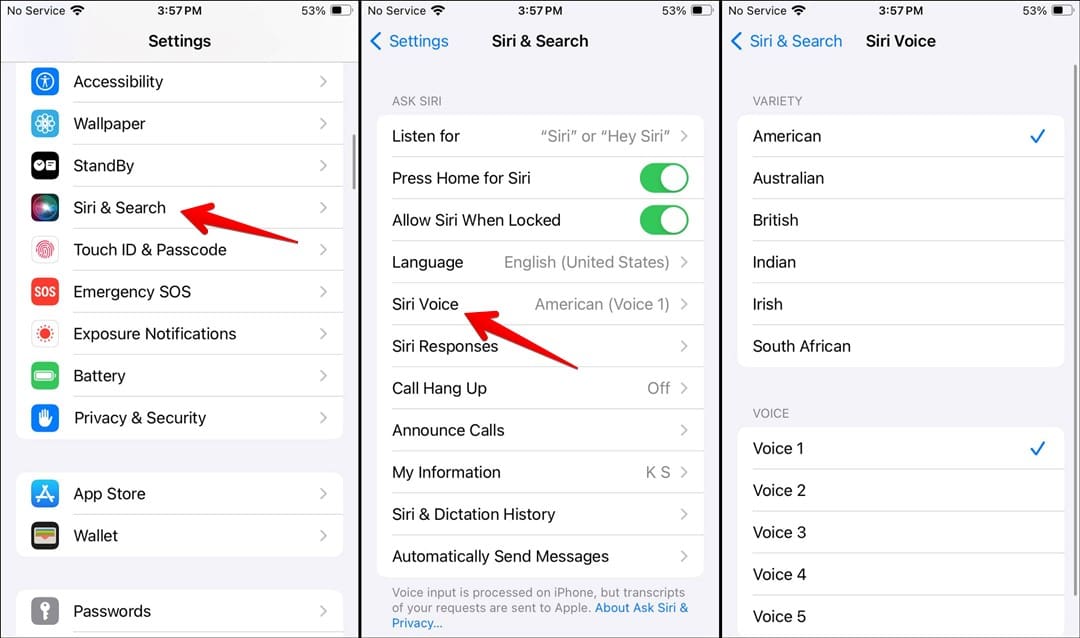
Fix 1: Change Siri Voice

The best solution that has fixed the problem for many users is to change Siri’s voice. You can do that by going to Settings > Siri & search > Siri Voice. Select a different voice from the options. For instance, someone switched to Voice 2 from Voice 1, and everything came back on track. Similarly, another user changed Siri’s language to Australian, and Siri stopped stuttering.

Fix 2: Add Text in Speak Action

If you use the Text action in your shortcut to add the text, try switching to the Speak action instead. Then, enter your text in the Text field of the Speak action. Save and run the shortcut again. Hopefully, things will be fine.

Fix 3: Reduce the Number of Alarms

If Siri stutters or lags after running an alarm, reduce the number of alarms stored on your iPhone. I know it’s a weird fix, but it has helped some users. So, open the Clock app on your iPhone and go to the Alarms tabs. Delete unnecessary alarms from the list.

Fix 4: Test with Low Power Mode

Strangely, Low Power Mode can also help Siri talk normally. For some users, turning off the Low Power mode and charging their phone fixed the issue, whereas for others, enabling the Low Power mode at the beginning of the shortcut script followed by turning it off at the end of the script has helped. So, try both and let us know which fixed the issue.

Pro Tip: You can also turn off Bluetooth and Wi-Fi at the beginning of the script. Do turn them on again at the end.

Fix 5: Play Silent Track from Apple Music

Next, try playing a silent track in your shortcut script before making Siri say something. This seems to resolve the Siri voice stutter issue. If you have an Apple Music subscription, search for silent tracks in the Apple Music app.

Related Posts:

  • pexels-tima-miroshnichenko-6860464
    How To Start Using Regex With The Shortcuts App
  • Photo of someone using Apple Music on their smartphone
    How to Fix Apple Music Not Working on iPhone / iPad
  • 2023 Mac Studio lifestyle - 1
    macOS Could Not Be Installed, How-To Fix
  • pexels-designecologist-1779487
    The Best iPhone And Mac Shortcuts For Beginners
  • 2022 Mac Mini with Studio Display and Accessories
    Mac Tips For New Users In 2023
  • pexels-jess-bailey-designs-810079
    How To Run Linux On Mac: A Step-by-Step Guide
  • pexels-karolina-grabowska-5624998
    The Best Apple Gifts for The 2022 Holidays
  • 0E4A6A0B-65E8-4184-B0C9-16C2179A1256
    The Best Weight Loss Apps For iPhone In 2021
  • photo of an iphone with ios 16 downloaded on it
    iOS 16 Tips and Tricks: The Definitive List
Mehvish
Mehvish

Mehvish Mushtaq is a computer engineer by degree. Her love for Android and gadgets led her to develop the first Android app for Kashmir. Known as Dial Kashmir, she won the prestigious Nari Shakti award from the President of India. She has been writing about technology for 6+ years and her favorite categories include how-to guides, explainers, tips and tricks for iOS/iPadOS, Android, social media, and web apps.

Reader Interactions

Write a Comment Cancel reply

Primary Sidebar

Recent Posts

  • How to Manage Your iPhone Call Log
  • Are Apple’s Safety Precautions Enough for AirTags?
  • How to Hide Username and Photo on the Mac Lock Screen
  • Microsoft Resume vs. Apple Handoff – Which Wins for Cross-Device Work?
  • How to Export iTunes Library to New Computer
  • What the Gemini Desktop App Will Bring to Mac

Connect with us

Footer

ABOUT

  • About Us
  • Contact us
  • Advertise
  • Privacy
  • Terms of Use

GUIDES

  • iOS & iPadOS
  • Apple ID
  • iCloud
  • App Store
  • iTunes
  • FaceTime
  • iMessage
  • Siri
  • Books and iBooks
  • Game Center
  • AirPlay

CONNECT

  • Facebook
  • Twitter
  • FeedBurner
  • YouTube

© Copyright 2010-2024 Guiding Tech Media · All Rights Reserved

This site and its content are in no way affiliated or endorsed by Apple, Inc. · Reproduction without explicit permission is prohibited








