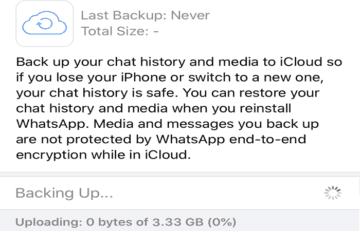
Many iPhone users complained about not being able to back up WhatsApp data. The backup process gets stuck or appears to have successfully completed but there’s no data in the backup folder. If you already restarted your iOS device but you’re still unable to back up your WhatsApp data, follow the troubleshooting steps below.
First things first, install the latest iOS updates on your device. Go to Settings, select General and tap Software Update.
Then make sure you have enough free space in iCloud storage. If you’re running out of storage space, remove old backup folders from iCloud. Additionally, remove old devices from iCloud backup.
For example, if you want to backup 2GB of WhatsApp data, make sure you have at least 5.1GB of free iCloud space. As a quick reminder, iCloud offers you 5GB of free storage. If you need more storage space, upgrade to one of the Premium options.
After deleting unnecessary backup files, log out of iCloud and turn off your iPhone. Don’t just restart your device, turn it off completely, and wait for one minute. Then turn on your device, sign in to your iCloud account, and check if you can back up your WhatsApp data.
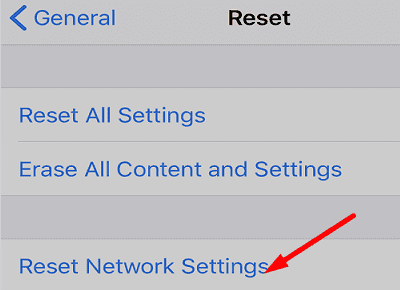
Reset Network Settings
Go to iPhone Settings, select General, and tap Reset.
Then select Reset Network Settings. This will reset all of your Wi-Fi and cellular network settings.
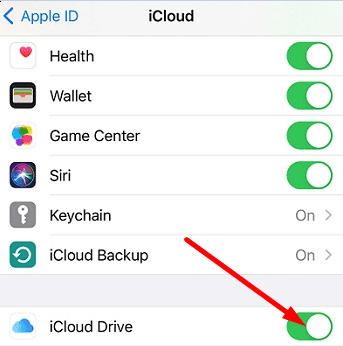
Go to iCloud Settings and disable iCloud Drive.
Select Manage Storage and delete your WhatsApp backup.
Restart your device, re-enable iCloud, and check the results.
If nothing happens after deleting iCloud data, contact Apple Support and ask them to rebuild your iCloud storage. After you do that, close WhatsApp and delete your backup data again.
Delete Previous Backups and Remove SIM Card
If the issue persists, follow all the steps listed above and remove your SIM card as well.
Disable Whatsapp Auto Backup.
Then delete Whatsapp backup from iCloud.
Go to iCloud Drive and toggle Whatsapp off.
Turn off iCloud Drive.
Then go to Backups and delete your iPhone backup.
Disable iCloud completely.
Go to iPhone Settings, and reset your network settings.
Turn off your phone and remove the SIM card.
Wait for one minute, reinsert the SIM card, and turn on your iPhone.
Re-enable iCloud and iCloud Drive.
Go to WhatsApp and try to back up your data manually.
Conclusion
If your iPhone won’t back up WhatsApp data, make sure you have enough free space in iCloud storage. Delete unnecessary backups to free up some space. Then log out of iCloud and reset your network settings. If the issue persists, turn off your iPhone, remove your SIM card, wait for one minute and then reinsert the card.
Did you manage to fix the problem? Let us know in the comments below.
Madalina has been a Windows fan ever since she got her hands on her first Windows XP computer. She is interested in all things technology, especially emerging technologies — AI and DNA computing in particular.
Same problem I am facing, I notice this started happening from last month on only i.e. Dec,2022.
Please confirm if this is the same case with other user ?
whatsapp backup still not working after all the above instructions, when I try contacting iphone support. there is no answer. I’m annoyed because of this.











I followed all the steps but My whatsapp can’t back up on my iphone
Same problem I am facing, I notice this started happening from last month on only i.e. Dec,2022.
Please confirm if this is the same case with other user ?
Yes. I am having the same issue with WhatsApp for the last 2 weeks.
I have done everything that I have seen on Google. Nothing has helped so far.
whatsapp backup still not working after all the above instructions, when I try contacting iphone support. there is no answer. I’m annoyed because of this.